
You are viewing the macOS 26 version of this guide, recorded on macOS Tahoe 26 (MacBook Pro) on 4 October 2026. It is kept as it was and not updated. See the macOS 27 version.
howtosimply.com/guides/macbook-not-charging-8-fixes-to-try/ · Checked 4 October 2026 · MacBook Pro · macOS Tahoe 26
In this guide
Unplug the power adapter from the socket, wait a few seconds and plug it in again. Try another socket and another USB-C cable, and clean the port. If the menu bar says Not Charging while the MacBook works, the charger is usually too weak or charging is paused on purpose.
2 of 8 steps with real screenshots · 2 official sources below
- Device
- Mac
- Shown on
- macOS Tahoe 26 (MacBook Pro)
- App
- System Settings
- Real screenshots
- 2 of 8 steps
- Checked
- 4 October 2026
- Sources
- 2 official, linked below
Step by step
Unplug the adapter and plug it in again
Take the power adapter out of the wall socket, wait a few seconds and put it back. If charging starts, Apple says the cause may have been electrical interference on the power line. Appliances such as fridges on the same circuit can cause it.
Try another socket
Make sure the socket works, for example with a lamp. Avoid extension leads for the test.
Try another USB-C cable
Cables fail more often than adapters. Use a different USB-C cable that is made for charging.
Try another plug piece
If you use the removable plug on the Apple adapter, try another Apple plug or the long power cable.
Clean the port
Look into the USB-C or MagSafe port with a torch. Fluff and debris stop the contact. Remove it carefully and without metal tools.
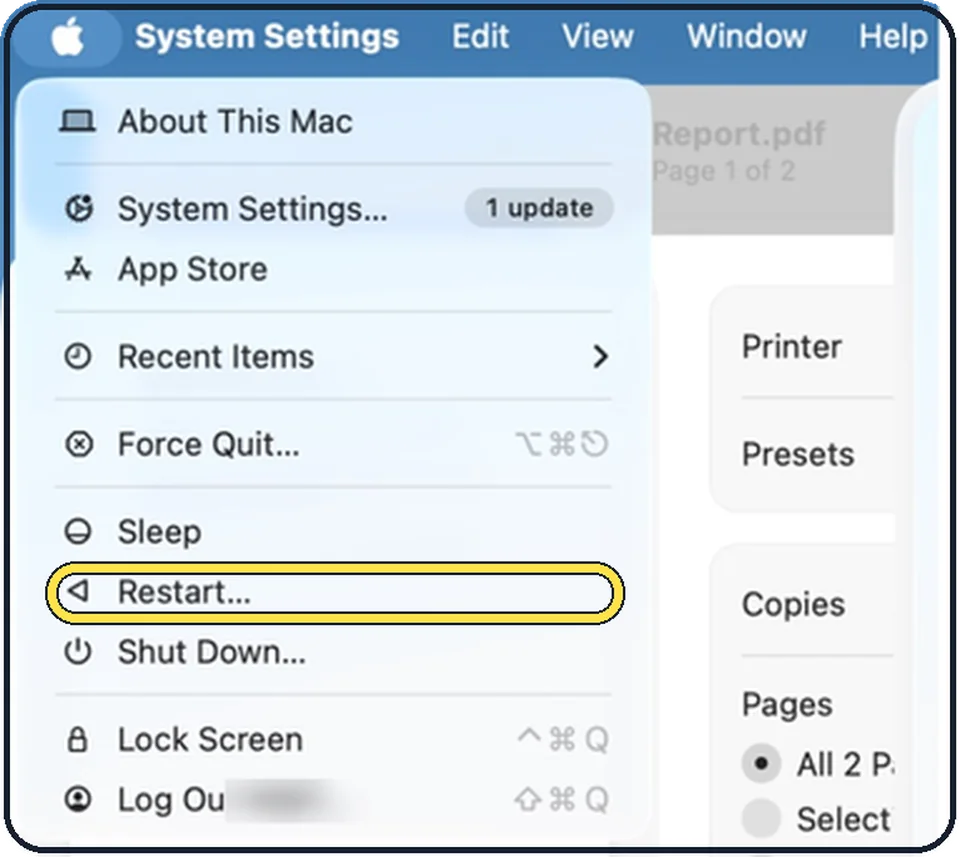
Tap the picture to see it full size Restart the MacBook
Choose Apple menu, Restart.
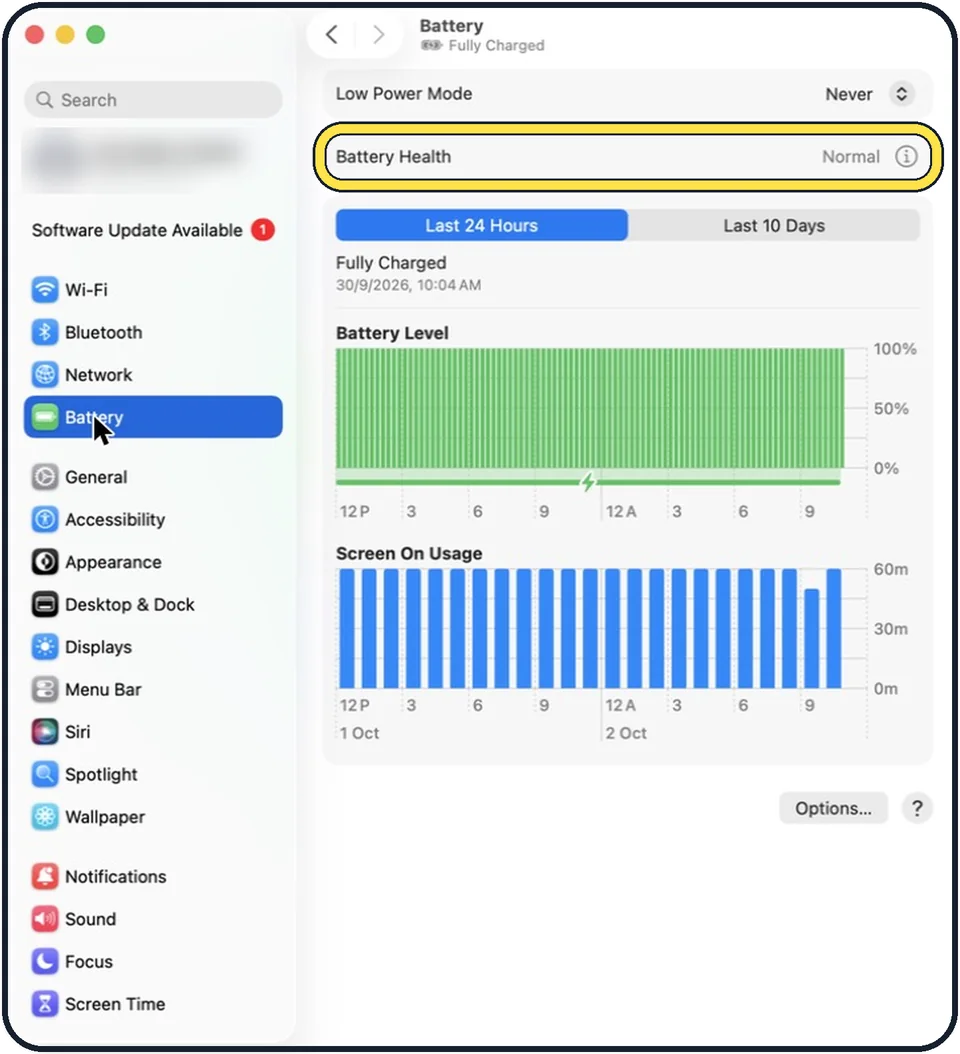
Tap the picture to see it full size Read the battery status
Click the battery icon in the menu bar. If it says Not Charging, see the three reasons below. The Battery page in System Settings shows the battery health.
Install updates and let the adapter cool
Updates can improve how the Mac communicates with the power adapter. A warm adapter is normal, but use it where air can reach it, not under a blanket.
About this guide
A MacBook that does not charge usually has a problem with the socket, the cable or the adapter, not with the battery. Work through the list from the top.
Menu names are from recent versions of macOS, where the settings app is called System Settings. The pictures are our own screenshots from macOS Tahoe 26 on a MacBook Pro.
Good to know
Not Charging has three harmless causes, according to Apple. First, the Mac has paused charging on purpose to protect the battery. The level can then fall to 93 percent or lower before charging starts again. Second, the charger does not supply enough watts to run the Mac and charge it at once, which is common with phone chargers and some docks. Third, heavy work such as video editing or games uses more power than the charger delivers.
In the second and third case the MacBook still runs from the charger. It just does not fill the battery.
If nothing helps, Apple or an authorised service provider can test the adapter and the MacBook.
If the MacBook does not start at all: Mac won't turn on: 7 things to try before a repair.
Checking the battery itself: how to check battery health on a MacBook.
In short: Replug the adapter, other socket, other cable, clean the port, restart, read the battery status, update.
- Apple Support: If your USB-C power adapter isn't charging your Mac laptop
- Apple Support: If your Mac battery status is "Not Charging"
Links checked in October 2026. Menus and features can change after software updates. These steps match the version named at the top.
Did this guide work for you?
Sorry about that. What happened?