
You are viewing the macOS 26 version of this guide, recorded on macOS Tahoe 26 (MacBook Pro) on 4 October 2026. It is kept as it was and not updated. See the macOS 27 version.
howtosimply.com/guides/how-to-use-quick-look-on-a-mac/ · Checked 4 October 2026 · MacBook Pro · macOS Tahoe 26
In this guide
Click a file once in the Finder or on the desktop and press the Space bar. A preview opens without starting any app. Press the Space bar again to close it.
6 of 7 steps with real screenshots · 1 official source below
- Device
- Mac
- Shown on
- macOS Tahoe 26 (MacBook Pro)
- App
- Finder
- Real screenshots
- 6 of 7 steps
- Checked
- 4 October 2026
- Sources
- 1 official, linked below
Step by step
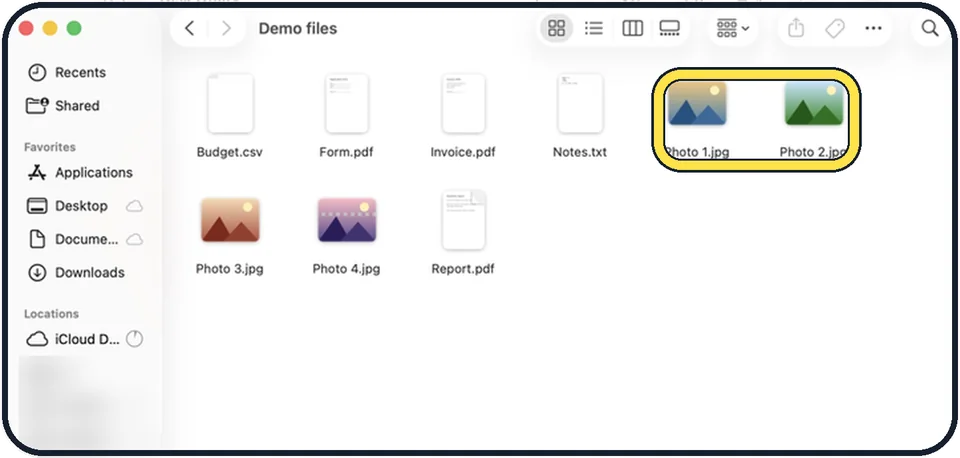
Tap the picture to see it full size Select the file
Click it once in a Finder window or on the desktop. You can select several files. Quick Look also works on attachments in Mail and Messages.
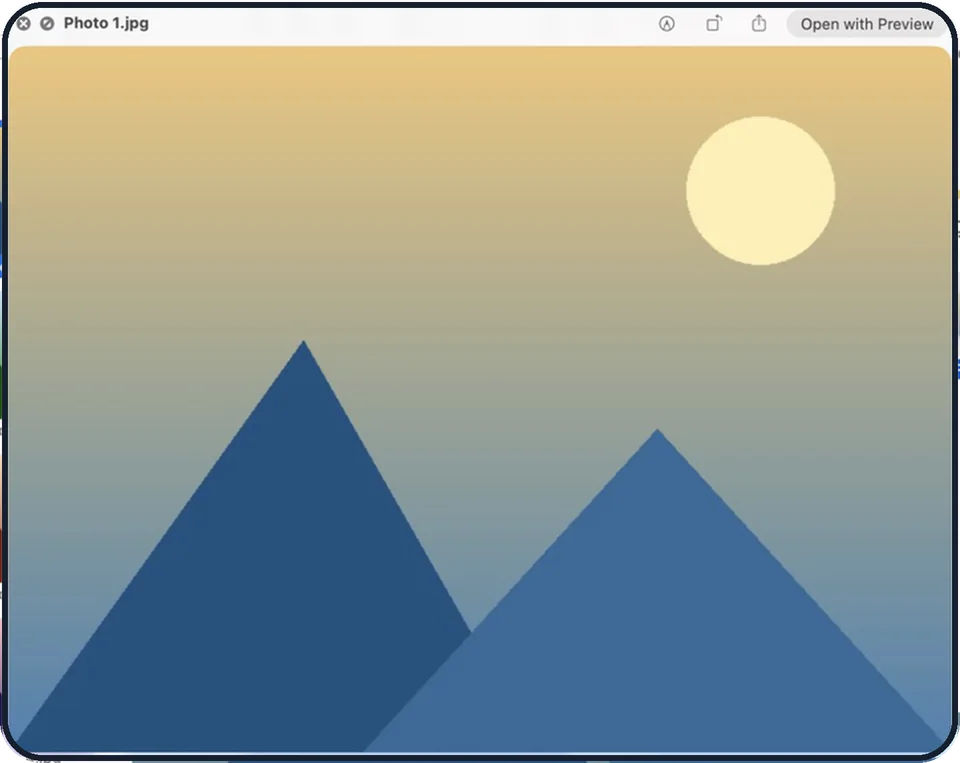
Tap the picture to see it full size Press the Space bar
The preview window opens. If you selected several files, the last one you selected is shown first.
Look through several files
Press the Right Arrow or Left Arrow key, or click the arrows near the top left of the window. To see all the files as a grid, press Command and Return.
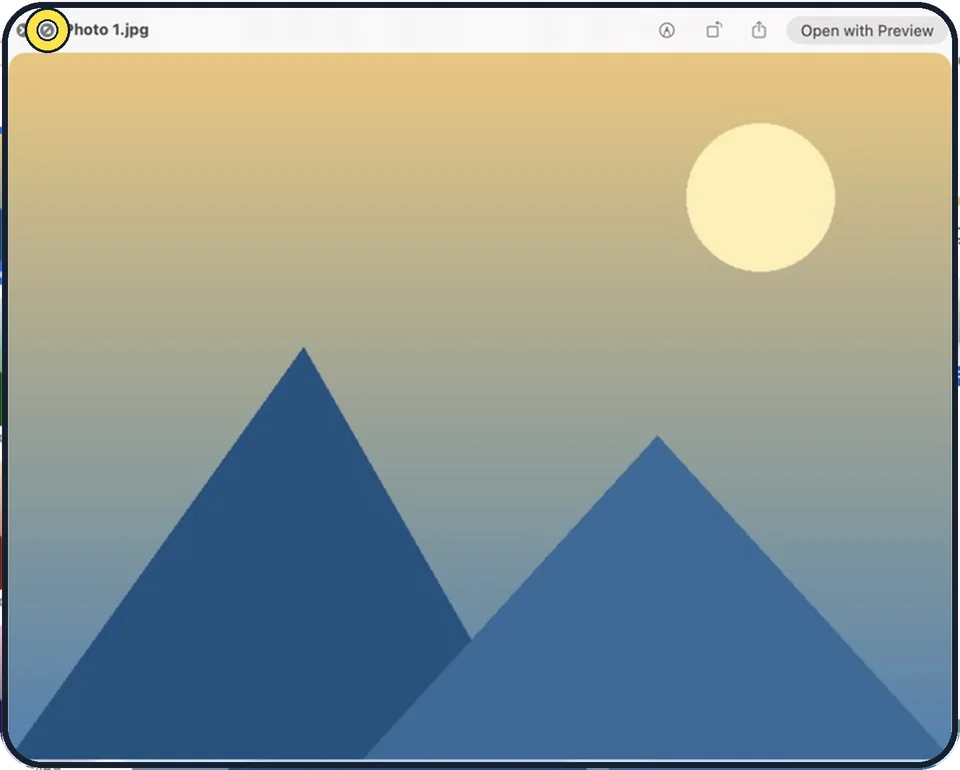
Tap the picture to see it full size Make it larger
Drag a corner of the window, or click the full screen button in the top left. Command and the plus key zooms in. Command and the minus key zooms out.
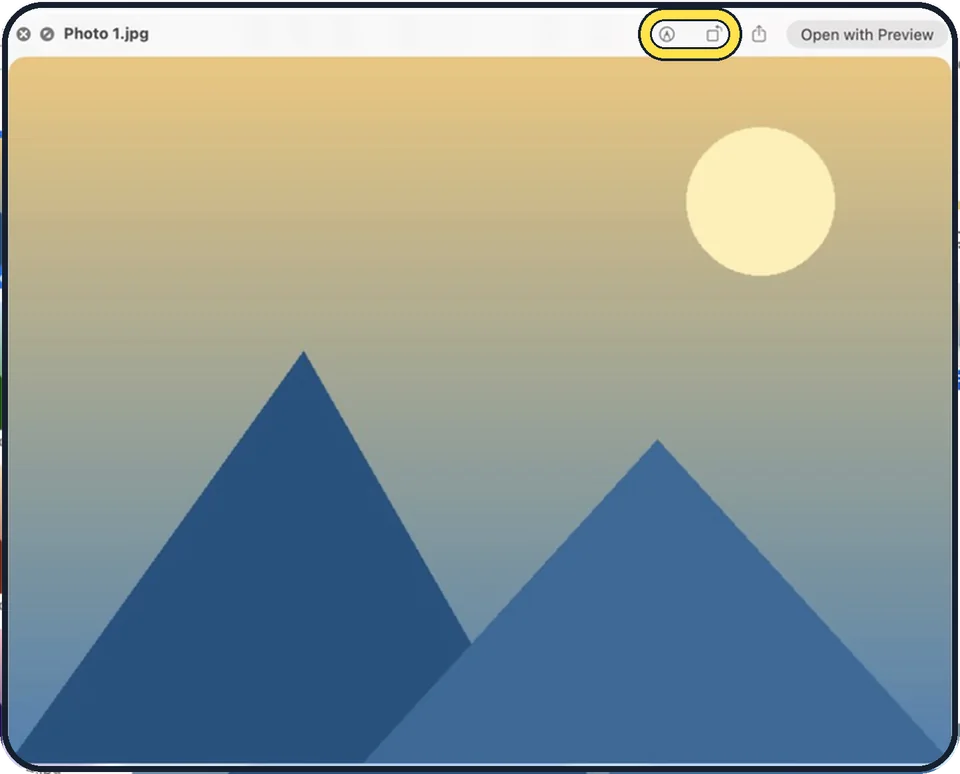
Tap the picture to see it full size Make a quick change
The buttons at the top let you rotate a picture, mark it up with the Markup button, or shorten a video or sound file with the Trim button. Click Done to keep the change.
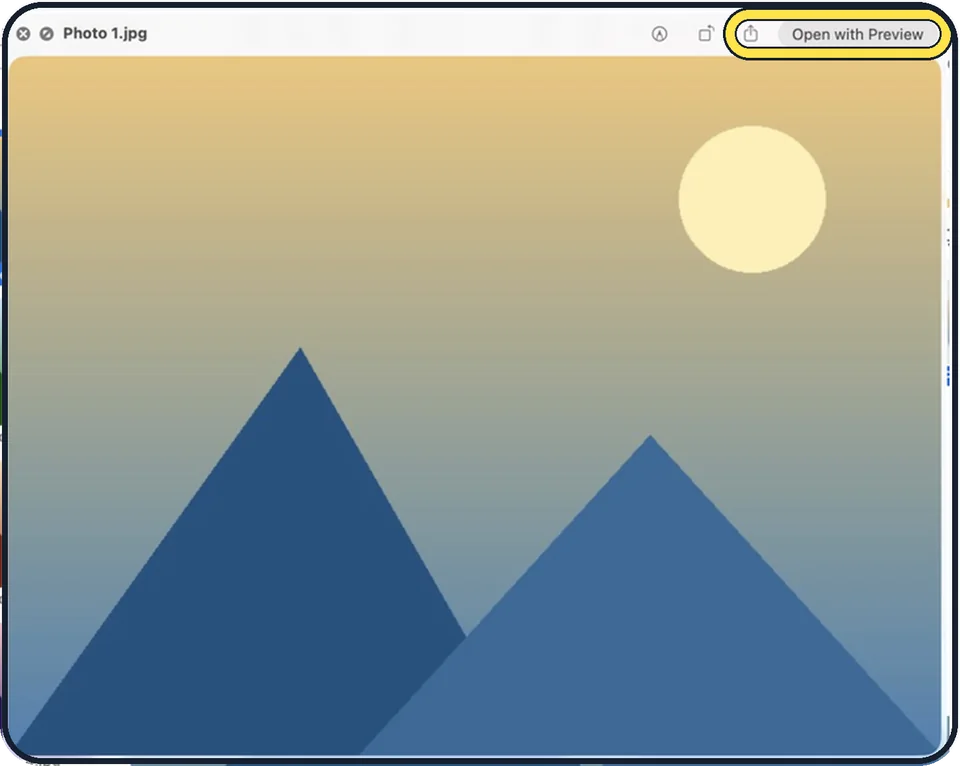
Tap the picture to see it full size Open or share the file
Click the Open with button to open it in its usual app, or click the Share button to send it.
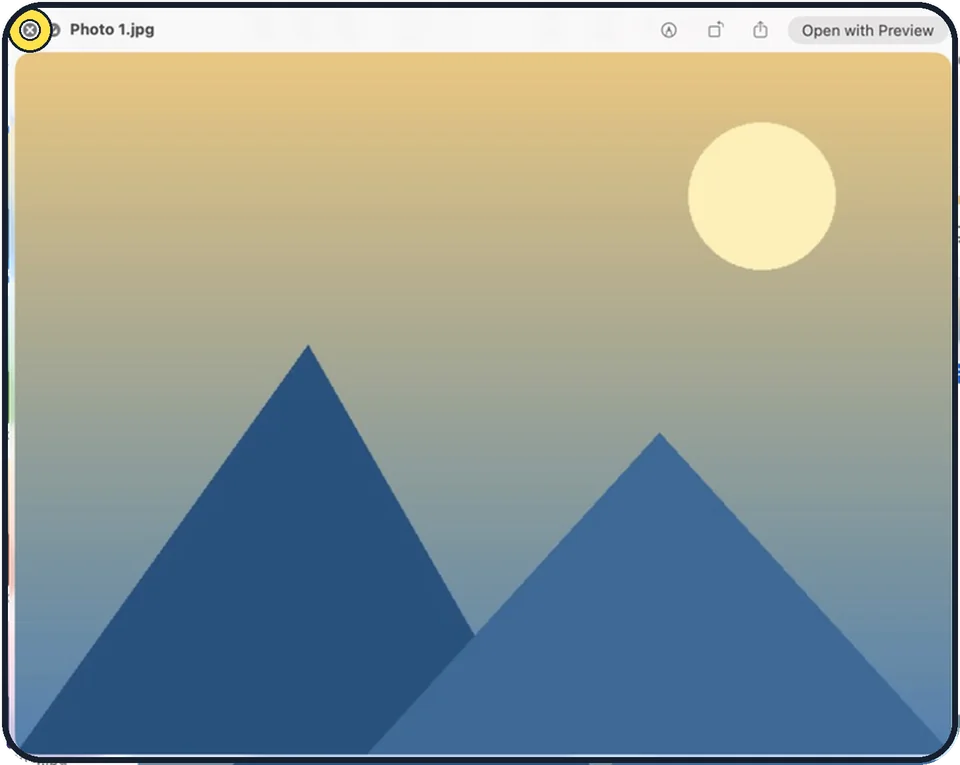
Tap the picture to see it full size Close the preview
Press the Space bar again or click the Close button.
What we saw on our device
- Look through several files: On our MacBook Neo, macOS 27 shows only the arrows, with no count such as "1 of 2" in the title.
- See all the files as a grid: On our MacBook Neo the grid button sits at the top, just left of Markup.
- Make it larger: On our MacBook Neo, the full-screen view had a bar at the bottom with three buttons: Share, exit full screen and Close.
- Open or share the file: On our MacBook Neo it read Open with Preview for a JPEG.
- Open or share the file: Our Share menu showed "JPEG Image · 101 KB" and listed AirDrop, Mail, Messages, Notes, Add to Photos, Freeform, Journal, Reminders and Copy.
About this guide
Quick Look shows what is inside a file in a moment: a photo, a PDF, a video, a document. It saves opening an app just to check that you have the right file.
The pictures are diagrams of the keys to press.
Good to know
The Rotate button turns a picture to the left. Hold the Option key and it turns to the right instead.
With several files in full screen, the Play button shows them as a slideshow.
In a photo, Control-click the picture and choose Copy Subject to copy the main subject without its background.
In short: Select a file > Space bar > ‹ › or arrow keys for other files > Space bar or Esc to close.
Links checked in October 2026. Menus and features can change after software updates. These steps match the version named at the top.
Did this guide work for you?
Sorry about that. What happened?