
howtosimply.com/guides/how-to-turn-off-autoplay-in-youtube-on-android/ · Checked October 2026 · build CP3A.261005.005 · Google Pixel 10a, Android 17
In this guide
In YouTube tap You, the gear at the top right, Playback and switch off Autoplay next video. The next video no longer starts by itself when one ends.
5 of 5 steps with real screenshots · 1 official source below
- Device
- Android
- Shown on
- Google Pixel 10a, Android 17 (build CP3A.261005.005)
- App
- YouTube
- Path
- YouTube › You
- Real screenshots
- 5 of 5 steps
- Checked
- October 2026
- Sources
- 1 official, linked below
Step by step
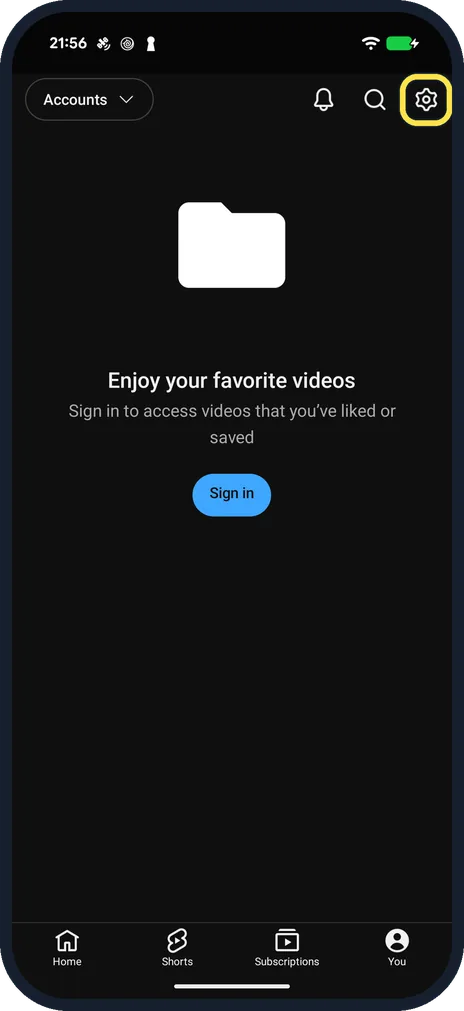
Open YouTube settings
Tap You at the bottom right, then the gear at the top right. Signed out, our You tab asked us to sign in, and the gear was still there.
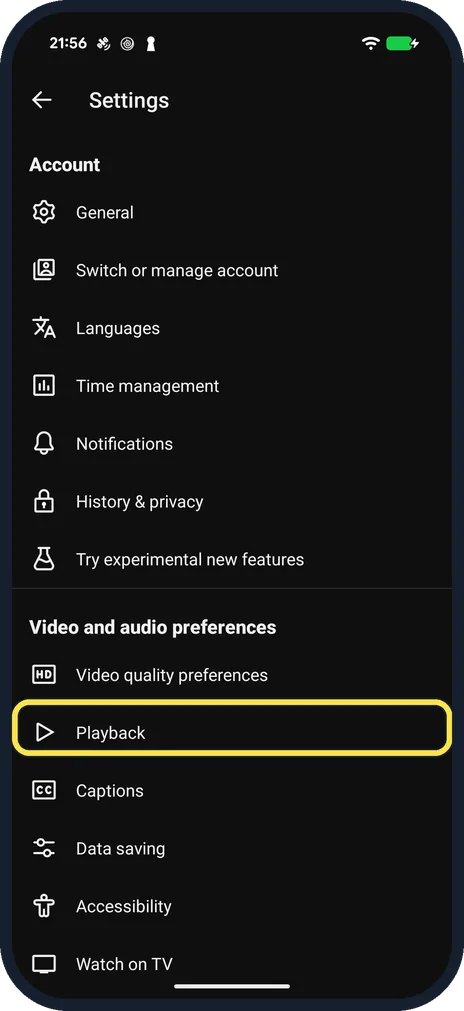
Tap Playback
It is under Video and audio preferences, below Video quality preferences.
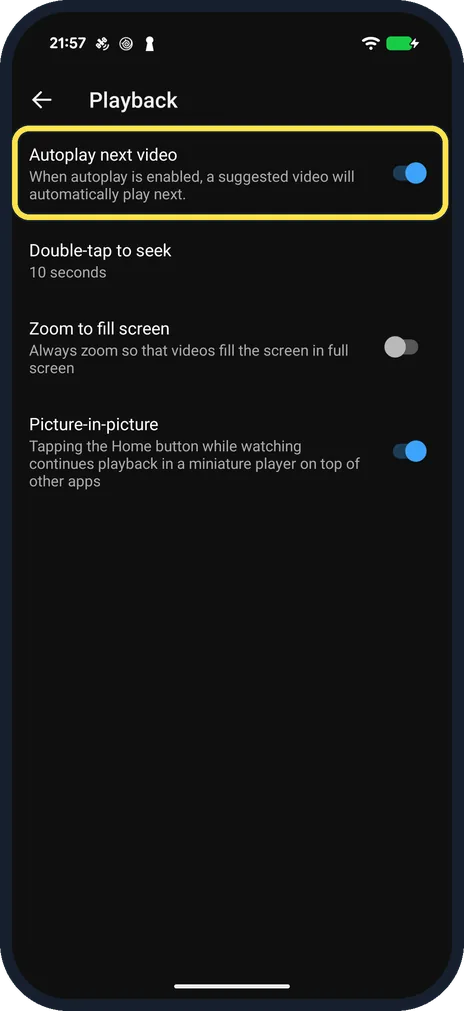
Find Autoplay next video
It is the first switch on the Playback page: When autoplay is enabled, a suggested video will automatically play next. Ours was on.
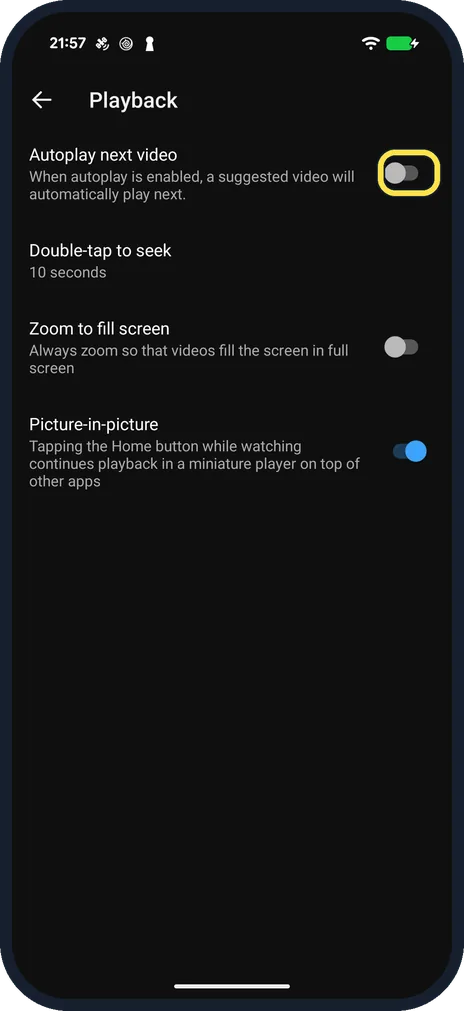
Switch it off
Tap the switch. It turns grey, and the next video no longer starts by itself.
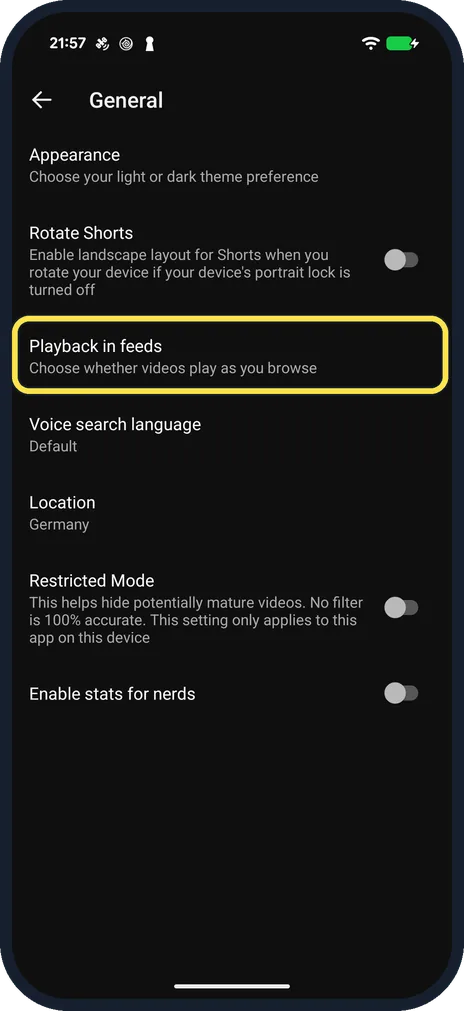
Stop videos playing in the feed, too
That is a separate setting: back in Settings, tap General, then Playback in feeds, and choose when videos play as you browse.
If you do not see this option
- You cannot change Autoplay YouTube says that on a supervised account a parent or guardian may have turned Autoplay off for you. For users aged 13 to 17 it is off by default. Source: Autoplay videos
- Your YouTube shows Autoplay elsewhere YouTube's help names it Settings, Autoplay; on our phone the switch was Autoplay next video under Playback. There is also an Autoplay switch at the top of the video player. Source: Autoplay videos
If this does not work
- The next video still plays on another device YouTube says each device keeps its own Autoplay setting, so turn it off on each one. Source: Autoplay videos
- Autoplay stops by itself YouTube says Autoplay stops after 30 minutes without activity on a mobile network, and after 4 hours on Wi-Fi. Source: Autoplay videos
About this guide
YouTube keeps playing a suggested video after each one ends. The switch is in the app settings under Playback.
The screenshots are from the YouTube app on our Google Pixel 10a with Android 17 (build CP3A.261005.005), in dark mode. YouTube was signed out; the settings below were there all the same. We switched Autoplay back on afterwards.
Good to know
A sleep timer stops the current video after a set time: how to set a sleep timer in YouTube.
In short: YouTube, You, gear, Playback: Autoplay next video off.
Links checked in October 2026. Menus and features can change after software updates. These steps match the version named at the top.
📷 See real photos from the Pixel 10a in our Camera Lab, next to 10 other phones.
Did this guide work for you?
Sorry about that. What happened?