
You are viewing the macOS 26 version of this guide, recorded on macOS Tahoe 26 (MacBook Pro) on 4 October 2026. It is kept as it was and not updated. See the macOS 27 version.
howtosimply.com/guides/how-to-stop-spaces-rearranging-themselves-on-a-mac/ · Checked 4 October 2026 · MacBook Pro · macOS Tahoe 26
In this guide
Open System Settings, click Desktop & Dock, scroll to Mission Control and switch off Automatically rearrange Spaces based on most recent use. Your desktops then stay in the order you put them.
4 of 4 steps with real screenshots · 1 official source below
- Device
- Mac
- Shown on
- macOS Tahoe 26 (MacBook Pro)
- App
- System Settings
- Real screenshots
- 4 of 4 steps
- Checked
- 4 October 2026
- Sources
- 1 official, linked below
Step by step
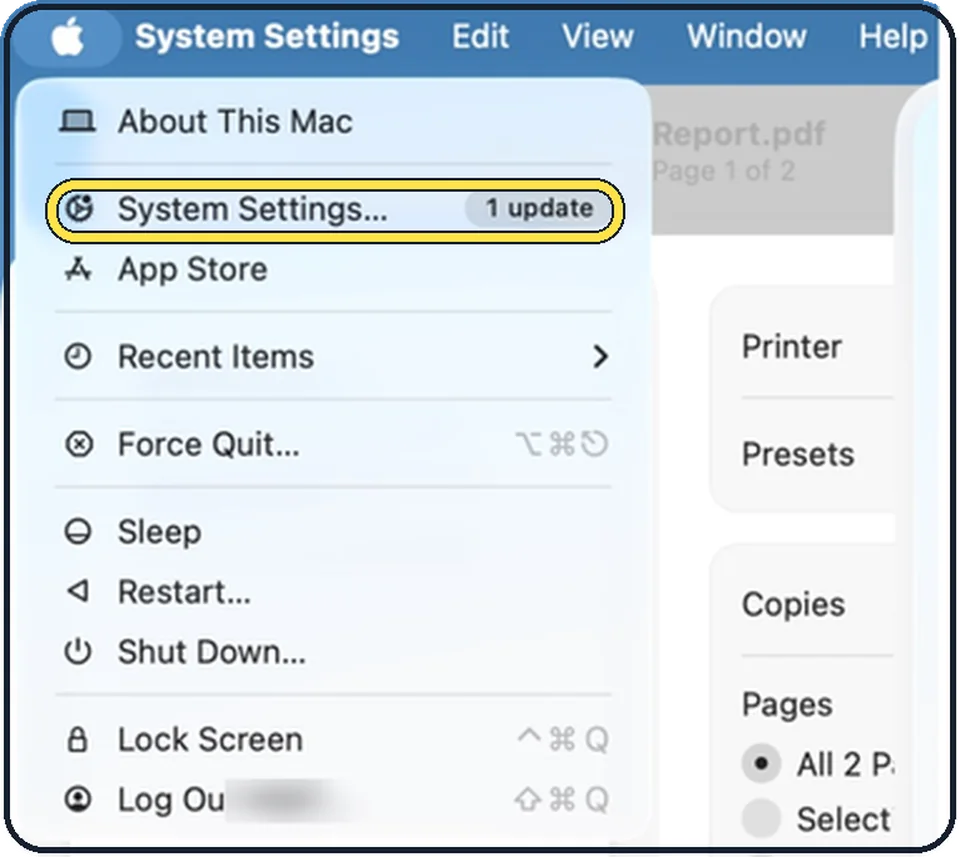
Tap the picture to see it full size Open System Settings
Click the Apple menu in the top left corner of the screen and choose System Settings.
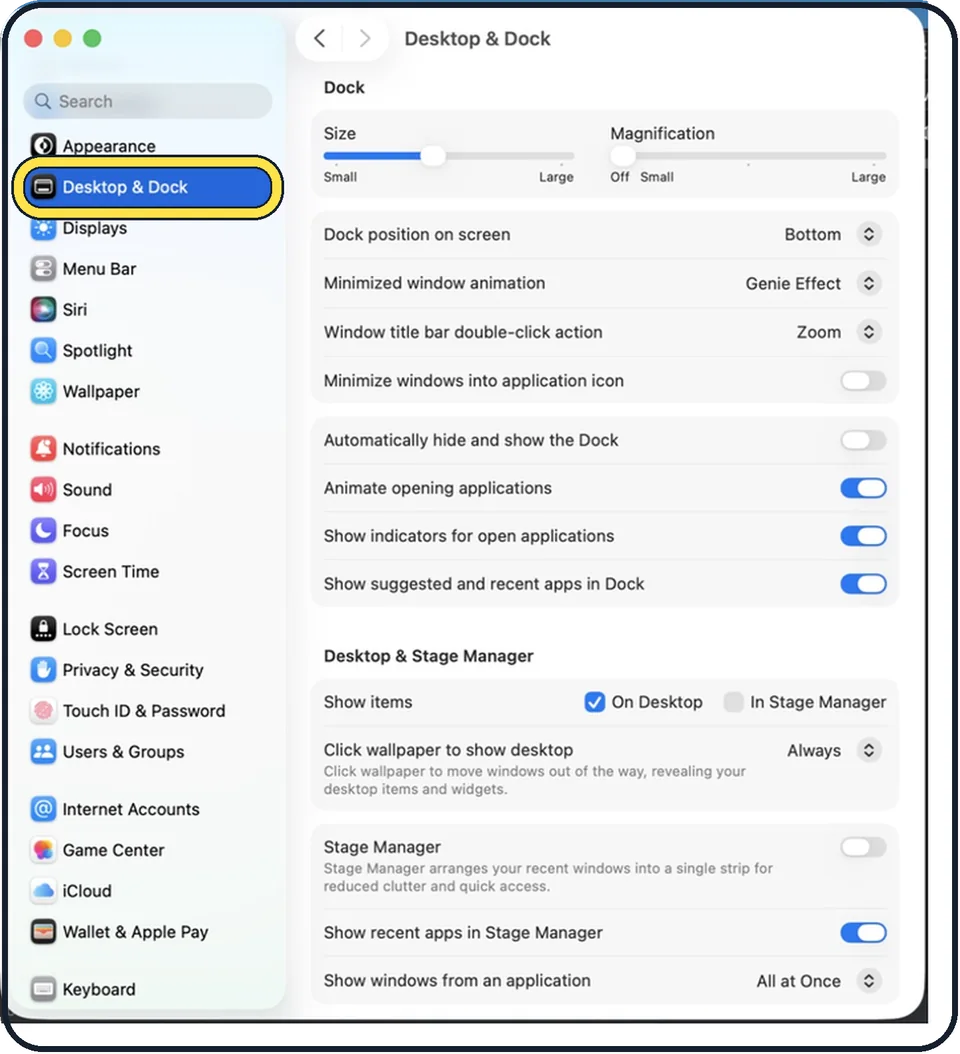
Tap the picture to see it full size Click Desktop & Dock in the sidebar
It is below Appearance. You may need to scroll down in the sidebar.
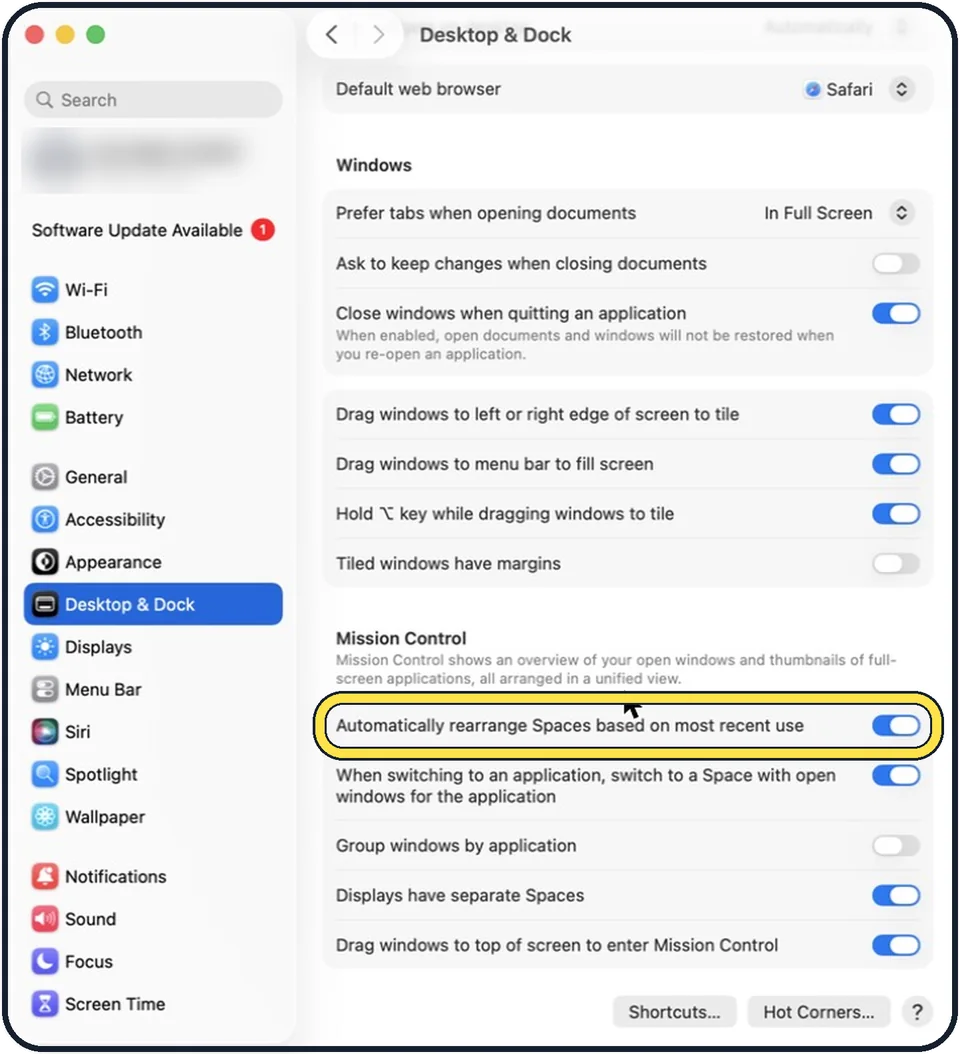
Tap the picture to see it full size Scroll to Mission Control and switch off the automatic rearranging
Automatically rearrange Spaces based on most recent use is the first switch of the group. In the picture it is on.
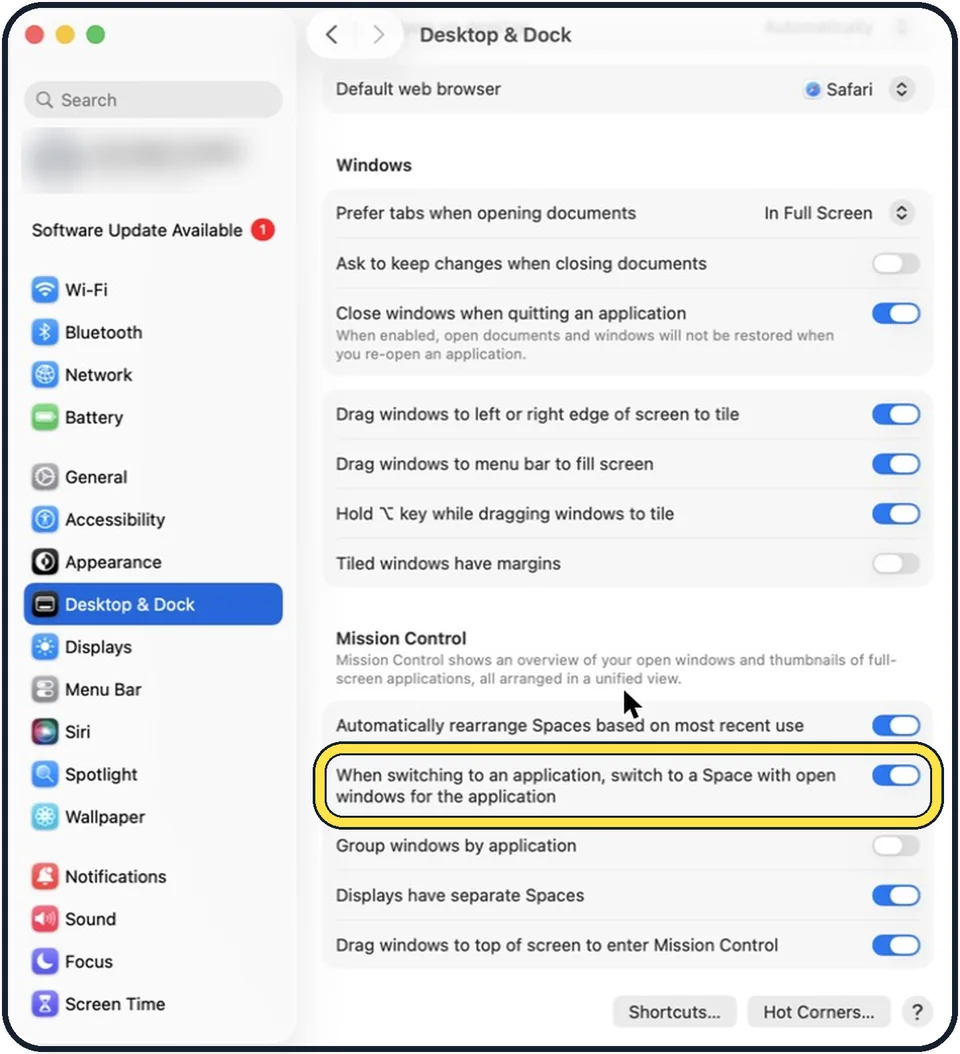
Tap the picture to see it full size Decide about switching Spaces with apps
The next switch makes the desktop scroll to a Space with open windows of an app when you switch to that app.
What we saw on our device
- Click Desktop & Dock in the sidebar: On our MacBook Neo it sits between Appearance and Displays.
- Switch off Automatically rearrange Spaces based on most recent use: On our MacBook Neo it was on.
About this guide
If you use several desktops, called Spaces, macOS reorders them so that the ones used most recently are quicker to reach. That means Desktop 2 is not always where you left it. One switch keeps the order fixed.
The screenshots show System Settings on macOS Tahoe 26.
Good to know
Group windows by application, in the same group, organises the windows by app in Mission Control when several apps have windows open.
In short: Apple menu > System Settings > Desktop & Dock > Mission Control > Automatically rearrange Spaces based on most recent use off.
Links checked in October 2026. Menus and features can change after software updates. These steps match the version named at the top.
Did this guide work for you?
Sorry about that. What happened?