
You are viewing the macOS 26 version of this guide, recorded on macOS Tahoe 26 (MacBook Pro) on 4 October 2026. It is kept as it was and not updated. See the macOS 27 version.
howtosimply.com/guides/how-to-reduce-motion-and-animations-on-a-mac/ · Checked 4 October 2026 · MacBook Pro · macOS Tahoe 26
In this guide
Open System Settings, click Accessibility, then Motion, and switch on Reduce motion. This changes the movement of elements on the screen, for example when you open apps, switch between desktops, or open and close Notification Center.
5 of 5 steps with real screenshots · 1 official source below
- Device
- Mac
- Shown on
- macOS Tahoe 26 (MacBook Pro)
- App
- System Settings
- Real screenshots
- 5 of 5 steps
- Checked
- 4 October 2026
- Sources
- 1 official, linked below
Step by step
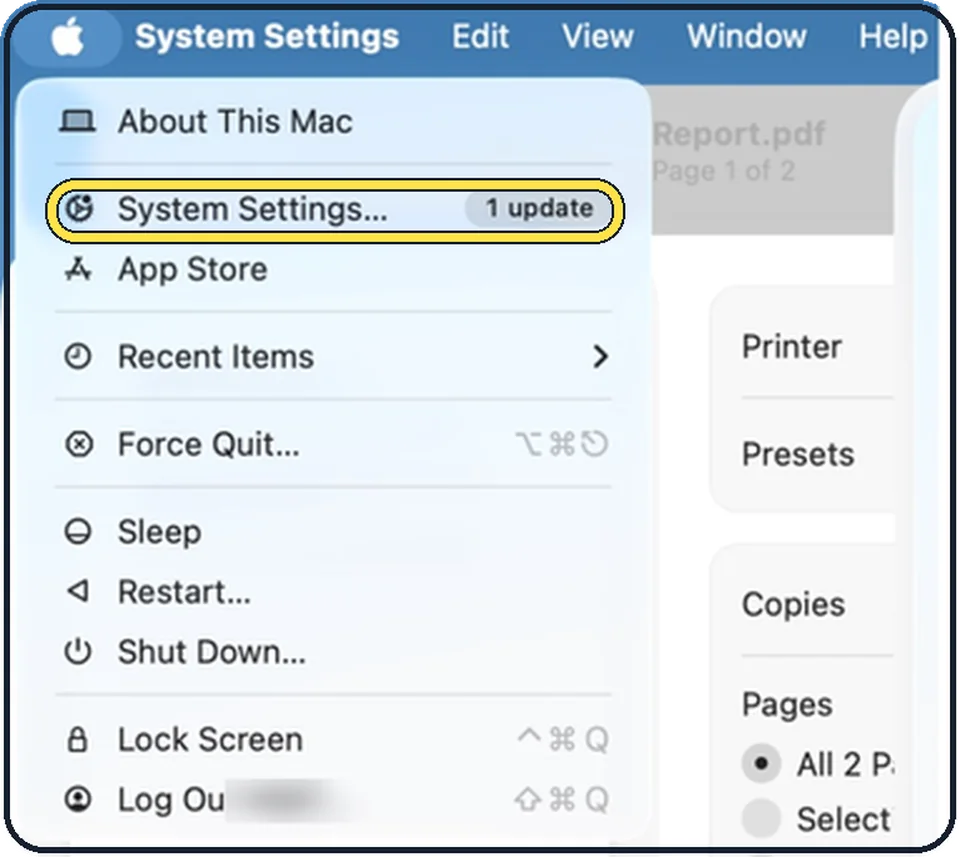
Tap the picture to see it full size Open System Settings
Click the Apple menu in the top left corner of the screen and choose System Settings.
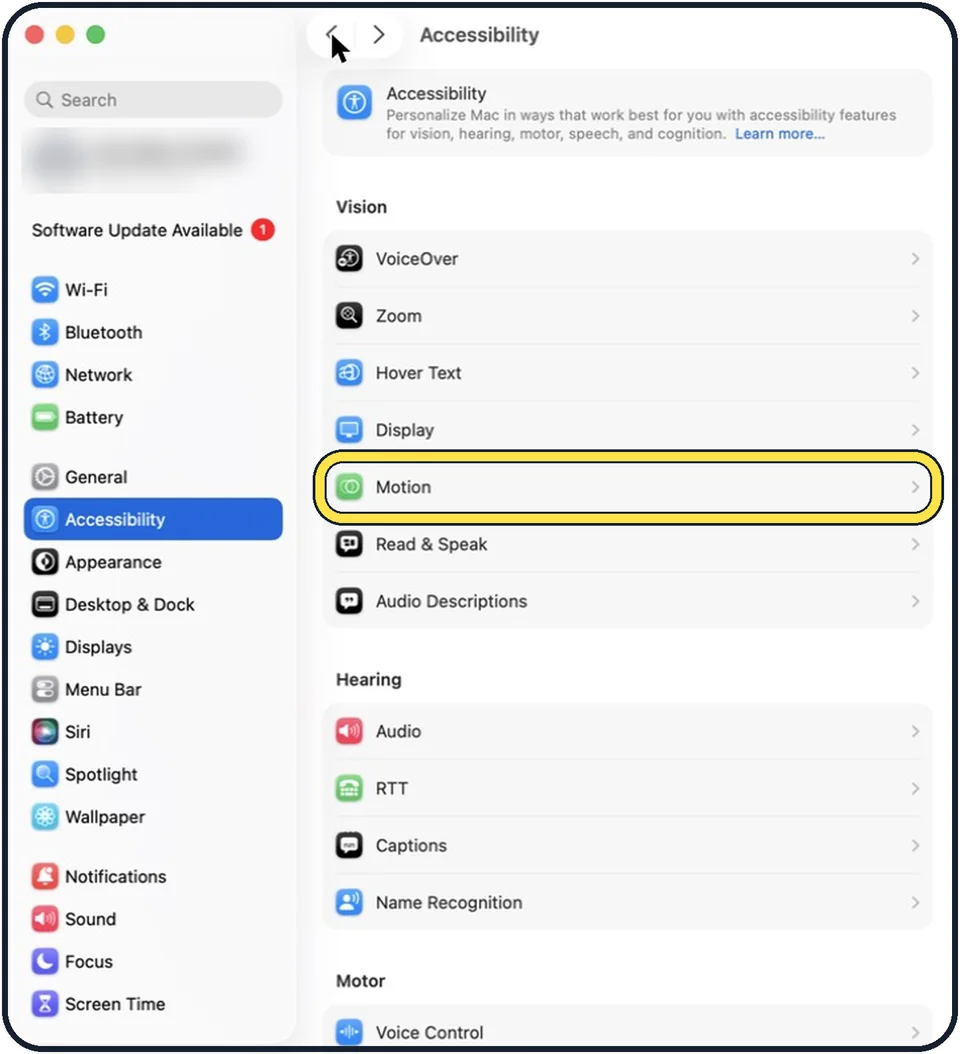
Tap the picture to see it full size Click Accessibility, then Motion
Accessibility is in the sidebar on the left. Motion is in the Vision group on the right. You may need to scroll down in the sidebar.
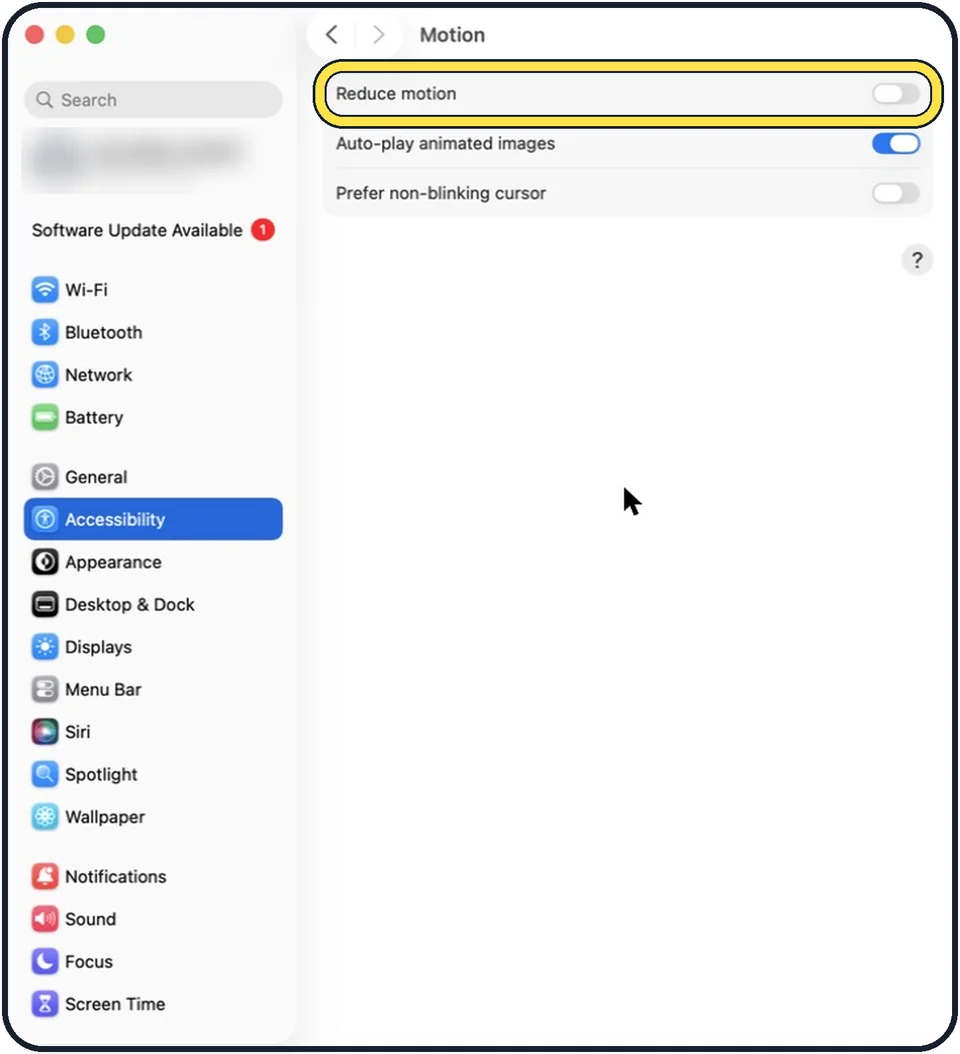
Tap the picture to see it full size Switch on Reduce motion
It is the first switch on the page. In the picture it is off.
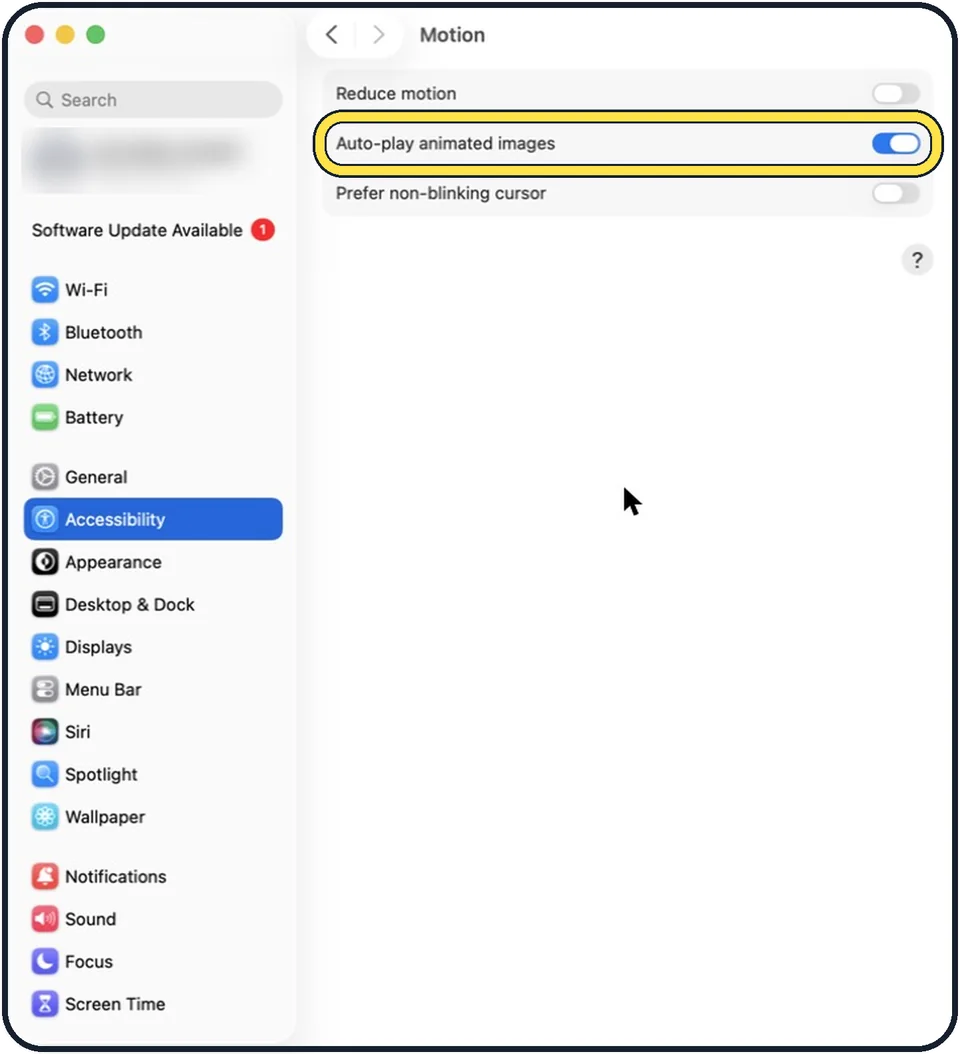
Tap the picture to see it full size Stop animated images if you like
Auto-play animated images is on at first. Switch it off to pause rapid animated images automatically, such as GIFs in Messages and Safari.
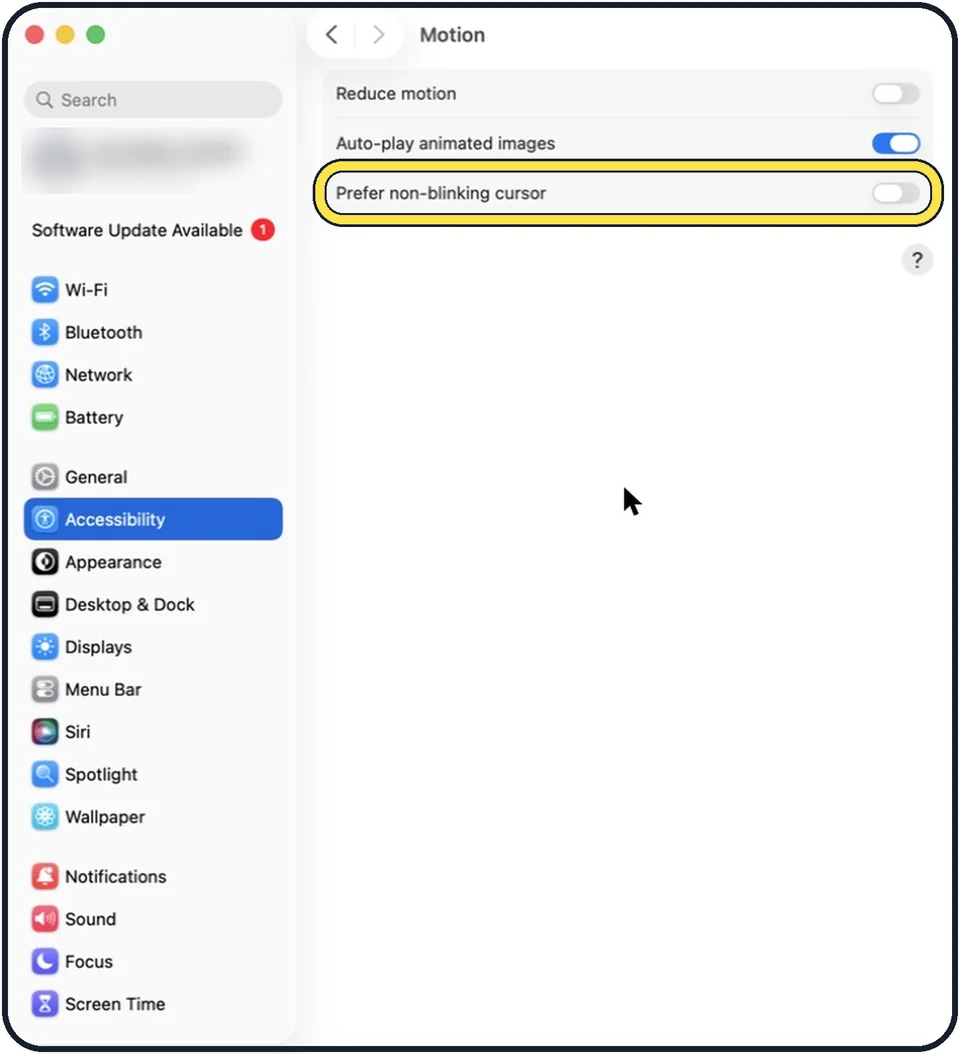
Tap the picture to see it full size Stop the blinking cursor if you like
Prefer non-blinking cursor stops the blinking of the vertical bar at the point where you are typing.
What we saw on our device
- Click Accessibility in the sidebar: On our MacBook Neo, Accessibility is near the top of the sidebar, just below General.
- Click Motion: On our MacBook Neo, Motion is in the Vision group, between Display and Read & Speak.
- Switch on Reduce motion: On our MacBook Neo it was off at first.
About this guide
Windows that zoom open and desktops that slide sideways look smooth, but some people find the movement unpleasant or tiring. One switch tones it down. Two more switches on the same page stop animated images and the blinking text cursor.
The screenshots show System Settings on macOS Tahoe 26.
Good to know
Apple lists two more options that do not appear on every Mac: Dim flashing lights, only on Mac computers with Apple silicon, and Vehicle Motion Cues, on Mac laptops.
To make things larger instead of calmer: how to zoom in on the screen on a Mac.
In short: System Settings > Accessibility > Motion > Reduce motion on.
Links checked in October 2026. Menus and features can change after software updates. These steps match the version named at the top.
Did this guide work for you?
Sorry about that. What happened?