
You are viewing the macOS 26 version of this guide, recorded on macOS Tahoe 26 (MacBook Pro) on 4 October 2026. It is kept as it was and not updated. See the macOS 27 version.
howtosimply.com/guides/how-to-play-background-sounds-like-rain-on-a-mac/ · Checked 4 October 2026 · MacBook Pro · macOS Tahoe 26
In this guide
Open System Settings, click Accessibility, then Audio, and switch on Background sounds. Click Choose next to Background sound to pick a sound such as Rain or Balanced Noise, and set its volume with the slider below. No app or subscription is needed.
6 of 6 steps with real screenshots · 3 official sources below
- Device
- Mac
- Shown on
- macOS Tahoe 26 (MacBook Pro)
- App
- System Settings
- Real screenshots
- 6 of 6 steps
- Checked
- 4 October 2026
- Sources
- 3 official, linked below
Step by step
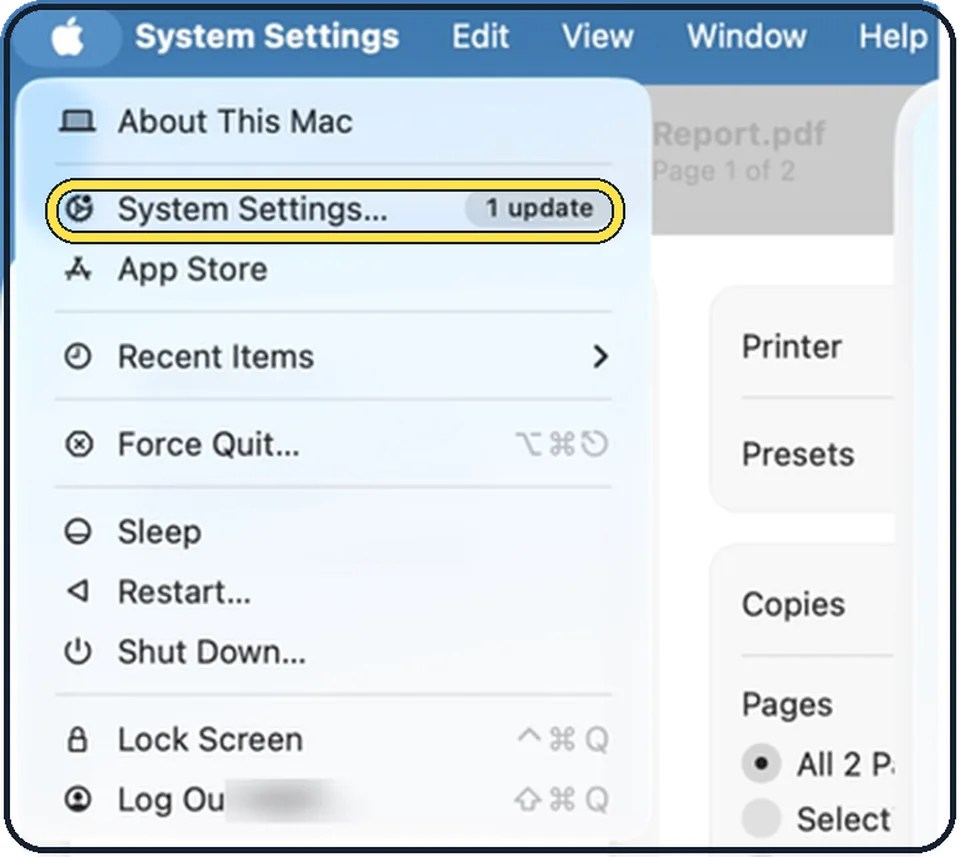
Tap the picture to see it full size Open System Settings
Click the Apple menu in the top left corner of the screen and choose System Settings.
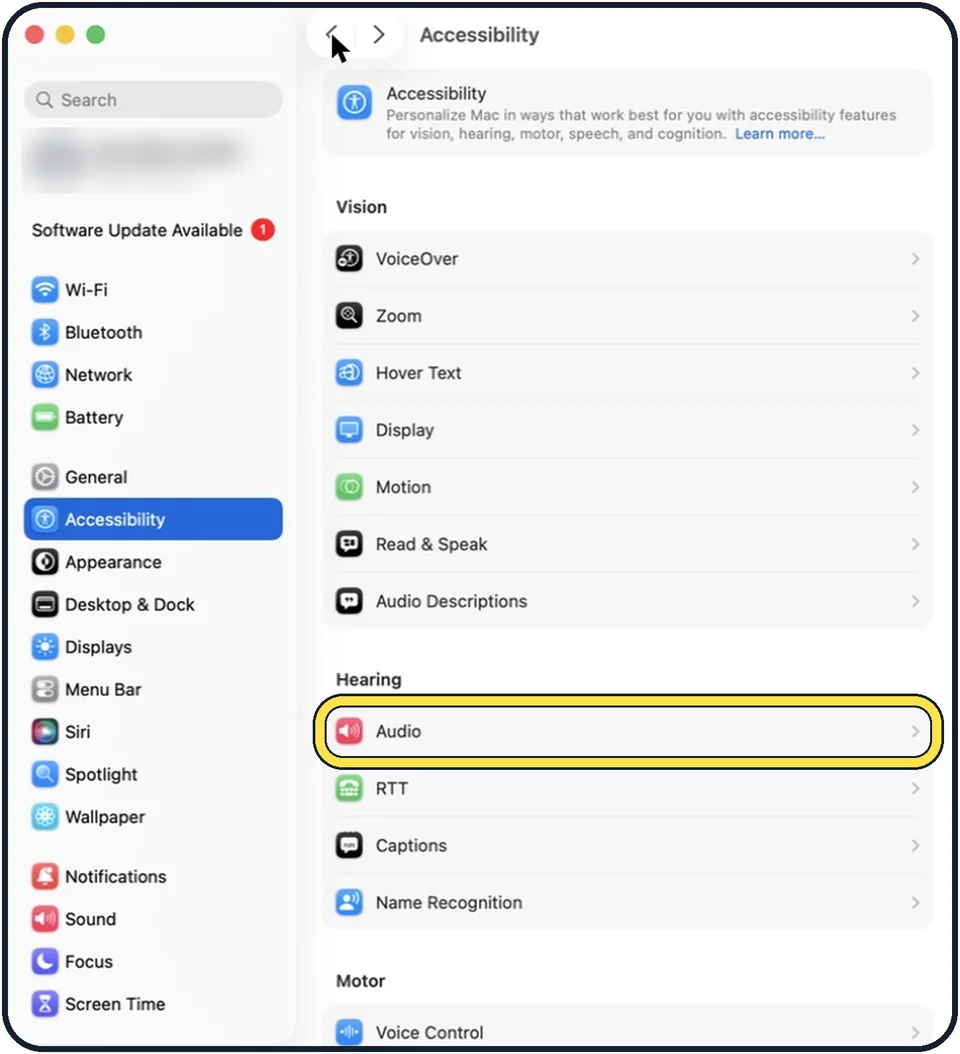
Tap the picture to see it full size Click Accessibility, then Audio
Accessibility is in the sidebar. Audio is the first row of the Hearing group on the right.
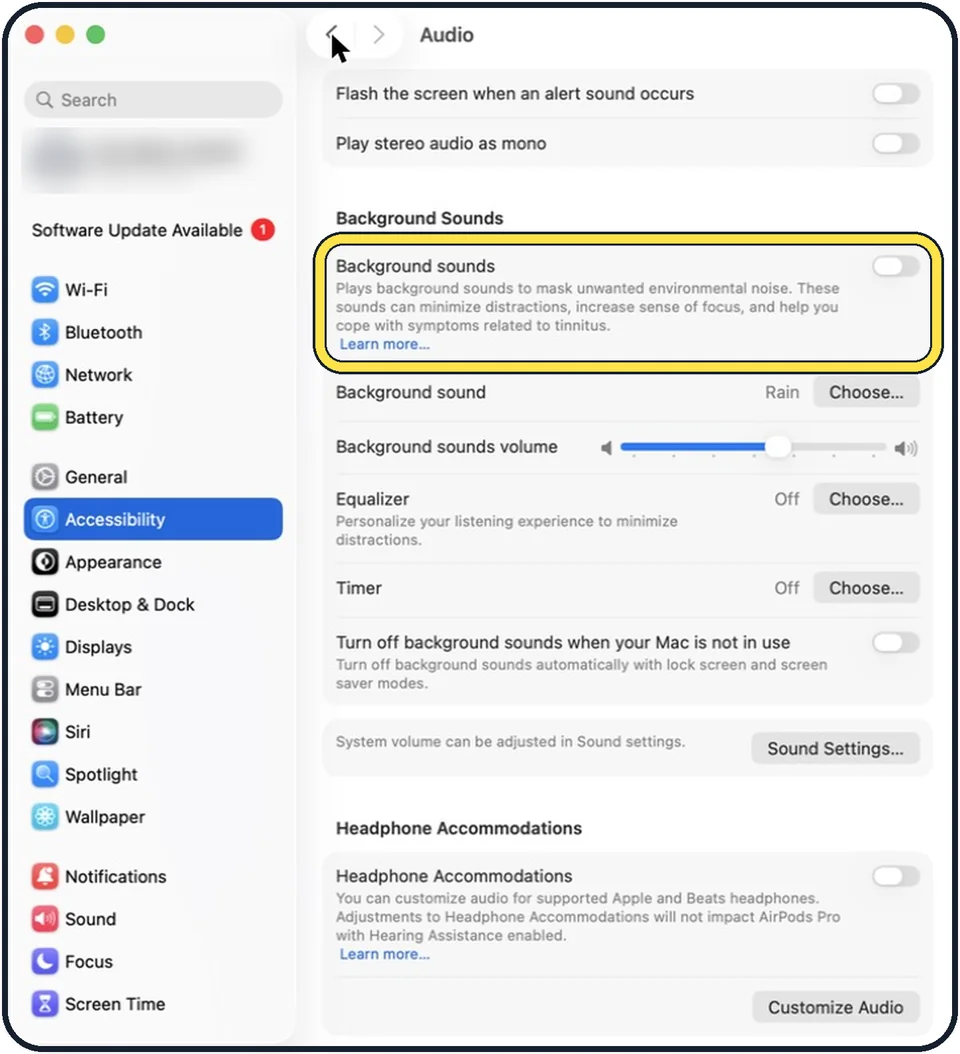
Tap the picture to see it full size Switch on Background sounds
It is the first row of the Background Sounds group. In the picture it is off.
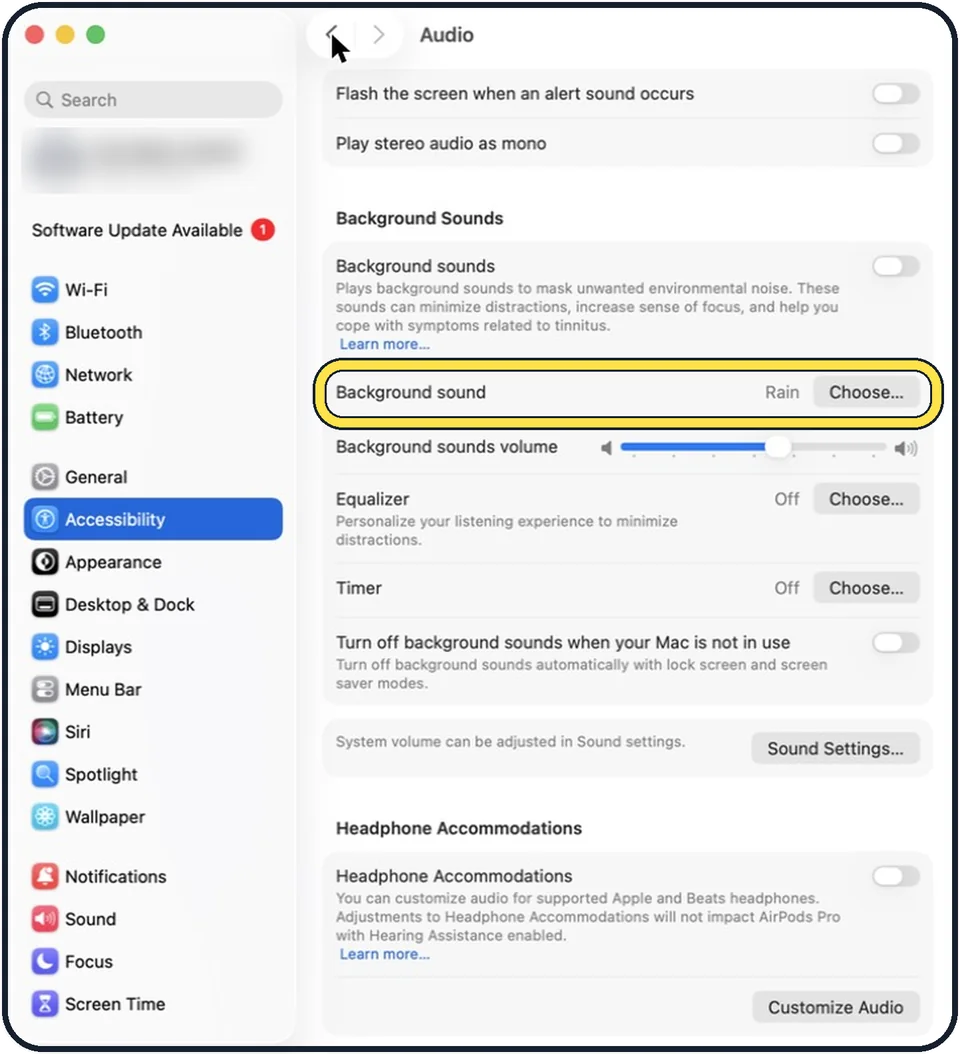
Tap the picture to see it full size Choose the sound
Click Choose in the Background sound row. In the picture the sound is set to Rain.
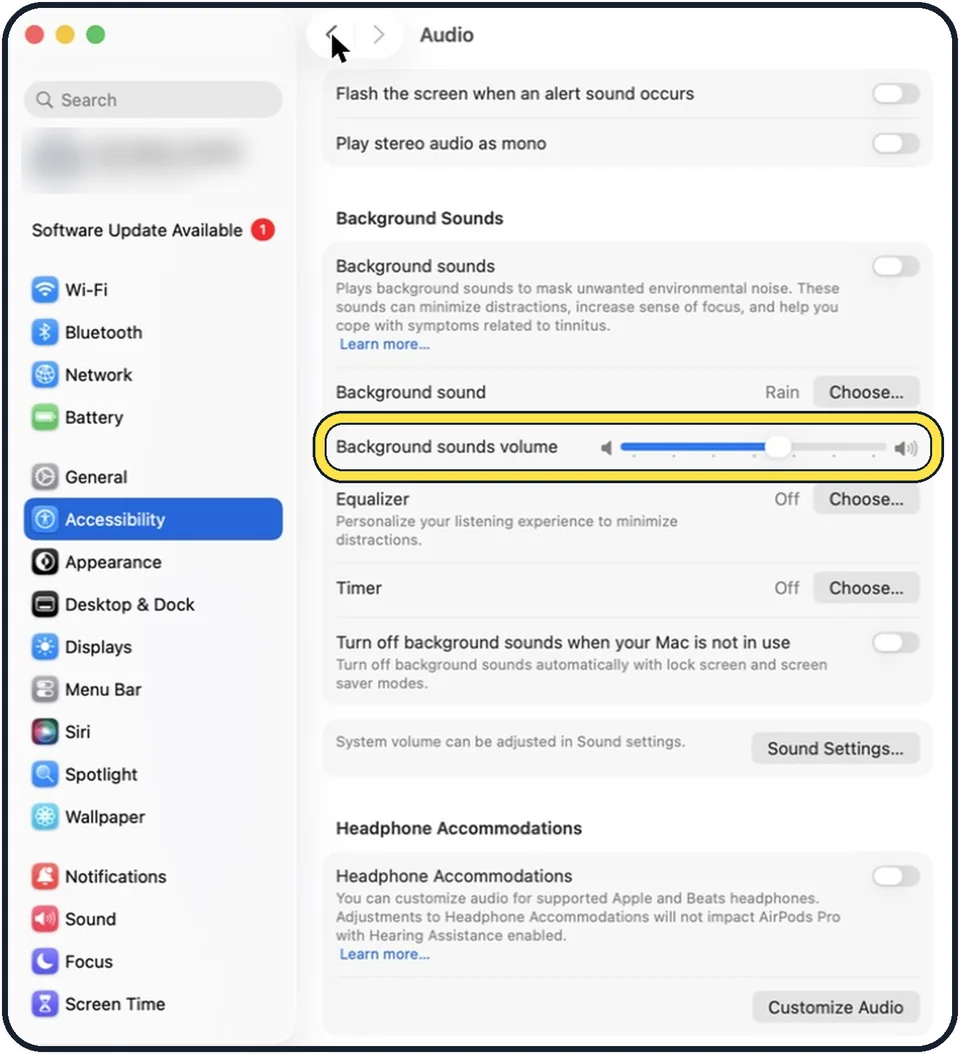
Tap the picture to see it full size Set the volume
Drag the Background sounds volume slider. This is separate from the system volume.
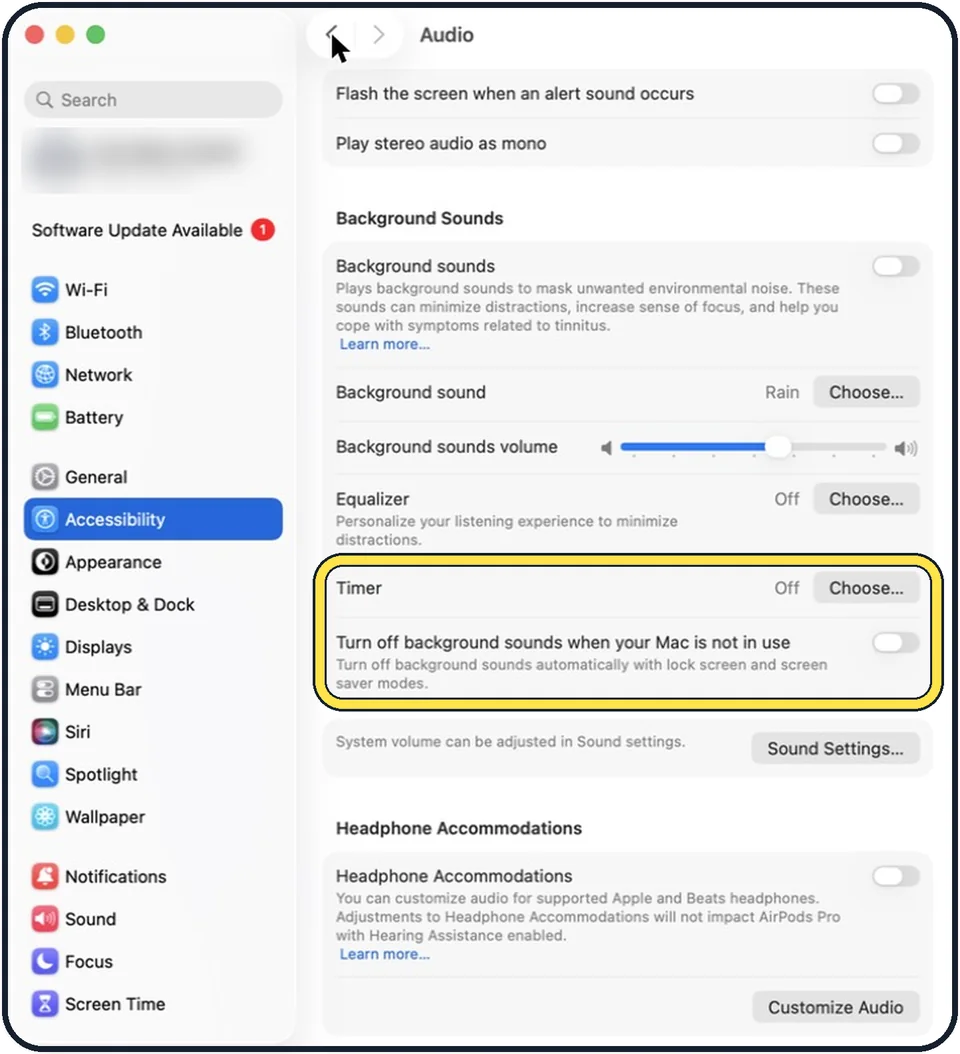
Tap the picture to see it full size Let it stop by itself
Timer stops the sounds at a specific time or after an amount of time. The switch at the bottom of the group turns them off automatically when the Mac sleeps, the screen saver is on or the screen is locked.
About this guide
macOS has a built-in noise player. The settings page describes its purpose: background sounds mask unwanted environmental noise, and can minimise distractions, increase a sense of focus and help with symptoms related to tinnitus.
The screenshots show System Settings on macOS Tahoe 26.
Good to know
Equalizer adjusts the volume of different frequency ranges in the background sound.
In short: Apple menu, System Settings…, Accessibility, Audio, Background sounds on, Choose…, pick a sound, OK.
Links checked in October 2026. Menus and features can change after software updates. These steps match the version named at the top.
Did this guide work for you?
Sorry about that. What happened?