
You are viewing the macOS 26 version of this guide, recorded on macOS Tahoe 26 (MacBook Pro) on 4 October 2026. It is kept as it was and not updated. See the macOS 27 version.
howtosimply.com/guides/how-to-make-a-mac-read-selected-text-aloud/ · Checked 4 October 2026 · MacBook Pro · macOS Tahoe 26
In this guide
Open System Settings, click Accessibility, then Read & Speak, and switch on Speak selection. Then select text in any app and press the keyboard shortcut, or choose Speech, Start Speaking in the Quick Actions menu. The Mac reads the selection aloud.
5 of 5 steps with real screenshots · 1 official source below
- Device
- Mac
- Shown on
- macOS Tahoe 26 (MacBook Pro)
- App
- System Settings
- Real screenshots
- 5 of 5 steps
- Checked
- 4 October 2026
- Sources
- 1 official, linked below
Step by step
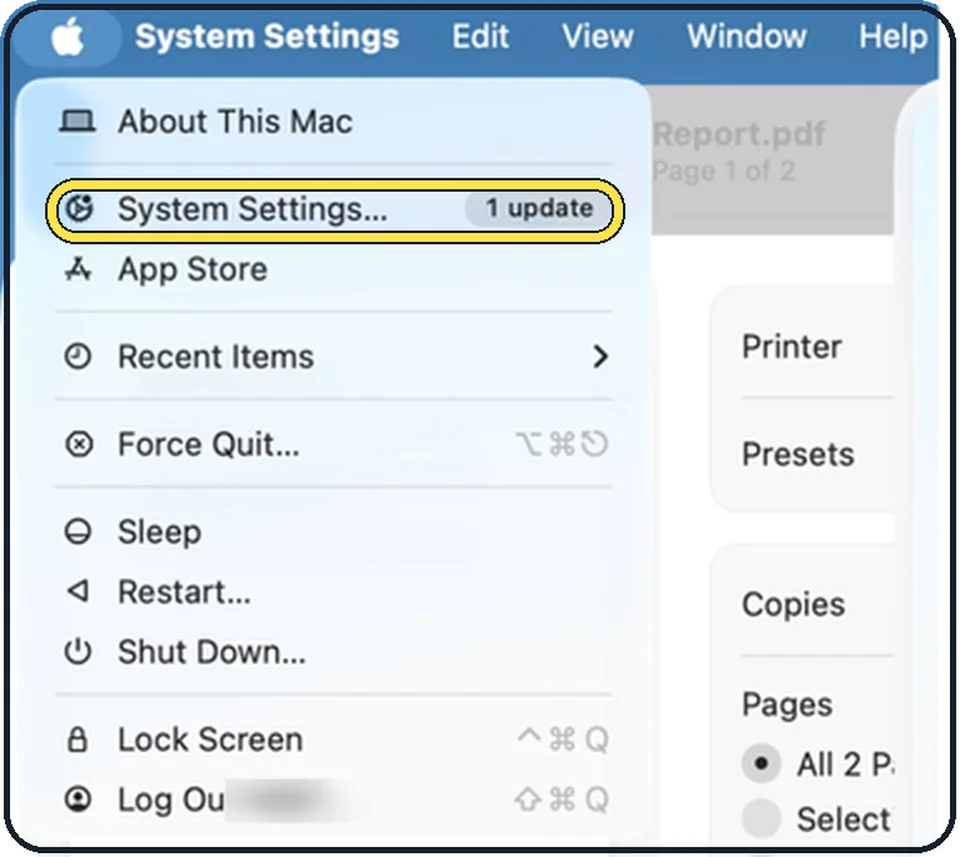
Tap the picture to see it full size Open System Settings
Click the Apple menu in the top left corner of the screen and choose System Settings.
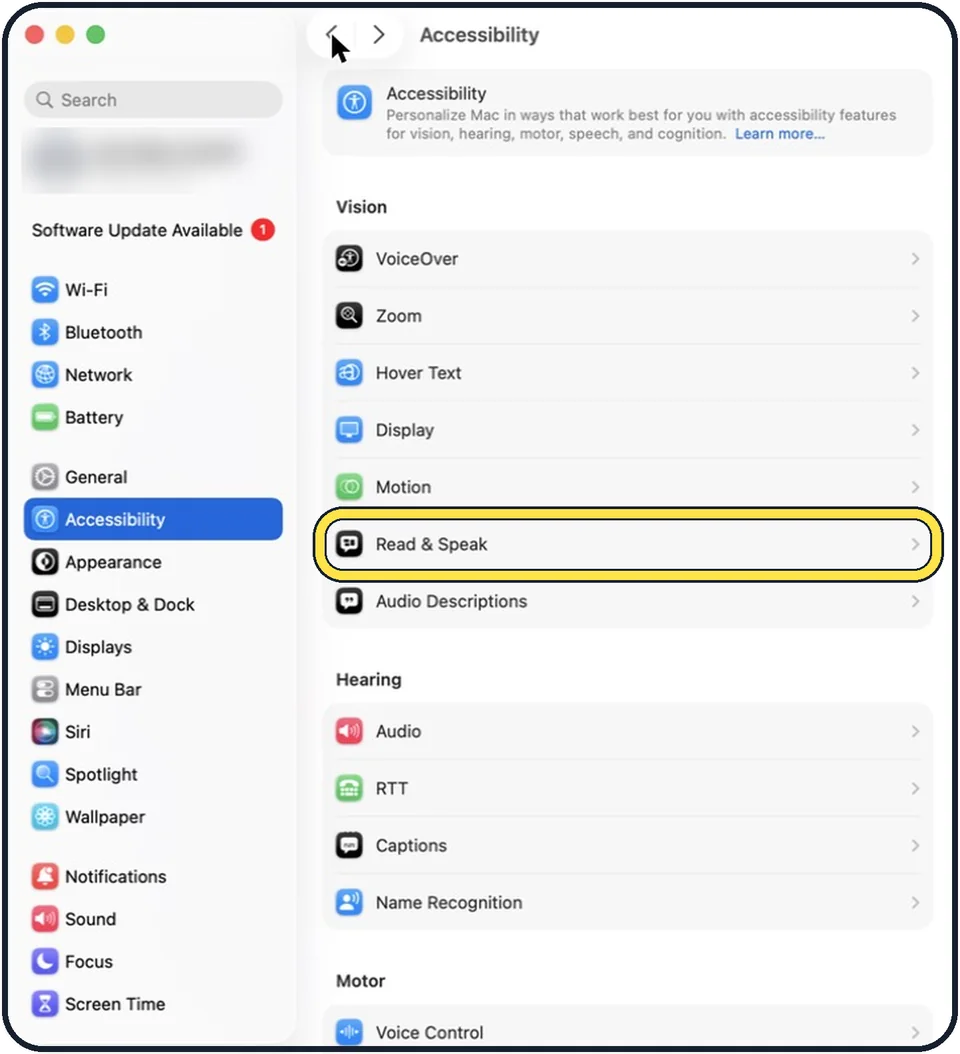
Tap the picture to see it full size Click Accessibility, then Read & Speak
Accessibility is in the sidebar. Read & Speak is in the Vision group on the right.
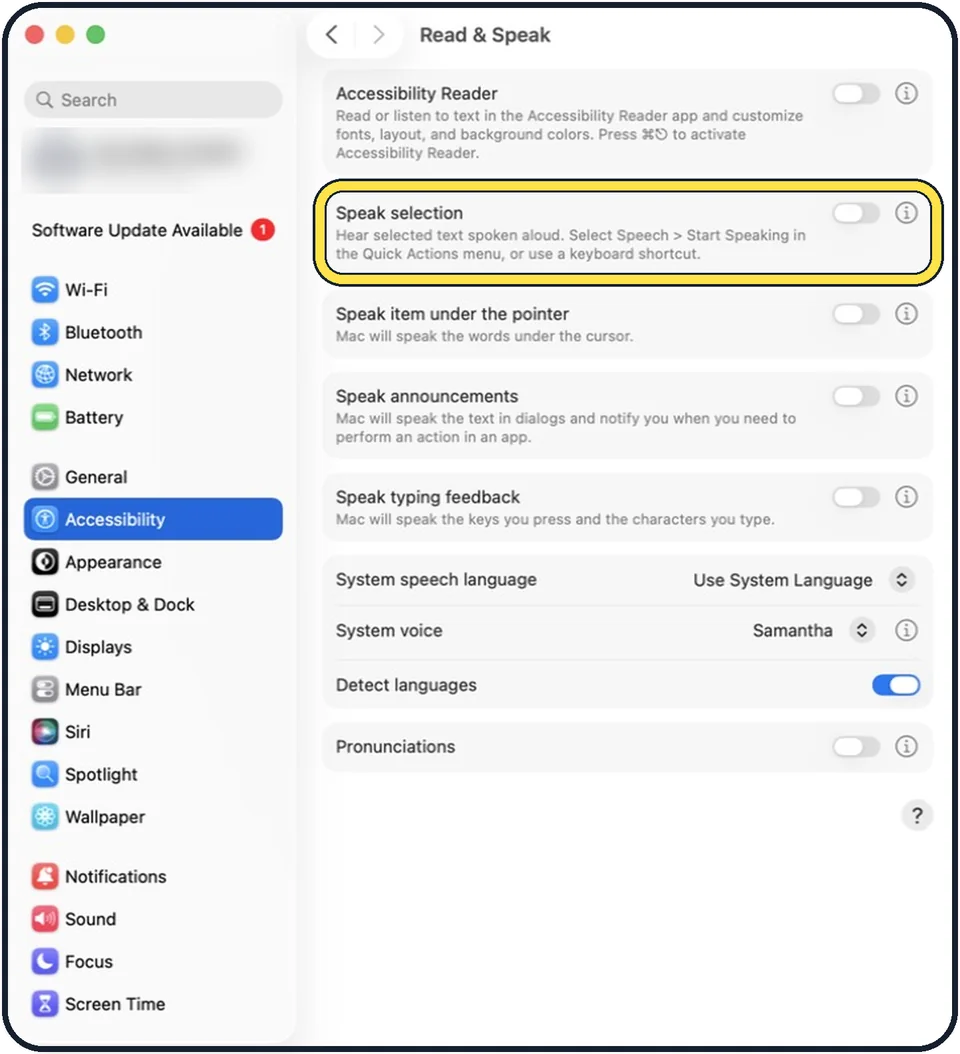
Tap the picture to see it full size Switch on Speak selection
In the picture it is off. The note under it says: hear selected text spoken aloud.
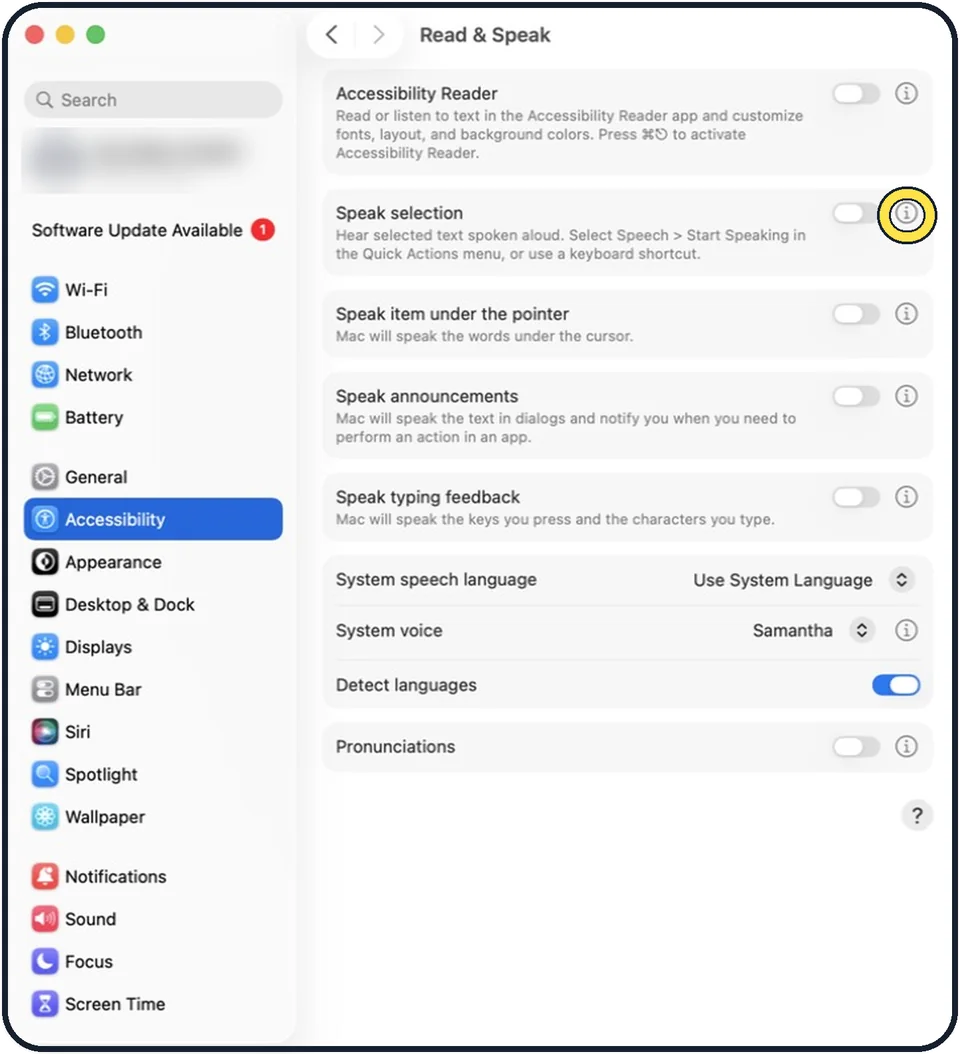
Tap the picture to see it full size Set the shortcut
Click the info button at the right of the row, the i in a circle. Under Keyboard shortcut, press the key combination you want, for example Option and Tab together.
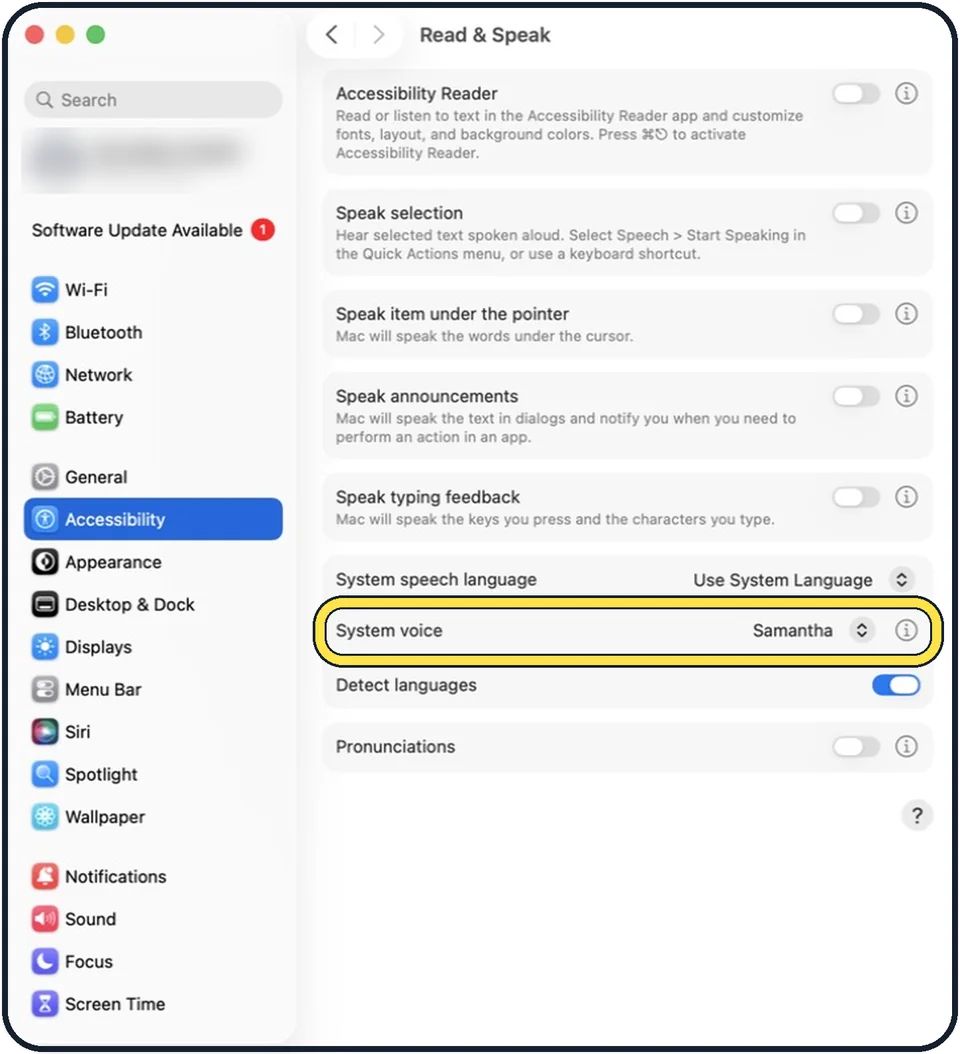
Tap the picture to see it full size Choose the voice
System voice sets the voice that speaks. In the picture it is Samantha. The info button next to it adjusts how fast or loud it speaks.
What we saw on our device
- Click Accessibility, then Read & Speak: On our MacBook Neo, Read & Speak is in the Vision group, between Motion and Audio Descriptions.
- Switch on Speak selection: On our MacBook Neo it was off.
- Check the keyboard shortcut: On our MacBook Neo the sheet shows Keyboard shortcut Option+Esc, with Highlight content set to Words.
About this guide
Long articles and emails can be listened to. The Mac speaks whatever text you have selected, with the system voice. The info button next to the switch lets you set the keyboard shortcut and decide whether words and sentences are highlighted while they are spoken.
The screenshots show System Settings on macOS Tahoe 26.
Good to know
Detect languages, on by default in the picture, makes the Mac switch between languages automatically when it speaks text.
If your Mac speaks without you asking, Apple says VoiceOver may be on. Press Command and F5 to turn it off.
In short: System Settings > Accessibility > Read & Speak > Speak selection on, then select text and press Option+Esc.
Links checked in October 2026. Menus and features can change after software updates. These steps match the version named at the top.
Did this guide work for you?
Sorry about that. What happened?