How to close apps on a Google Pixel (Android 17)
- Shown on
- Pixel 10a
- Software
- Android 17More Android 17 guides
- Checked
- November 2026
- Real screenshots
- 2 of 4 steps
Quick answer
Swipe up from the bottom of the screen, hold, then let go to see your recent apps. Swipe an app up to close it. To close them all, swipe from left to right and tap Clear all. Google says you don't need to: Android manages memory and battery on its own.
Watch these steps
Video: on our Pixel 10a (Android 17) we open the recent apps view and swipe the open apps away. No sound.
Steps
- 1
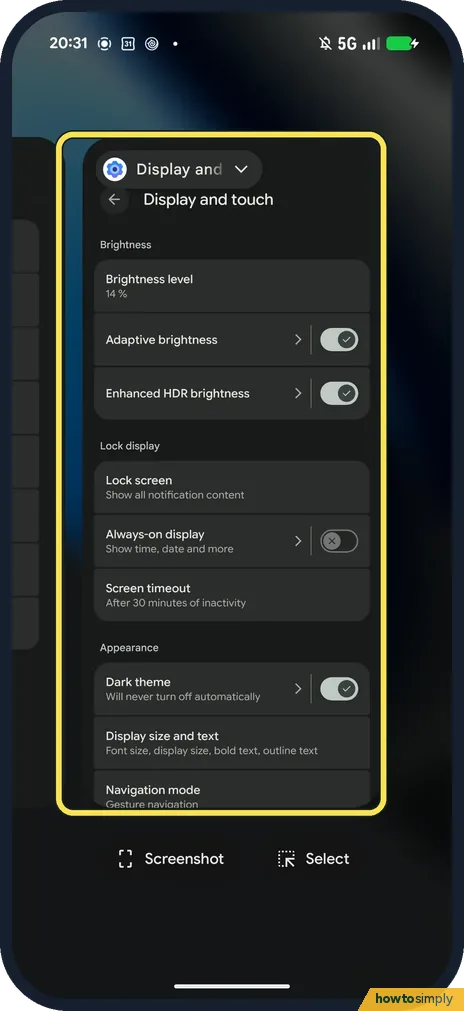
Open recent apps
Swipe up from the bottom of the screen, hold, then let go. Your open apps show as cards. Ours showed Settings, with Screenshot and Select below the card.
- 2
Close one app
Swipe the app's card up and off the screen. That is Google's method; we didn't close anything on ours.
- 3
Close all apps
Google says to swipe from left to right until you reach the start of the row, then tap Clear all on the left. We didn't tap it on ours.
- 4
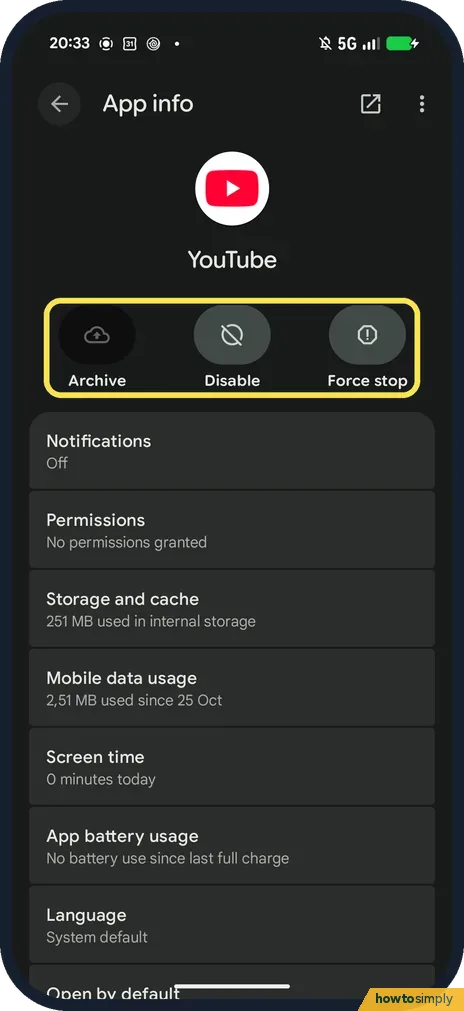
Stop an app that won't close
If an app hangs, touch and hold its icon, tap App info, then Force stop. Ours offered Force stop for YouTube next to Archive and Disable. We didn't tap it.
If you do not see this option
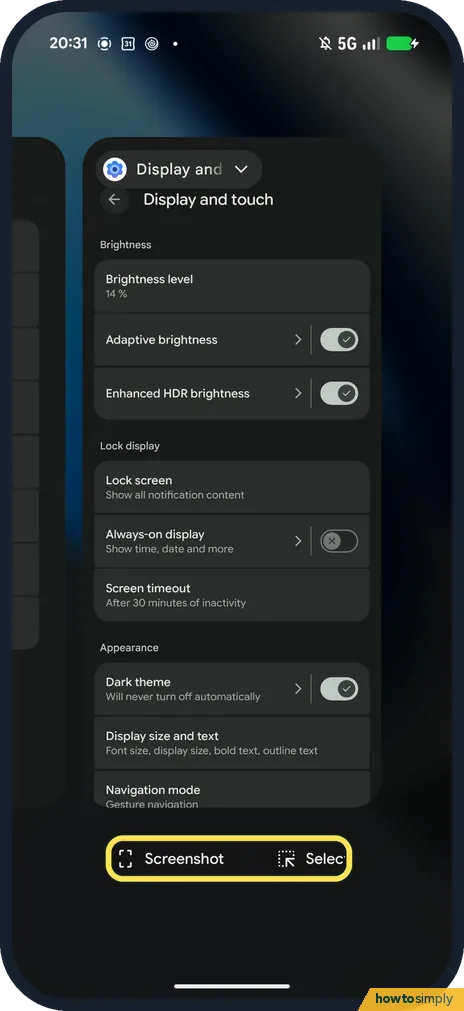
- Screenshot and Select under the card? Ours showed them below the app card. They are not close buttons; we didn't try them.
If this does not work
- Still slow after closing apps? Google's tip is that you won't run out of memory or battery by leaving apps open, so look at storage instead (below).
- The whole phone is frozen? Google says to hold the Power button for up to 60 seconds, until the G logo shows: how to turn off or restart a Google Pixel.
Good to know
Phone slow because storage is full? See how to free up storage on a Google Pixel.
About this guide
Closing apps rarely helps a Pixel. Google says you won't run out of memory or battery if you leave them open. It is still useful when one app hangs.
- Device
- Android
- Shown on
- Google Pixel 10a, Android 17 (build CP3A.261005.005)
- App
- Settings
- Real screenshots
- 2 of 4 steps
- Checked
- November 2026
- Sources
- 2 official, linked below
The screenshots are from our Google Pixel 10a with Android 17 (build CP3A.261005.005), in Dark mode, taken on 18 November 2026. Ours used gesture navigation; for the picture we opened recent apps and closed nothing.
Sources
Links checked October 2026. Menus and features can change with updates.Did this guide work for you?
Sorry about that. What happened?
Get new guides by email
Our newest guides, sent to your inbox. Free, and you can unsubscribe in one click.
We'll email you to confirm. How we use your email
Follow howtosimply on Facebook
We share our new guides on our Facebook page, so the next fix turns up in your feed.
Follow on Facebook