
You are viewing the macOS 26 version of this guide, recorded on macOS Tahoe 26 (MacBook Pro) on 4 October 2026. It is kept as it was and not updated. See the macOS 27 version.
howtosimply.com/guides/how-to-always-show-scroll-bars-on-a-mac/ · Checked 4 October 2026 · MacBook Pro · macOS Tahoe 26
In this guide
Open System Settings, click Appearance, and under Show scroll bars select Always. Scroll bars are then always shown in windows whose content does not fit, not only while you scroll.
3 of 3 steps with real screenshots · 2 official sources below
- Device
- Mac
- Shown on
- macOS Tahoe 26 (MacBook Pro)
- App
- System Settings
- Real screenshots
- 3 of 3 steps
- Checked
- 4 October 2026
- Sources
- 2 official, linked below
Step by step
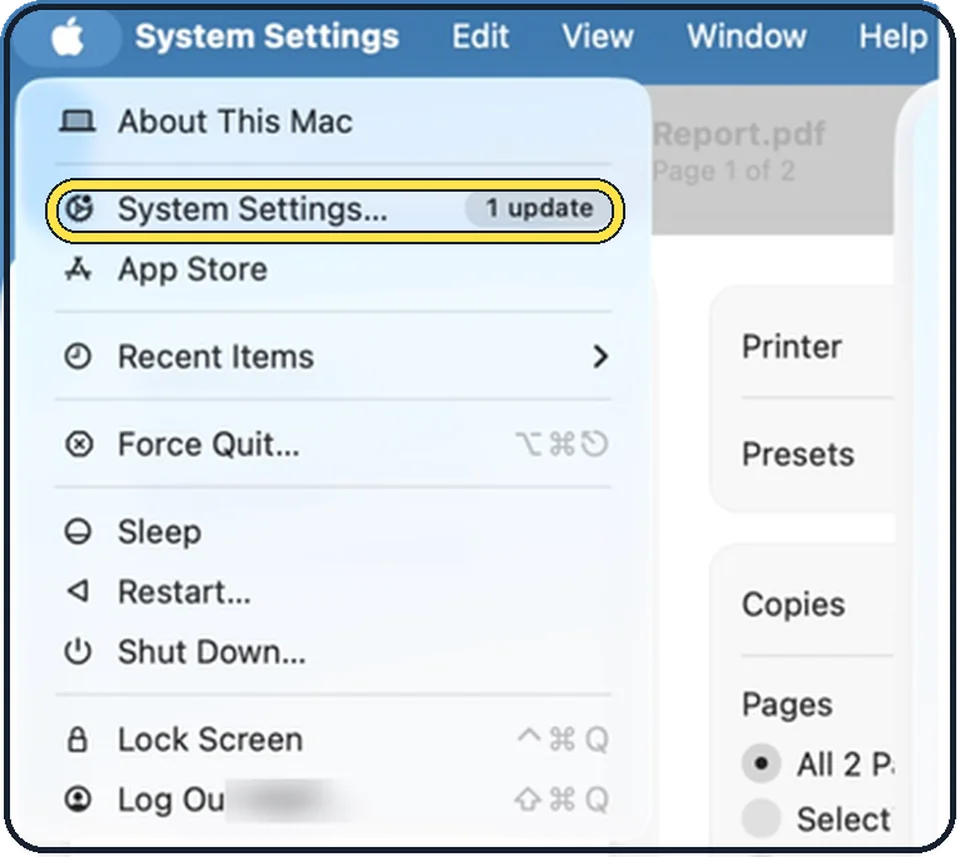
Tap the picture to see it full size Open System Settings
Click the Apple menu in the top left corner of the screen and choose System Settings.
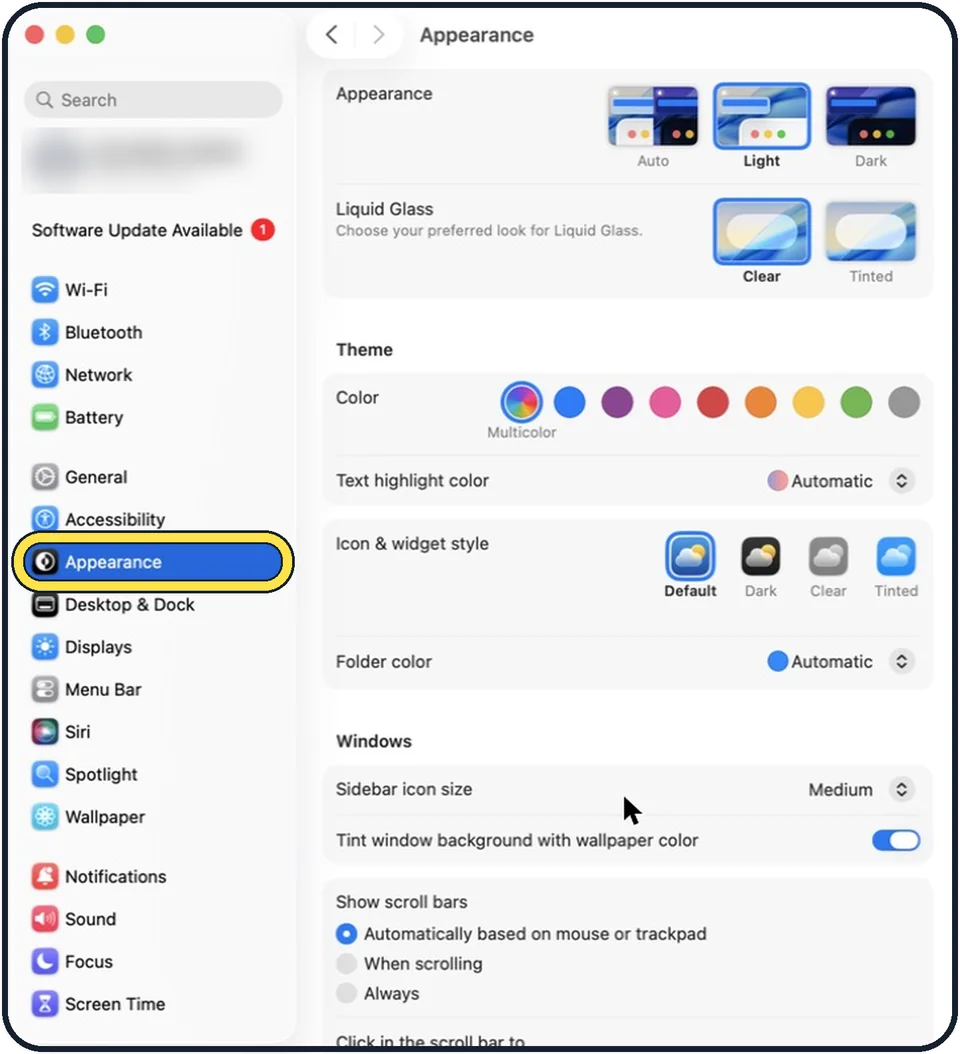
Tap the picture to see it full size Click Appearance in the sidebar
Appearance is below Accessibility.
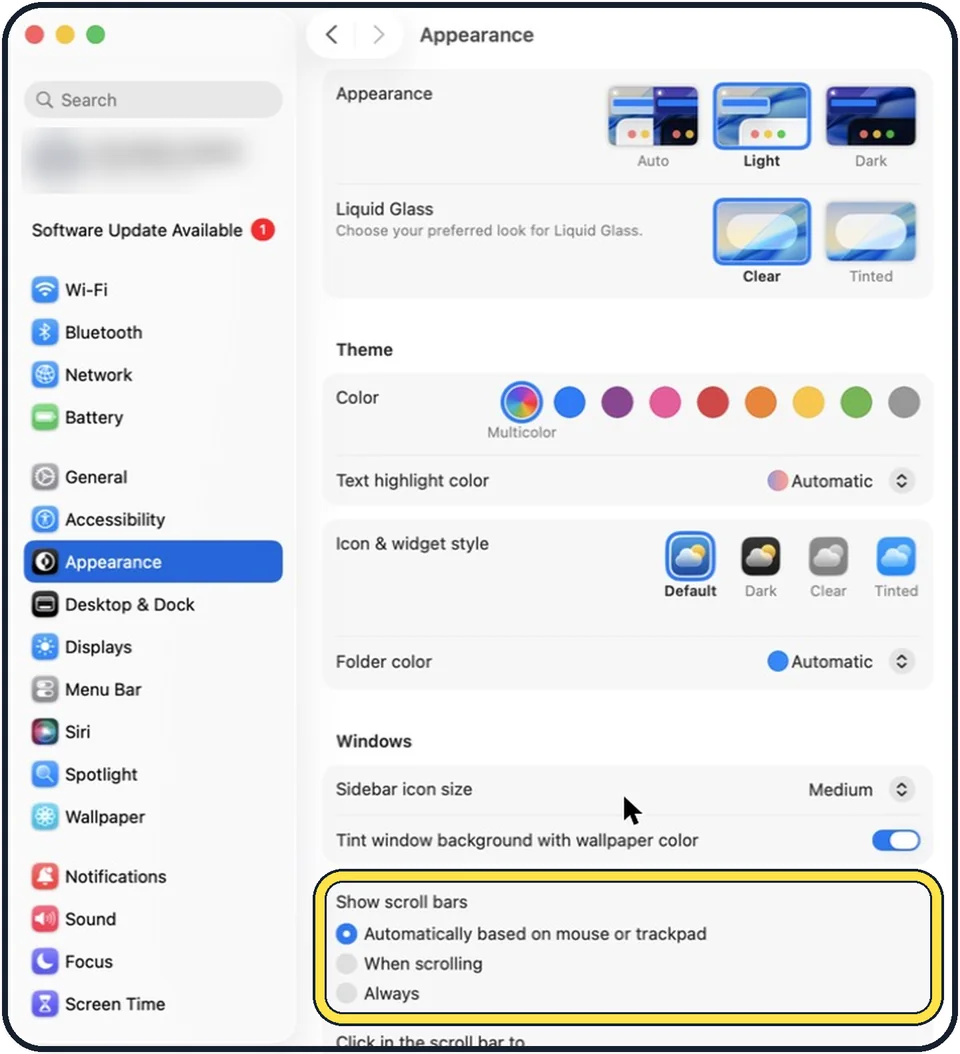
Tap the picture to see it full size Select Always under Show scroll bars
There are three choices: Automatically based on mouse or trackpad, When scrolling, and Always. In the picture the first is selected.
About this guide
With a trackpad, macOS hides scroll bars until you start scrolling. That looks tidy, but you cannot see at a glance how long a page is or where you are in it. One setting keeps them visible.
The screenshots show System Settings on macOS Tahoe 26.
Good to know
Click in the scroll bar to, the setting below, decides whether a click in the scroll bar jumps to the next page or to the spot that is clicked.
In short: Apple menu > System Settings… > Appearance > Show scroll bars: Always.
Links checked in October 2026. Menus and features can change after software updates. These steps match the version named at the top.
Did this guide work for you?
Sorry about that. What happened?