ANDROID
How to use app pinning on an OPPO phone (ColorOS 16)
Switch System navigation to Buttons first: App pinning is greyed out while Navigation gestures is on. Then open Settings, Security and privacy, More security and privacy, App pinning and turn it on. In Recents, tap the three dots on the app's card and tap Pin.

14 of 14 steps show a real screenshot from our Reno13 5G. Each step was checked against the maker's own instructions, linked at the end.
Steps
- 1
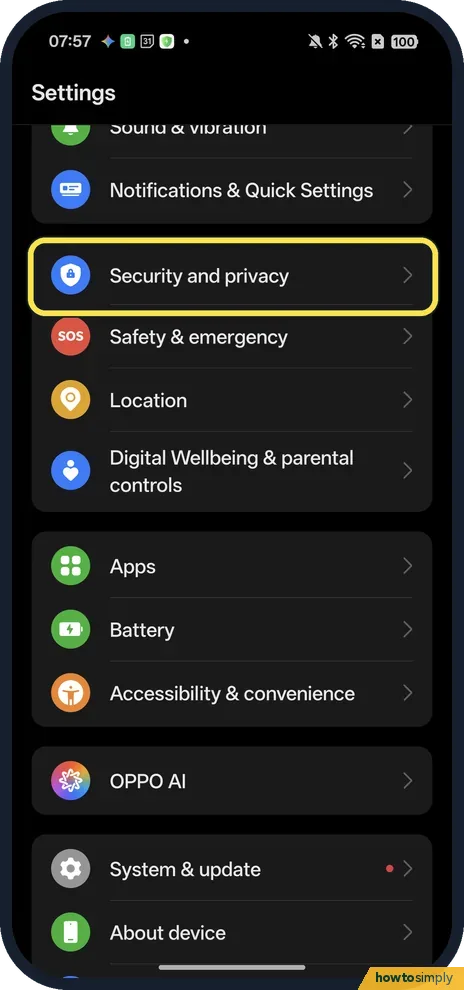
Open Security and privacy
Open Settings and tap Security and privacy. On ours it sits below Notifications & Quick Settings and above Safety & emergency.
- 2
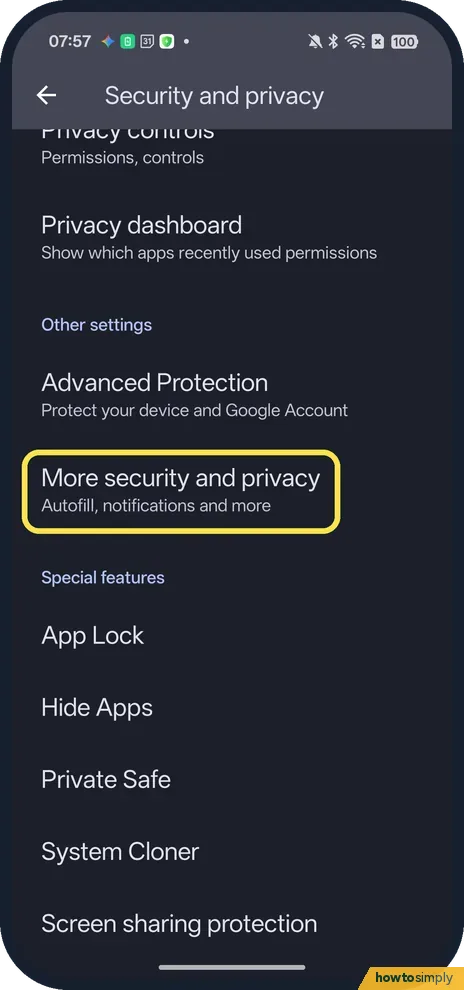
Tap More security and privacy
Scroll down to Other settings and tap More security and privacy, which says Autofill, notifications and more under it.
- 3
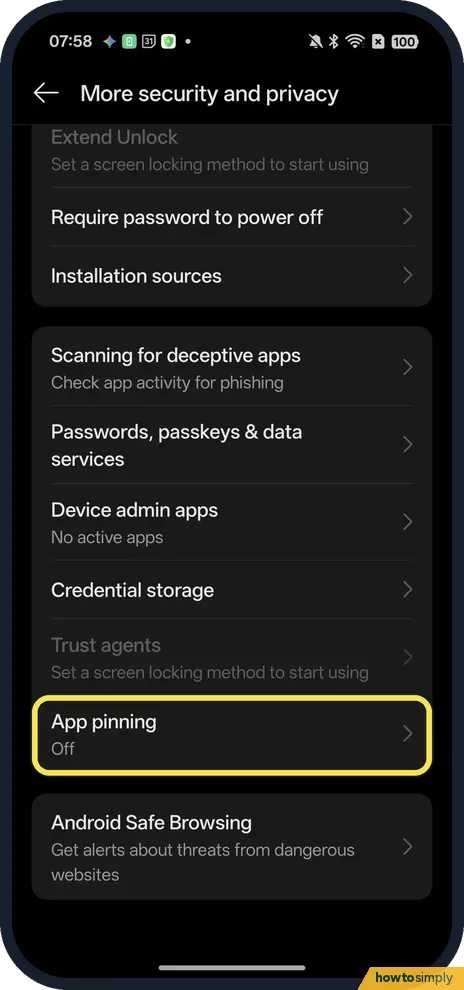
Tap App pinning
Scroll down the More security and privacy page. App pinning is in the second group, below Trust agents. Ours said Off.
- 4
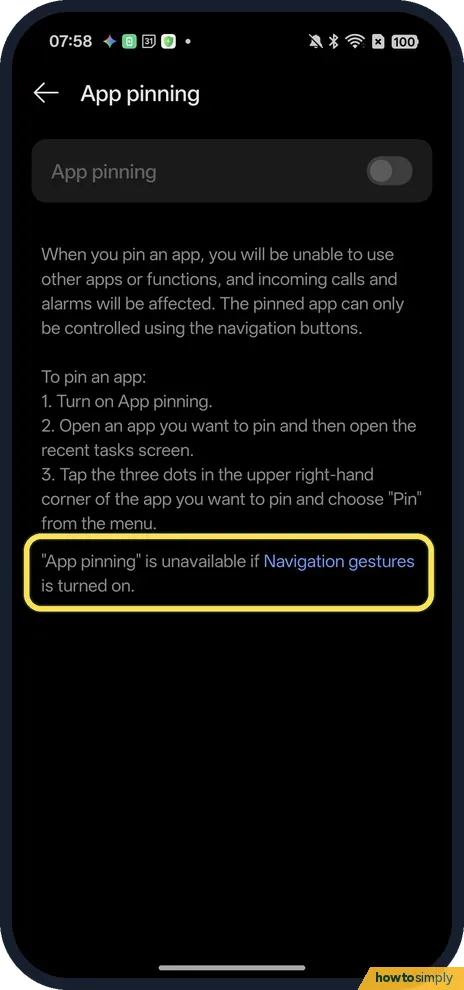
Greyed out? Check the note
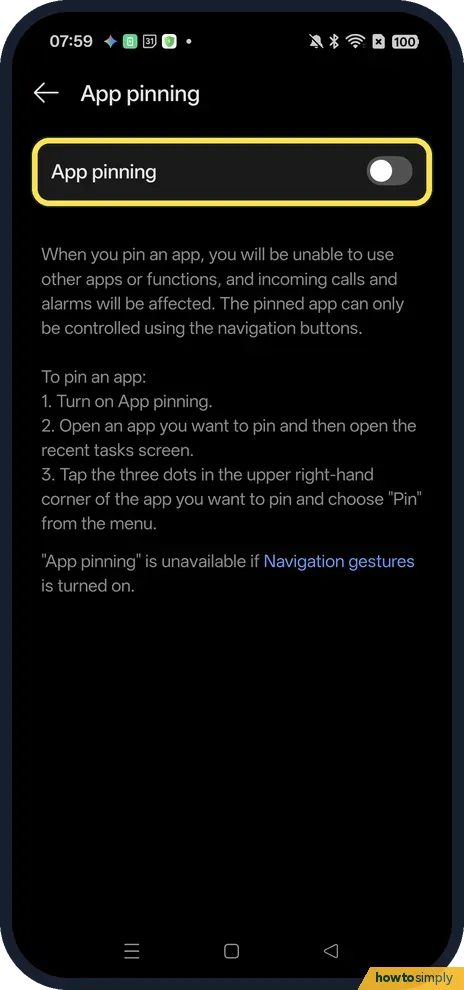
On ours the App pinning switch was grey and could not be turned on. The page says why: "App pinning" is unavailable if Navigation gestures is turned on. It also warns that while an app is pinned you will be unable to use other apps or functions, and incoming calls and alarms will be affected.
- 5
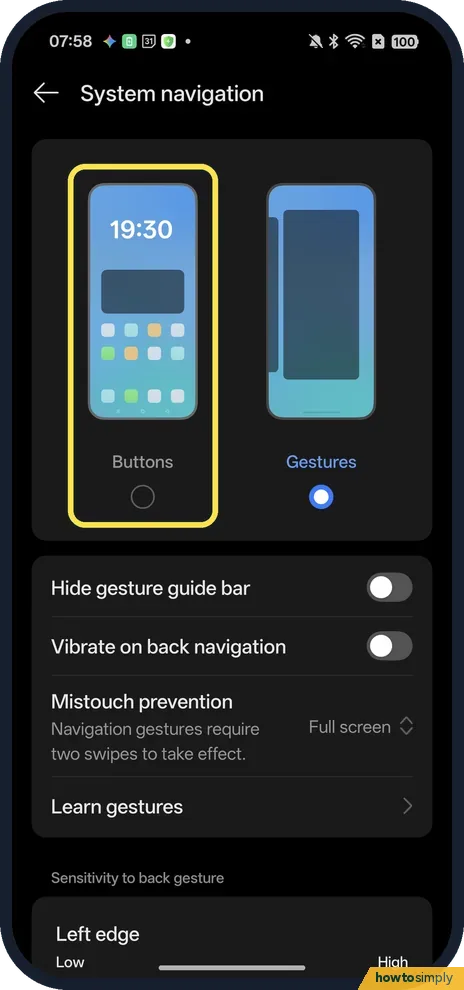
Open System navigation and tap Buttons
Go to Settings, System & update, System navigation (our gestures and buttons guide shows the way). Ours was on Gestures. Tap the circle under Buttons.
- 6
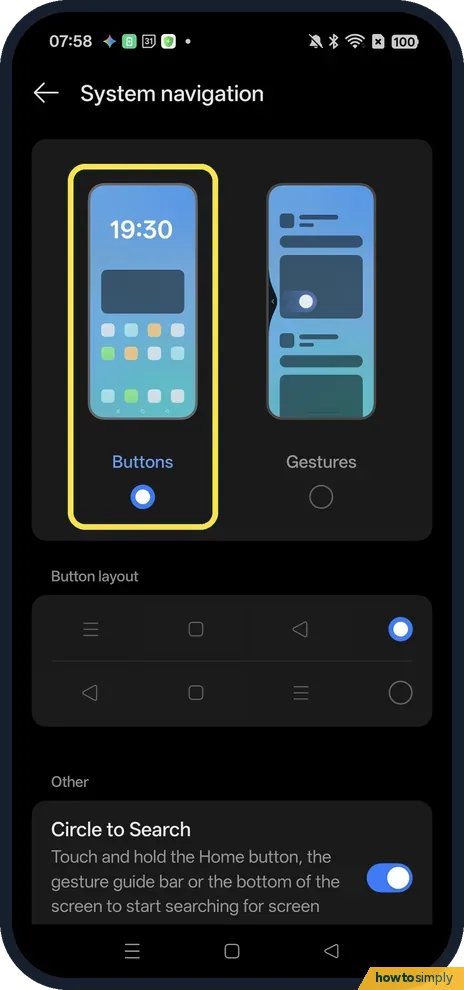
Check the buttons at the bottom
Buttons is now selected and three buttons appear at the bottom of the screen. Under Button layout, ours used the first row: Overview (three lines), Home (square) and Back (triangle) from left to right.
- 7
Turn on App pinning
Go back to Security and privacy, More security and privacy, App pinning. The switch is no longer grey. Tap it.
- 8
Leave Lock screen after unpinning as it is
App pinning is on, and a second switch appears below it: Lock screen after unpinning. It was off on ours and we did not use it, because our phone had no screen lock.

- 9
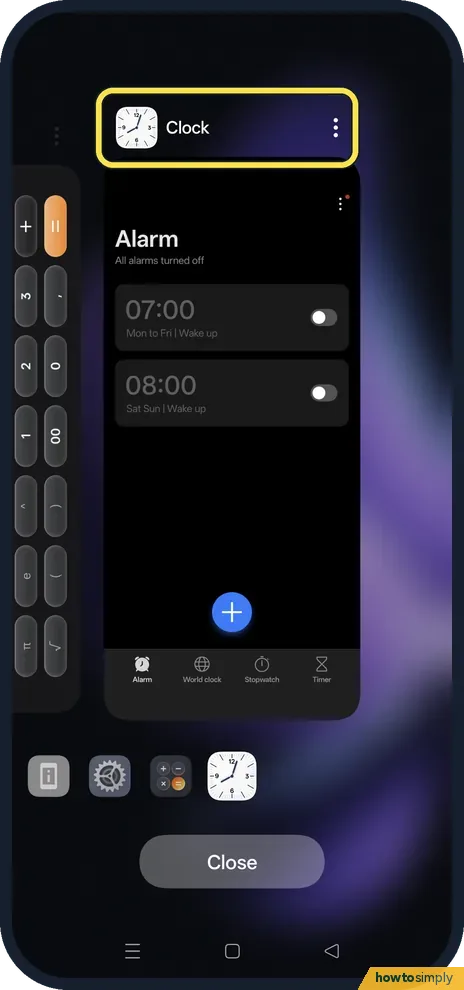
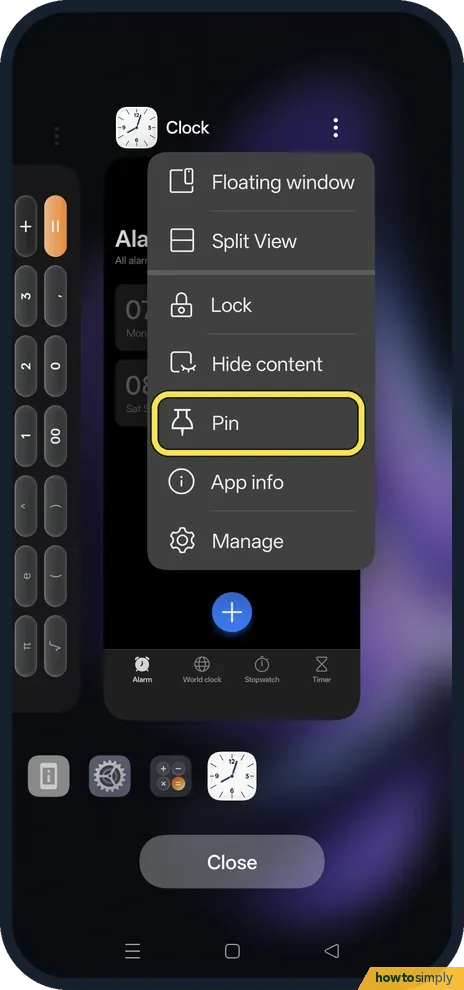
Open Recents and tap the three dots
Open the app you want to pin, then tap the Overview button (three lines) to open Recents. On the app's card, tap the three dots at the top right, next to the app name. Ours was the Clock app.
- 10
Tap Pin
A menu opens: Floating window, Split View, Lock, Hide content, Pin, App info and Manage. Tap Pin. Lock is a different thing: it keeps the app running in the background.
- 11
Read the message and tap Got it
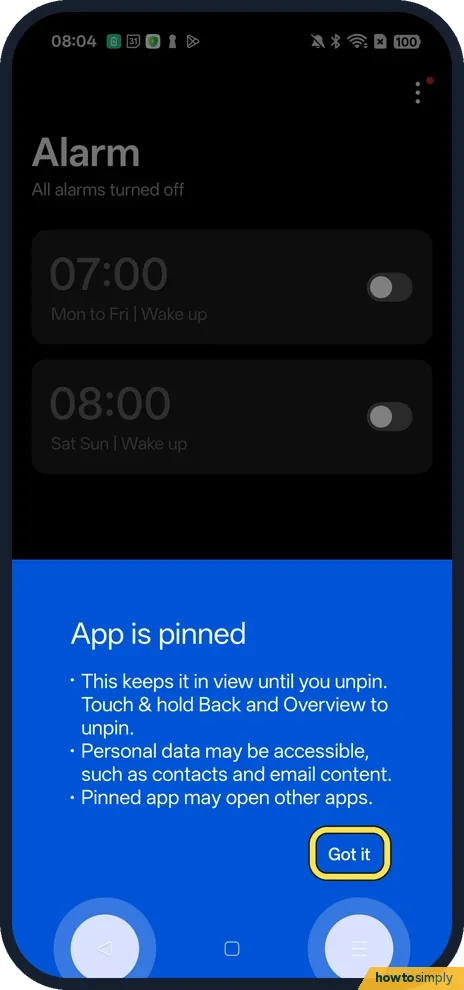
The screen turns blue: App is pinned. This keeps it in view until you unpin. Touch & hold Back and Overview to unpin. Personal data may be accessible, such as contacts and email content. Pinned app may open other apps. The two buttons are highlighted at the bottom. Tap Got it.
- 12
The app stays on the screen
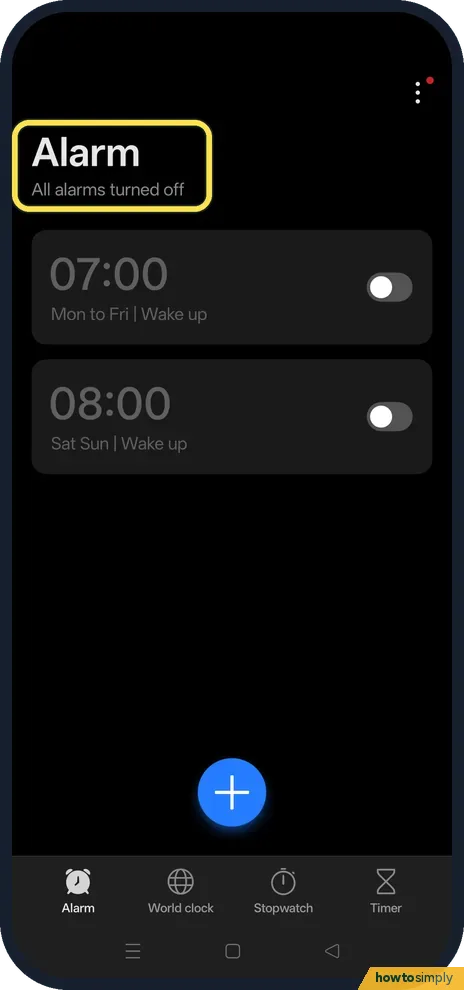
The Clock app fills the screen, here on Alarm with All alarms turned off. On ours the status bar at the top went away after we tapped Got it; only the three buttons stayed at the bottom.
- 13
Home does not leave the app
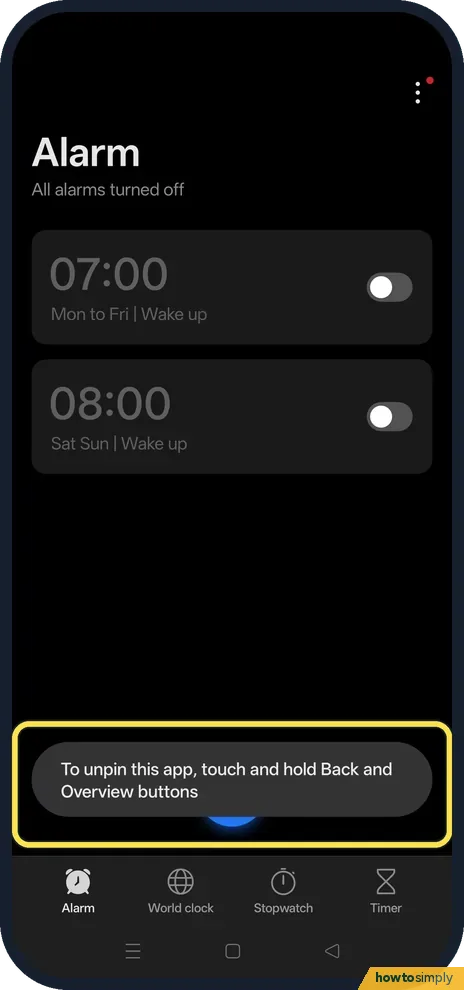
We tapped Home while the app was pinned. The app stayed, and a message said: To unpin this app, touch and hold Back and Overview buttons.
- 14
Unpin: touch and hold Back and Overview
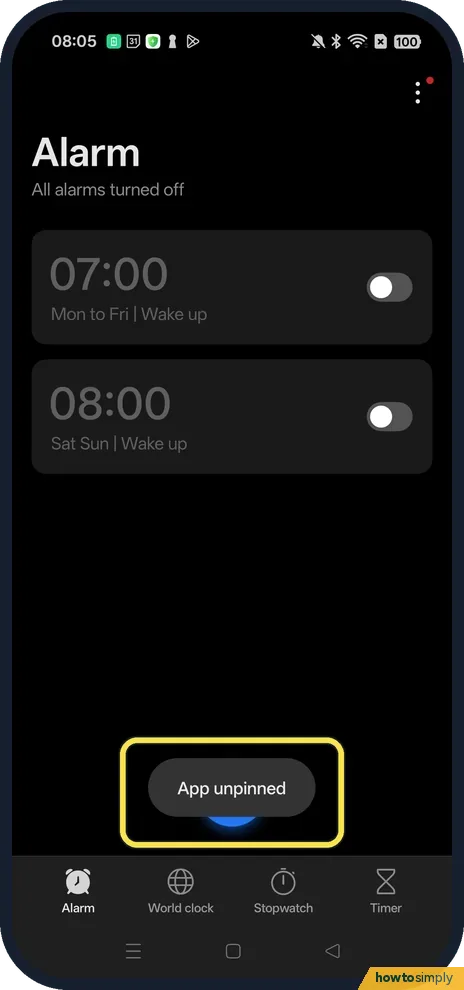
To unpin, touch and hold the Back and Overview buttons at the same time, as the message says. We did not do this hold by hand: on ours the pin was ended with a command from a computer connected to the phone. The message that then appeared, App unpinned, is shown here.
If you do not see this option
- App pinning switch greyed out? That is the gesture rule. The App pinning page on ours says "App pinning" is unavailable if Navigation gestures is turned on. Switch System navigation to Buttons first, then come back to the switch.
- No App pinning row? Google says to look under Security or Security & location, Advanced, App pinning, and to ask the maker if you can't find it. On our Reno13 with ColorOS 16.0.5 it was under Security and privacy, More security and privacy. Source: Pin and unpin screens
- No Pin in the card menu? Turn on App pinning first. The App pinning page on ours lists three steps: turn on App pinning, open the app and then the recent tasks screen, then tap the three dots in the upper right-hand corner of the app and choose "Pin". Google's help also starts with: after turning on app pinning. Source: Pin and unpin screens
If this does not work
- Pressing Home does nothing? That is pinning working. On ours Home showed: To unpin this app, touch and hold Back and Overview buttons. Hold both buttons together, not one after the other. Google's help gives the same hold for 3-button navigation: touch and hold Back and Overview.
- Asked for a PIN when unpinning? Google says that when app pinning is on, you need to enter your PIN, pattern, or password before you can unpin, so enter it. Our phone had no screen lock. To set one up: how to set a screen lock.
- Want gestures back? Unpin first, then go to Settings, System & update, System navigation and tap Gestures. App pinning goes grey again while gestures are on; we switched ours back after the shoot.
Good to know
App pinning is not a lock. The message on ours says personal data may be accessible and that the pinned app may open other apps, so a link inside the app can lead elsewhere. The App pinning page itself adds that incoming calls and alarms will be affected. For longer sharing, a guest user is safer: how to add a guest on Android.
Pick the app with care. Pinning a browser, for example, still lets someone visit any website from it. A game, a video app or the Camera is a calmer choice.
Other phones do it without the buttons step: app pinning on a Nothing phone, screen pinning on an HONOR phone, app pinning on a Google Pixel and pinning apps on a Xiaomi phone. The general steps for any Android phone are in how to let someone use one app only.
The same card menu also has Split View and Floating window: how to use Split View on an OPPO phone.
About this guide
- Device
- Android
- Shown on
- OPPO Reno13 5G (CPH2689, EEA), ColorOS 16.0.5, Android 16 (build CPH2689_16.0.5.1001(EX01))
- App
- Settings
- Path
- Settings › Security and privacy › More security and privacy
- Real screenshots
- 14 of 14 steps
- What we did
- Performed: we made the change on our device and show the result
- Checked
- October 2026
- Sources
- 1 official, linked below
Sources
Links checked October 2026. Menus and features can change with updates.Spotted a mistake? Menus change with updates, and we want every step to match your screen. Email us about this page or use the contact form. We read every report, and fixes are listed on What changed.
Liked this guide?
Follow us for new guides and short how-to videos.
Did this guide work for you?
Sorry about that. What happened?