
You are viewing the macOS 26 version of this guide, recorded on macOS Tahoe 26 (MacBook Pro) on 4 October 2026. It is kept as it was and not updated. See the macOS 27 version.
howtosimply.com/guides/how-to-stop-dock-icons-bouncing-on-a-mac/ · Checked 4 October 2026 · MacBook Pro · macOS Tahoe 26
In this guide
Open System Settings, click Desktop & Dock, and switch off Animate opening applications. Icons then no longer bounce when you open apps.
4 of 4 steps with real screenshots · 1 official source below
- Device
- Mac
- Shown on
- macOS Tahoe 26 (MacBook Pro)
- App
- System Settings
- Real screenshots
- 4 of 4 steps
- Checked
- 4 October 2026
- Sources
- 1 official, linked below
Step by step
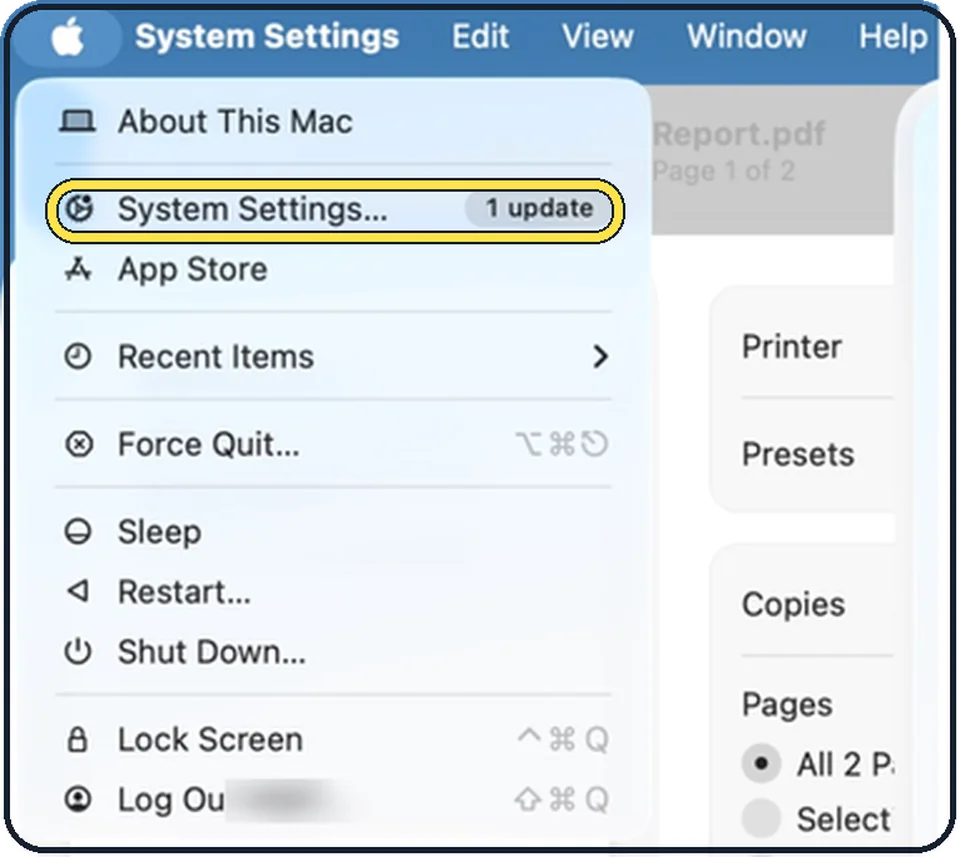
Tap the picture to see it full size Open System Settings
Click the Apple menu in the top left corner of the screen and choose System Settings.
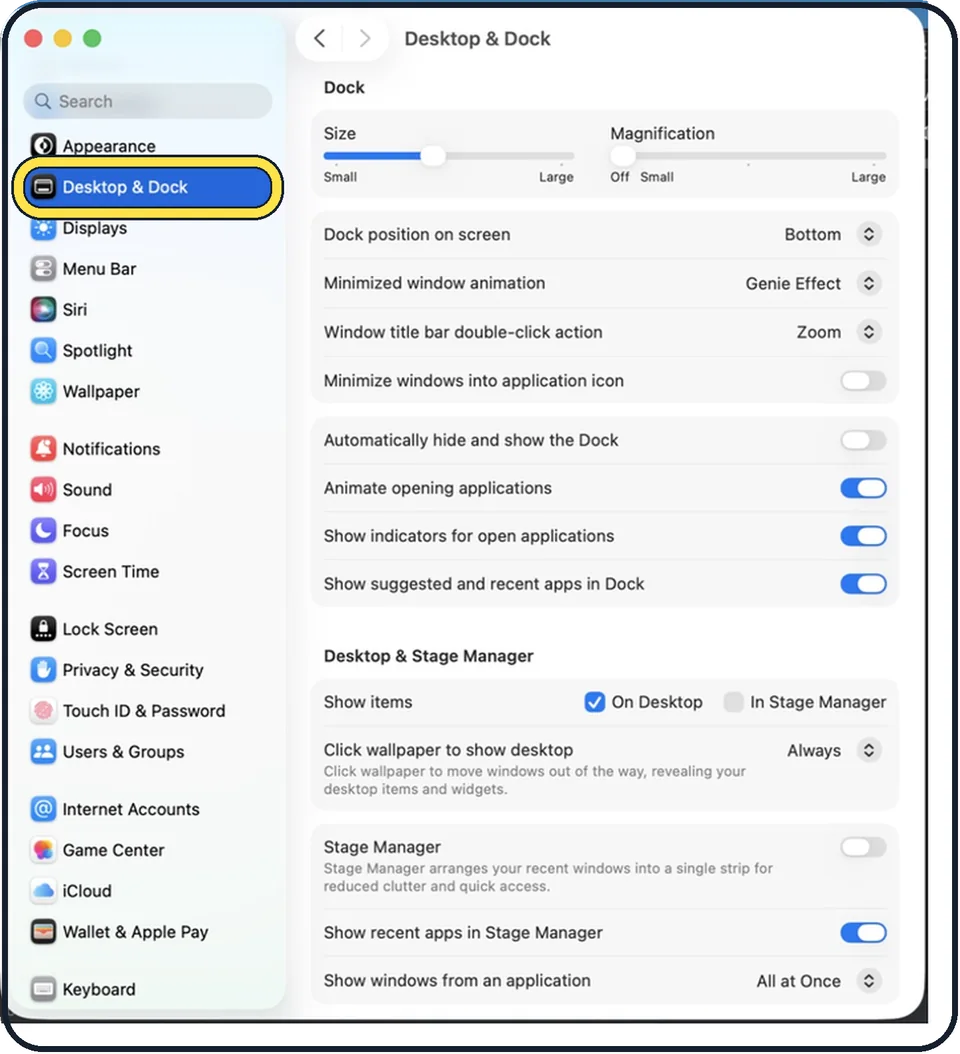
Tap the picture to see it full size Click Desktop & Dock in the sidebar
It is below Appearance. You may need to scroll down in the sidebar.
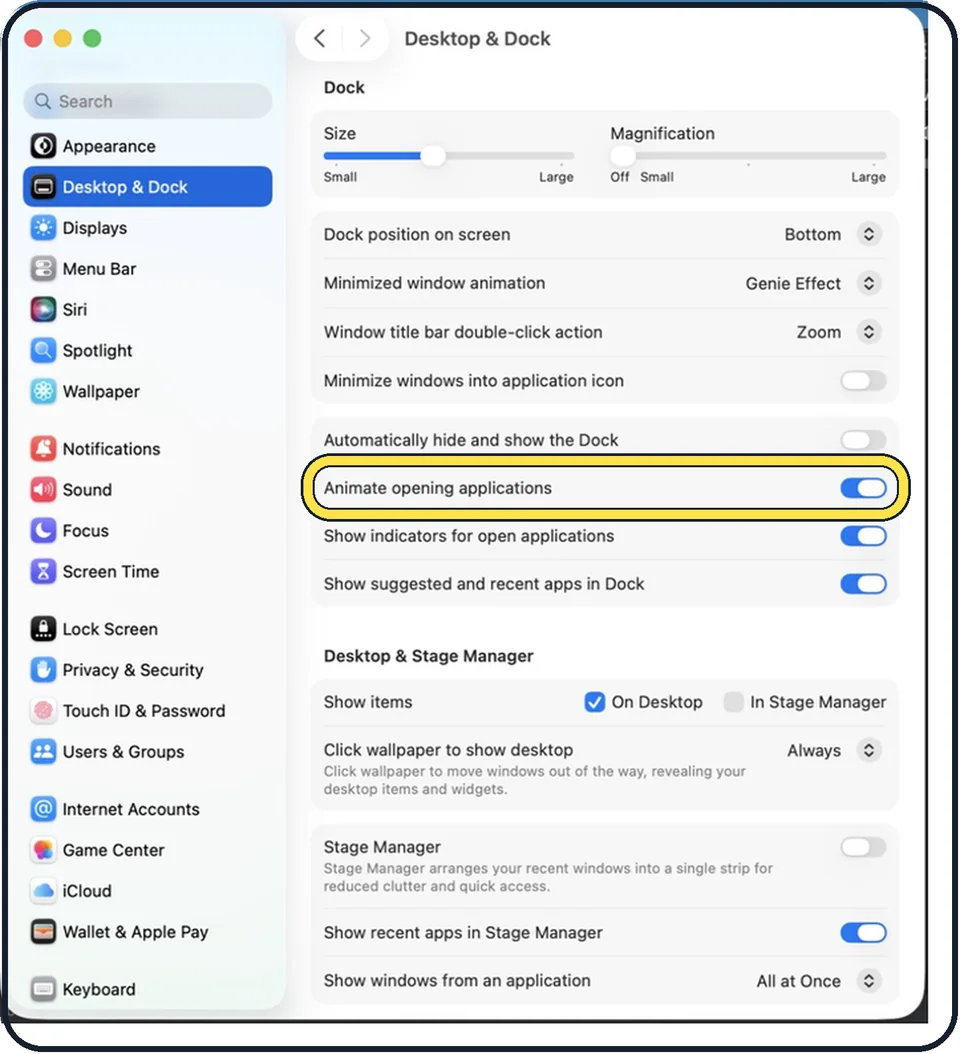
Tap the picture to see it full size Switch off Animate opening applications
It is in the Dock group. In the picture it is on.
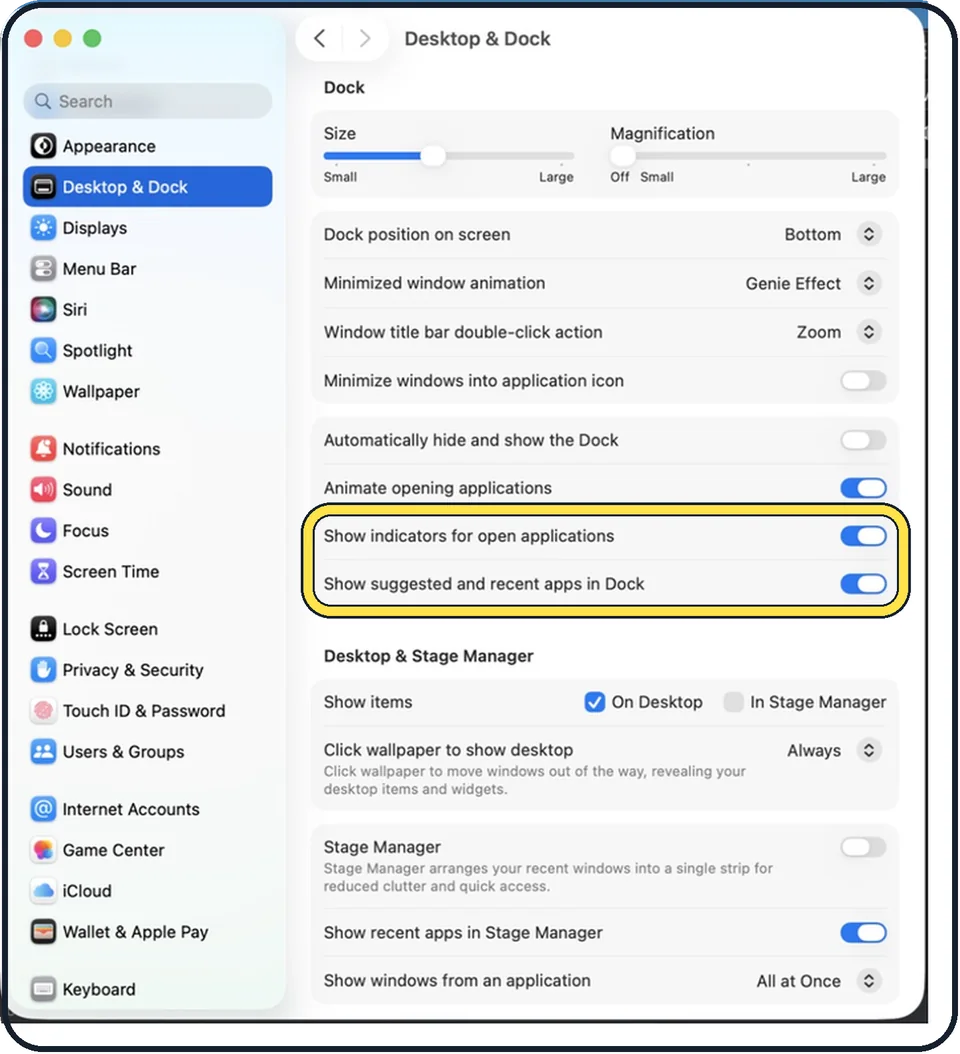
Tap the picture to see it full size Decide about the dots and recent apps
Show indicators for open applications shows a small dot below the icon of an app that is open. Show suggested and recent apps in Dock adds suggested and recently opened apps toward one end of the Dock.
What we saw on our device
- Click Desktop & Dock in the sidebar: On our MacBook Neo it is below Appearance and was visible without scrolling.
- Switch off Animate opening applications: On our MacBook Neo it was on; click the switch so it turns grey.
- Decide about the dots and recent apps: On our MacBook Neo both were on.
About this guide
When you open an app, its Dock icon bounces until the app is ready. If you find the movement distracting, one switch stops it.
The screenshots show System Settings on macOS Tahoe 26.
Good to know
More animation settings: how to reduce motion and animations on a Mac.
In short: Apple menu > System Settings > Desktop & Dock > Animate opening applications off.
Links checked in October 2026. Menus and features can change after software updates. These steps match the version named at the top.
Did this guide work for you?
Sorry about that. What happened?