
You are viewing the macOS 26 version of this guide, recorded on macOS Tahoe 26 (MacBook Pro) on 4 October 2026. It is kept as it was and not updated. See the macOS 27 version.
howtosimply.com/guides/how-to-sign-a-pdf-on-a-mac/ · Checked 4 October 2026 · MacBook Pro · macOS Tahoe 26
In this guide
Open the PDF in Preview, click the Markup button, then the Sign button, and create a signature with the trackpad, the camera or your iPhone. Click the signature to place it, drag it to the line and save.
5 of 5 steps with real screenshots · 1 official source below
- Device
- Mac
- Shown on
- macOS Tahoe 26 (MacBook Pro)
- App
- Preview
- Real screenshots
- 5 of 5 steps
- Checked
- 4 October 2026
- Sources
- 1 official, linked below
Step by step
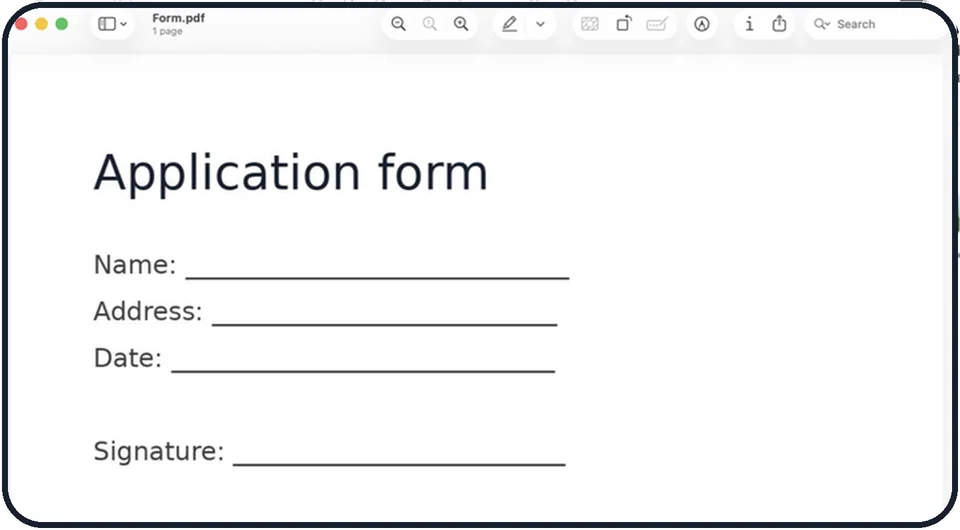
Tap the picture to see it full size Open the PDF in Preview
Double-click the file, or right-click it and choose Open With, Preview.
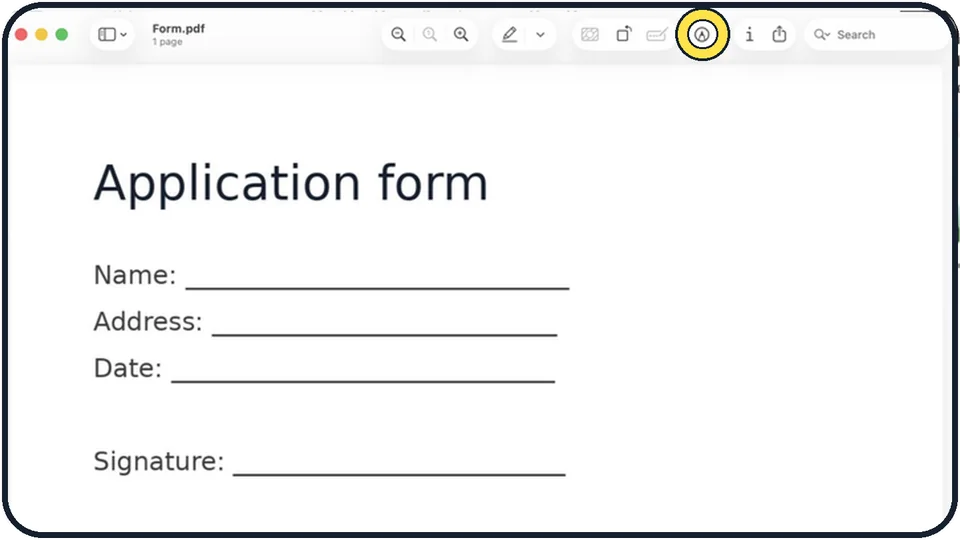
Tap the picture to see it full size Click the Markup button
It looks like a pen tip in a circle, at the top of the window. A second toolbar appears.
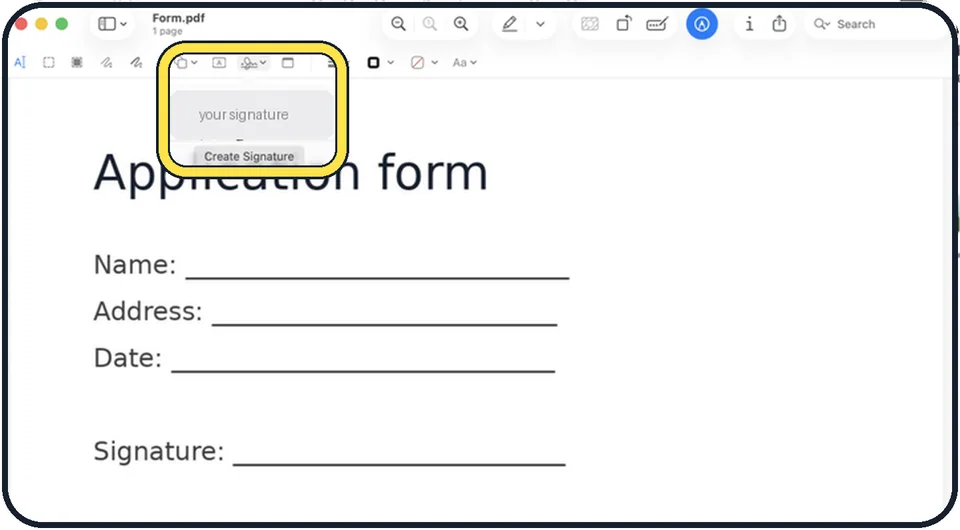
Tap the picture to see it full size Click the Sign button and create a signature
Choose Trackpad and sign with your finger, Camera and hold a signed piece of white paper up to the webcam, or iPhone and sign on the phone's screen. Click Done.
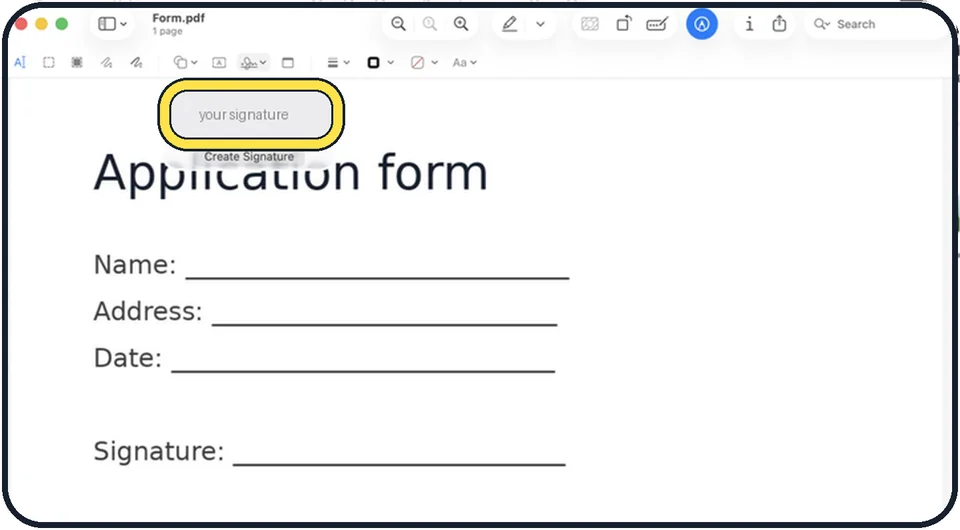
Tap the picture to see it full size Place the signature
Click Sign again, click your signature, then drag it to the right place and resize it by the corners.
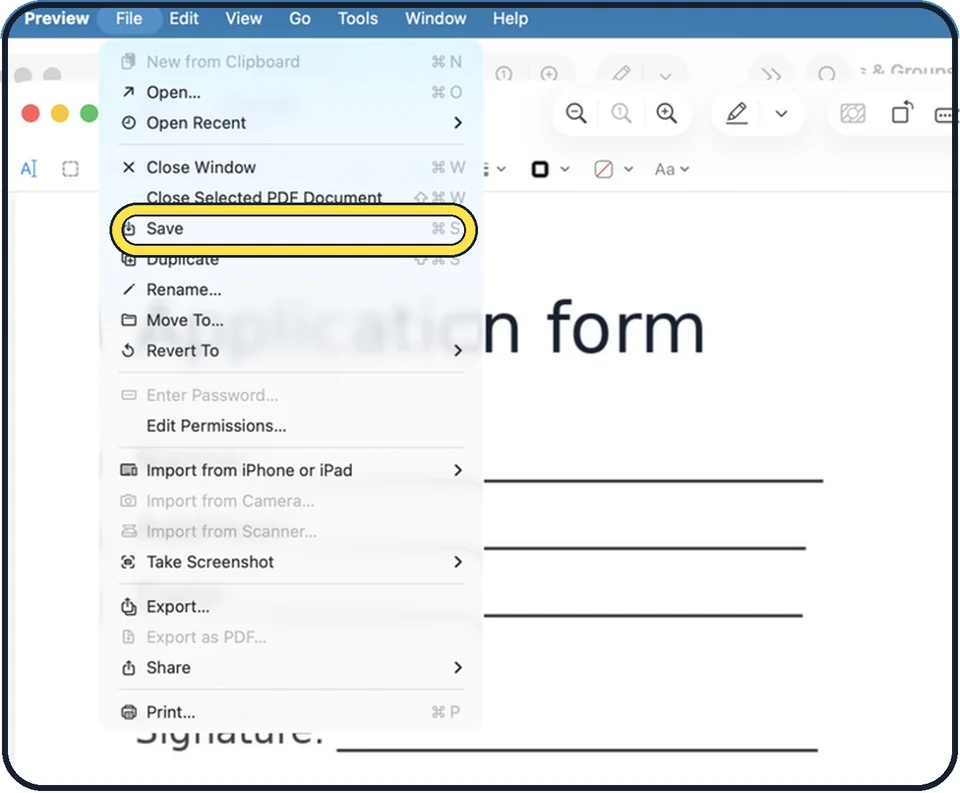
Tap the picture to see it full size Save
Press Command + S, or choose File, Save. To keep an unsigned original, choose File, Export instead and give the signed copy a new name.
What we saw on our device
- Click the Markup button: On our MacBook Neo the Markup button turns green when it is on.
- Click Sign and create your signature: On our MacBook Neo, with no saved signature, it opens the create panel straight away, with Trackpad, Camera and iPhone tabs.
About this guide
You do not need to print, sign and scan. Preview stores your handwritten signature once and adds it to any PDF in a few clicks.
Good to know
To fill in the rest of a form, click a text field and type, or use the Text button in the Markup toolbar.
A drawn signature like this is accepted for many everyday documents. Some contracts require a certified electronic signature from a signing service. Check what the other side needs.
In short: Preview > Markup > Sign > sign your name > Done > place the signature > File > Save.
Links checked in October 2026. Menus and features can change after software updates. These steps match the version named at the top.
Did this guide work for you?
Sorry about that. What happened?