
You are viewing the macOS 26 version of this guide, recorded on macOS Tahoe 26 (MacBook Pro) on 4 October 2026. It is kept as it was and not updated. See the macOS 27 version.
howtosimply.com/guides/macbook-getting-hot-7-things-to-check/ · Checked 4 October 2026 · MacBook Pro · macOS Tahoe 26
In this guide
Put the MacBook on a hard, flat surface, not on a bed or cushion, and keep the room between 10 and 35 degrees Celsius. Then open Activity Monitor, click the CPU tab and look for an app that uses a lot of processor time. Quit it, or restart the Mac.
3 of 7 steps with real screenshots · 2 official sources below
- Device
- Mac
- Shown on
- macOS Tahoe 26 (MacBook Pro)
- App
- System Settings
- Real screenshots
- 3 of 7 steps
- Checked
- 4 October 2026
- Sources
- 2 official, linked below
Step by step
Use a hard, flat surface
A desk or table lets the air move. Apple warns against using a Mac laptop in bed, on a pillow or under bedding. Put nothing on top of the keyboard and nothing into the ventilation openings.
Check the room
Apple gives a range of 10 to 35 degrees Celsius (50 to 95 degrees Fahrenheit). In direct sun or in a hot car the Mac heats up quickly.
Tap the picture to see it full size Find the busy app
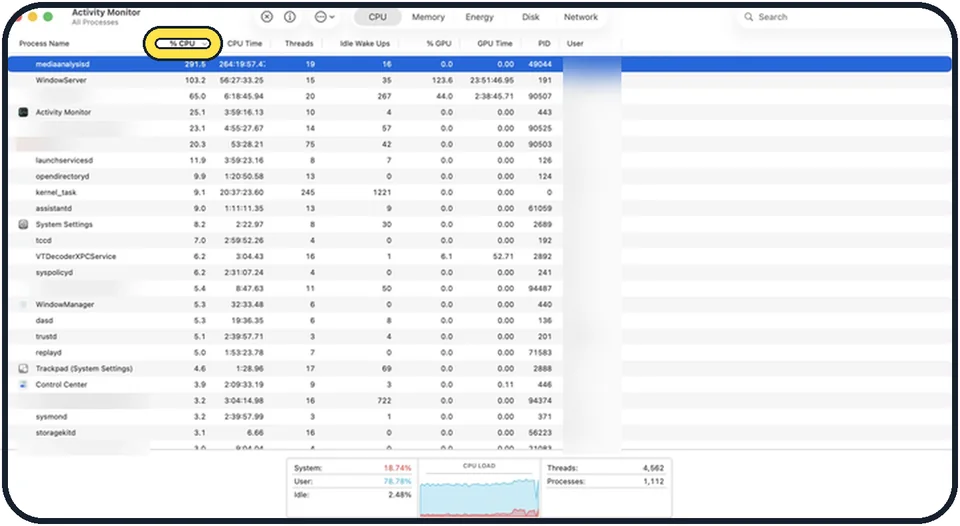
Open Activity Monitor from Applications, Utilities and click the CPU tab. Sort by % CPU. An app that stays near the top with a high value while you are not using it may be stuck. Select it and click the stop button to quit it.
Close what you do not need
Browser tabs with video or animated ads, video calls and virtual machines are frequent sources of heat. Close them and watch whether the fans calm down.
Tap the picture to see it full size Restart
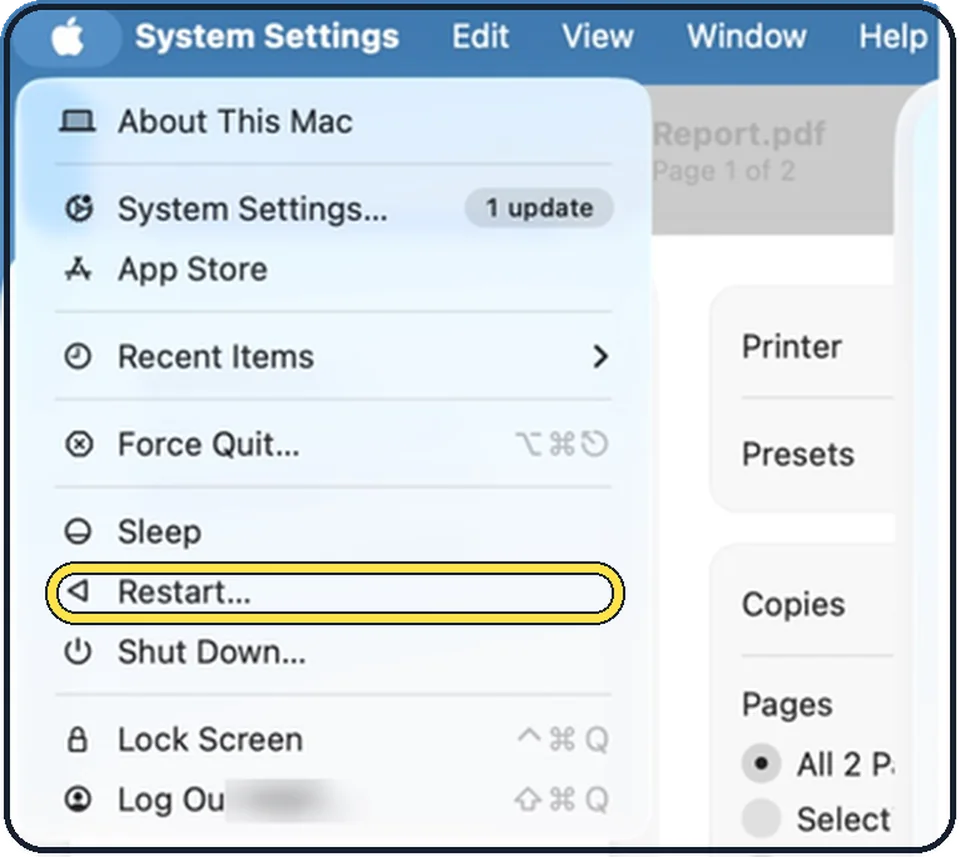
Close the lid for a moment and open it again, or choose Restart from the Apple menu. A restart ends background processes that have run wild.
Tap the picture to see it full size Install updates
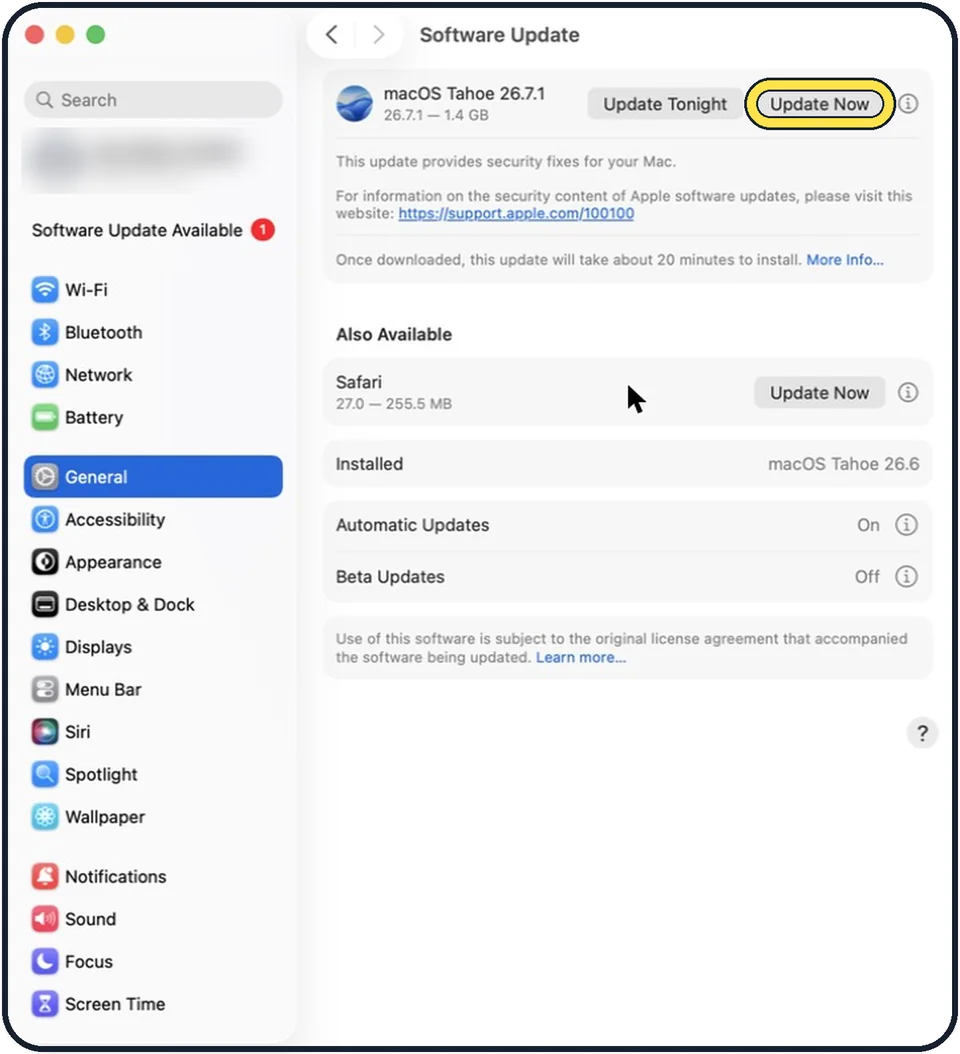
Updates often fix processes that use too much power: how to update macOS on your Mac.
Use an original charger
Apple recommends Apple-authorised power adapters. A Mac also gets warmer while it charges, especially when it charges and works hard at the same time.
What we saw on our device
- Find the busy app: On our MacBook Neo the tab shows System, User and Idle percentages and a CPU Load graph below the list.
- Quit what you do not need: On our MacBook Neo the Force Quit Applications window lists every open app.
- Restart: On our MacBook Neo, Restart… sits between Sleep and Shut Down….
About this guide
A MacBook gets warm when it works hard: video calls, games, exporting video, many browser tabs. That is normal, and the Mac slows itself down before anything is damaged. Heat without a reason usually comes from blocked airflow or a runaway process.
Menu names are from recent versions of macOS, where the settings app is called System Settings.
Good to know
On an Intel Mac, resetting the SMC can help when the fans run fast for no reason. Macs with Apple silicon have no such reset. A restart does the same.
Apps that claim to show the temperature do not measure the case and are not a reliable test, Apple says.
After a system update or after copying lots of photos, the Mac indexes files for some hours and is warm during that time. This passes by itself.
Related: Mac fan loud all the time: 6 things to check and MacBook battery draining fast: 8 ways to make it last.
In short: Hard surface, room between 10 and 35 degrees, Activity Monitor CPU tab, close heavy tabs and apps, restart, update, original charger.
Links checked in October 2026. Menus and features can change after software updates. These steps match the version named at the top.
Did this guide work for you?
Sorry about that. What happened?