How to turn on Find My Mobile on a Samsung Galaxy (One UI 9)
- Shown on
- Galaxy S26SM-S942N
- Software
- One UI 9Android 17More One UI 9 guides
- Checked
- November 2026
- Real screenshots
- 3 of 3 steps
- Where it is
- Settings › Security and privacy › Lost device protection
Quick answer
Open Settings, tap Security and privacy, then Lost device protection, then Find My Mobile, and turn on Allow this phone to be found. Samsung says this switch must be on to find the phone later with the Samsung Find app or website.
Watch these steps
Video: on our Galaxy S26 (One UI 9) we open Security and privacy, then Lost device protection, then Find My Mobile, where Allow this phone to be found, Send last location and Offline finding are (steps 1 to 3). We did not change them. No sound.
Steps
- 1
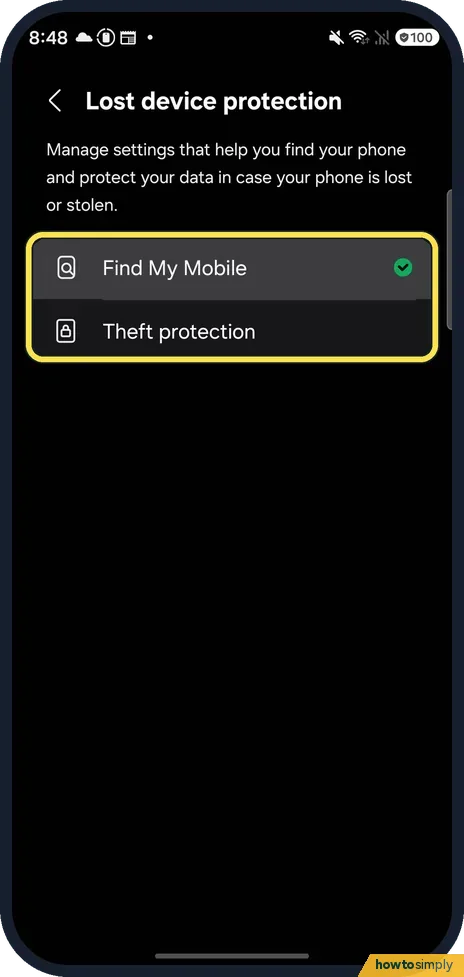
Open Lost device protection
Open Settings, tap Security and privacy, then Lost device protection. Ours listed Find My Mobile, with a green tick, and Theft protection.
- 2
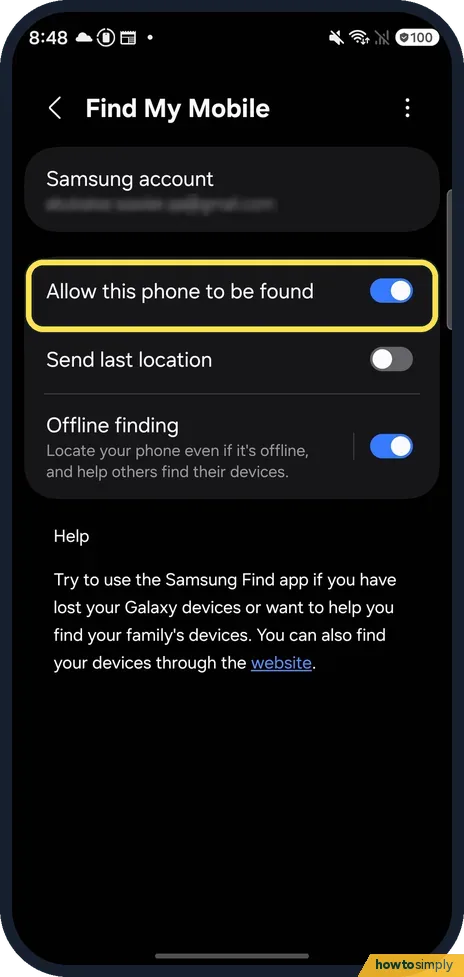
Turn on Allow this phone to be found
Tap Find My Mobile. The top shows the Samsung account it uses. Allow this phone to be found was on for ours. Samsung says it must be on for Samsung Find to work.
- 3
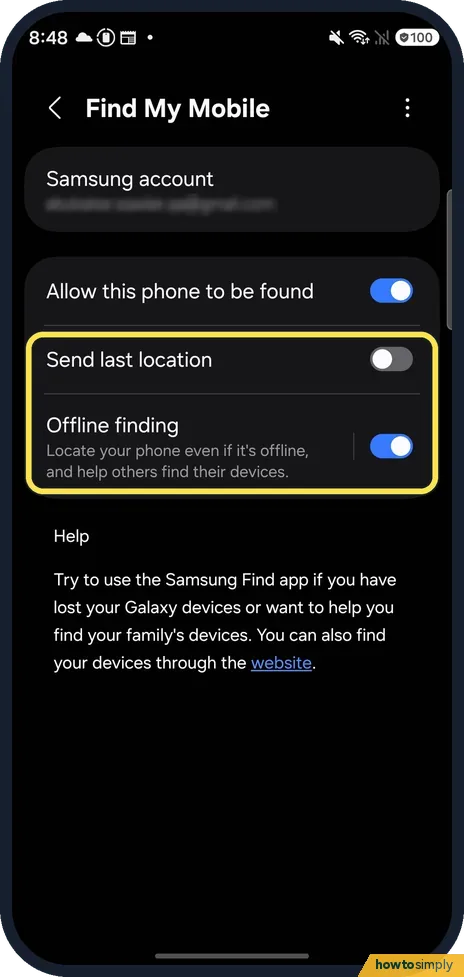
Check Send last location and Offline finding
Send last location was off on ours. Offline finding, which says it locates your phone even if it's offline and helps others find their devices, was on. Samsung says that with Offline finding on, nearby Galaxy devices help locate your phone even when it isn't connected to a network. Consider turning on Send last location too: Samsung says that with it on, the phone saves its last known address to the server before it powers off.
If you do not see this option
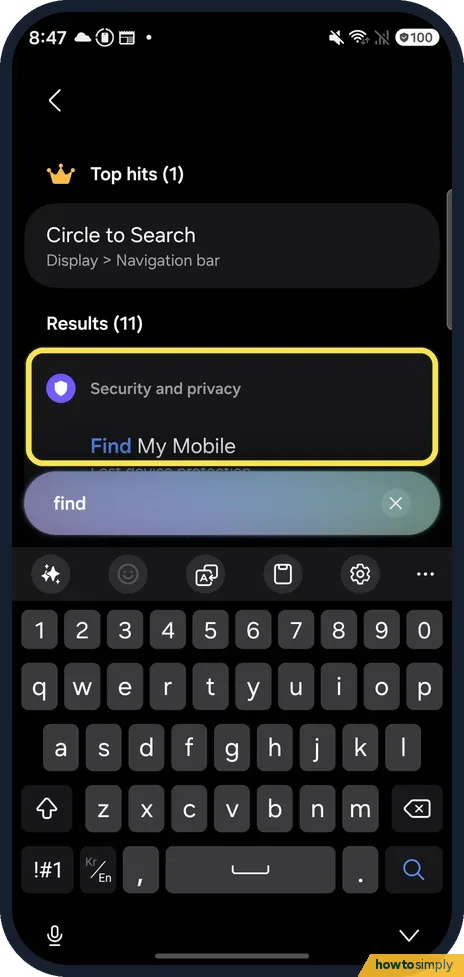
- Can't find Lost device protection? Search Settings for find. On ours the results showed Find My Mobile, Allow this phone to be found, Offline finding and Send last location.
- Which account does it use? Your Samsung account: ours showed it at the top of the Find My Mobile page. Samsung says the phone must be powered on to sign in, so sign in now, before it goes missing. Source: Samsung Find
If this does not work
- Phone already lost? Samsung says to log in at samsungfind.samsung.com, or use a family member's Samsung Find app if you shared the phone's location with them beforehand.
- Want to wipe a lost phone? Samsung says some features, such as erasing data, are on the Samsung Find website.
Good to know
The Find My Mobile page on ours also had a help note pointing to the Samsung Find app and website.
About this guide
Turn this on before you need it: once the phone is lost, it is too late to change the setting.
- Device
- Android
- Shown on
- Samsung Galaxy S26 (SM-S942N, Korean model), One UI 9, Android 17
- App
- Settings
- Path
- Settings › Security and privacy › Lost device protection
- Real screenshots
- 3 of 3 steps
- What we did
- Observed: looked at each screen, changed nothing
- Checked
- November 2026
- Sources
- 1 official, linked below
The screenshots are from our Galaxy S26, the Korean model SM-S942N, with One UI 9 and Android 17, in Dark mode, taken on 18 November 2026. We only looked at these screens and changed nothing.
Sources
Links checked October 2026. Menus and features can change with updates.Did this guide work for you?
Sorry about that. What happened?
Get new guides by email
Our newest guides, sent to your inbox. Free, and you can unsubscribe in one click.
We'll email you to confirm. How we use your email
Follow howtosimply on Facebook
We share our new guides on our Facebook page, so the next fix turns up in your feed.
Follow on Facebook