 Illustration
You are viewing the macOS 26 version of this guide, recorded on macOS Tahoe 26 (MacBook Pro) on 4 October 2026. It is kept as it was and not updated. See the macOS 27 version.
howtosimply.com/guides/how-to-let-someone-use-your-mac-safely-with-the-guest-user/ · Checked 4 October 2026 · MacBook Pro · macOS Tahoe 26
In this guide
Open System Settings, click Users & Groups and click the info button next to Guest User. Turn on Allow guests to log in to this computer. A guest logs in without a password, cannot see your files or change settings, and everything they did is deleted when they log out.
5 of 6 steps with real screenshots · 2 official sources below
- Device
- Mac
- Shown on
- macOS Tahoe 26 (MacBook Pro)
- App
- System Settings
- Real screenshots
- 5 of 6 steps
- Checked
- 4 October 2026
- Sources
- 2 official, linked below
Step by step
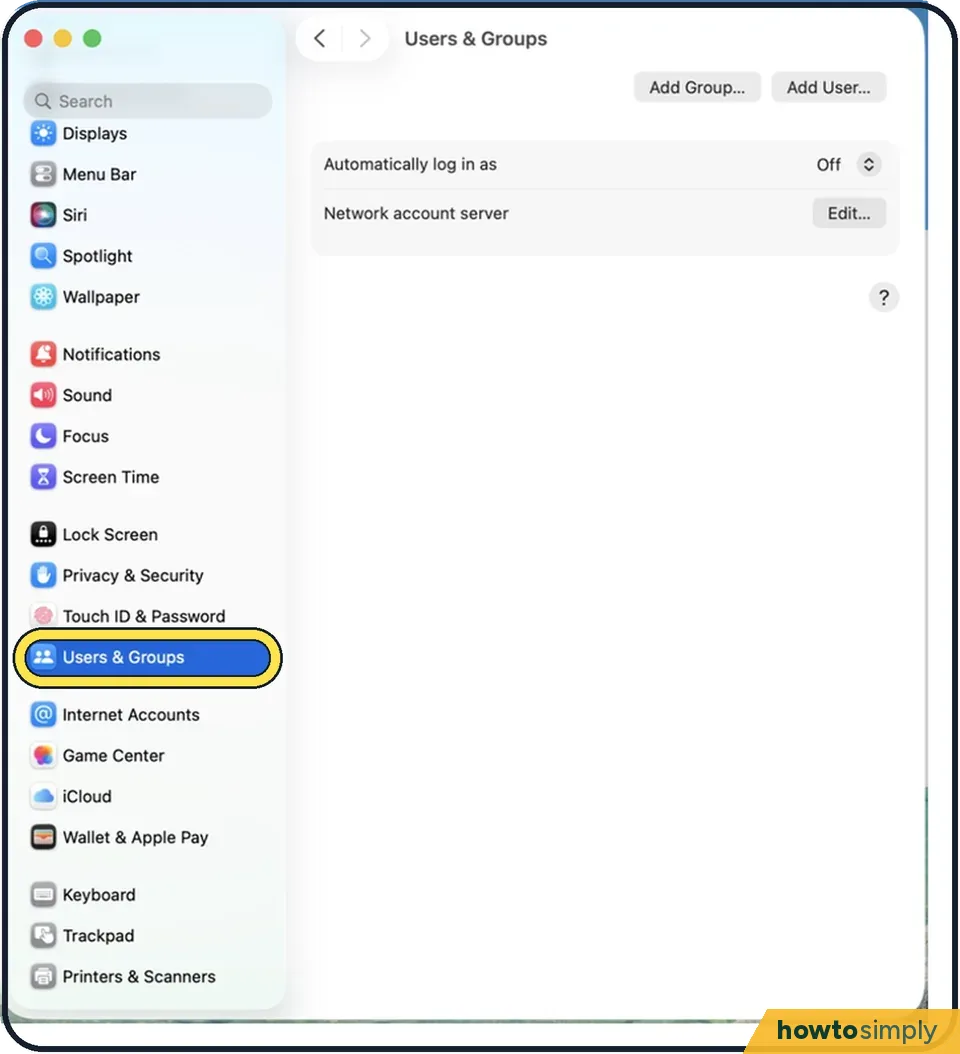
Tap the picture to see it full size Open System Settings, Users & Groups
Choose Apple menu, System Settings and click Users & Groups in the sidebar.
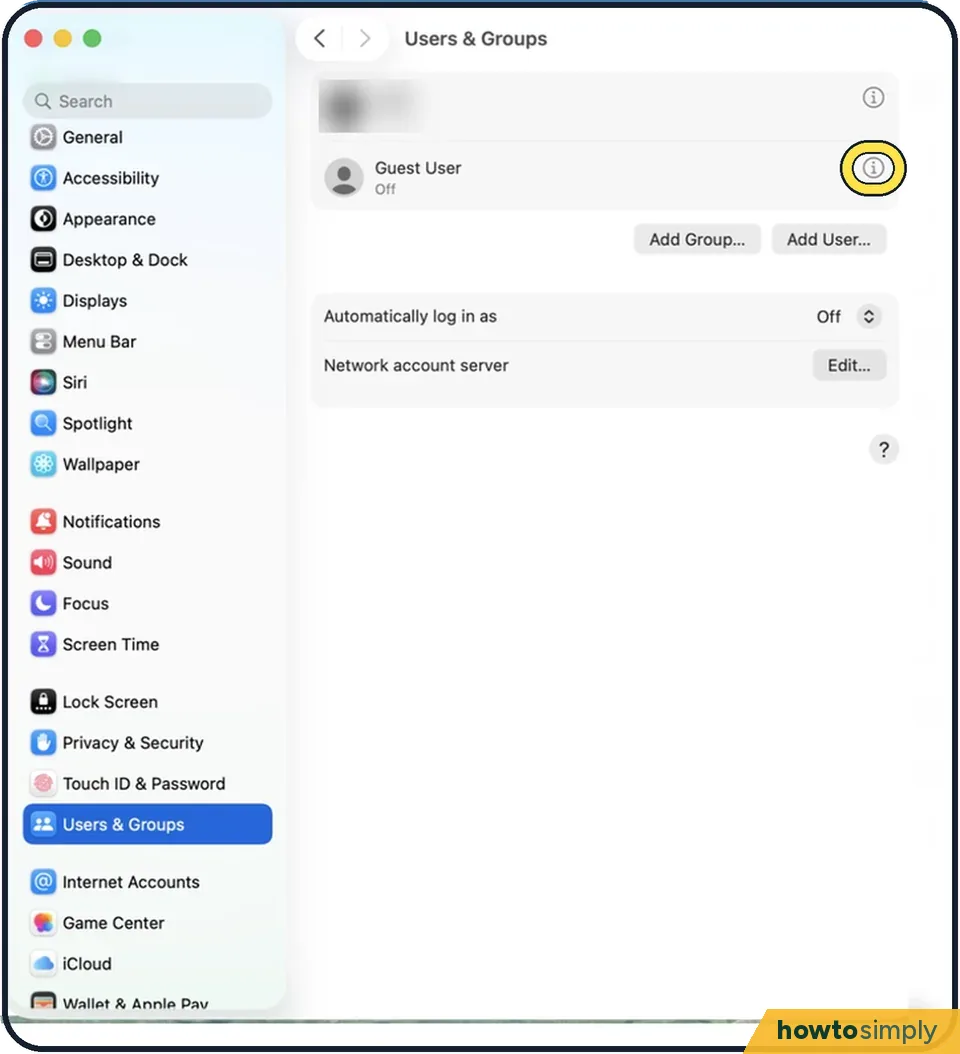
Tap the picture to see it full size Click the info button next to Guest User
It is the small i at the right of the line.
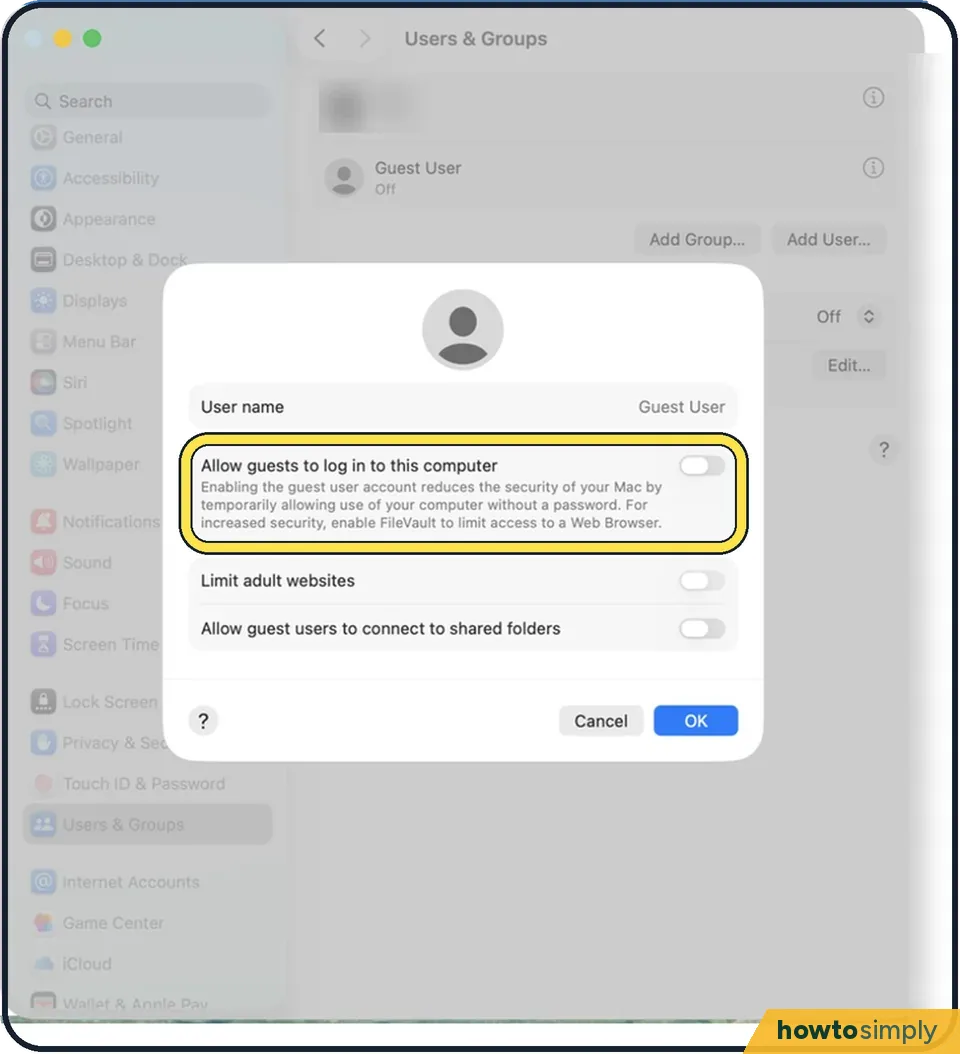
Tap the picture to see it full size Turn on Allow guests to log in to this computer
No password is needed for the guest account.
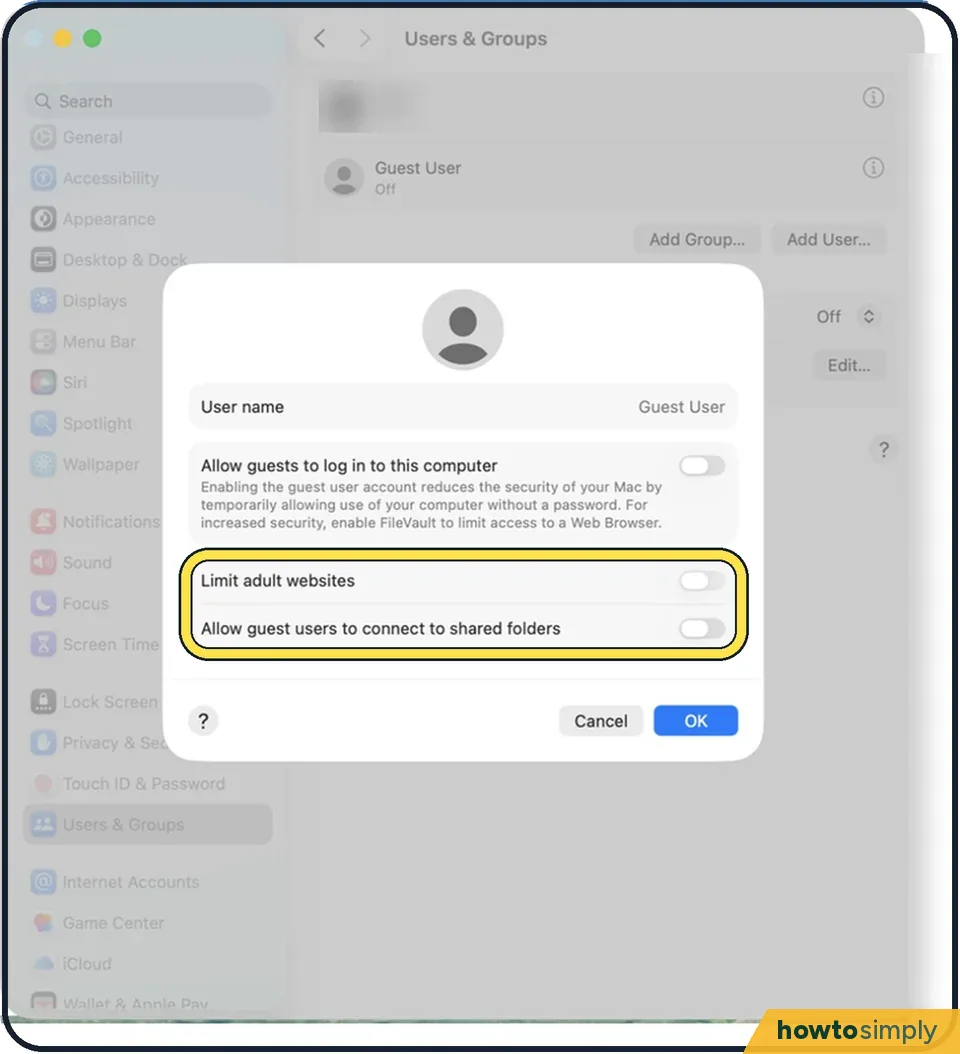
Tap the picture to see it full size Choose the extras
Limit adult websites filters many adult sites in Safari. Allow guest users to connect to shared folders is only needed if the guest should reach shared folders on this Mac from another computer. Leave it off otherwise.
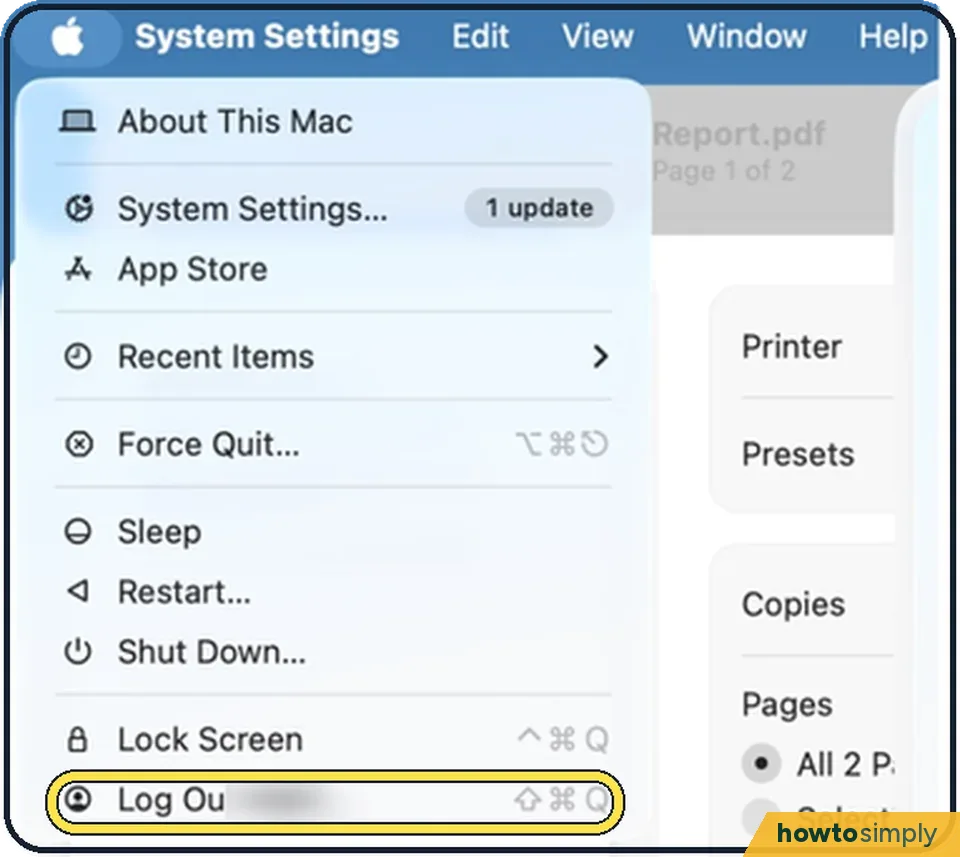
Tap the picture to see it full size Switch to the guest
Choose Apple menu, Log Out, or use fast user switching in Control Center, and pick Guest User in the login window.
When the guest is done
The guest logs out, and the Mac deletes the guest's files, browser history and downloads. Anything worth keeping has to be saved elsewhere first, for example on a USB stick.
About this guide
When a friend wants to check their email or a child wants to look something up, handing over your own account means handing over your mail, photos and saved passwords. The Guest User is a clean, temporary account made for this.
Menu names are from recent versions of macOS, where the settings app is called System Settings.
Good to know
With FileVault switched on, a guest can only use Safari and cannot reach the encrypted disk or create files. For a quick look at a website, that is all they need.
The guest account also helps to get a stolen Mac back. A finder who logs in as a guest and goes online with Safari lets the Mac report its position to Find My: how to turn on Find My Mac.
For someone who uses the Mac regularly, such as a family member, a normal account of their own is better: how to add a user account on a Mac.
What FileVault is: how to turn on FileVault on a Mac.
In short: Apple menu, System Settings…, Users & Groups, info button next to Guest User, Allow guests to log in to this computer, OK.
Links checked in October 2026. Menus and features can change after software updates. These steps match the version named at the top.
📷 Camera Lab: the same 6 scenes photographed with 11 phones, side by side.
Did this guide work for you?
Sorry about that. What happened?