How to close apps on a Samsung Galaxy (One UI 9)
- Shown on
- Galaxy S26SM-S942N
- Software
- One UI 9Android 17More One UI 9 guides
- Checked
- November 2026
- Real screenshots
- 2 of 3 steps
Quick answer
Tap the Recents button to see your open apps. Swipe an app up to close it, or tap Close all at the bottom to close every app. Samsung says you can keep one app running with Keep open.
Watch these steps
Video: on our Galaxy S26 (One UI 9) we open Recents and tap Close all (steps 1 and 3). No sound.
Steps
- 1
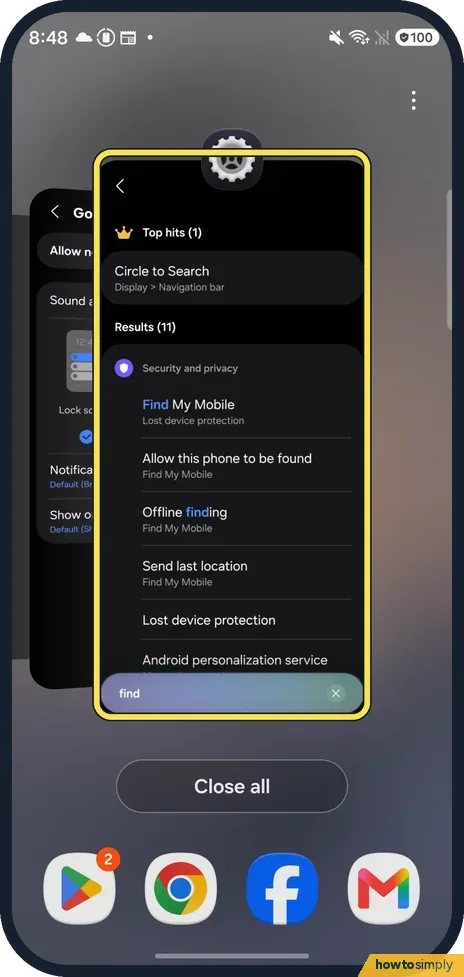
Open Recents
Tap the Recents button at the bottom of the screen. Your open apps show as cards; ours showed Settings in front.
- 2
Close one app
Samsung says to swipe the app up to close it. We didn't close anything on ours.
- 3
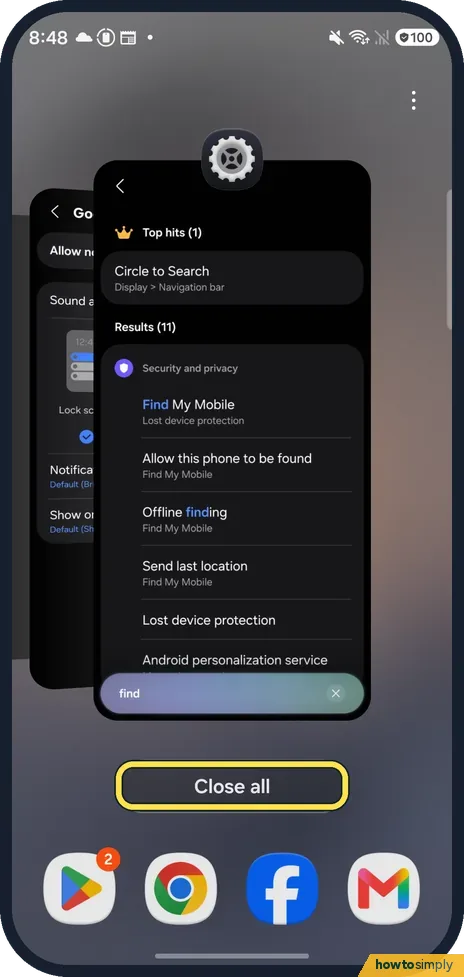
Close all apps
Tap Close all at the bottom. Samsung says this closes all apps. We didn't tap it on ours.
If you do not see this option
- Want one app to stay open? Samsung says to tap the app's icon above its card in Recents and select Keep open. Source: Manage Recent apps on your Galaxy phone or tablet
About this guide
On a Galaxy, Recents has a Close all button right at the bottom.
📷 See real photos from the Galaxy S26 in our Camera Lab, next to 10 other phones.
- Device
- Android
- Shown on
- Samsung Galaxy S26 (SM-S942N, Korean model), One UI 9, Android 17
- App
- Settings
- Real screenshots
- 2 of 3 steps
- Checked
- November 2026
- Sources
- 1 official, linked below
The screenshots are from our Galaxy S26, the Korean model SM-S942N, with One UI 9 and Android 17, in Dark mode, taken on 18 November 2026. Ours used the navigation buttons; for the picture we opened Recents and closed nothing.
Sources
Links checked October 2026. Menus and features can change with updates.Did this guide work for you?
Sorry about that. What happened?
Get new guides by email
Our newest guides, sent to your inbox. Free, and you can unsubscribe in one click.
We'll email you to confirm. How we use your email
Follow howtosimply on Facebook
We share our new guides on our Facebook page, so the next fix turns up in your feed.
Follow on Facebook