
You are viewing the macOS 26 version of this guide, recorded on macOS Tahoe 26 (MacBook Pro) on 2 October 2026. It is kept as it was and not updated. See the macOS 27 version.
howtosimply.com/guides/external-monitor-not-detected-on-a-mac-7-fixes-to-try/ · Checked 2 October 2026 · MacBook Pro · macOS Tahoe 26
In this guide
Check that the power and video cables sit firmly at both ends. Then open System Settings, Displays, hold the Option key and click Detect Displays. If the screen stays dark, restart the Mac and try another cable or adapter.
4 of 7 steps with real screenshots · 1 official source below
- Device
- Mac
- Shown on
- macOS Tahoe 26 (MacBook Pro)
- App
- System Settings
- Real screenshots
- 4 of 7 steps
- Checked
- 2 October 2026
- Sources
- 1 official, linked below
Step by step
Check the cables at both ends
Make sure the power cable and the video cable of the display are connected securely and correctly at both ends. Check that the display is switched on and set to the right input, such as HDMI 1 or USB-C.
Tap the picture to see it full size Use Detect Displays
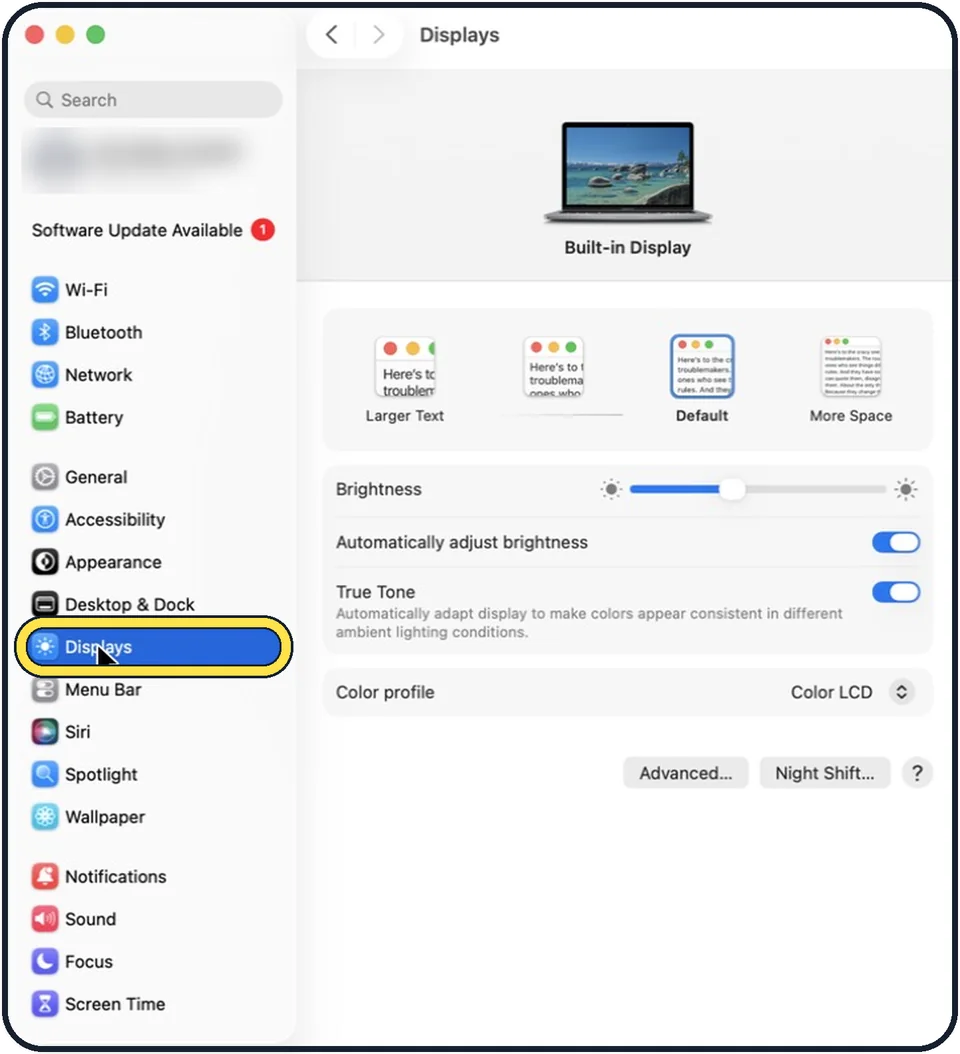
Open System Settings and click Displays. Press and hold the Option key. A button called Detect Displays appears. Click it.
Restart the Mac
Restart with the display connected. If the Mac does not react, hold the power button for about 10 seconds to switch it off, then start it again.
Check the cable and the adapter
With Thunderbolt and USB-C, the cable or adapter must support the resolution and refresh rate of the display. A cable that only charges cannot carry a picture. Try another cable, and plug the display straight into the Mac without a dock.
Tap the picture to see it full size Turn up the brightness of the display
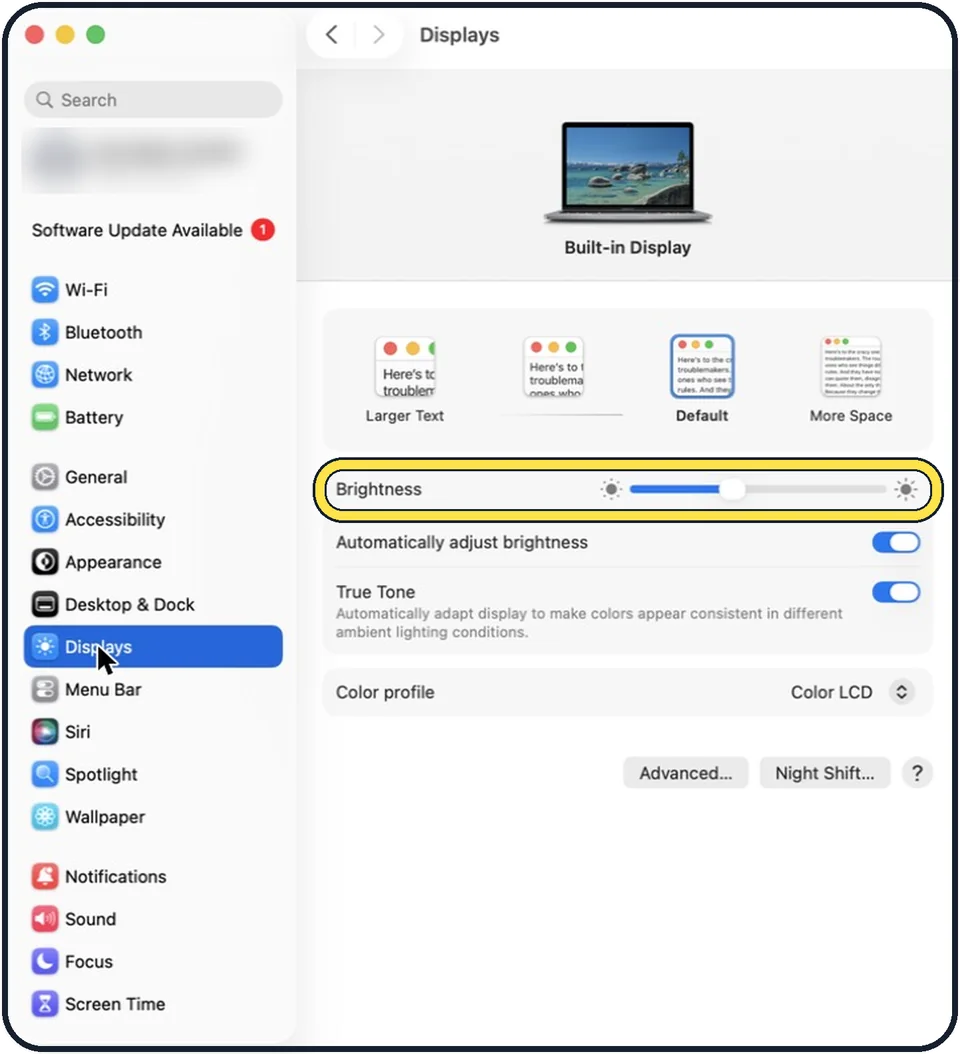
If the display is detected but dark, its brightness may be turned down. Use the buttons on the display or the brightness slider in System Settings, Displays.
Tap the picture to see it full size Change the resolution
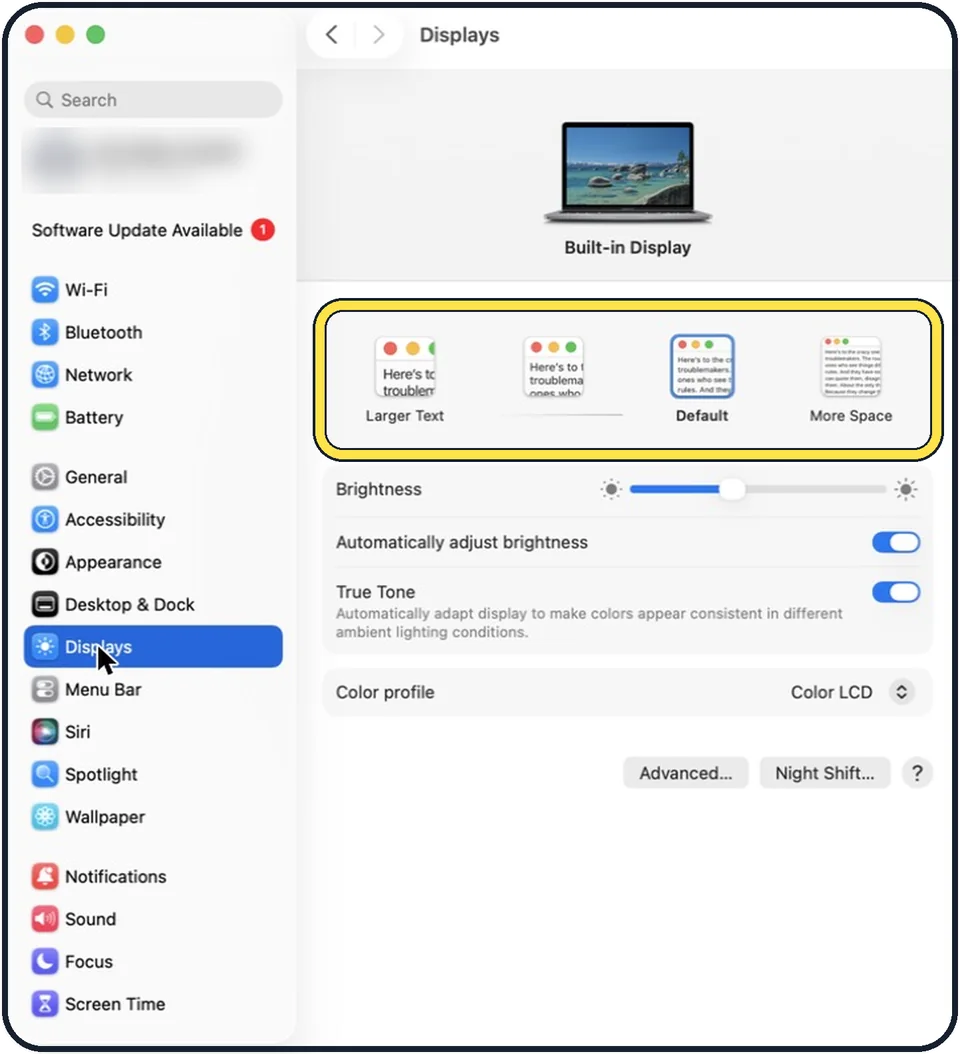
If the picture is blurred or the wrong size, select the display in System Settings, Displays and choose another resolution. The native resolution of the display is usually the sharpest.
Tap the picture to see it full size Update macOS
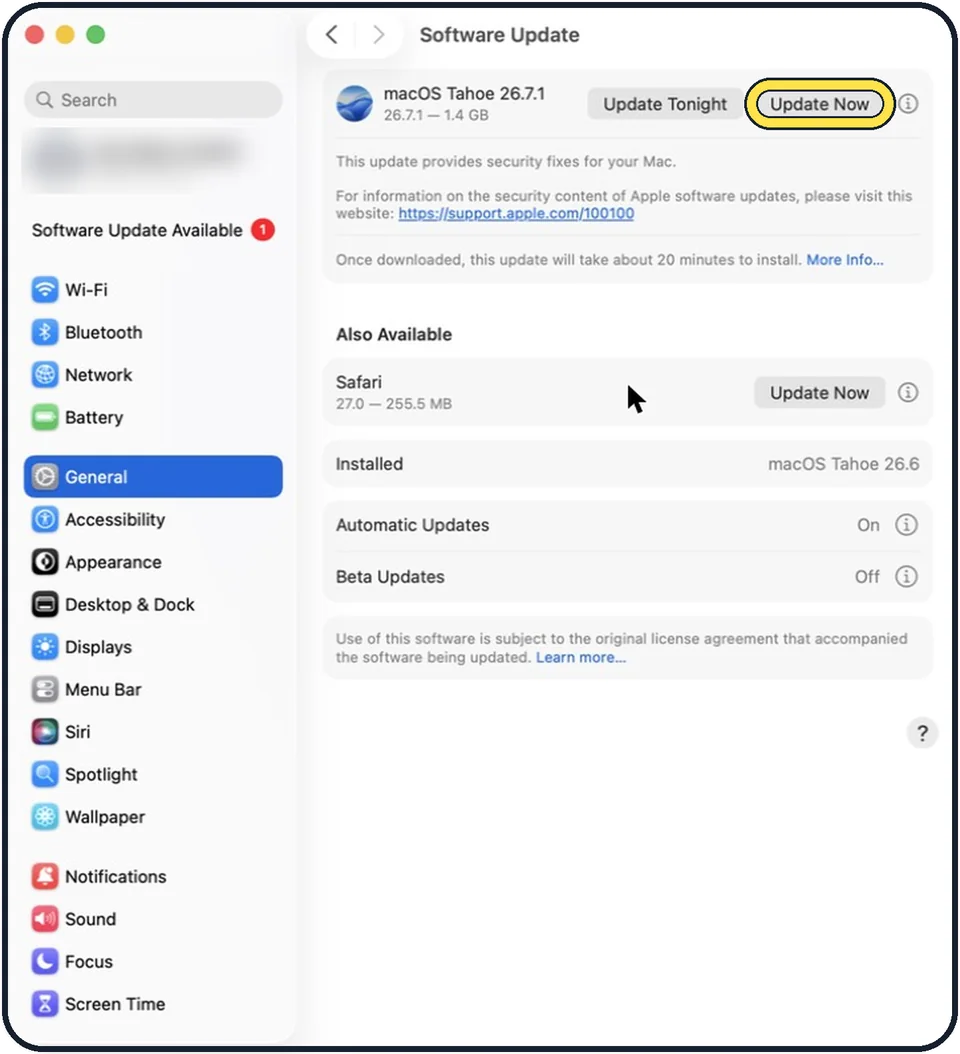
macOS updates also contain firmware updates for Apple displays.
What we saw on our device
- Hold Option and click Detect Displays: On our MacBook Neo, the Night Shift… button at the bottom of the page changes to Detect Displays while Option is held.
- Turn up the brightness: On our MacBook Neo, with no external display connected, the page shows only the Built-in Display and its Brightness slider.
- Change the resolution: On our MacBook Neo, pointing at More Space shows 1637 × 1024.
- Update macOS: On our MacBook Neo, the page reads "Your Mac is up to date." with macOS 27 Golden Gate 27.0.1, and Automatic Updates is On.
About this guide
A second screen that stays black or shows No Signal is usually a cable, adapter or input problem. The Mac also has a hidden button that looks for displays again.
Menu names are from recent versions of macOS, where the settings app is called System Settings. The pictures are our own screenshots from macOS Tahoe 26 on a MacBook Pro.
Good to know
Each Mac model supports a limited number of external displays. If a second or third display stays dark, check the technical specifications of your model on Apple's website.
To test the display itself, connect it to another computer.
Setting the resolution: how to change the screen resolution on a Mac.
Sending the picture to a television without a cable: how to mirror a Mac screen to a TV with AirPlay.
In short: Cables and input > System Settings > Displays > hold Option > Detect Displays > restart > other cable > Brightness > General > Software Update.
Links checked in October 2026. Menus and features can change after software updates. These steps match the version named at the top.
Did this guide work for you?
Sorry about that. What happened?