
You are viewing the macOS 26 version of this guide, recorded on macOS Tahoe 26 (MacBook Pro) on 3 October 2026. It is kept as it was and not updated. See the macOS 27 version.
howtosimply.com/guides/how-to-show-hidden-files-on-a-mac/ · Checked 3 October 2026 · MacBook Pro · macOS Tahoe 26
In this guide
In any Finder window, press Shift + Command + . (full stop). Hidden files and folders appear in a lighter colour. Press the same keys again to hide them.
1 of 4 steps with real screenshots · 1 official source below
- Device
- Mac
- Shown on
- macOS Tahoe 26 (MacBook Pro)
- App
- Finder
- Real screenshots
- 1 of 4 steps
- Checked
- 3 October 2026
- Sources
- 1 official, linked below
Step by step
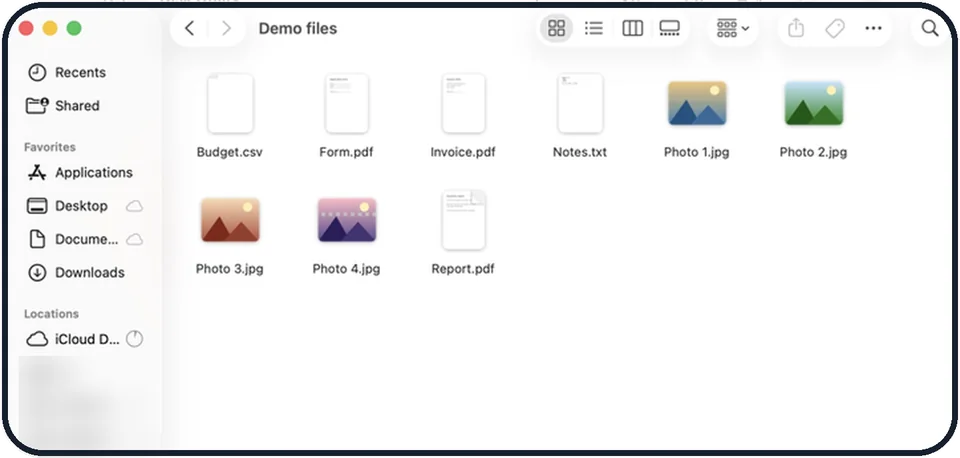
Tap the picture to see it full size Open a Finder window
Go to the folder you want to look in, for example your home folder.
Press Shift + Command + full stop
Hidden items appear, slightly faded.
Press the same keys to hide them again
Leave them hidden in daily use.
Open your Library folder directly
In Finder, open the Go menu and hold the Option key. Library appears in the list. Click it.
What we saw on our device
- Open a Finder window: On our MacBook Neo, the home folder sits in the sidebar under Locations, between iCloud Drive and Macintosh HD, and shows Desktop, Documents, Downloads, Movies, Music, Pictures, Public and Applications.
- Press Shift + Command + . (full stop): On our MacBook Neo, the home folder then showed Library, .cache, .CFUserTextEncoding, .local, .swiftpm, .zsh_history and .zshrc.
- Press the same keys to hide them again: On our MacBook Neo, they disappeared straight away, leaving only the normal folders such as Public and Applications.
About this guide
macOS hides system files and folders whose names start with a dot, so they are not changed by accident. Sometimes you need to see them, for example to edit a settings file or find what is using space.
The pictures are diagrams of the keys to press.
Good to know
Do not delete or rename hidden files unless you know exactly what they are. Apps and macOS can stop working.
The shortcut also works in Open and Save dialogs.
To see what is filling the disk without touching hidden files, use the Storage page: how to check and free up storage on a Mac.
In short: Finder window > Shift + Command + . (full stop) > same keys again to hide.
Links checked in October 2026. Menus and features can change after software updates. These steps match the version named at the top.
Did this guide work for you?
Sorry about that. What happened?