
You are viewing the macOS 26 version of this guide, recorded on macOS Tahoe 26 (MacBook Pro) on 2 October 2026. It is kept as it was and not updated. See the macOS 27 version.
howtosimply.com/guides/how-to-set-up-screen-time-on-a-mac/ · Checked 2 October 2026 · MacBook Pro · macOS Tahoe 26
In this guide
Open System Settings, click Screen Time, click App & Website Activity and click Turn On App & Website Activity. After that you can set Downtime, App Limits and Content & Privacy rules.
3 of 6 steps with real screenshots · 1 official source below
- Device
- Mac
- Shown on
- macOS Tahoe 26 (MacBook Pro)
- App
- System Settings
- Real screenshots
- 3 of 6 steps
- Checked
- 2 October 2026
- Sources
- 1 official, linked below
Step by step
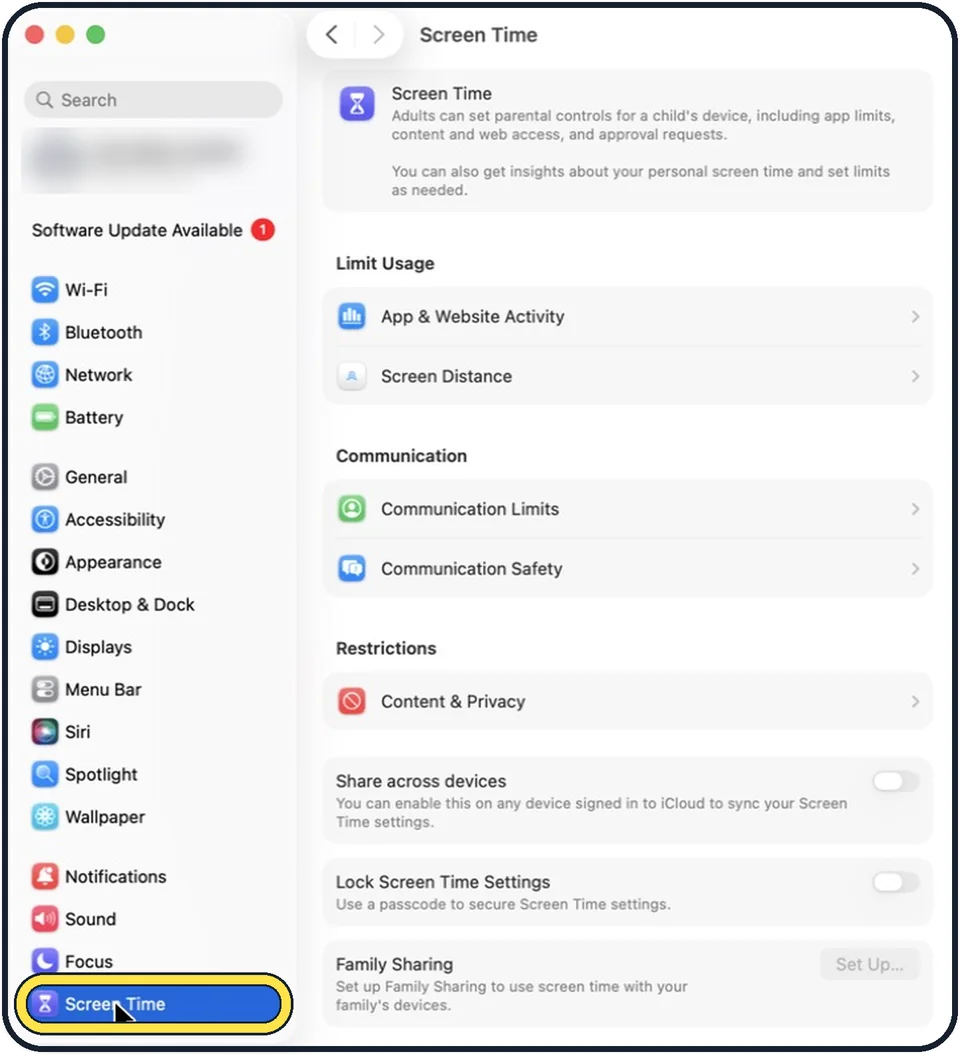
Tap the picture to see it full size Open System Settings and click Screen Time
Click the Apple menu, then System Settings, then Screen Time in the sidebar.
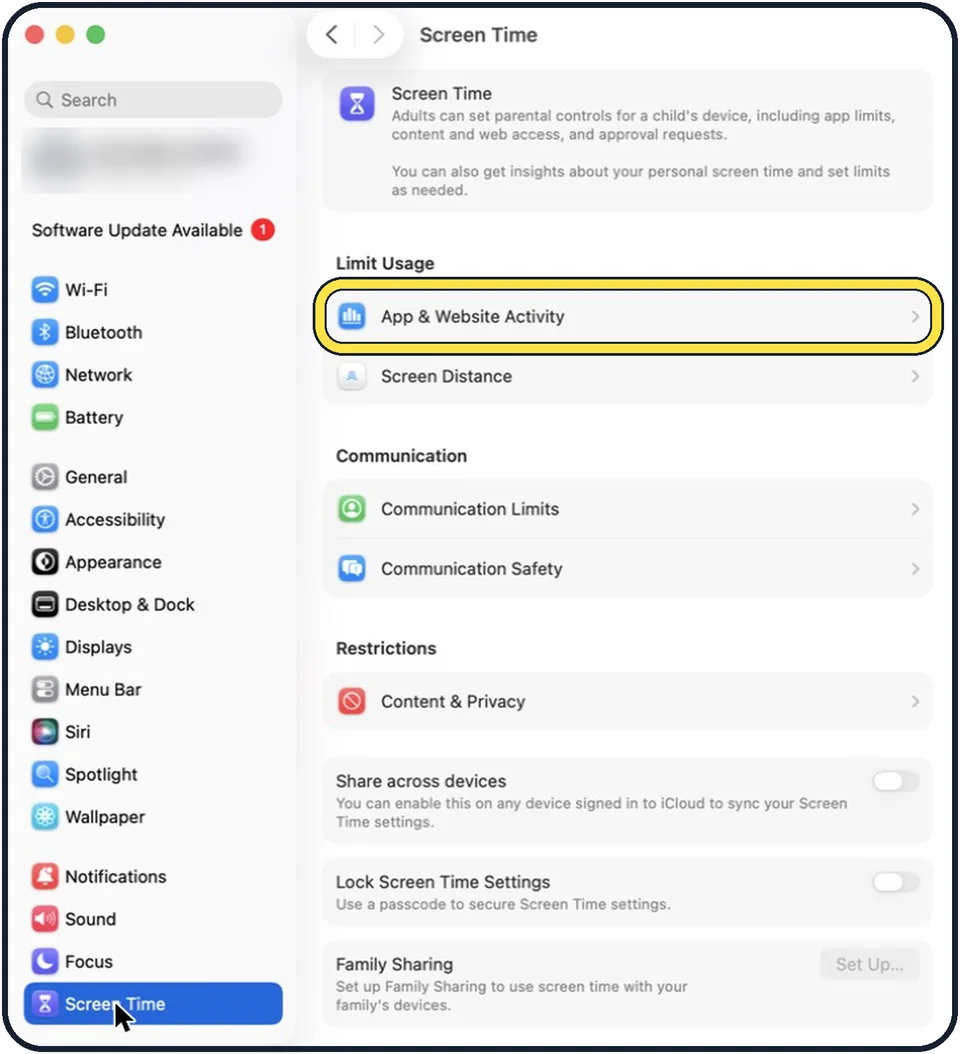
Tap the picture to see it full size Turn on App & Website Activity
Click App & Website Activity, then click Turn On App & Website Activity. From now on the Mac records how long each app and website is used.
Set Downtime
Downtime is a schedule for time away from the screen, for example in the evening.
Set App Limits
App Limits set a daily time limit for apps and websites.
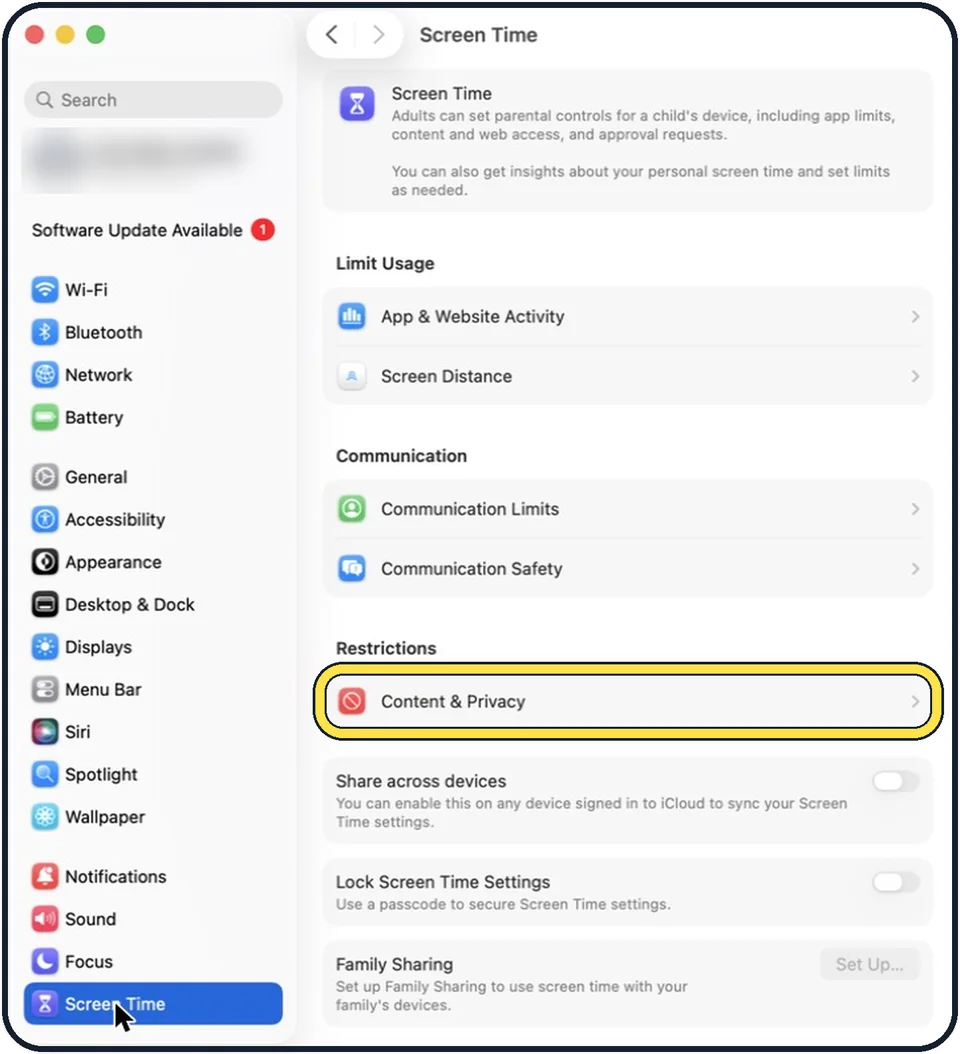
Tap the picture to see it full size Set Content & Privacy
Here you restrict explicit content, purchases, downloads and privacy settings.
For a child
Click the Family Member menu at the top of the Screen Time page and choose the child. This needs Family Sharing, and you must be signed in to your Apple Account.
What we saw on our device
- Open Screen Time and click Manage Screen Time: On our MacBook Neo the App & Website Activity switch is no longer on the main Screen Time page; it sits under Manage Screen Time.
- Click Screen Time Schedule: On our MacBook Neo macOS 27 uses this name for what macOS 26 called Downtime.
- Turn on Schedule: On our MacBook Neo it was off, with Allowed Every Day set to All Day, 00 – 23:59.
About this guide
Screen Time shows how long the Mac is used and for what. It can also limit apps and block content. You can use it for yourself, or for a child in your Family Sharing group.
These steps are for recent versions of macOS, where the settings app is called System Settings. The pictures are our own screenshots from macOS Tahoe 26 on a MacBook Pro.
Good to know
The reports only become useful after a few days of use.
For a child, switch on Lock Screen Time Settings and choose a passcode that the child does not know. Otherwise the limits can simply be switched off.
To keep the Mac from sleeping during a long task while Downtime is off: how to stop a Mac from going to sleep.
The same on an iPhone: How to turn on Screen Time on iPhone.
In short: System Settings > Screen Time > Manage Screen Time > App & Website Activity on > Turn on Screen Time Activity, then Screen Time Schedule, Time Allowances, Content & Privacy Restrictions.
Links checked in October 2026. Menus and features can change after software updates. These steps match the version named at the top.
Did this guide work for you?
Sorry about that. What happened?