
You are viewing the macOS 26 version of this guide, recorded on macOS Tahoe 26 (MacBook Pro) on 2 October 2026. It is kept as it was and not updated. See the macOS 27 version.
howtosimply.com/guides/how-to-customise-the-menu-bar-on-a-mac/ · Checked 2 October 2026 · MacBook Pro · macOS Tahoe 26
In this guide
Open System Settings and click Menu Bar. Select the icons you want to see at the top of the screen and deselect the ones you do not. More controls can be dragged to the menu bar from Control Centre: click Control Centre, then Edit Controls.
3 of 5 steps with real screenshots · 2 official sources below
- Device
- Mac
- Shown on
- macOS Tahoe 26 (MacBook Pro)
- App
- System Settings
- Path
- System Settings › Menu Bar
- Real screenshots
- 3 of 5 steps
- Checked
- 2 October 2026
- Sources
- 2 official, linked below
Step by step
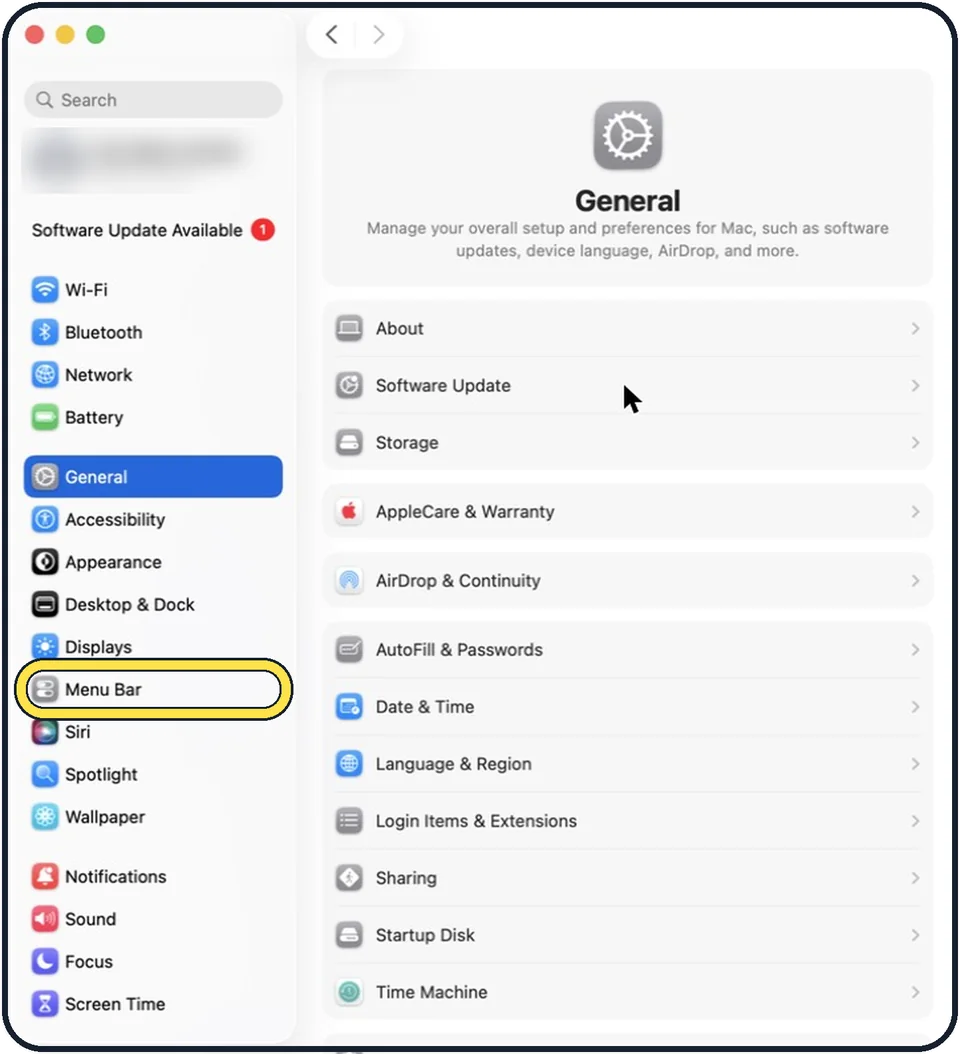
Tap the picture to see it full size Open System Settings and click Menu Bar
Click the Apple menu in the top left corner and choose System Settings. Menu Bar is in the sidebar. You may need to scroll down.
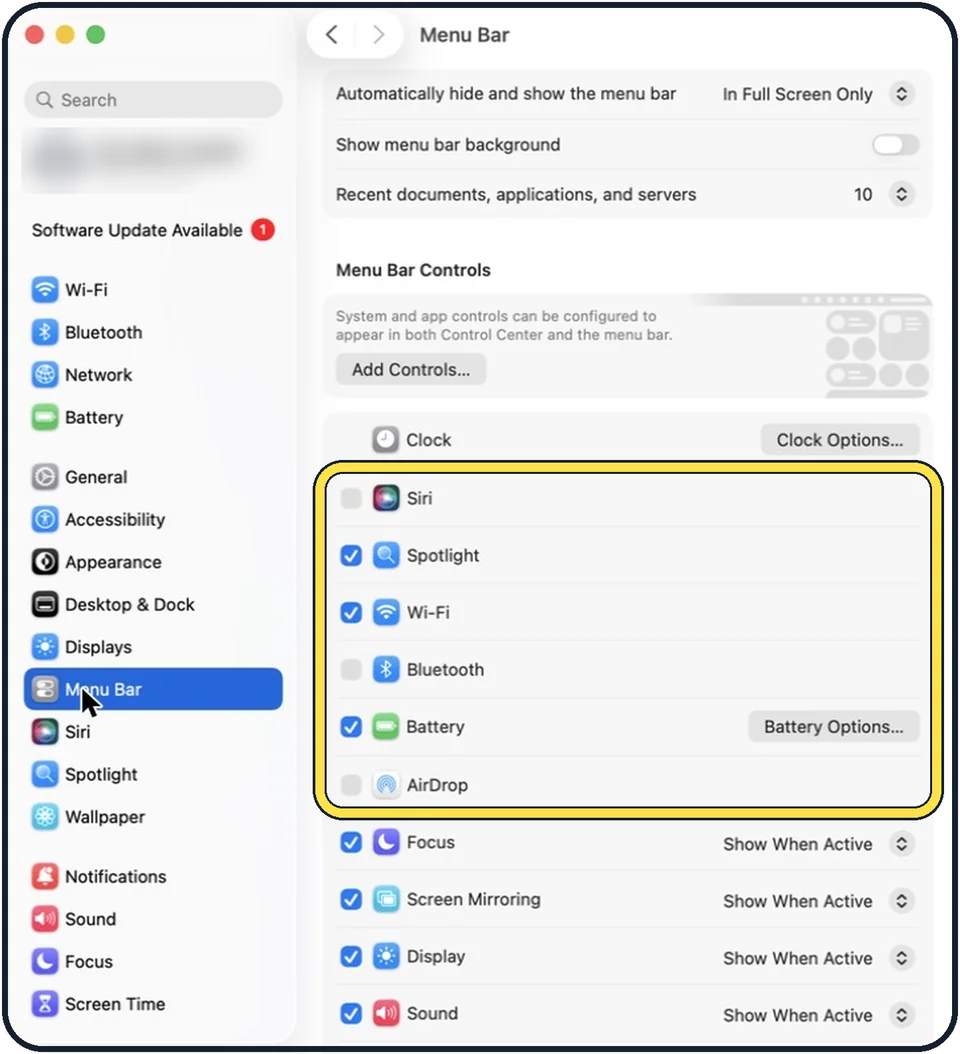
Tap the picture to see it full size Select the icons you want
Each item in the list has a tick box. Tick the ones you want to see in the menu bar. Some, such as Focus or Sound, also let you choose Show When Active.
Deselect the ones you never use
A shorter row of icons is easier to read, and on a MacBook with a camera notch it leaves room for the menus of the app.
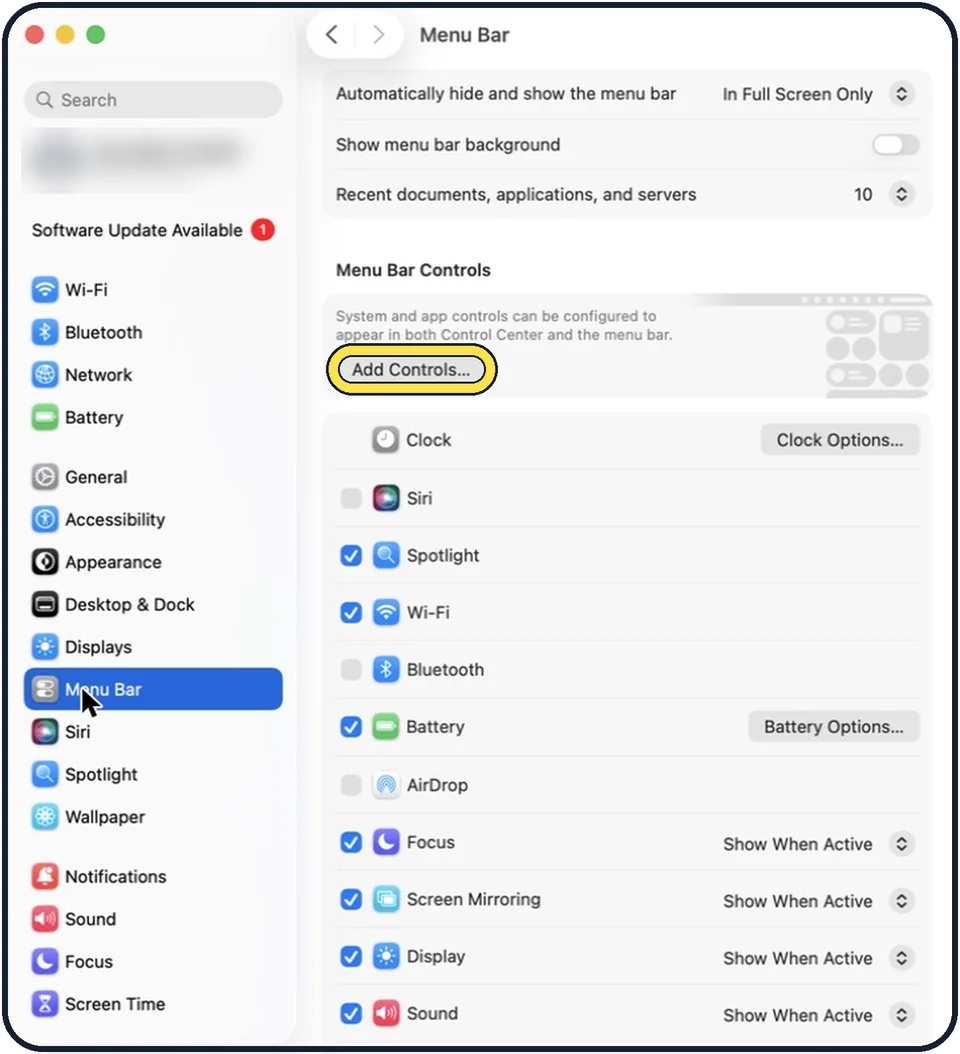
Tap the picture to see it full size Add a control from Control Centre
Click Control Centre in the menu bar and click Edit Controls, or click Add Controls on the Menu Bar page. Drag an item from the gallery up to the menu bar. Examples are Quick Note and Put Display to Sleep.
Remove a control again
Open Edit Controls in the same way and drag the item off the menu bar.
What we saw on our device
- Tick the icons you want and untick the rest: On our MacBook Neo, Bluetooth, AirDrop, Fast User Switching and Time Machine were unticked.
- Add a control: On our MacBook Neo the page says controls can appear in both Control Center and the menu bar.
About this guide
The menu bar is the strip at the top of the screen. The right side holds small icons for things like Wi-Fi, battery and sound. You decide which ones are shown.
These steps are for recent versions of macOS, where the settings app is called System Settings. The pictures are our own screenshots from macOS Tahoe 26 on a MacBook Pro.
Good to know
Inside Control Centre you can also Control-click an item and choose Add to Menu Bar or Copy to Menu Bar.
On macOS versions before Tahoe the same choices are under System Settings, Control Centre.
More on the panel itself: how to customise Control Centre on a Mac.
In short: System Settings, Menu Bar, tick or untick icons; Add Controls… for more.
Links checked in October 2026. Menus and features can change after software updates. These steps match the version named at the top.
Did this guide work for you?
Sorry about that. What happened?