
You are viewing the macOS 26 version of this guide, recorded on macOS Tahoe 26 (MacBook Pro) on 4 October 2026. It is kept as it was and not updated. See the macOS 27 version.
howtosimply.com/guides/how-to-combine-pdf-files-on-a-mac/ · Checked 4 October 2026 · MacBook Pro · macOS Tahoe 26
In this guide
Open the first PDF in Preview, choose View, Thumbnails, then drag the other PDF files into the sidebar where you want them. Choose File, Export to save the combined document under a new name.
3 of 5 steps with real screenshots · 1 official source below
- Device
- Mac
- Shown on
- macOS Tahoe 26 (MacBook Pro)
- App
- Finder
- Real screenshots
- 3 of 5 steps
- Checked
- 4 October 2026
- Sources
- 1 official, linked below
Step by step
Open the first PDF in Preview
Double-click it. If it opens in another app, right-click the file and choose Open With, Preview.
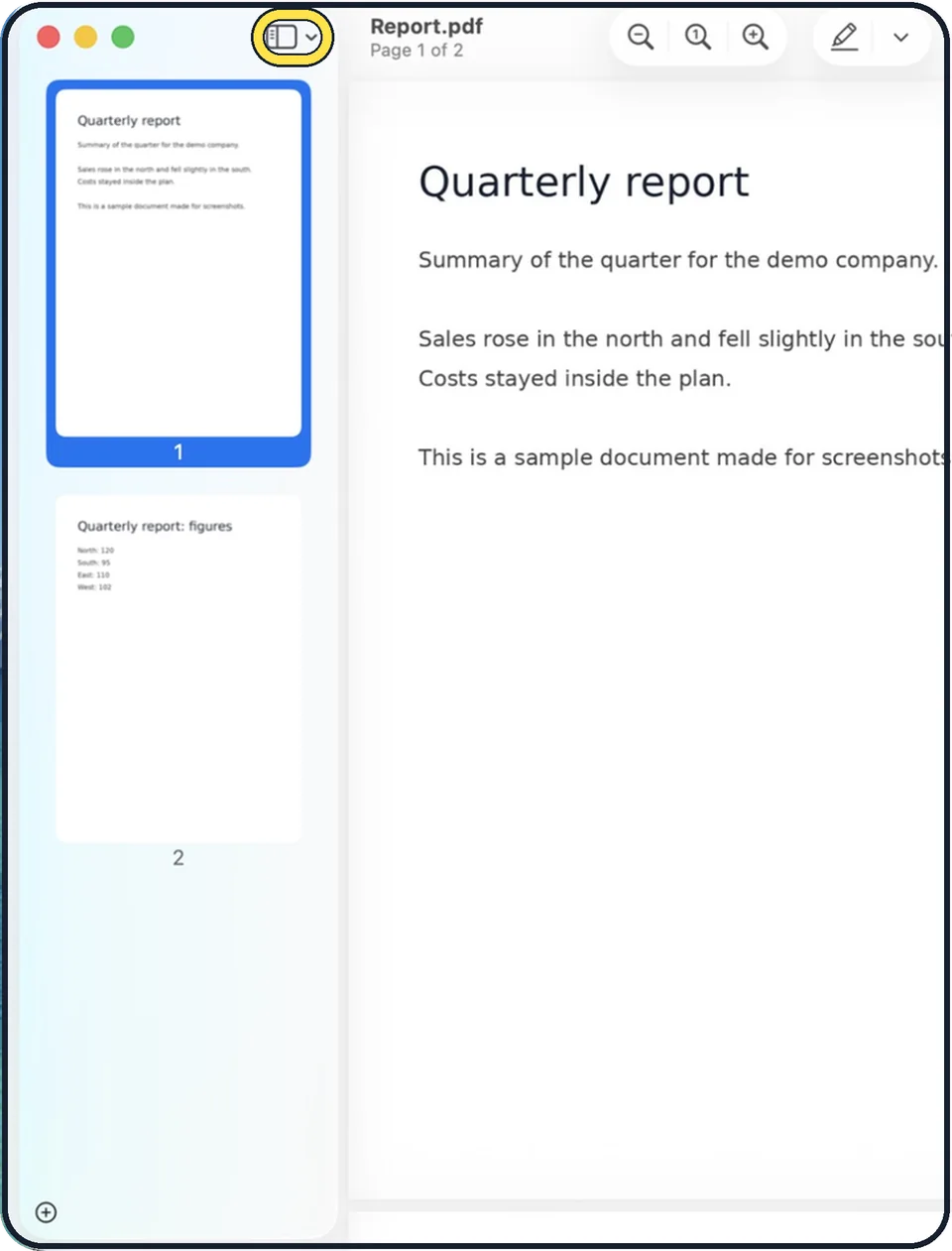
Tap the picture to see it full size Show the page thumbnails
Choose View, Thumbnails. A sidebar with small pages appears.
Drag the other PDFs into the sidebar
Drag a PDF file from Finder and drop it on the line between two thumbnails, or below the last page to add it at the end.
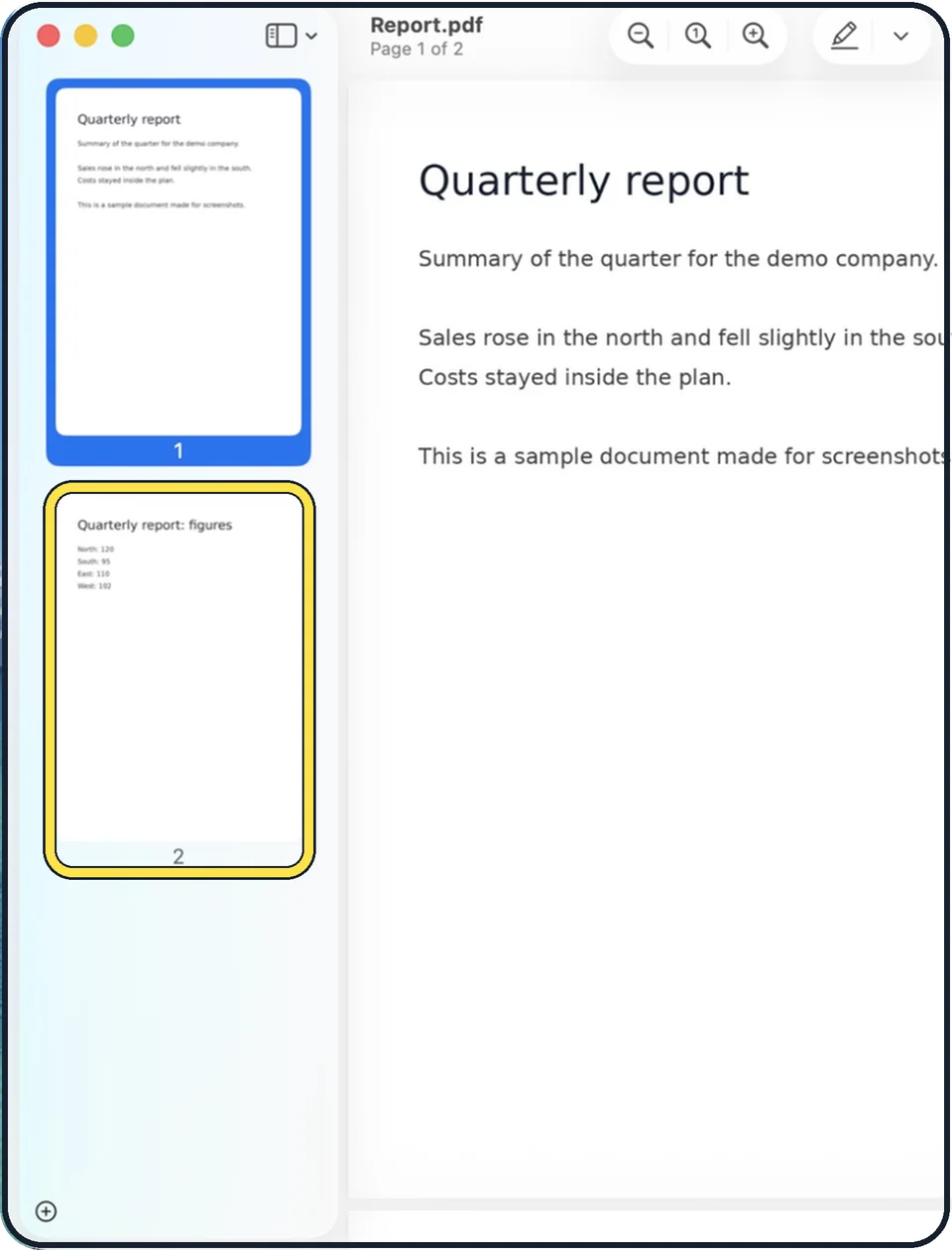
Tap the picture to see it full size Reorder or remove pages
Drag thumbnails up and down. Select a page and press Delete to remove it.
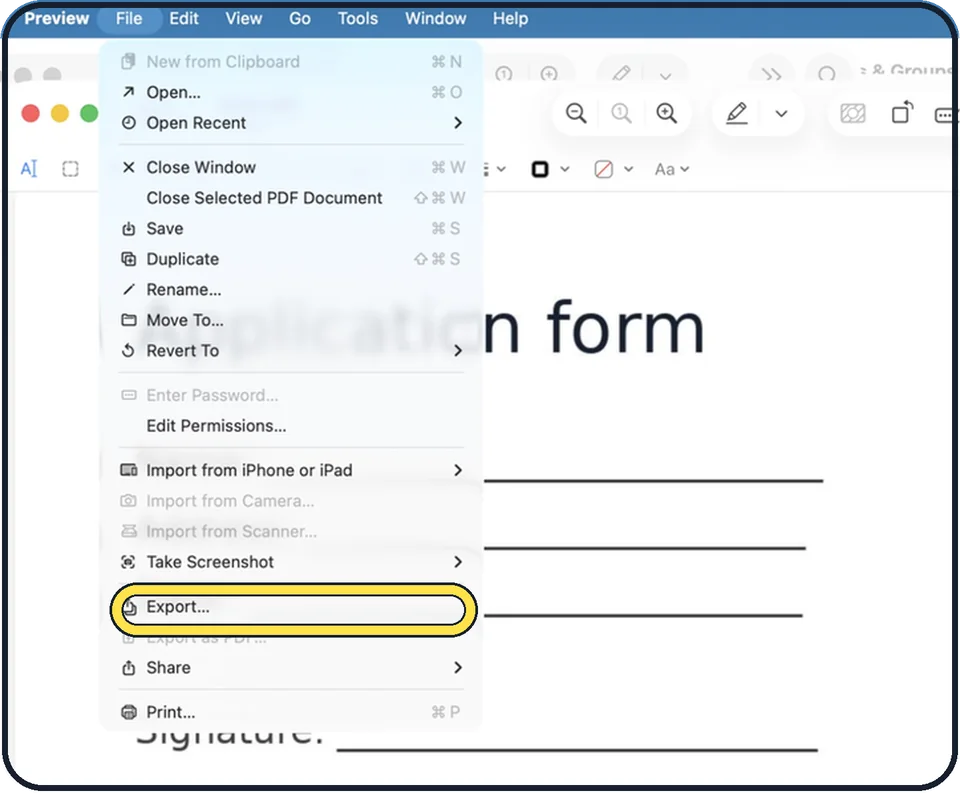
Tap the picture to see it full size Save the result
Choose File, Export, give it a new name, leave the format as PDF and click Save. This keeps your original files unchanged. On macOS 26, the entry Export as PDF below it is grey when the file is already a PDF.
What we saw on our device
- Show the page thumbnails: On our MacBook Neo, Thumbnails had a tick in the View menu, with the shortcut ⌥⌘2.
- Check the added pages: On our MacBook Neo, adding the one-page Second sample.pdf (13 KB) changed the title bar to Page 3 of 3 — Edited.
- Save the result: On our MacBook Neo the dialog suggested Sample text, with Format PDF and Quartz Filter None.
- Or combine whole files in Finder: On our MacBook Neo the menu header read New Folder with Selection (2 Items) with both files selected.
- Open the new PDF: On our MacBook Neo it opened in Preview as Sample text 2.pdf and held all 3 pages.
About this guide
Preview, the app that opens PDFs on every Mac, can merge documents, reorder pages and delete pages. No extra software is needed.
Good to know
The quick way for whole files: select several PDFs in Finder, right-click and choose Quick Actions, Create PDF.
Combined file too big to email? How to make a PDF smaller on a Mac with Preview.
Need to sign it too? How to sign a PDF on a Mac.
In short: Preview > View > Thumbnails > Edit > Insert > Page from File… > Open > File > Export… > Save
Links checked in October 2026. Menus and features can change after software updates. These steps match the version named at the top.
Did this guide work for you?
Sorry about that. What happened?