
You are viewing the macOS 26 version of this guide, recorded on macOS Tahoe 26 (MacBook Pro) on 2 October 2026. It is kept as it was and not updated. See the macOS 27 version.
howtosimply.com/guides/how-to-change-the-screen-resolution-on-a-mac/ · Checked 2 October 2026 · MacBook Pro · macOS Tahoe 26
In this guide
Open System Settings and click Displays. Click one of the pictures between Larger Text and More Space. Larger Text makes everything bigger. More Space fits more on the screen.
3 of 5 steps with real screenshots · 1 official source below
- Device
- Mac
- Shown on
- macOS Tahoe 26 (MacBook Pro)
- App
- System Settings
- Real screenshots
- 3 of 5 steps
- Checked
- 2 October 2026
- Sources
- 1 official, linked below
Step by step
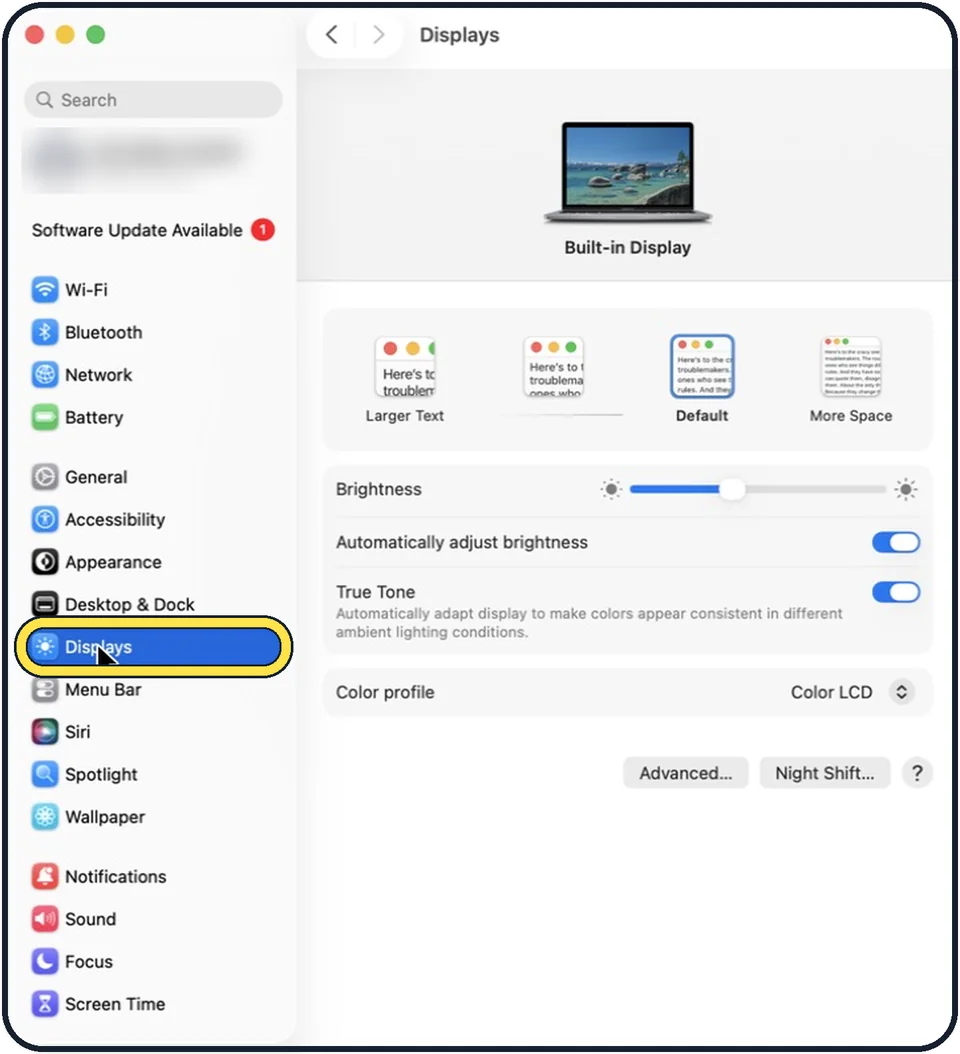
Tap the picture to see it full size Open System Settings and click Displays
Click the Apple menu, then System Settings, then Displays in the sidebar.
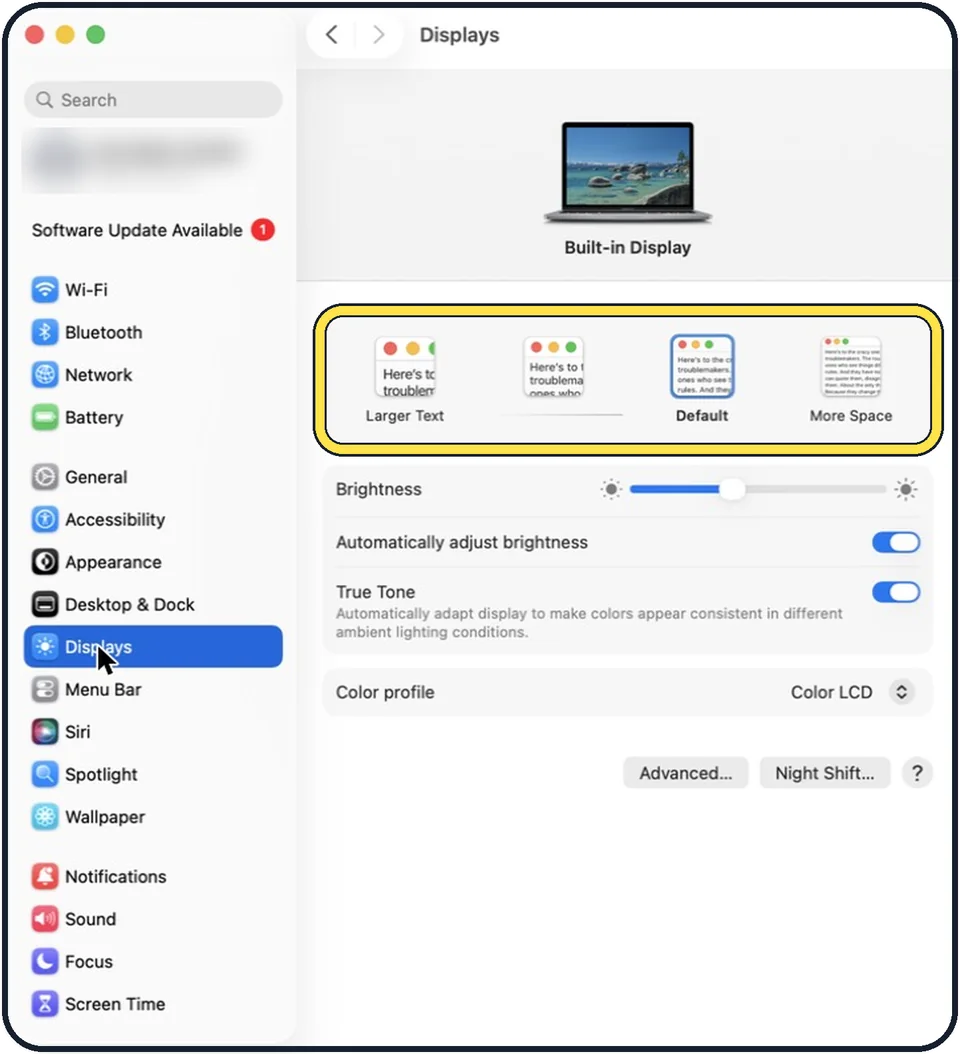
Tap the picture to see it full size Click a resolution
Choose one of the pictures. Towards Larger Text, everything gets bigger. Towards More Space, everything gets smaller and more fits on the screen. Default is what Apple recommends for the display.
See the numbers
Move the pointer over a picture to see its size in pixels. To see a list instead, Control-click the pictures and choose Show List.
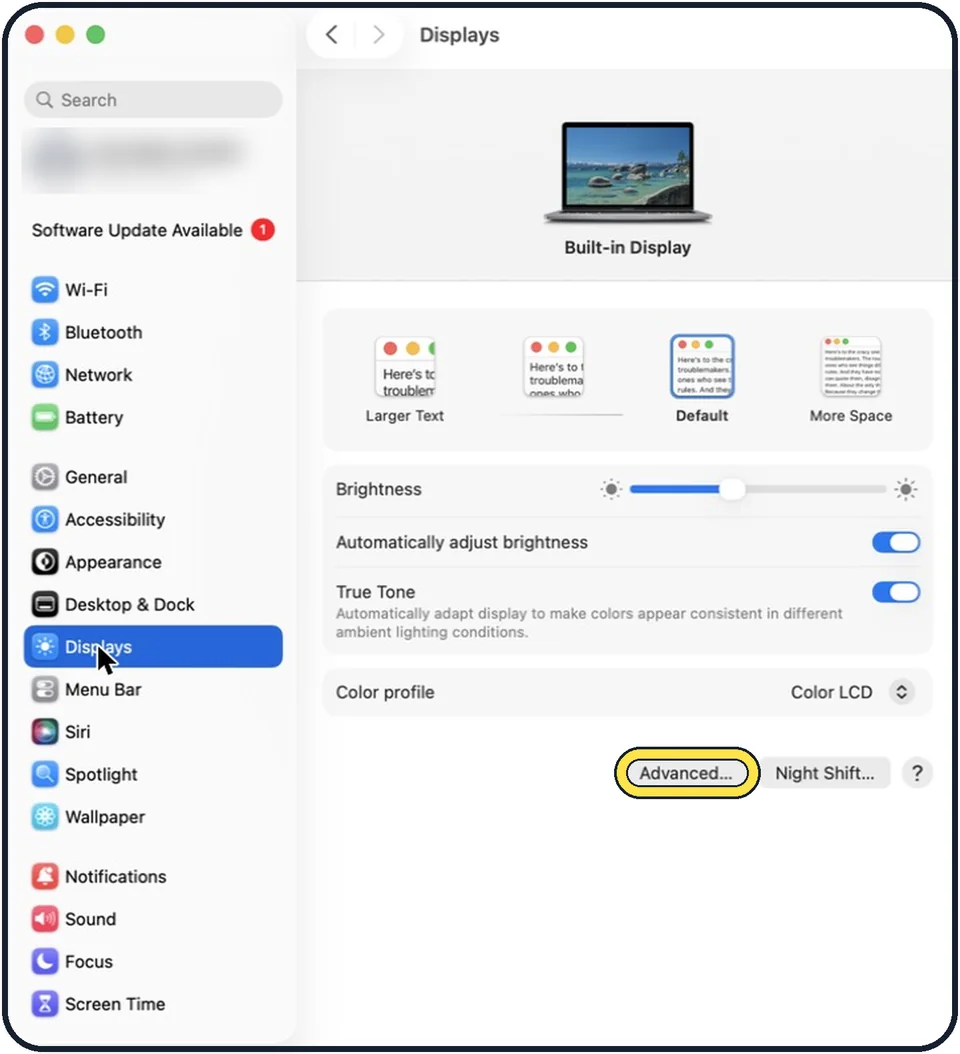
Tap the picture to see it full size Always show a list
Click Advanced and switch on Show resolutions as list.
External display
With a second screen connected, first click that display at the top of the page, then choose its resolution. Show all resolutions reveals further choices.
What we saw on our device
- Open System Settings and click Displays: On our MacBook Neo the screen is shown at the top as Built-in Display.
- Click a resolution: On our MacBook Neo there are four pictures: Larger Text, an unlabelled one, Default (selected) and More Space, and pointing at More Space shows 1637 × 1024.
- Show resolutions as a list instead: On our MacBook Neo, Advanced… sits next to Night Shift…, not below Color profile, and Show resolutions as list was off.
About this guide
If text is too small to read comfortably, or you want more room for windows, change the resolution. On a Mac the choices are shown as small pictures instead of numbers.
These steps are for recent versions of macOS, where the settings app is called System Settings. The pictures are our own screenshots from macOS Tahoe 26 on a MacBook Pro.
Good to know
If the screen goes black after a change, wait 15 seconds and the Mac goes back to the previous resolution. If it does not, press Escape.
If only the text is too small, changing the resolution is the quickest fix. Single apps can also be zoomed with Command and the plus key.
To send the picture to a television: how to mirror a Mac screen to a TV with AirPlay.
In short: System Settings > Displays > click Larger Text, Default, More Space or the picture between them.
Links checked in October 2026. Menus and features can change after software updates. These steps match the version named at the top.
Did this guide work for you?
Sorry about that. What happened?