
You are viewing the macOS 26 version of this guide, recorded on macOS Tahoe 26 (MacBook Pro) on 4 October 2026. It is kept as it was and not updated. See the macOS 27 version.
howtosimply.com/guides/apple-watch-won-t-unlock-your-mac-6-fixes-to-try/ · Checked 4 October 2026 · MacBook Pro · macOS Tahoe 26
In this guide
Wear the unlocked watch and stand close to the Mac. On the Mac, open System Settings, click Touch ID & Password (or Login Password), switch the Apple Watch setting off, restart the Mac and switch it on again. Both devices need Wi-Fi and Bluetooth on and the same Apple Account.
3 of 6 steps with real screenshots · 1 official source below
- Device
- Mac
- Shown on
- macOS Tahoe 26 (MacBook Pro)
- App
- System Settings
- Real screenshots
- 3 of 6 steps
- Checked
- 4 October 2026
- Sources
- 1 official, linked below
Step by step
Check the conditions
The Mac and the watch must both have Wi-Fi and Bluetooth switched on. Both must use the same Apple Account with two-factor authentication. The watch must have a passcode, be on your wrist and be unlocked.
Move closer
The watch has to be very close to the Mac. Wake the Mac with the watch arm near the keyboard.
Tap the picture to see it full size Switch the setting off and on
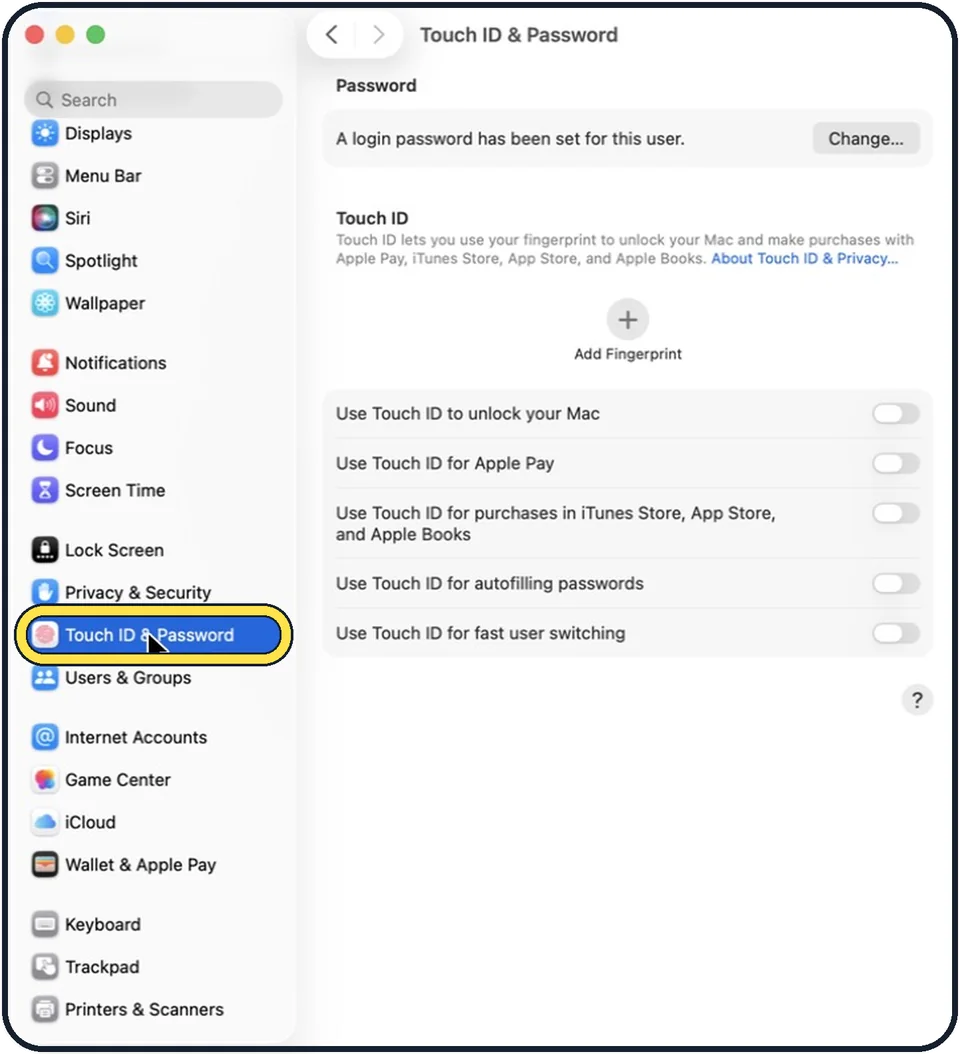
On the Mac, choose Apple menu, System Settings and click Touch ID & Password in the sidebar (Login Password on a Mac without Touch ID). Under Apple Watch, switch off the setting for your watch. Restart the Mac and switch it on again.
Tap the picture to see it full size Install updates on both
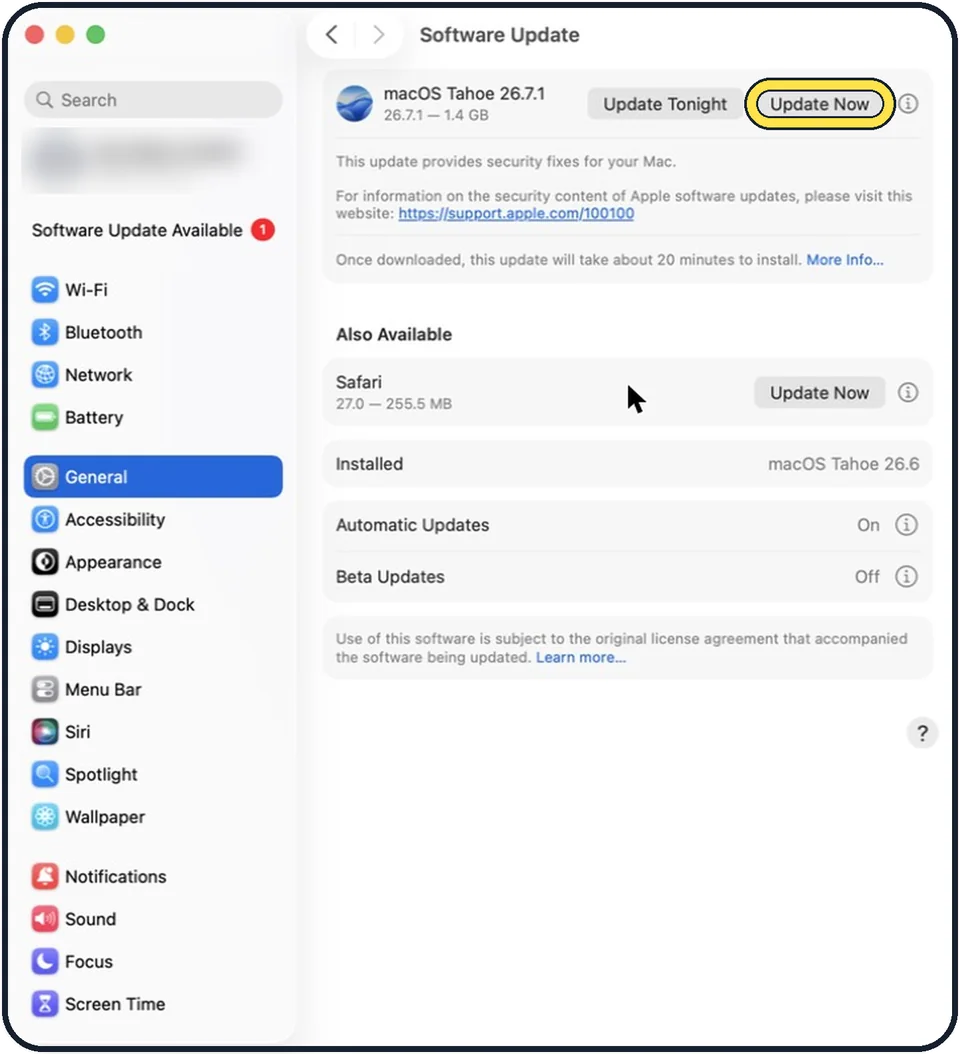
Update macOS under System Settings, General, Software Update, and update the watch: how to update your Apple Watch.
Tap the picture to see it full size Switch off internet sharing and screen sharing
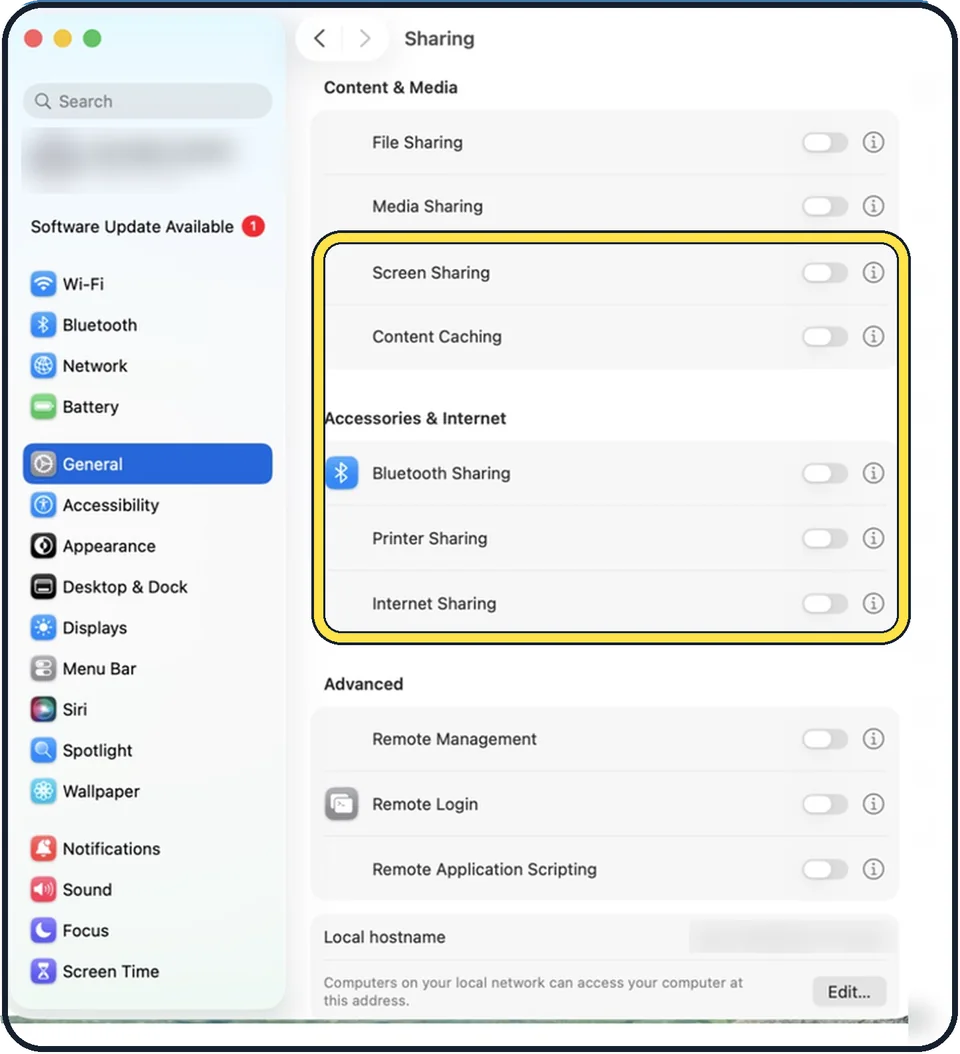
Auto Unlock does not work while the Mac shares its internet connection or its screen. Both are off by default. Check under System Settings, General, Sharing.
Enter the password once
After a restart, and after the Mac has not been unlocked for a longer time, macOS always asks for the password first. The watch works again after that.
What we saw on our device
- Switch the setting off and on: On our MacBook Neo, which has no watch paired, the page showed only the Password and Touch ID sections.
- Install updates on both: On our MacBook Neo it said "Your Mac is up to date." with macOS 27 Golden Gate 27.0.1 and Automatic Updates On.
- Switch off Screen Sharing and Internet Sharing: On our MacBook Neo, Screen Sharing (under Content & Media) and Internet Sharing (under Accessories & Internet) were both switched off.
About this guide
Unlocking a Mac with the watch only works when a list of conditions is met at the same moment. If one is missing, the Mac silently asks for the password instead.
These steps are for recent versions of watchOS and the Apple Watch app on the iPhone.
Good to know
How to set it up from the start: how to unlock a Mac or iPhone with an Apple Watch.
If the watch has lost its connection to the iPhone as well, fix that first: Apple Watch not pairing or connecting to iPhone: 7 fixes.
The fingerprint sensor is the other quick way in: Touch ID not working on a Mac: 7 fixes to try.
In short: System Settings > Touch ID & Password > Apple Watch setting off, restart, on > General > Software Update > General > Sharing (Screen Sharing and Internet Sharing off).
Links checked in October 2026. Menus and features can change after software updates. These steps match the version named at the top.
Did this guide work for you?
Sorry about that. What happened?