
You are viewing the macOS 26 version of this guide, recorded on macOS Tahoe 26 (MacBook Pro) on 3 October 2026. It is kept as it was and not updated. See the macOS 27 version.
howtosimply.com/guides/how-to-uninstall-apps-on-a-mac/ · Checked 3 October 2026 · MacBook Pro · macOS Tahoe 26
In this guide
Open Finder, click Applications, and drag the app to the Bin, or select it and press Command + Delete. Then empty the Bin.
1 of 5 steps with real screenshots · 1 official source below
- Device
- Mac
- Shown on
- macOS Tahoe 26 (MacBook Pro)
- App
- System Settings
- Real screenshots
- 1 of 5 steps
- Checked
- 3 October 2026
- Sources
- 1 official, linked below
Step by step
Quit the app
An app that is open cannot be removed. Click its name in the menu bar and choose Quit, or press Command + Q.
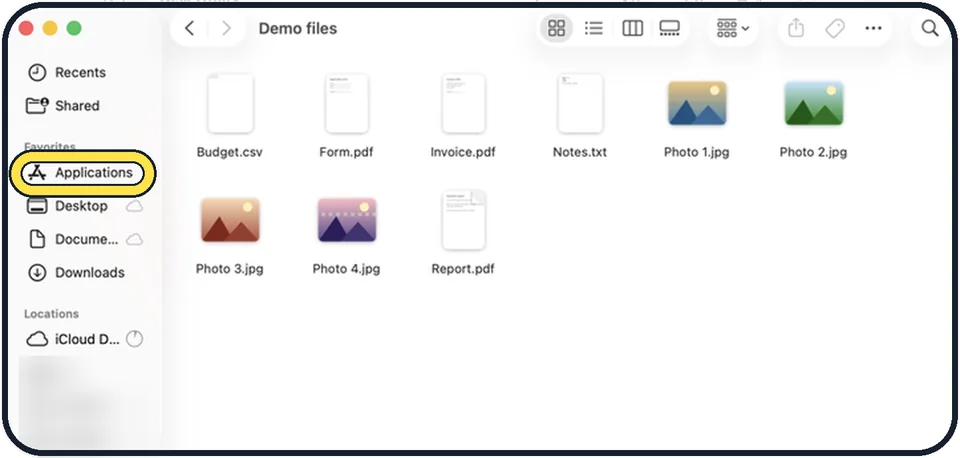
Tap the picture to see it full size Open Finder and click Applications
Applications is in the sidebar of every Finder window. You can also press Shift + Command + A in Finder.
Move the app to the Bin
Drag the app onto the Bin in the Dock, or select it and press Command + Delete. Enter your password if asked.
Empty the Bin
Right-click the Bin in the Dock and choose Empty Bin. The space is freed only after this step.
Use the uninstaller if there is one
Programs such as Adobe apps and some antivirus tools include an uninstaller in their folder in Applications, or offer one on their website. Use it so that background helpers are removed too.
What we saw on our device
- Choose Move to Trash: On our MacBook Neo macOS 27 calls it Trash, not Bin.
- Empty the Trash: On our MacBook Neo this menu has just Open and Empty Trash, and Empty Trash is greyed out when the Trash is already empty.
- Or delete from Storage settings: On our MacBook Neo the list is sorted by Size: Xcode 3,96 GB, Google Chrome 1,52 GB, Claude 649,2 MB.
About this guide
Most Mac apps are a single file in the Applications folder, so removing them is simple. A few larger programs come with their own uninstaller, which you should use if it exists.
The pictures are diagrams of the keys to press.
Good to know
Apps that are part of macOS, such as Safari, Mail and Messages, cannot be deleted.
Deleting an app does not cancel a subscription. Check under System Settings, your name, Media & Purchases, Subscriptions.
To see which apps take the most space, open System Settings, General, Storage and click the i next to Applications: how to check and free up storage on a Mac.
In short: Quit the app > Finder > Applications > Control-click the app > Move to Trash > Trash in the Dock > Empty Trash.
Links checked in October 2026. Menus and features can change after software updates. These steps match the version named at the top.
Did this guide work for you?
Sorry about that. What happened?