
You are viewing the macOS 26 version of this guide, recorded on macOS Tahoe 26 (MacBook Pro) on 3 October 2026. It is kept as it was and not updated. See the macOS 27 version.
howtosimply.com/guides/how-to-check-battery-health-on-a-macbook/ · Checked 3 October 2026 · MacBook Pro · macOS Tahoe 26
In this guide
Open System Settings, click Battery, and click the i next to Battery Health. Normal means the battery is fine. Service Recommended means it holds much less charge than when new.
3 of 4 steps with real screenshots · 1 official source below
- Device
- Mac
- Shown on
- macOS Tahoe 26 (MacBook Pro)
- App
- System Settings
- Real screenshots
- 3 of 4 steps
- Checked
- 3 October 2026
- Sources
- 1 official, linked below
Step by step
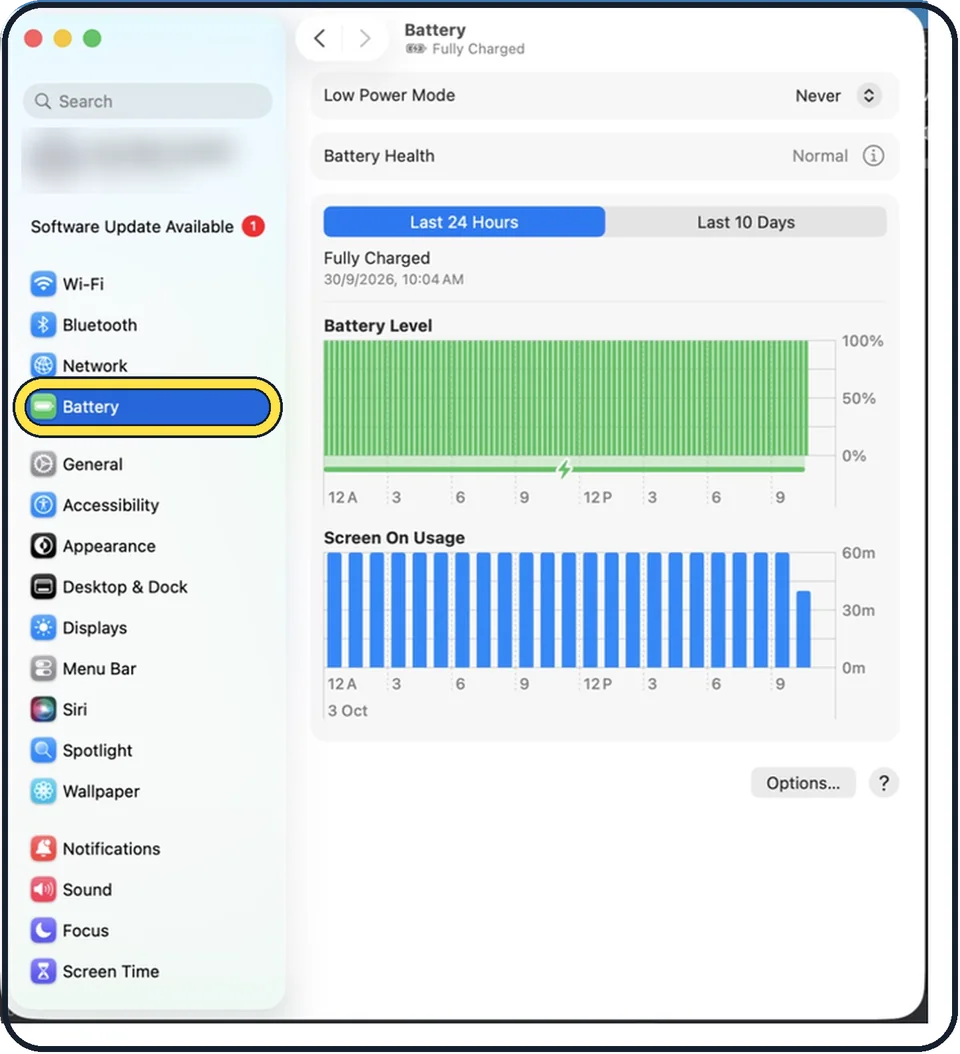
Tap the picture to see it full size Open System Settings and click Battery
Click the Apple menu, System Settings. Battery is in the list on the left.
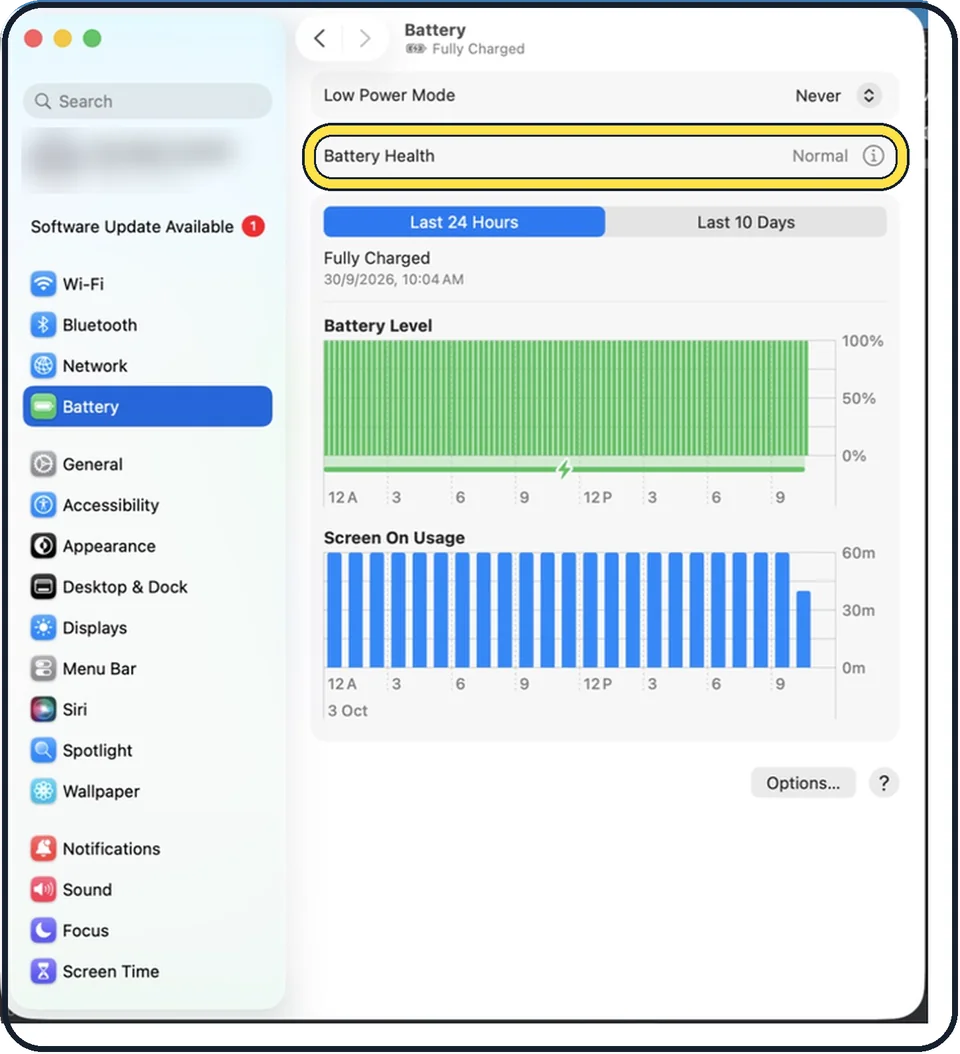
Tap the picture to see it full size Click the i next to Battery Health
A panel shows the condition and, on Macs with Apple silicon, Maximum Capacity as a percentage.
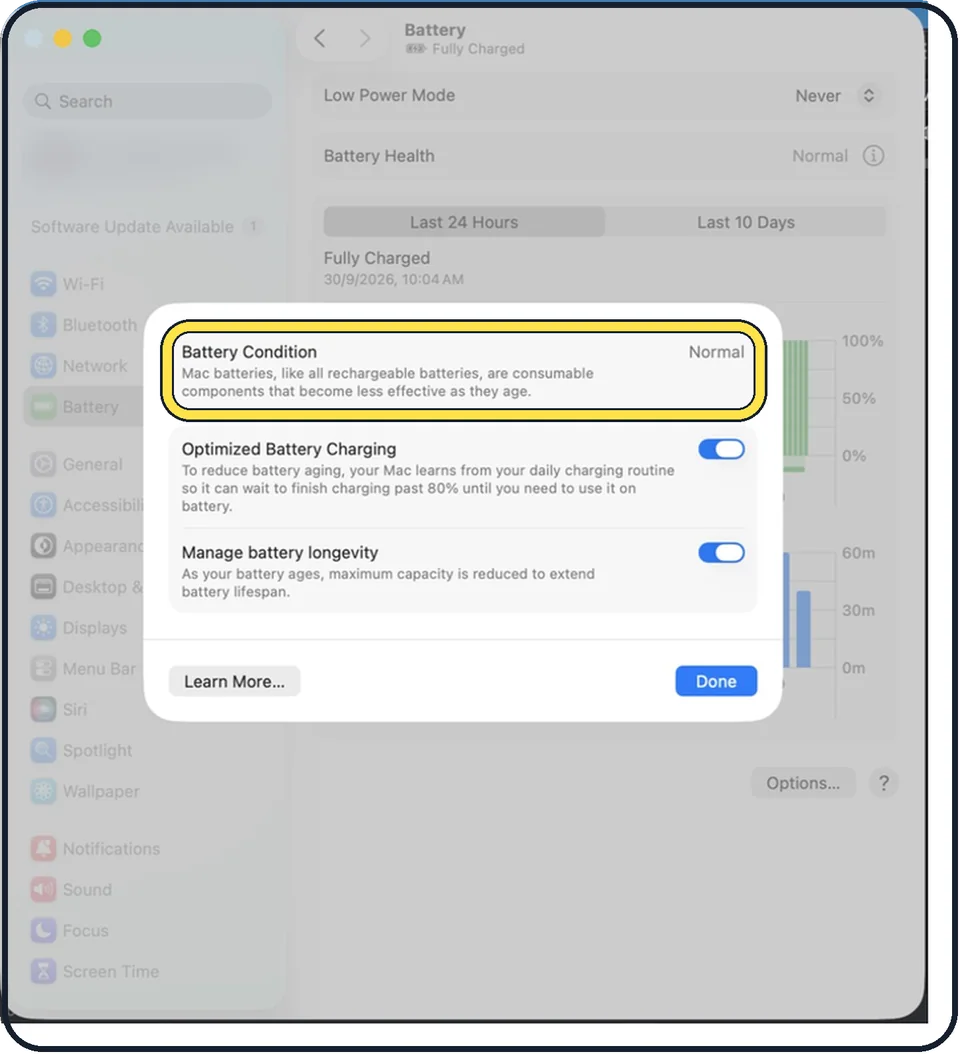
Tap the picture to see it full size Read the condition
Normal: nothing to do. Service Recommended: the battery works but holds noticeably less charge, or is not working normally.
Check the cycle count
Hold the Option key, click the Apple menu and choose System Information. Click Power on the left and look for Cycle Count. Current MacBooks are designed for 1,000 cycles.
What we saw on our device
- Click Battery, then the i next to Battery Health: On our MacBook Neo the Battery Health row reads Normal, with the i at its right-hand end.
- Read Battery Condition and Maximum Capacity: On our MacBook Neo the panel shows Battery Condition Normal and Maximum Capacity 100 %.
- Check the cycle count: On our MacBook Neo it reads 7, with Condition Normal and Maximum Capacity 100 %.
About this guide
A MacBook battery slowly loses capacity with every charge cycle. macOS tells you its condition, how much capacity is left and whether a replacement is worth considering.
Good to know
Leave Optimised Battery Charging on. It learns your routine and delays charging past 80% until you need it, which slows ageing.
A MacBook that sits on a charger all day is fine. macOS manages the charge level. Heat is the bigger enemy: do not use it on a duvet or leave it in a hot car.
To see which apps use the most energy, click the battery icon in the menu bar, or open the Battery page and look at the usage graphs.
In short: System Settings > Battery > i next to Battery Health > Battery Condition and Maximum Capacity.
Links checked in October 2026. Menus and features can change after software updates. These steps match the version named at the top.
Did this guide work for you?
Sorry about that. What happened?