
You are viewing the macOS 26 version of this guide, recorded on macOS Tahoe 26 (MacBook Pro) on 2 October 2026. It is kept as it was and not updated. See the macOS 27 version.
howtosimply.com/guides/mac-keeps-restarting-7-things-to-check/ · Checked 2 October 2026 · MacBook Pro · macOS Tahoe 26
In this guide
Install all macOS updates, then shut the Mac down and unplug every device except the display, keyboard and mouse. If the restarts stop, plug the devices back in one at a time to find the one at fault. If they continue, start in safe mode and run Apple Diagnostics.
1 of 7 steps with real screenshots · 2 official sources below
- Device
- Mac
- Shown on
- macOS Tahoe 26 (MacBook Pro)
- App
- System Settings
- Real screenshots
- 1 of 7 steps
- Checked
- 2 October 2026
- Sources
- 2 official, linked below
Step by step
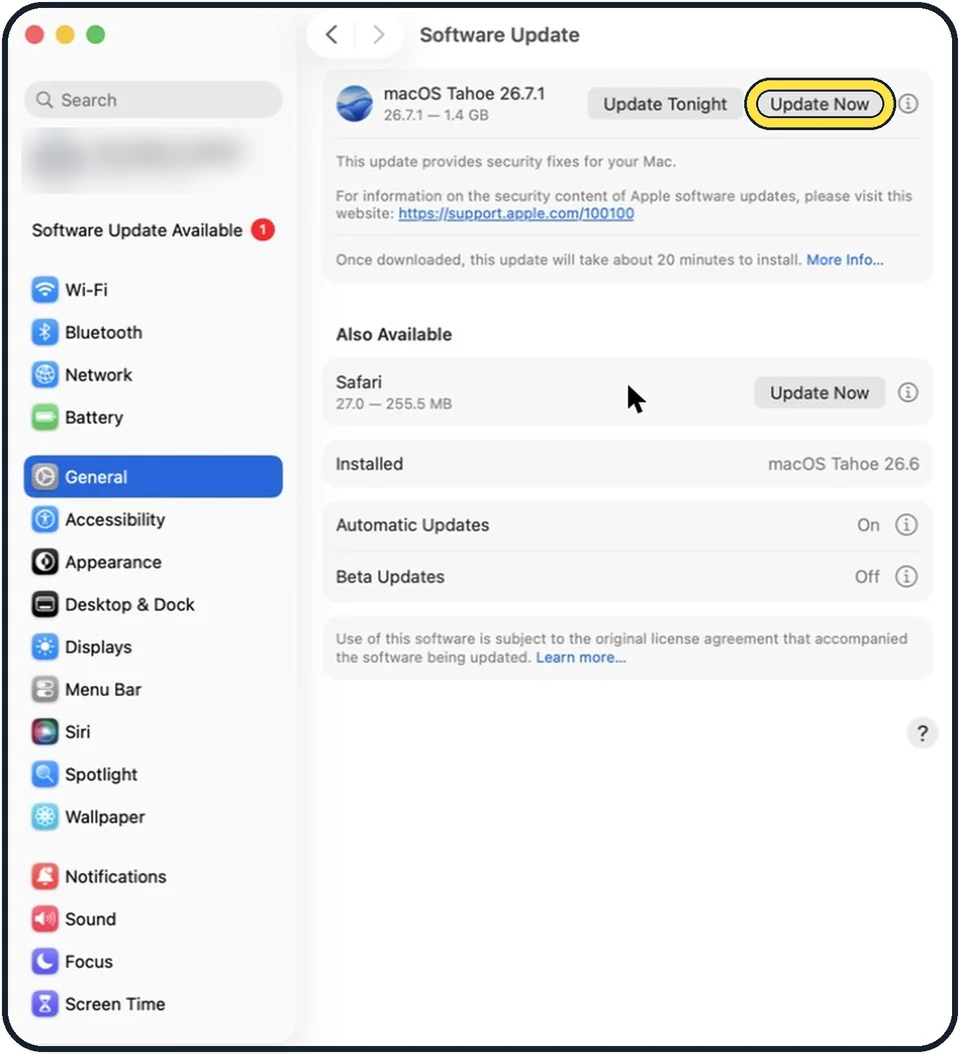
Tap the picture to see it full size Install all updates
Open System Settings, click General, then Software Update, and install everything on offer. Update your apps as well.
Remove an app that macOS names
If the message after the restart names an app as the cause and offers Move to Trash, click it. Ask the maker of the app whether a newer version is available.
Unplug everything
Shut the Mac down. Disconnect drives, printers, hubs and all other devices. On a desktop Mac, leave only the display, keyboard and mouse or trackpad connected.
Use the Mac as usual
Switch the Mac on and use it for as long as it normally takes for a restart to happen. If it stays stable, a connected device is the cause.
Reconnect devices one at a time
Shut down, plug in one device, start the Mac and use it. Repeat with the next device until the restarts come back. The last device you added, or its cable, is the problem.
Start in safe mode
Safe mode loads only the essential parts of macOS. If the Mac is stable in safe mode, software that starts with the Mac is the likely cause. The steps are in how to start a Mac in safe mode.
Run Apple Diagnostics
With the devices still unplugged, run the built-in hardware test: how to run Apple Diagnostics on a Mac. Note any reference code it shows for Apple Support.
What we saw on our device
- Unplug everything: On our MacBook Neo, Shut Down… is directly below Restart….
- Check the chip, then start in safe mode: On our MacBook Neo, About lists Chip: Apple A18 Pro.
About this guide
After an unexpected restart, the Mac shows the message "Your computer was restarted because of a problem". Apple says the usual causes are software installed on the Mac or a device connected to it. A single restart is nothing to worry about. Repeated ones need the steps below.
Menu names are from recent versions of macOS, where the settings app is called System Settings.
Good to know
If nothing helps, Apple's last software step is to reinstall macOS from macOS Recovery. This keeps your files, but make a backup first: how to back up a Mac with Time Machine.
A Mac that switches off when it gets hot or when the battery is low is a different fault. See Mac fan loud all the time: 6 things to check.
After a restart the Mac offers to send a report to Apple. Sending it is optional and does not fix the problem by itself.
In short: Update, remove the named app, unplug devices, test, reconnect one by one, safe mode, Apple Diagnostics.
Links checked in October 2026. Menus and features can change after software updates. These steps match the version named at the top.
Did this guide work for you?
Sorry about that. What happened?