
You are viewing the macOS 26 version of this guide, recorded on macOS Tahoe 26 (MacBook Pro) on 3 October 2026. It is kept as it was and not updated. See the macOS 27 version.
howtosimply.com/guides/how-to-zip-and-unzip-files-on-a-mac/ · Checked 3 October 2026 · MacBook Pro · macOS Tahoe 26
In this guide
To zip, select the files in Finder, right-click and choose Compress. To unzip, double-click the .zip file. The contents appear in the same folder.
2 of 4 steps with real screenshots · 2 official sources below
- Device
- Mac
- Shown on
- macOS Tahoe 26 (MacBook Pro)
- App
- Finder
- Real screenshots
- 2 of 4 steps
- Checked
- 3 October 2026
- Sources
- 2 official, linked below
Step by step
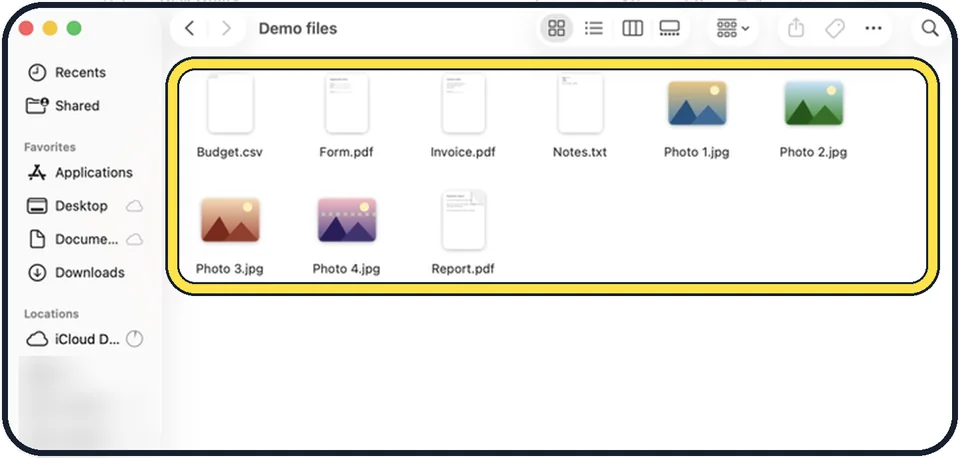
Tap the picture to see it full size Select the files or folders
Click one, or hold Command and click several.
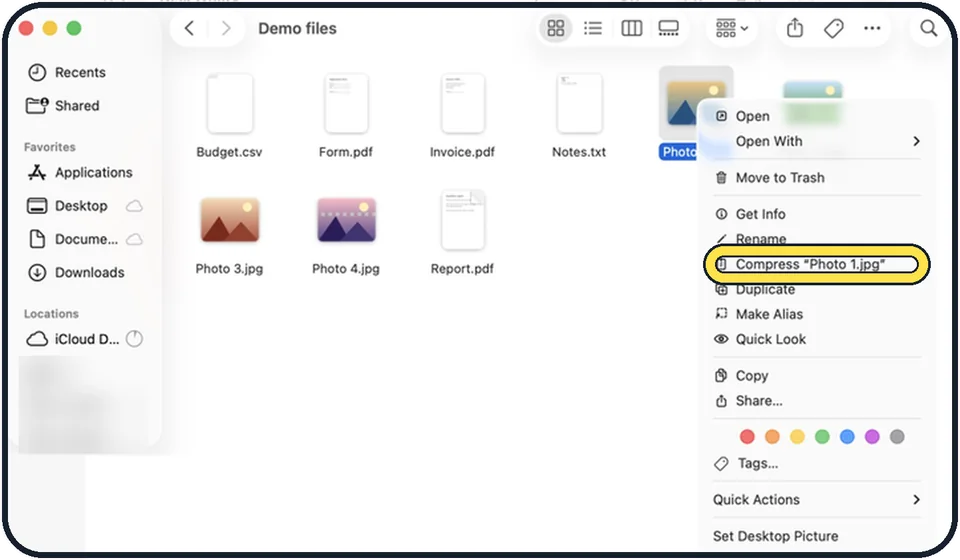
Tap the picture to see it full size Right-click and choose Compress
One item becomes a file with the same name ending in .zip. Several items become Archive.zip. The originals stay where they are.
Rename the zip file
Click it once, press Return, type the new name and press Return again.
Unzip by double-clicking
The contents are unpacked next to the zip file. The zip itself stays and can be deleted.
What we saw on our device
- Select the files and choose Compress: On our MacBook Neo, with two text files selected, the menu said just Compress.
- Find the zip file: Ours was Archive.zip, 430 bytes, Kind ZIP archive, listed above Test file 1.txt and Test file 2.txt.
- Unzip by double-clicking: On our MacBook Neo, Archive.zip unpacked to a folder named Archive, next to the zip.
About this guide
A zip file packs several files into one and usually makes them smaller, which helps with email attachments and uploads. macOS handles zip files itself.
Good to know
Photos and videos hardly shrink when zipped, because they are already compressed.
For .rar and .7z files, which macOS does not open, a free app such as The Unarchiver from the App Store works.
To protect a zip with a password, macOS needs the Terminal command zip -e. For sensitive documents, many people find it easier to share through a service with password-protected links.
Peek inside files without opening them: How to use Quick Look on a Mac.
Tidy many files first: how to rename several files at once on a Mac.
In short: Select > Control-click > Compress > Archive.zip > double-click to unzip
Links checked in October 2026. Menus and features can change after software updates. These steps match the version named at the top.
Did this guide work for you?
Sorry about that. What happened?