
You are viewing the macOS 26 version of this guide, recorded on macOS Tahoe 26 (MacBook Pro) on 3 October 2026. It is kept as it was and not updated. See the macOS 27 version.
howtosimply.com/guides/how-to-use-low-power-mode-on-a-mac/ · Checked 3 October 2026 · MacBook Pro · macOS Tahoe 26
In this guide
Open System Settings and click Battery. Set the Low Power Mode menu to Always, Only on Battery or Only on Power Adapter. On newer Macs the menu is called Energy Mode instead: choose Low Power there.
4 of 5 steps with real screenshots · 1 official source below
- Device
- Mac
- Shown on
- macOS Tahoe 26 (MacBook Pro)
- App
- System Settings
- Real screenshots
- 4 of 5 steps
- Checked
- 3 October 2026
- Sources
- 1 official, linked below
Step by step
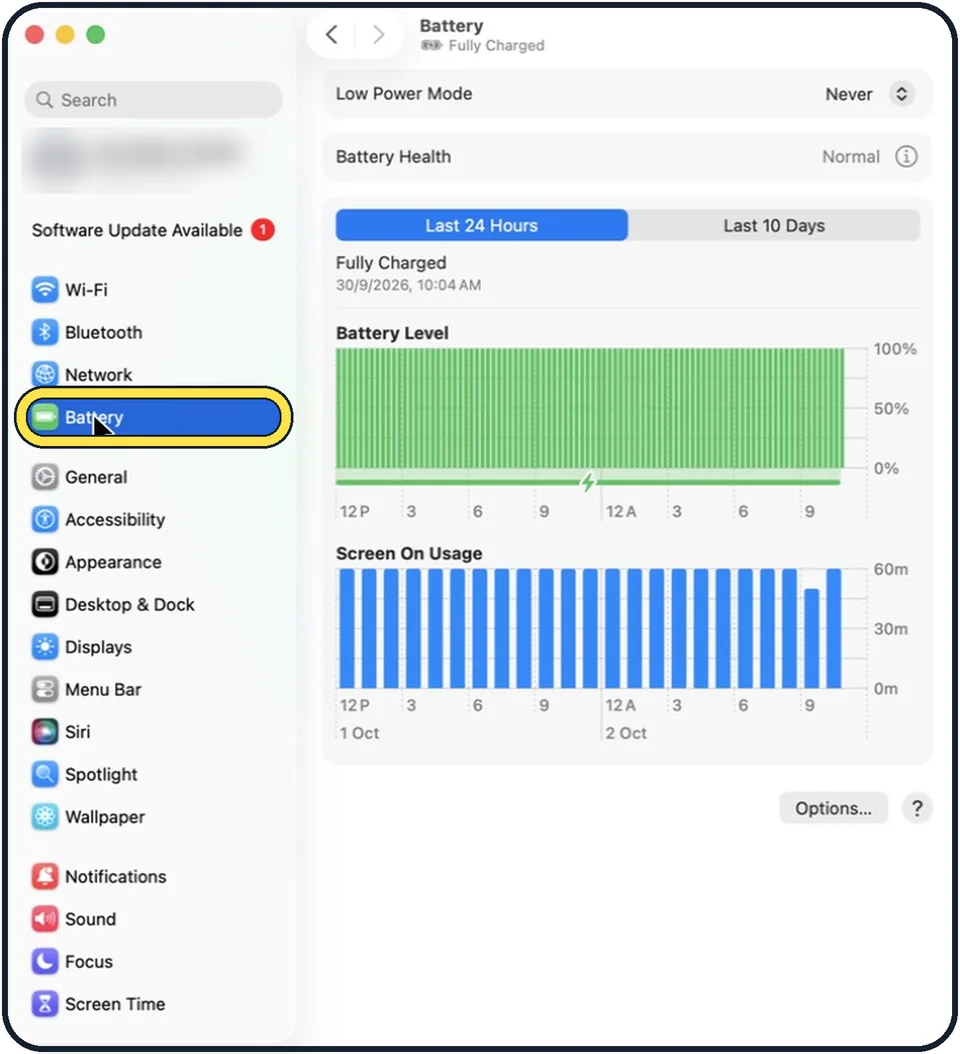
Tap the picture to see it full size Open System Settings and click Battery
Click the Apple menu, then System Settings, then Battery in the sidebar.
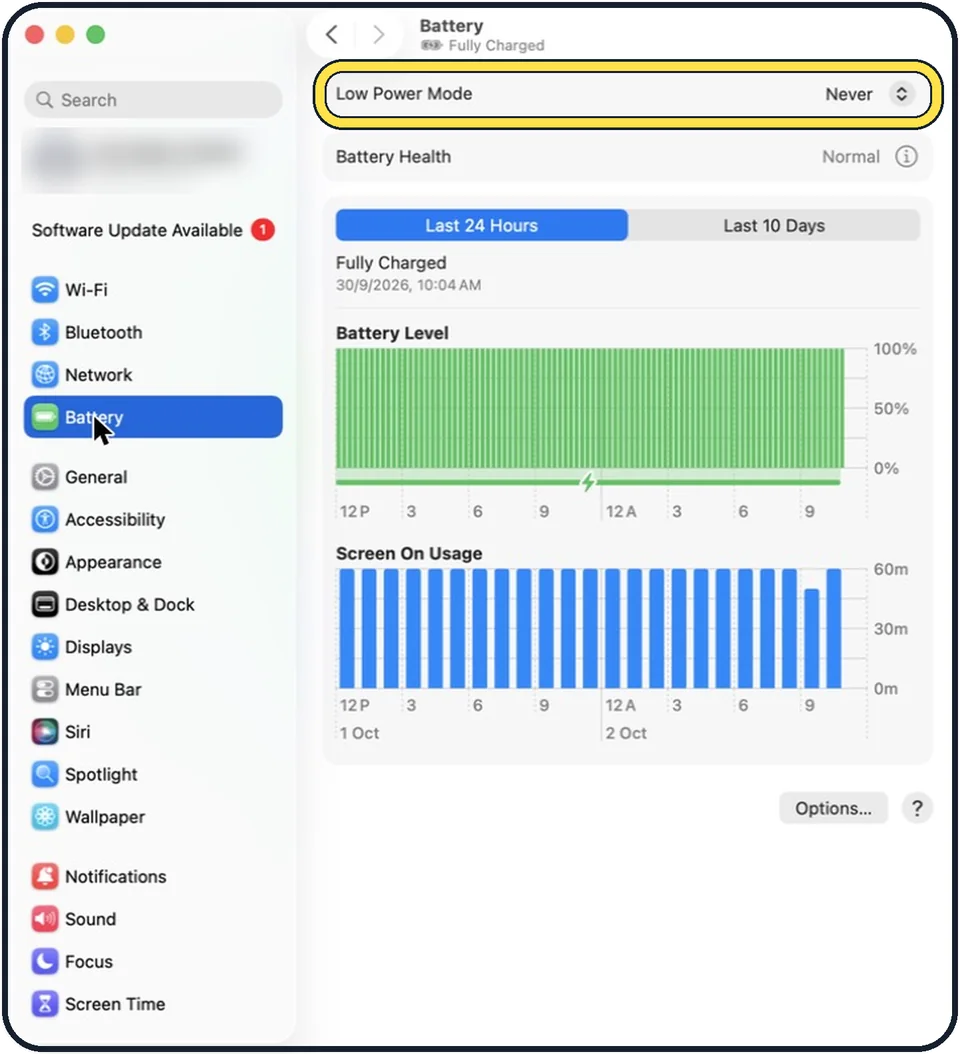
Tap the picture to see it full size Open the Low Power Mode menu
It is the first line on the Battery page. Our picture is from a MacBook Pro where it is set to Never.
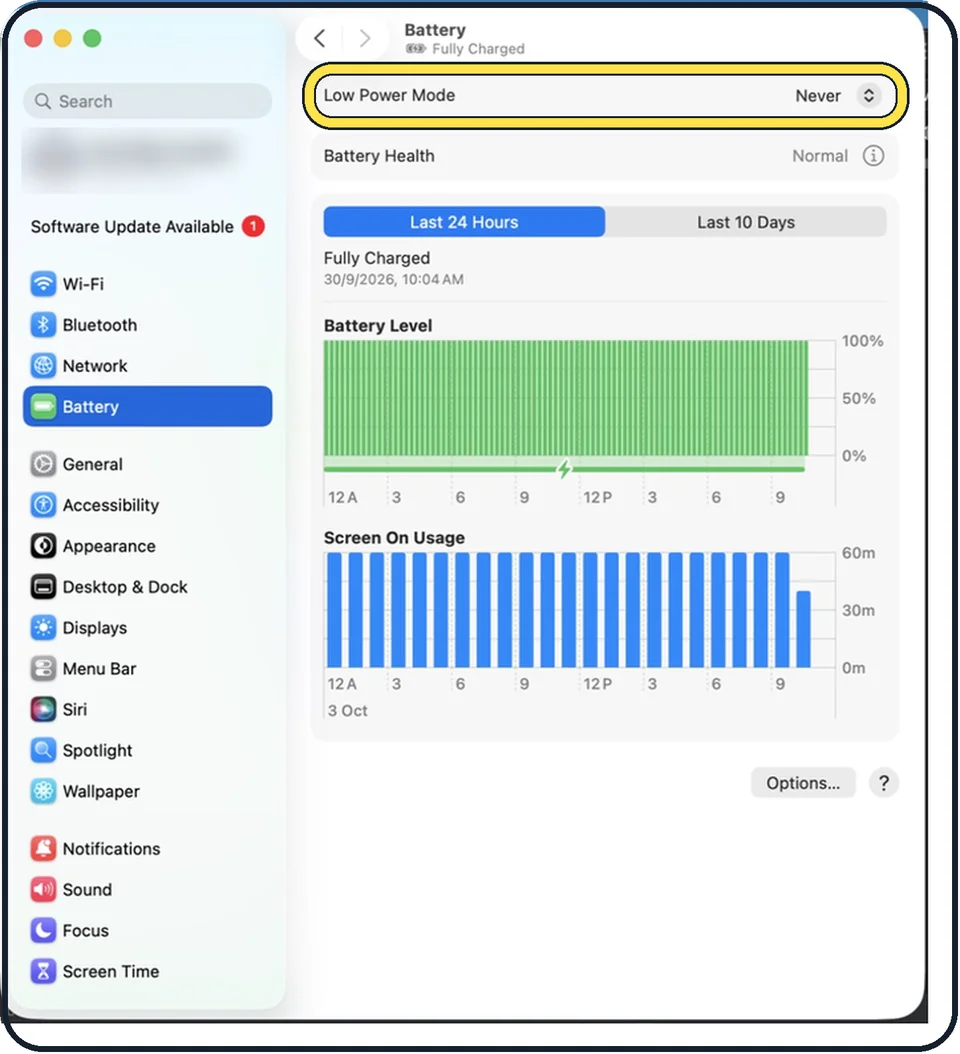
Tap the picture to see it full size Choose when it should be on
Only on Battery saves energy when the MacBook is away from a socket and gives full speed at the desk. Always keeps it on all the time. Only on Power Adapter is for people who mainly want a cool, quiet Mac at the desk.
Newer Macs: use Energy Mode
On recent models the Battery page has a menu called Energy Mode under On battery and another under On power adapter. Choose Low Power in the one you want.
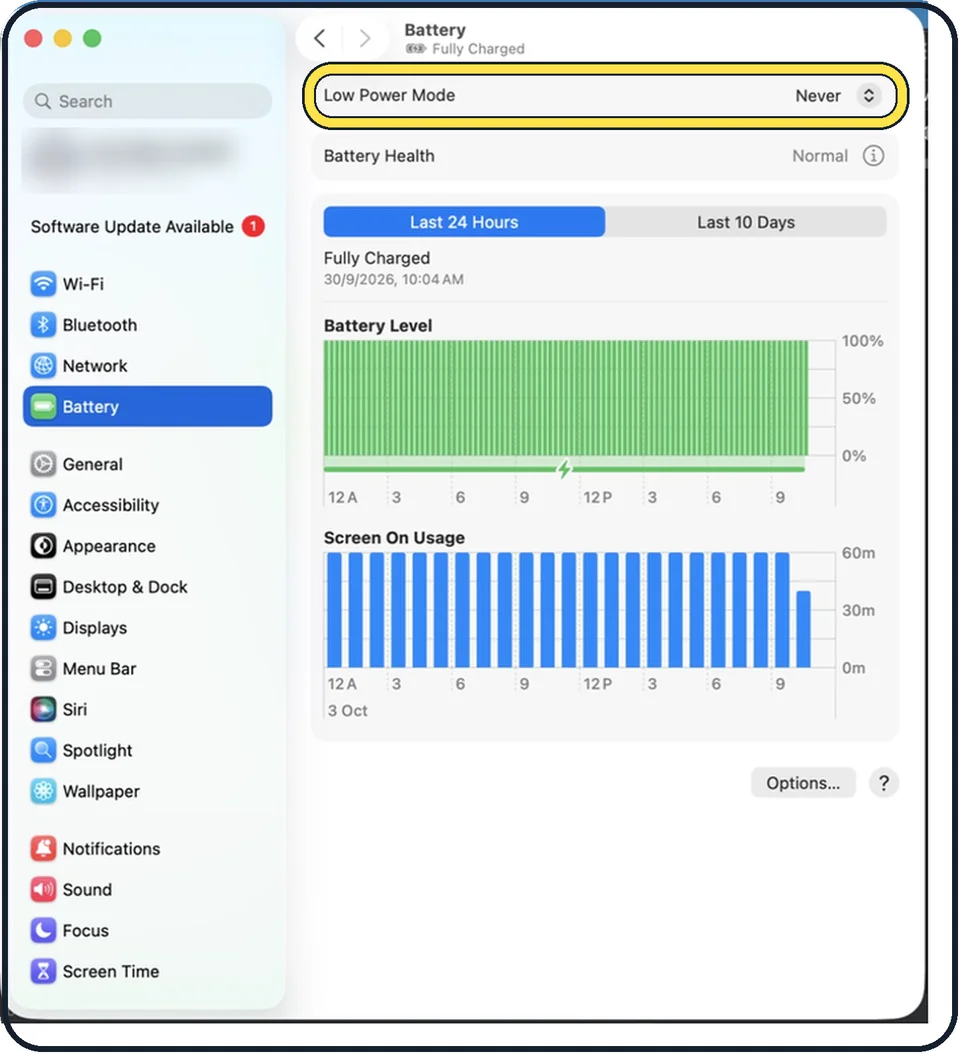
Tap the picture to see it full size Switch back
Set the Low Power Mode menu to Never, or set Energy Mode to Automatic. Automatic is the normal setting, which balances energy use and performance.
What we saw on our device
- Open System Settings and click Battery: On our MacBook Neo the first row on the Battery page is Low Power Mode, set to Never, with Battery Health showing Normal below it.
- Open the Low Power Mode menu and choose when it should be on: On our MacBook Neo it lists Never, Always, Only on Battery and Only on Power Adapter.
About this guide
Low Power Mode makes the Mac use less energy, so a MacBook runs longer on one charge. On some models it also keeps the fans quieter. The Mac may feel a little slower with heavy work.
These steps are for recent versions of macOS, where the settings app is called System Settings. The pictures are our own screenshots from macOS Tahoe 26 on a MacBook Pro.
Good to know
To see which mode is active, click the battery icon in the menu bar.
From macOS Sequoia 15.1 the power mode can also be changed in Control Centre on Macs with the Energy Mode menu.
Some MacBook Pro, Mac mini and Mac Studio models with a Pro or Max chip also offer High Power. It lets the fans run faster for long, heavy jobs such as video export.
Apple lists the models that have each mode on its support page.
On macOS Monterey and earlier the setting is in System Preferences, Battery.
In short: System Settings > Battery > Low Power Mode > Only on Battery (or Always) > Modify Settings.
Links checked in October 2026. Menus and features can change after software updates. These steps match the version named at the top.
Did this guide work for you?
Sorry about that. What happened?