
You are viewing the macOS 26 version of this guide, recorded on macOS Tahoe 26 (MacBook Pro) on 3 October 2026. It is kept as it was and not updated. See the macOS 27 version.
howtosimply.com/guides/how-to-change-which-app-opens-a-file-type-on-a-mac/ · Checked 3 October 2026 · MacBook Pro · macOS Tahoe 26
In this guide
Select a file of that type in Finder and choose File, Get Info. Click the arrow next to Open with, choose the app you want and click Change All. From then on, every file of that type opens in the chosen app.
4 of 6 steps with real screenshots · 1 official source below
- Device
- Mac
- Shown on
- macOS Tahoe 26 (MacBook Pro)
- App
- Finder
- Real screenshots
- 4 of 6 steps
- Checked
- 3 October 2026
- Sources
- 1 official, linked below
Step by step
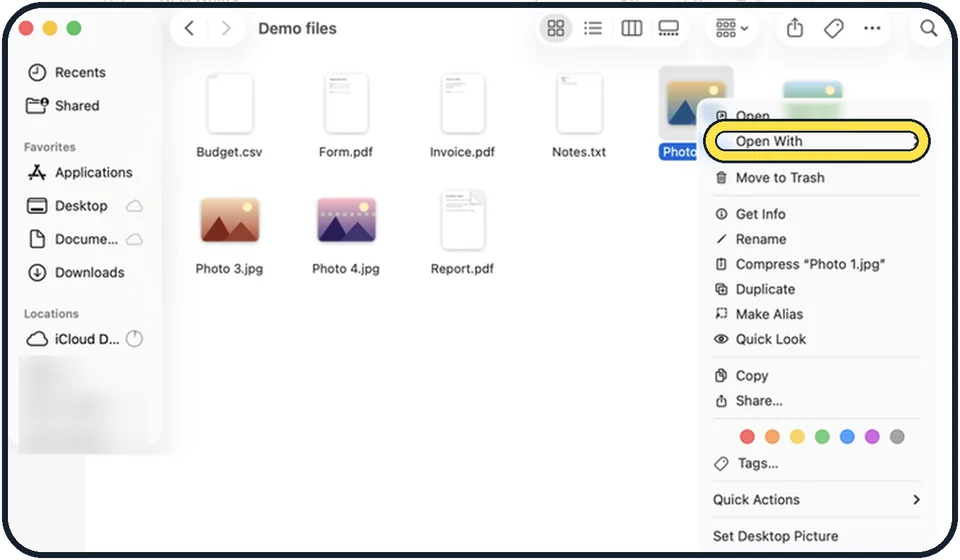
Tap the picture to see it full size To open a file once with another app
Control-click (right-click) the file, choose Open With and pick an app. You can also drag the file onto the icon of the app in the Dock. The default stays as it was.
Select a file of the type you want to change
For example any PDF, if you want all PDFs to open in a different reader.
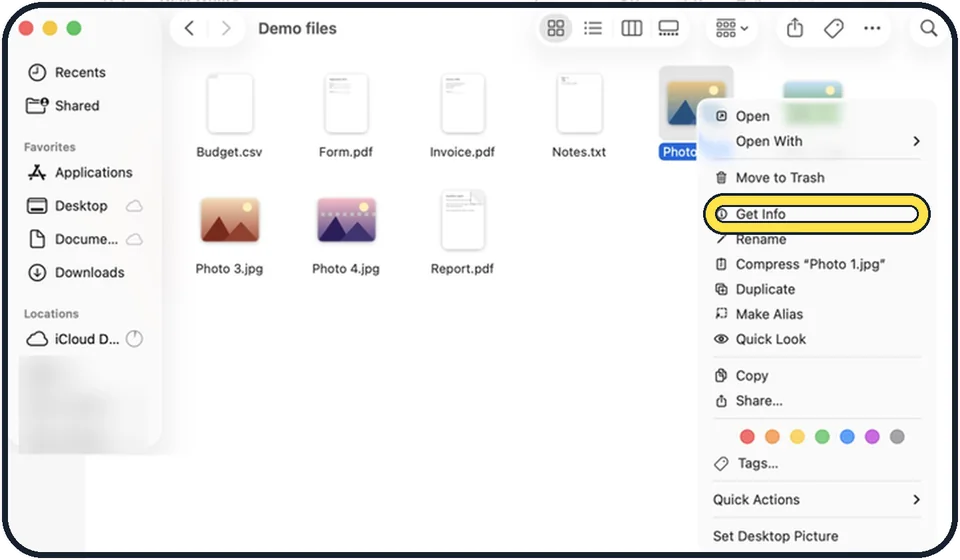
Tap the picture to see it full size Choose File, Get Info
Or press Command + I. An information window opens.
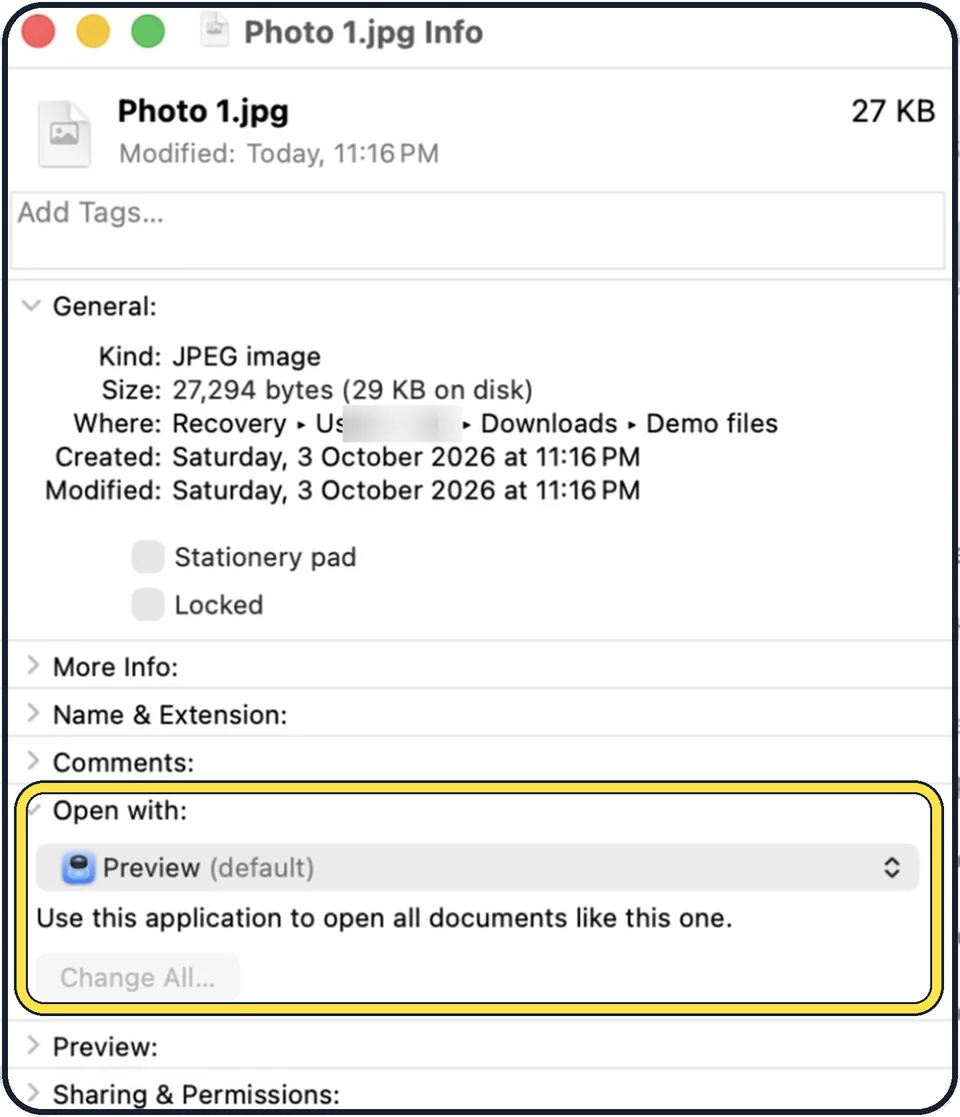
Tap the picture to see it full size Open the Open with section
Click the small arrow next to Open with if the section is closed.
Choose the app
Pick the app from the menu. If it is not listed, choose Other and find it in the Applications folder.
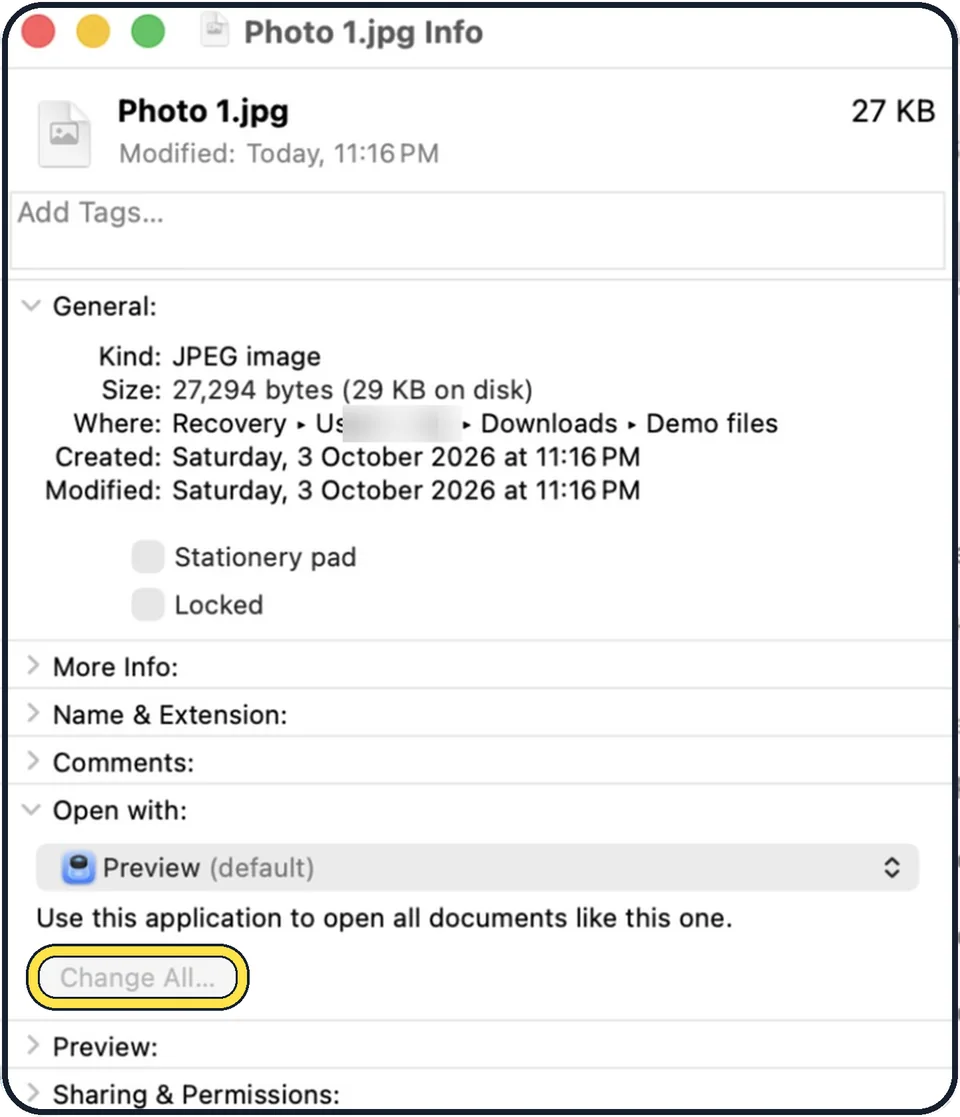
Tap the picture to see it full size Click Change All
Confirm with Continue. All files with the same ending now open in this app. If you only want this one file to open in the app, do not click Change All: the choice then applies to this file alone.
What we saw on our device
- To open a file once with another app, use Open With: On our MacBook Neo the Open With menu for Sample text.pdf listed Preview (default), Books, Claude, ColorSync Utility, Google Chrome, Safari, App Store… and Other….
- Choose the app under Open with: On our MacBook Neo it showed Preview (default) with a tick, and we chose Google Chrome.
- Click Change All…: On our MacBook Neo, Change All… was greyed out while Preview (default) was selected and became clickable once Google Chrome was chosen.
- Click Continue: On our MacBook Neo it added: This change will apply to all documents with extension ".pdf".
About this guide
Every file type has a default app: PDFs open in Preview, pictures too, music in the Music app. If you would rather use another app, you can change that for one file, or for all files of the same kind.
Menu names are from recent versions of macOS, where the settings app is called System Settings.
Good to know
File types are set one by one. Changing JPG files does not change PNG files.
The default web browser and mail app are chosen elsewhere: how to change the default browser on a Mac.
To go back, repeat the steps and choose the original app, for example Preview.
If a file has no ending or the Mac does not know it, see what kind of file it is with Quick Look: how to use Quick Look on a Mac.
In short: Control-click the file, Get Info, Open with, choose the app, Change All…, Continue.
Links checked in October 2026. Menus and features can change after software updates. These steps match the version named at the top.
Did this guide work for you?
Sorry about that. What happened?