
You are viewing the macOS 26 version of this guide, recorded on macOS Tahoe 26 (MacBook Pro) on 2 October 2026. It is kept as it was and not updated. See the macOS 27 version.
howtosimply.com/guides/safari-not-working-on-a-mac-8-fixes-to-try/ · Checked 2 October 2026 · MacBook Pro · macOS Tahoe 26
In this guide
Reload the page with Command + R, or force quit Safari with Option + Command + Esc and open it again. Then update macOS, switch off all Safari extensions under Safari, Settings, Extensions, and try the page in a private window with Shift + Command + N.
1 of 8 steps with real screenshots · 1 official source below
- Device
- Mac
- Shown on
- macOS Tahoe 26 (MacBook Pro)
- App
- Safari
- Real screenshots
- 1 of 8 steps
- Checked
- 2 October 2026
- Sources
- 1 official, linked below
Step by step
Reload the page
Choose View, Reload Page or press Command + R. If Safari does not react, press Option + Command + Esc, select Safari and click Force Quit. Then open it again.
Tap the picture to see it full size Install updates and restart
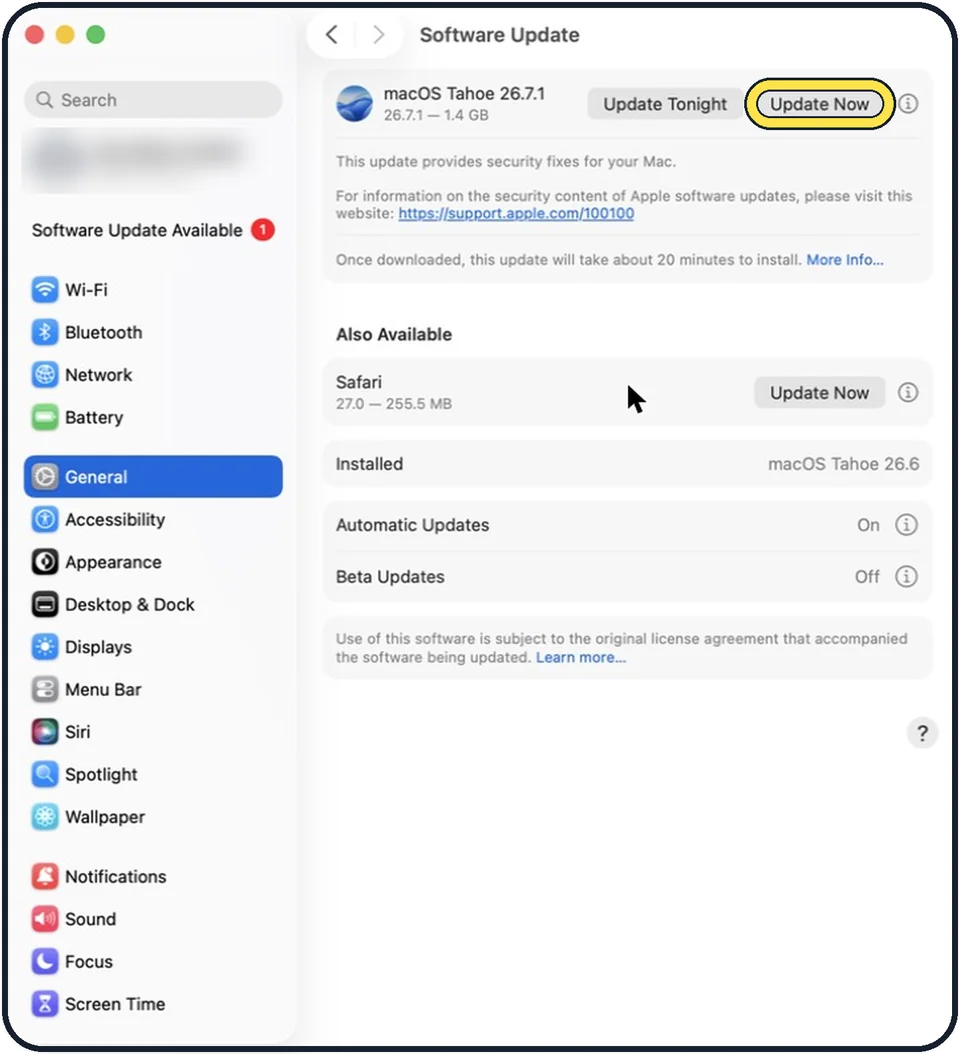
Safari is updated together with macOS. Open System Settings, General, Software Update, install the updates and restart the Mac.
Switch off extensions
Choose Safari, Settings and click Extensions. Untick every extension, then test. If Safari works, switch them on one at a time to find the one that causes the trouble, and update or remove it.
Try a private window
Choose File, New Private Window or press Shift + Command + N. A private window ignores stored cookies and website data. If the page works there, that stored data is the problem.
Remove the data of that website
Choose Safari, Settings, click Privacy and click Manage Website Data. Search for the website, select it and click Remove. You are signed out of that site and sign in again.
Check the Safari settings
In Safari, Settings, look at the Websites, Privacy, Security and Advanced tabs. A content blocker or a setting for that website can stop pages from working.
Check Private Relay, VPN and security software
If you use iCloud Private Relay, choose View, Reload and Show IP Address for a test. Switch off VPN apps and security software from other makers for a moment, to see whether they are in the way.
Test the connection
Open the page in another browser or on another device on the same network. If it fails there too, the problem is the website or your internet connection, not Safari.
What we saw on our device
- Reload the page: On our MacBook Neo, Reload Page sits under Stop in Safari's View menu, with Command-R next to it.
- Remove the data of that website: On our MacBook Neo the Privacy tab shows the button next to Website data, between Hide IP address from trackers and Private Browsing.
- Check the Safari settings: On our MacBook Neo the window title reads Websites when that tab is open, and the list starts with Reader, Notify Me, Content Blockers, Auto-Play and Page Zoom.
About this guide
A page that will not load, a blank window or a Safari that hangs usually comes from one of three things: a faulty extension, stored website data that has gone wrong, or software that sits between Safari and the internet.
Menu names are from recent versions of macOS, where the settings app is called System Settings.
Some pictures are simplified diagrams of the screen, not screenshots.
Good to know
If one website still misbehaves, click the page menu button in the address field and choose Report a Website Issue. That goes to Apple and helps to get the site fixed.
If every app has trouble getting online: Mac won't connect to Wi-Fi: 8 fixes that work.
To clear more than one site: how to clear browsing history in Safari on a Mac.
Safe mode shows whether other software on the Mac is involved: how to start a Mac in safe mode.
In short: Reload or force quit, update, extensions off, private window, remove website data, check settings, Private Relay and VPN off, test elsewhere.
Links checked in October 2026. Menus and features can change after software updates. These steps match the version named at the top.
Did this guide work for you?
Sorry about that. What happened?