
You are viewing the macOS 26 version of this guide, recorded on macOS Tahoe 26 (MacBook Pro) on 2 October 2026. It is kept as it was and not updated. See the macOS 27 version.
howtosimply.com/guides/how-to-change-the-wallpaper-on-a-mac/ · Checked 2 October 2026 · MacBook Pro · macOS Tahoe 26
In this guide
Open System Settings, click Wallpaper and click a picture. To use your own, click Add Photo under Your Photos, or right-click any image in Finder and choose Set Desktop Picture.
3 of 4 steps with real screenshots · 1 official source below
- Device
- Mac
- Shown on
- macOS Tahoe 26 (MacBook Pro)
- App
- System Settings
- Real screenshots
- 3 of 4 steps
- Checked
- 2 October 2026
- Sources
- 1 official, linked below
Step by step
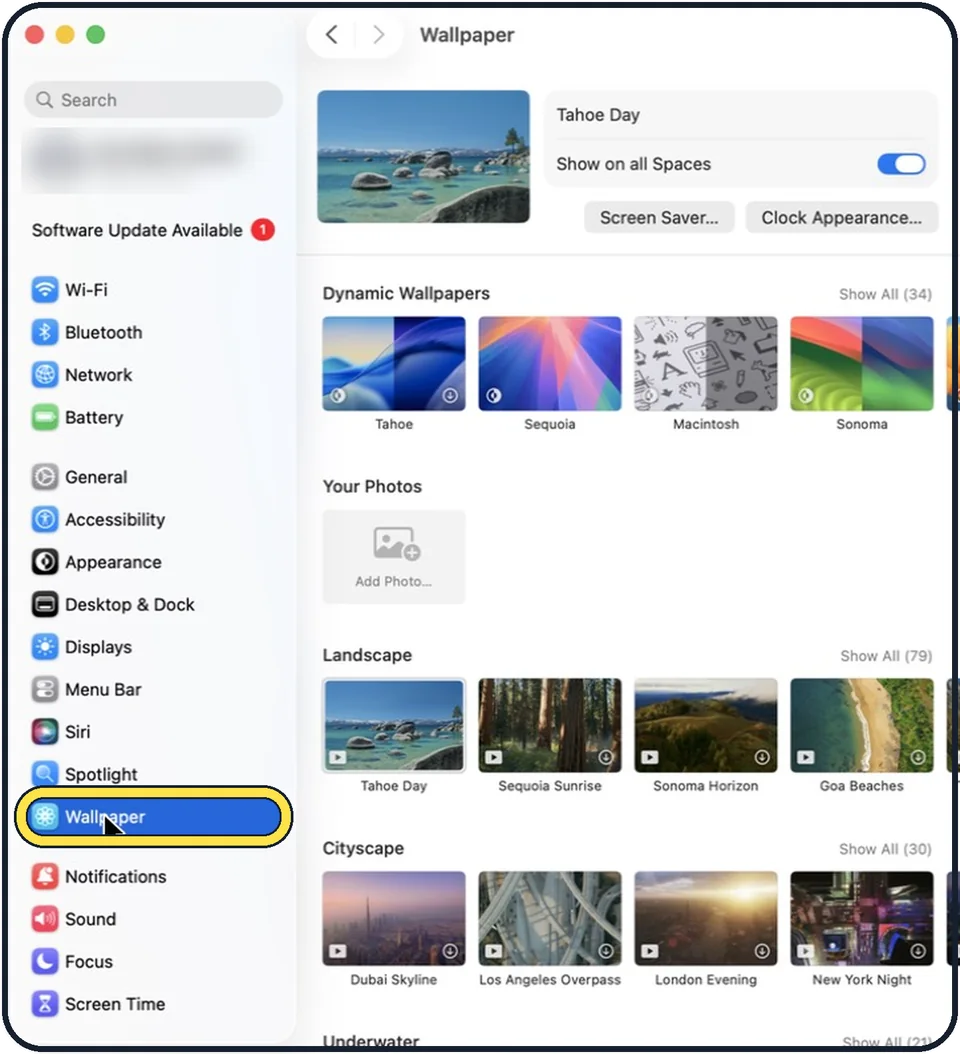
Tap the picture to see it full size Open System Settings and click Wallpaper
Click the Apple menu in the top left corner and choose System Settings.
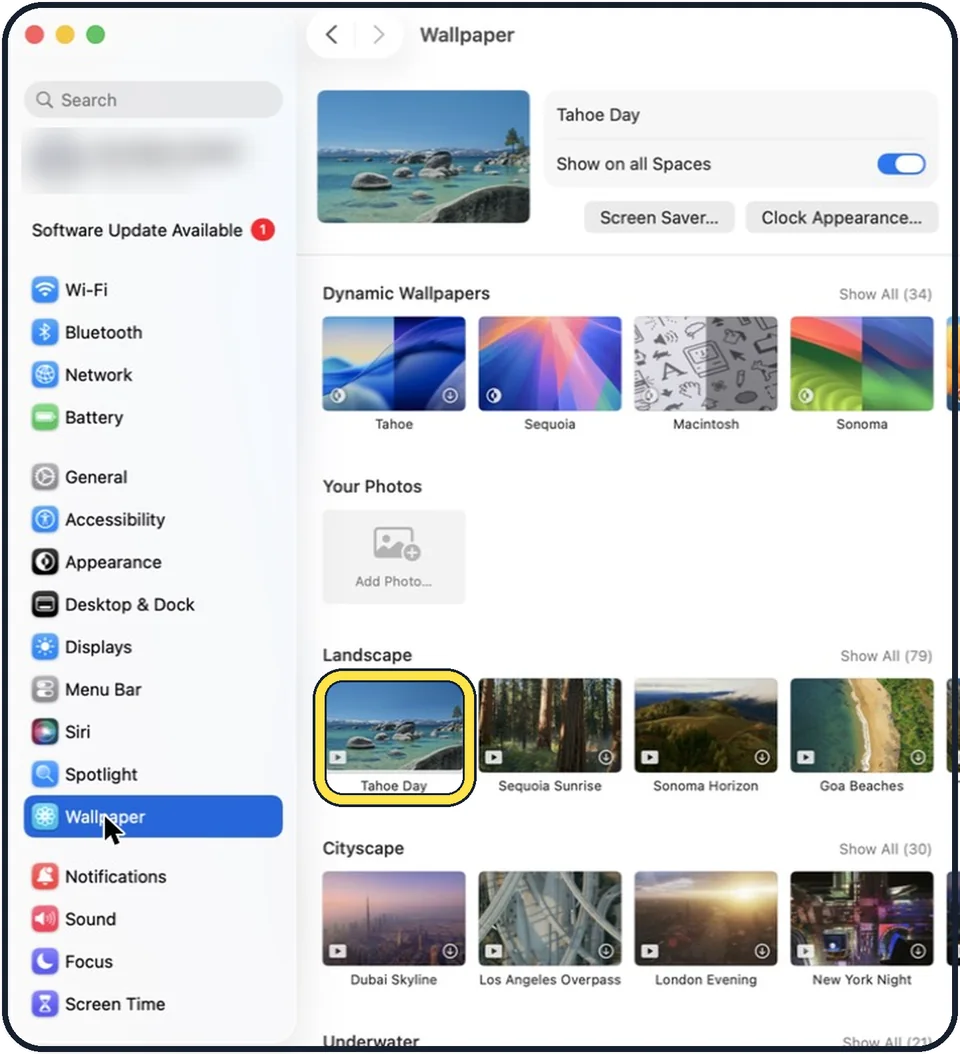
Tap the picture to see it full size Click a wallpaper
It is applied straight away. Some need a short download first.
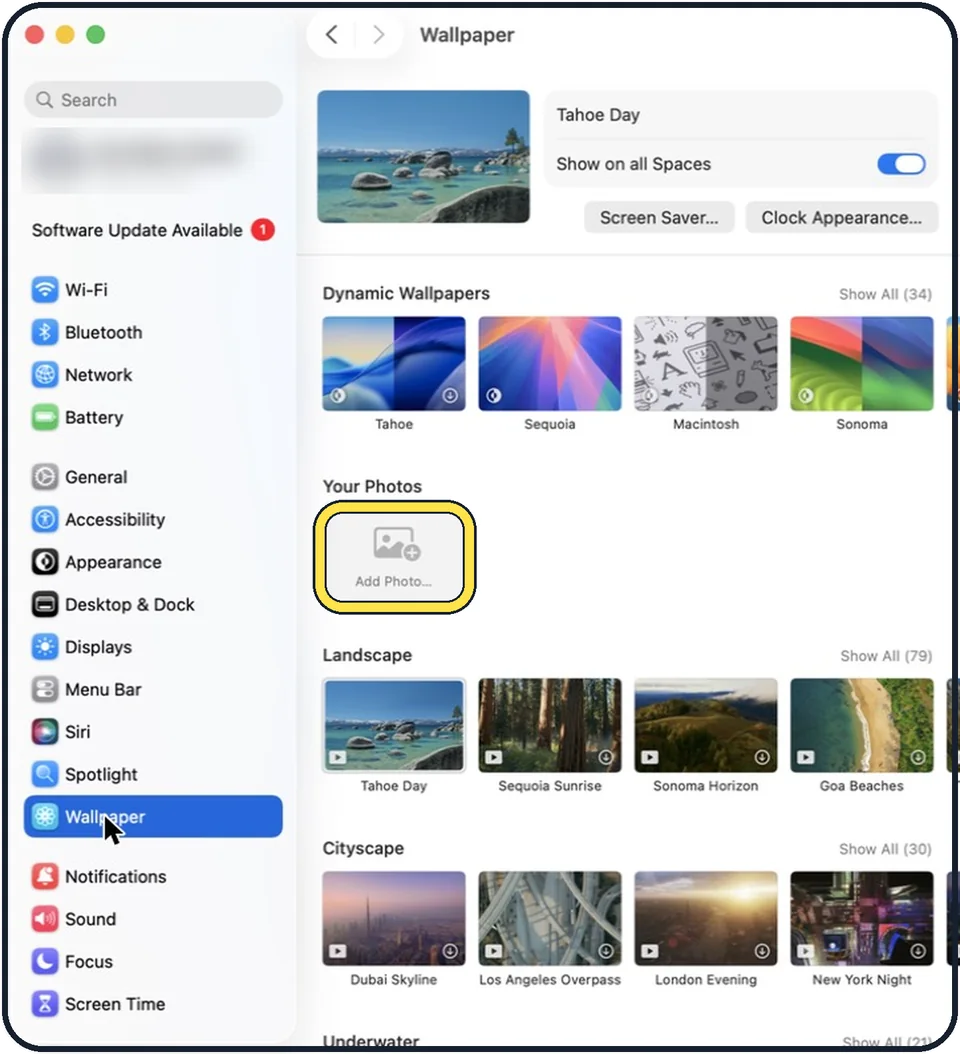
Tap the picture to see it full size Use your own photo
Scroll to Your Photos and click Add Photo. Choose from Photos picks a picture from your library, Choose File picks an image file and Choose Folder uses a whole folder of pictures.
Set it from Finder
Right-click an image file and choose Set Desktop Picture. In Photos, select a photo, click the share button and choose Set Wallpaper.
What we saw on our device
- Open System Settings and click Wallpaper: On our MacBook Neo, Wallpaper sits between Spotlight and Notifications, and the page opens with the current wallpaper (Mac Yellow) at the top.
- Click a wallpaper: On our MacBook Neo, Dynamic Wallpapers shows Show All (35), Landscape Show All (83) and Cityscape Show All (30).
- Use your own photo: On our MacBook Neo, Add Photo… is the only button under Your Photos in macOS 27, with no Add Folder option, and it shows without scrolling.
- Set it from Finder: On our MacBook Neo, Set Desktop Picture is the last item in the menu, below Quick Actions, here for Space Gray Pro.png in the Solid Colors folder.
About this guide
You can choose from Apple's landscapes and moving aerial views, a plain colour or any photo of your own.
Good to know
Dynamic wallpapers change through the day with the light. Choose Automatic, Light or Dark in the menu that appears for them.
With more than one display, each can have its own wallpaper. Select the display at the top of the Wallpaper page.
Aerial wallpapers can also play in slow motion as your screen saver. Switch that on next to the wallpaper's name.
To use a picture from a web page, right-click it in Safari and choose Use Image as Desktop Wallpaper.
In short: System Settings > Wallpaper > click a picture or Add Photo…, or Control-click an image in Finder > Set Desktop Picture.
Links checked in October 2026. Menus and features can change after software updates. These steps match the version named at the top.
Did this guide work for you?
Sorry about that. What happened?