How to change the screenshot preview on an iPad
By Saadat Rafiq · 2 min read · 4 steps · Updated 5 October 2026
Open Settings, tap General, tap Screen Capture and use the Full-Screen Previews switch. On: a new screenshot opens in full view. Off: it shows as a temporary thumbnail in the lower-left corner.
- Device
- iPad
- Shown on
- iPadOS 26.5 (iPad A16)
- App
- Settings
- Path
- Settings › General › Screen Capture › Full-Screen Previews
- Real screenshots
- 3 of 4 steps
- Checked
- October 2026
- Sources
- 2 official, linked below
Step by step
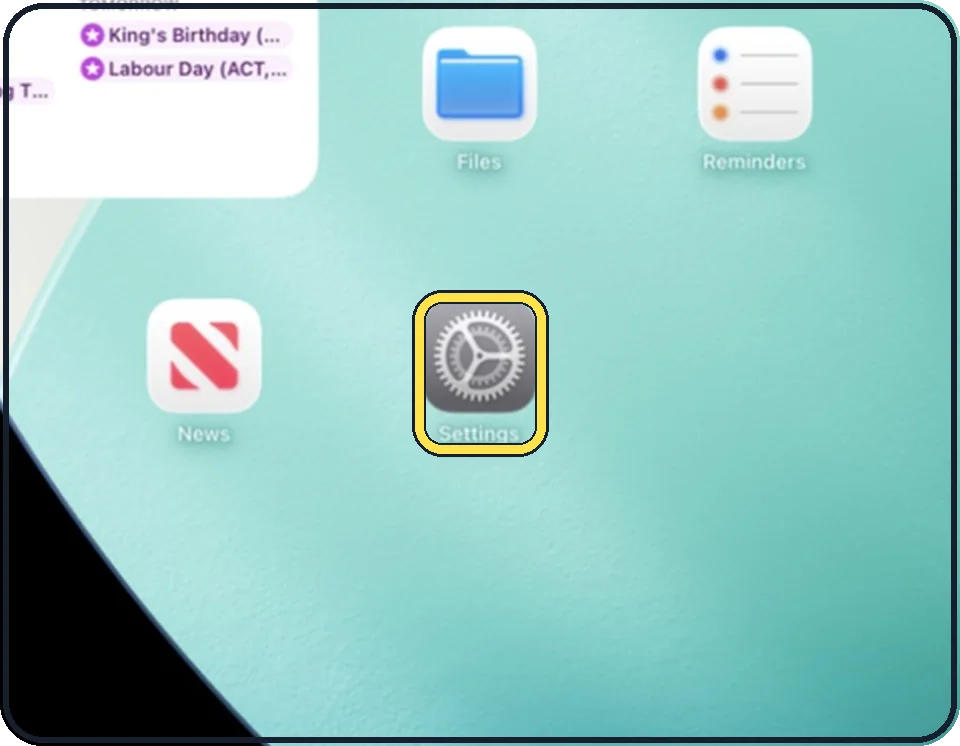
Open Settings
Tap the grey gear icon on the Home Screen. In the picture it is in the second row; it also sits in the Dock at the bottom.
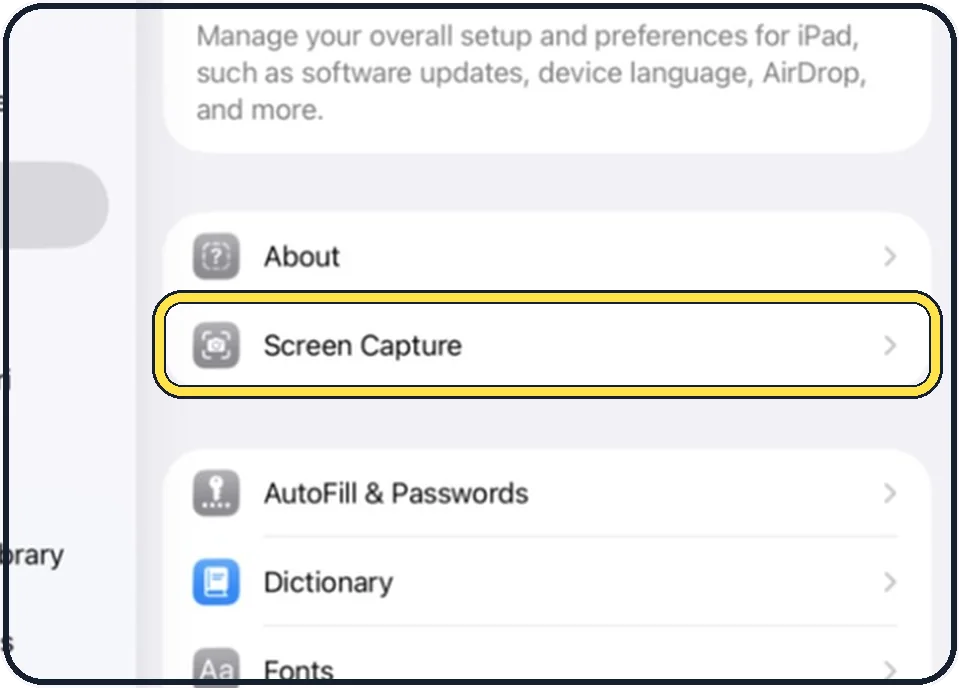
Tap General, then Screen Capture
General is at the top of the list on the left. Screen Capture is the second row on the right, below About.
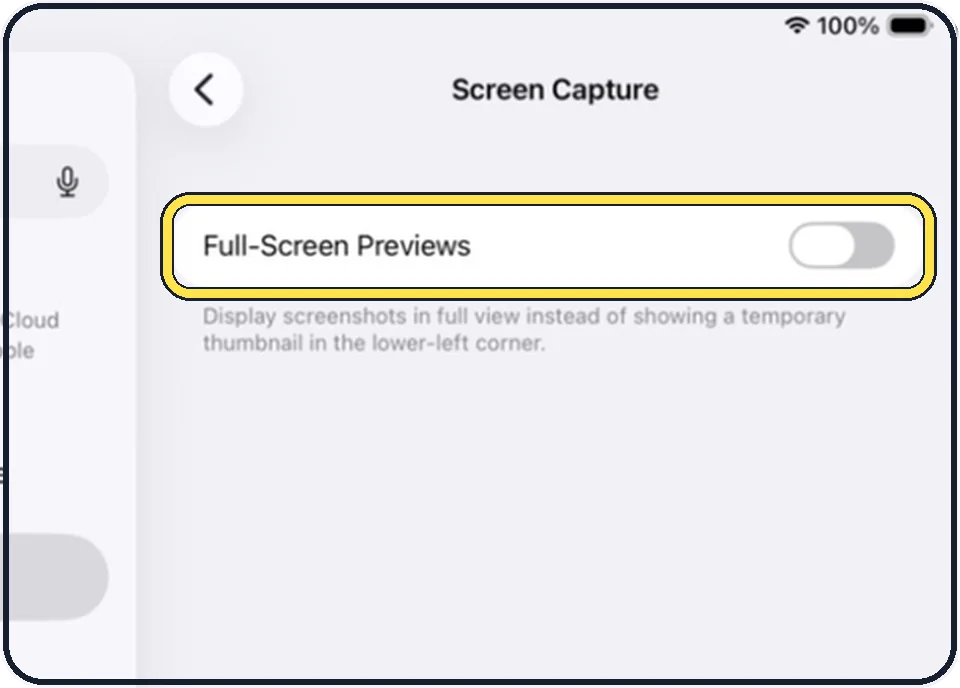
Set Full-Screen Previews
The text below the switch explains it: screenshots are displayed in full view instead of a temporary thumbnail in the lower-left corner. In the picture the switch is off.
Take a screenshot to see the result
Press the top button and either volume button at the same time and let go quickly. On an iPad with a Home button, press the top button and the Home button.
If you do not see this option
- Your iPad may run a different version. The screenshots here show iPadOS 26.5 (iPad A16). On another version a setting can have a different name or sit in a different place. See your version under Settings, General, About. Update under Settings, General, Software Update; back up first, plug in and use Wi-Fi. Source: Find the software version on your iPhone Source: Update your iPhone or iPad
- It is greyed out. Screen Time restrictions can lock settings; Apple gives this as the reason when the Apple Account row is greyed out. Check Settings, Screen Time, Content & Privacy Restrictions. Source: If you can't sign out due to restrictions, or your Apple Account is grayed out in Settings
About this guide
After a screenshot the iPad either opens the picture in full view, ready to crop and mark up, or only shows a temporary thumbnail in the corner. Which one you get is one switch. The full view is good for editing; the thumbnail is better when you take several screenshots in a row.
The screenshots show iPadOS 26.5 on an iPad (A16), held upright. In landscape the same rows sit in the same order.
Good to know
Apple's guide for the current iPadOS describes the full view as the standard setting. The simulator used for these pictures shows the switch off, so check your own iPad.
On supported models the same page also has Automatic Visual Look Up, which recognises objects and places in screenshots.
In short: Settings, General, Screen Capture, Full-Screen Previews.
- Apple Support: Change the screen capture settings on iPad
- Apple Support: Learn gestures to navigate iPad
Links checked on 4 October 2026. Rules and prices change. Check the official source before you act.