How to change Home Screen and Dock settings on an iPad
2 min read · 6 steps · Updated 4 October 2026
Open Settings and tap Home Screen & App Library. The page has four settings: Use Large App Icons, where new apps go (Home Screen or App Library only), two Dock switches for the App Library button and for suggested and recent apps, and notification badges in the App Library.
- Device
- iPad
- Shown on
- iPadOS 26.5 (iPad A16)
- App
- Camera
- Real screenshots
- 6 of 6 steps
- Checked
- October 2026
- Sources
- 2 official, linked below
One short settings page decides how crowded the iPad Home Screen and Dock are. Nothing here deletes an app; every change can be undone with the same switch.
The screenshots show iPadOS 26.5 on an iPad (A16), held upright. In landscape the same rows sit in the same order.
Step by step
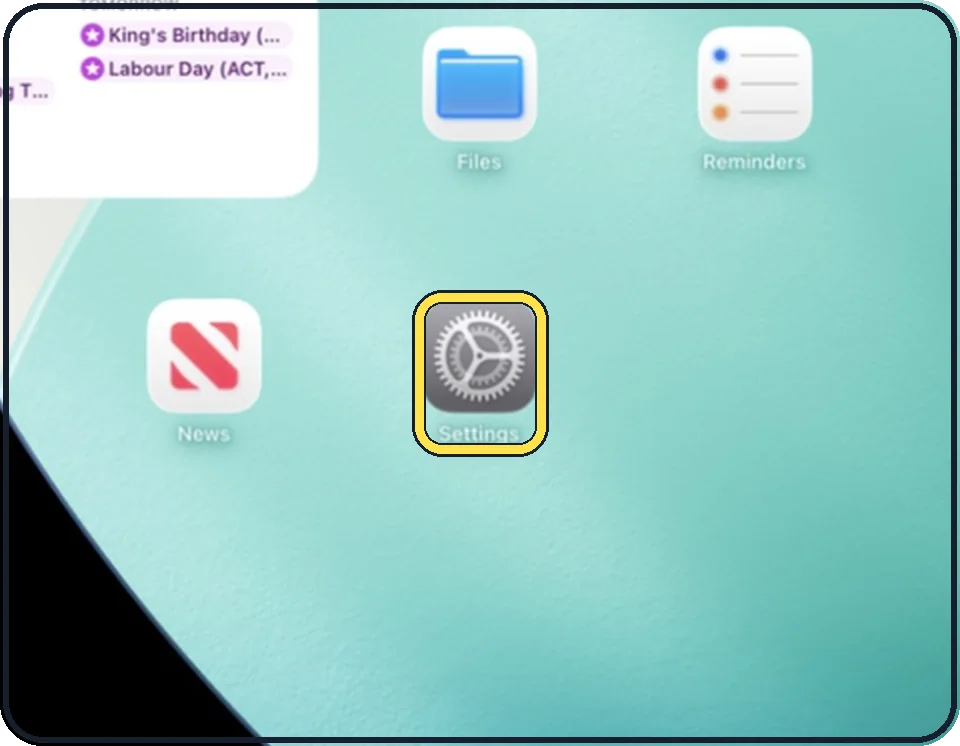
Open Settings
Tap the grey gear icon on the Home Screen. In the picture it is in the second row; it also sits in the Dock at the bottom.
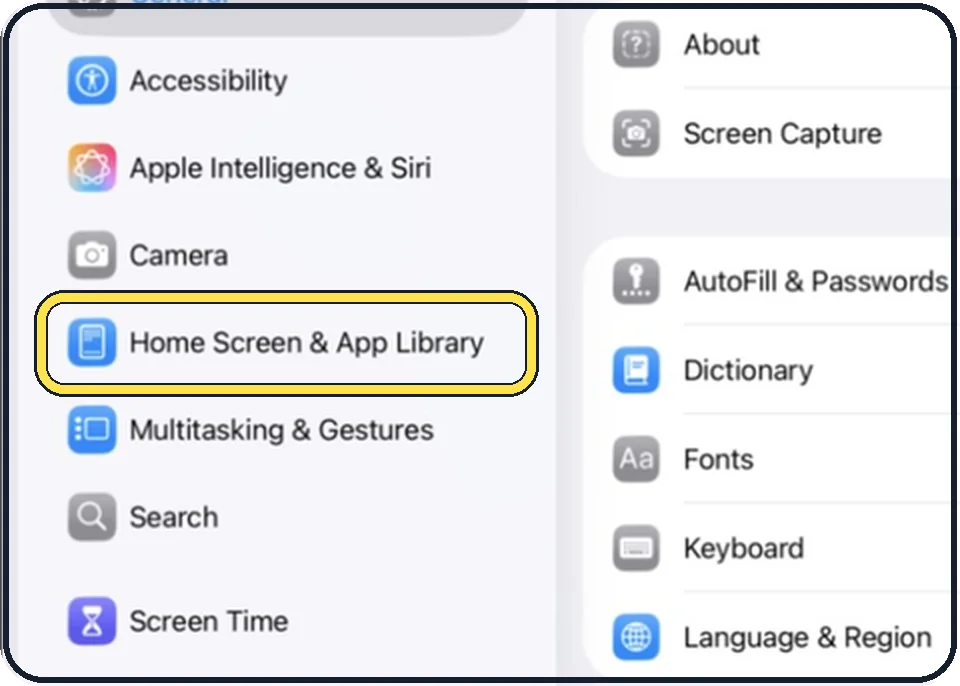
Tap Home Screen & App Library
It is in the list on the left, below Camera.
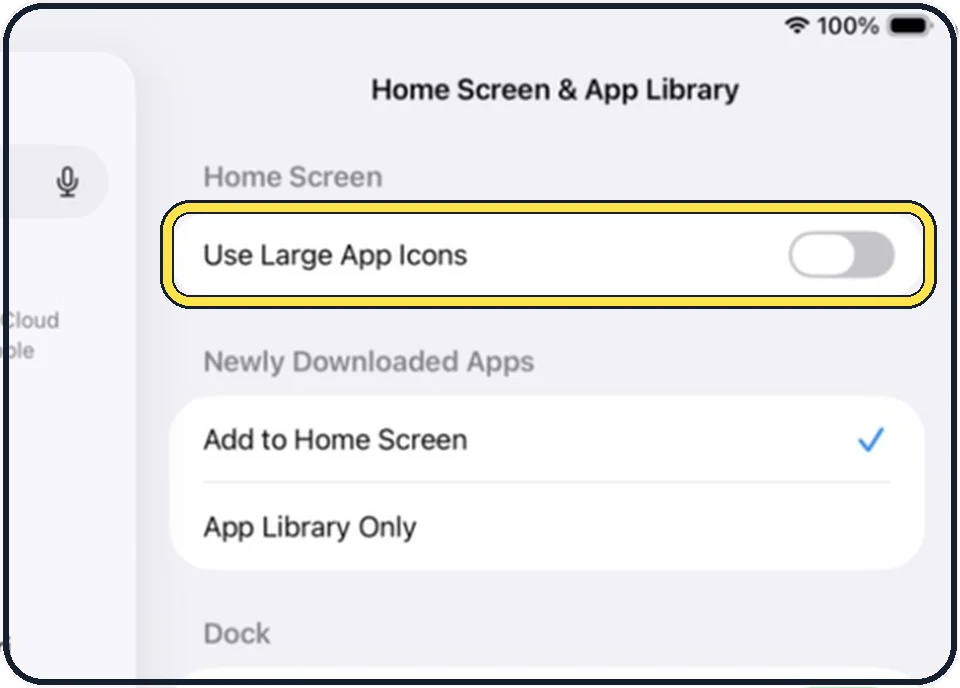
Use Large App Icons
Switch it on for bigger icons. According to Apple, the names of the apps disappear in the large size.
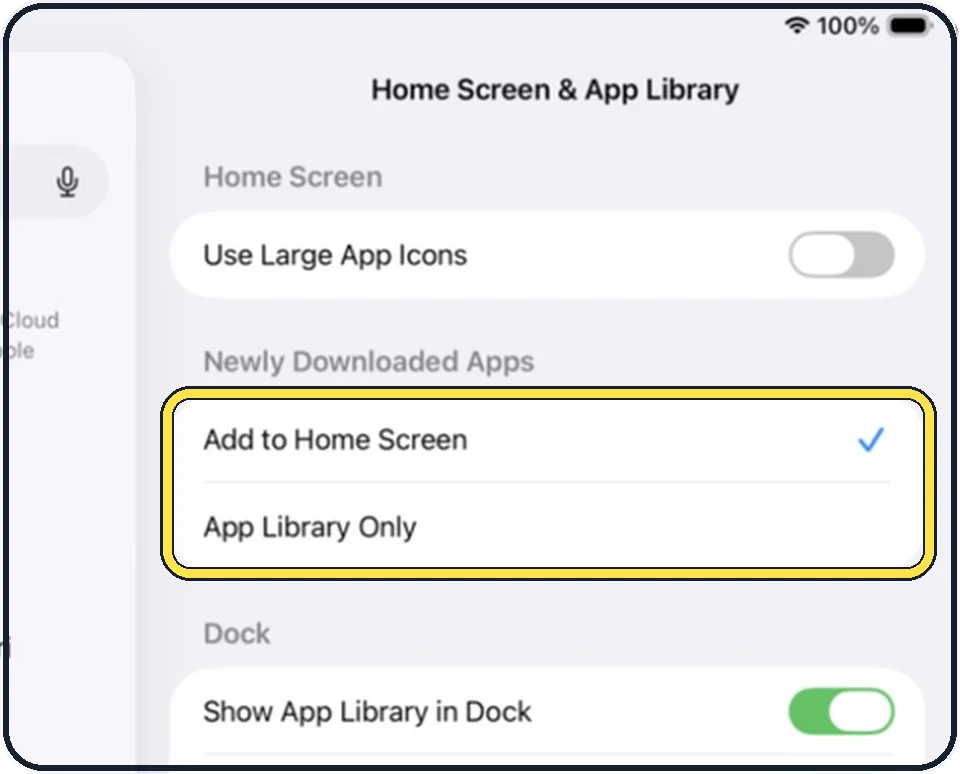
Choose where new apps go
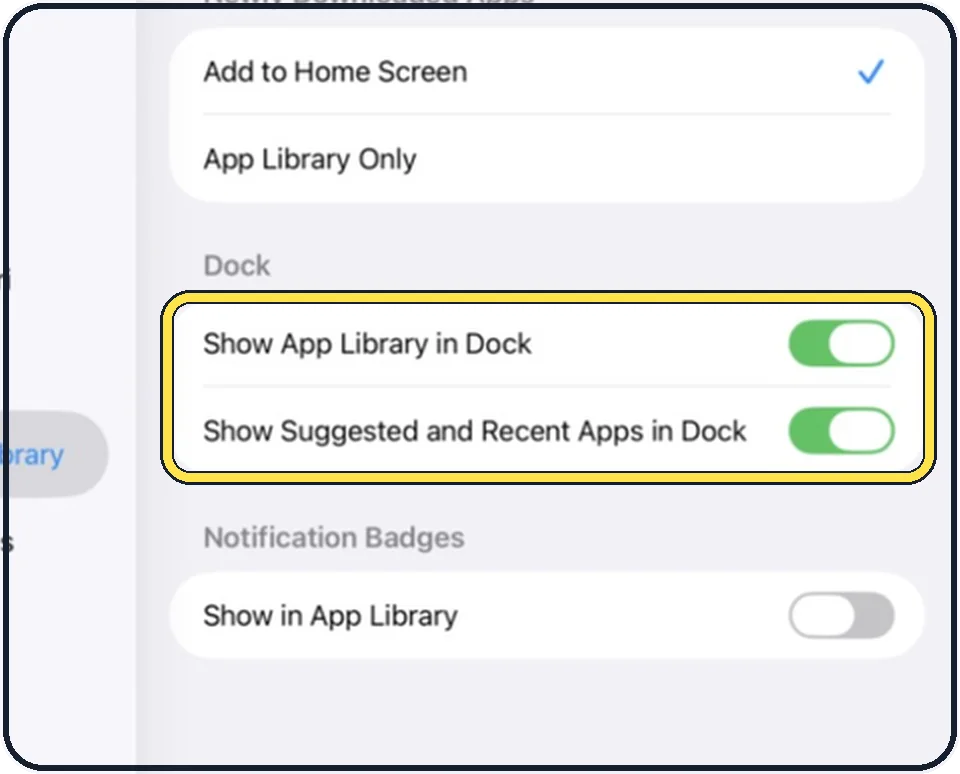
Add to Home Screen puts every new download on a Home Screen page. App Library Only keeps the Home Screen as it is; the app is then found in the App Library.
Decide what the Dock shows
Show App Library in Dock adds the App Library button at the right end of the Dock.
Show Suggested and Recent Apps in Dock lets the iPad add apps it suggests and apps you used recently. Switch it off for a Dock that only holds the apps you put there.
Decide about notification badges
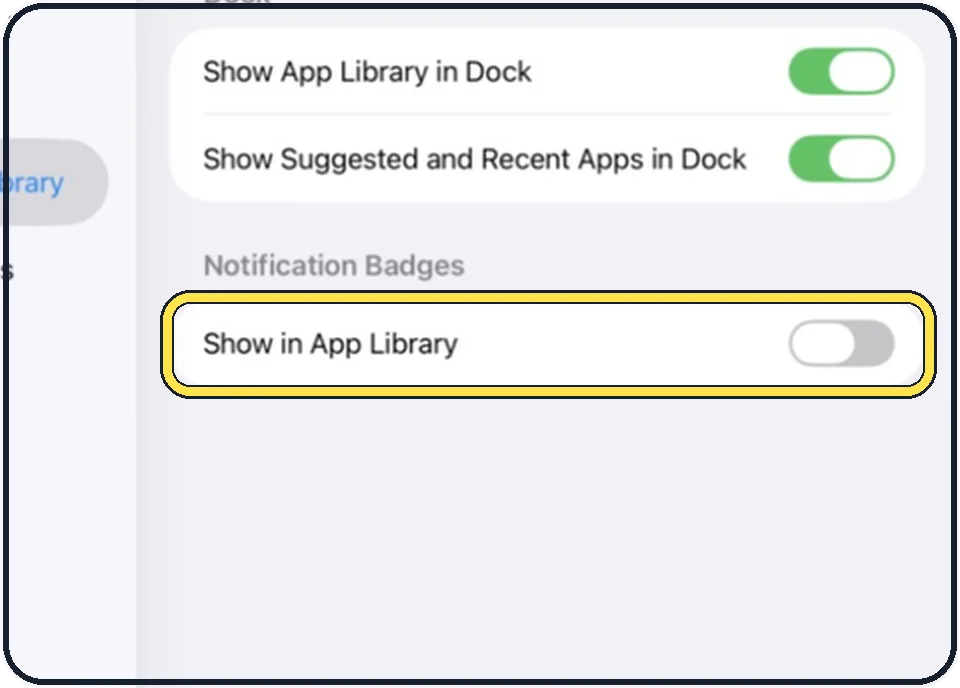
Show in App Library lets the red badges with numbers appear on apps inside the App Library too. It is off in the picture.
Good to know
To open the App Library without the Dock button, swipe left past your last Home Screen page.
To move an app from the App Library back to the Home Screen, touch and hold it in the App Library until the icons jiggle and it moves to the Home Screen.
Fewer pages bring the App Library closer: touch and hold the Home Screen wallpaper, tap the dots at the bottom and remove the tick below the pages you want to hide.
In short: Settings, Home Screen & App Library: icon size, new apps, Dock, badges.
- Apple Support: Find and use your apps in App Library on iPad
- Apple Support: Customize apps and widgets on the iPad Home Screen
Links checked on 3 October 2026. Rules and prices change. Check the official source before you act.