How to increase contrast and reduce transparency on an iPad
2 min read · 7 steps · Updated 4 October 2026
Open Settings, tap Accessibility and tap Display & Text Size. Switch on Reduce Transparency to replace see-through backgrounds with solid ones, and Increase Contrast to make text and buttons stand out more against the background.
- Device
- iPad
- Shown on
- iPadOS 26.5 (iPad A16)
- App
- Settings
- Path
- Settings › Accessibility
- Real screenshots
- 7 of 7 steps
- Checked
- October 2026
- Sources
- 1 official, linked below
The glass-like, see-through look of iPadOS can make text hard to read, because whatever is behind a panel shines through. Two switches fix most of it, and three more on the same page help people who have trouble telling colours apart.
The screenshots show iPadOS 26.5 on an iPad (A16), held upright. In landscape the same rows sit in the same order.
Step by step
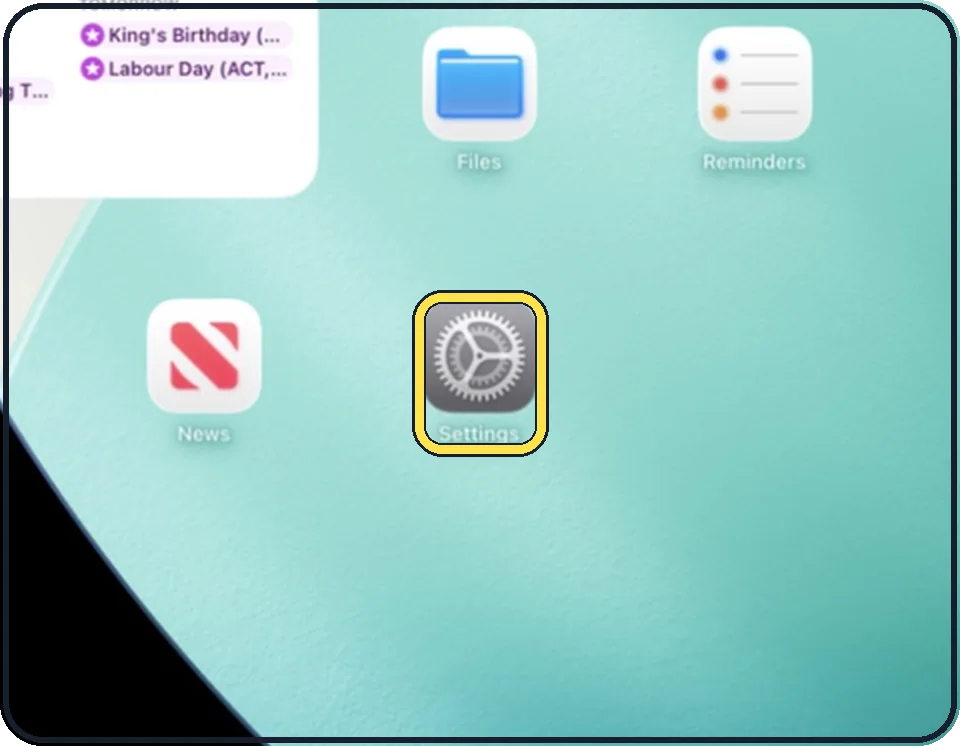
Open Settings
Tap the grey gear icon on the Home Screen. In the picture it is in the second row; it also sits in the Dock at the bottom.
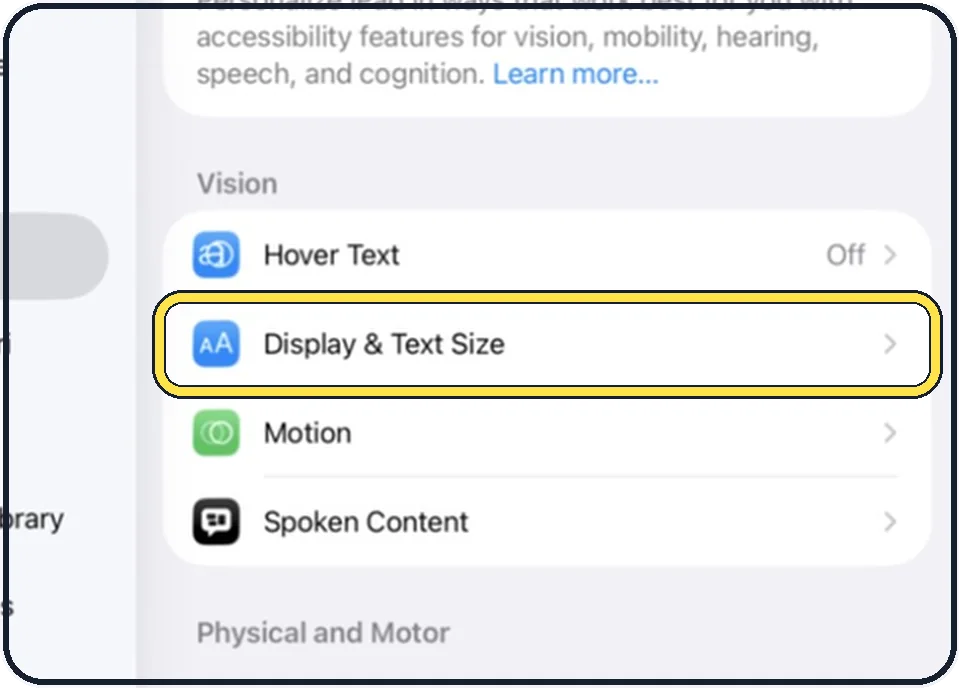
Tap Accessibility, then Display & Text Size
Accessibility is the second entry in the list on the left. Display & Text Size is in the Vision group on the right.
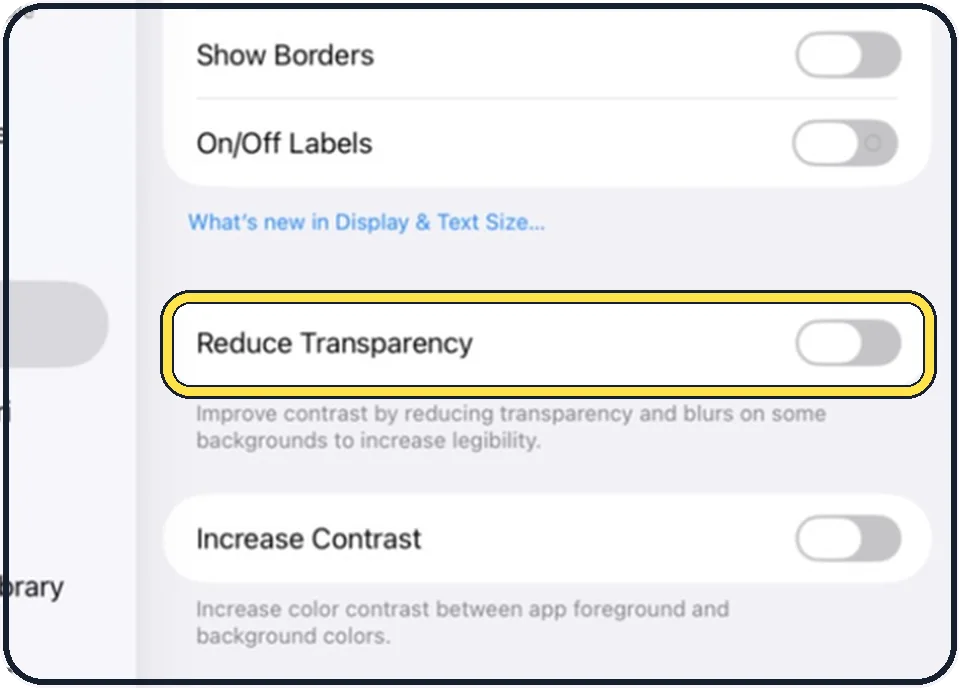
Switch on Reduce Transparency
It improves contrast by reducing transparency and blurs on some backgrounds.
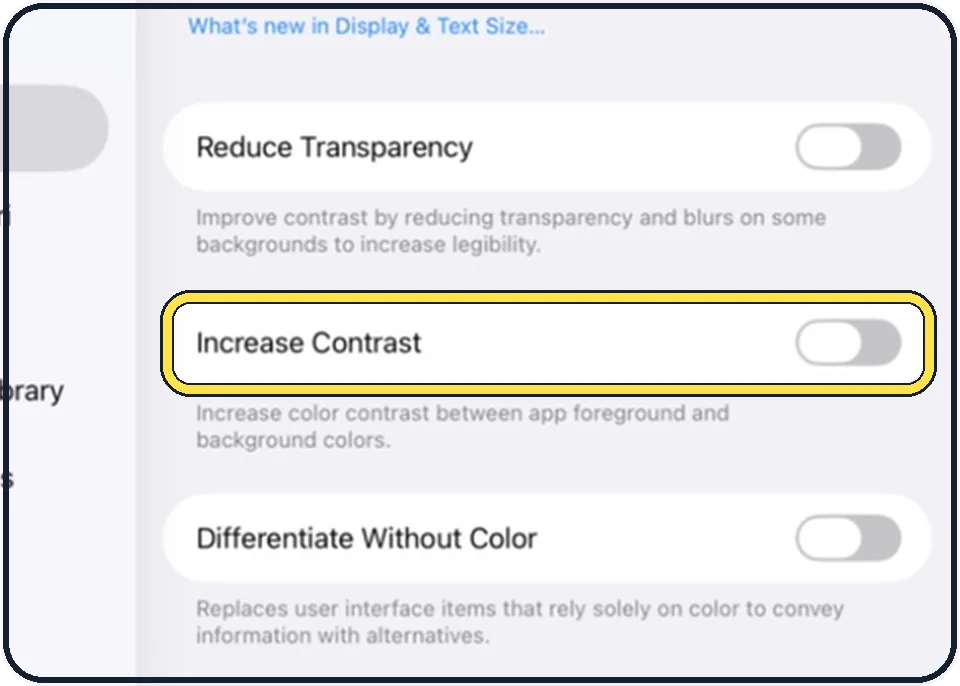
Switch on Increase Contrast
It increases the colour contrast between the foreground and the background of apps.
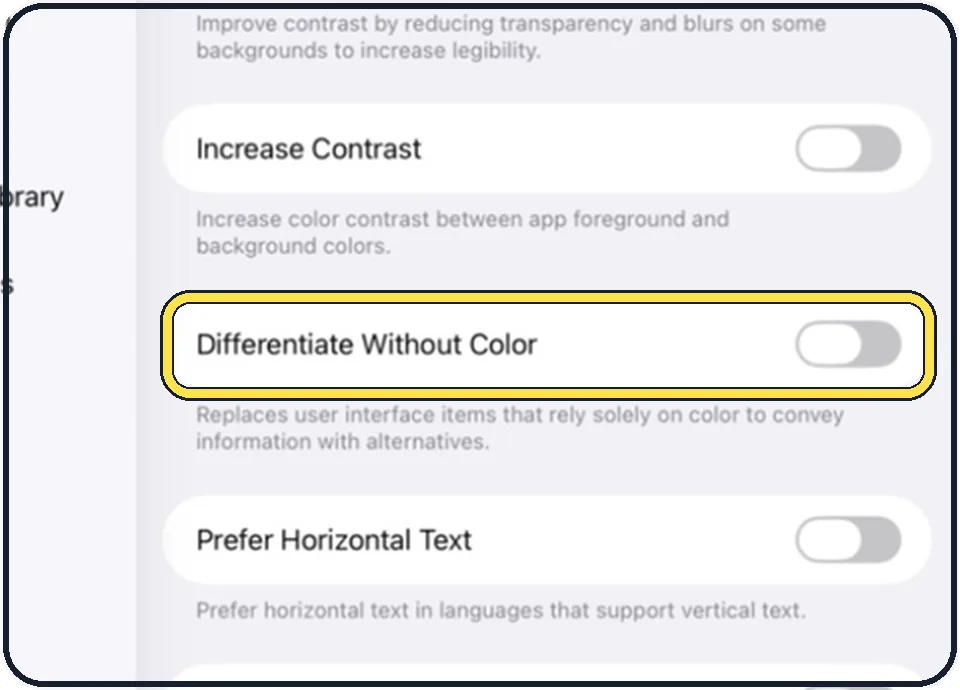
Consider Differentiate Without Color
Things that are only told apart by colour get another sign as well.
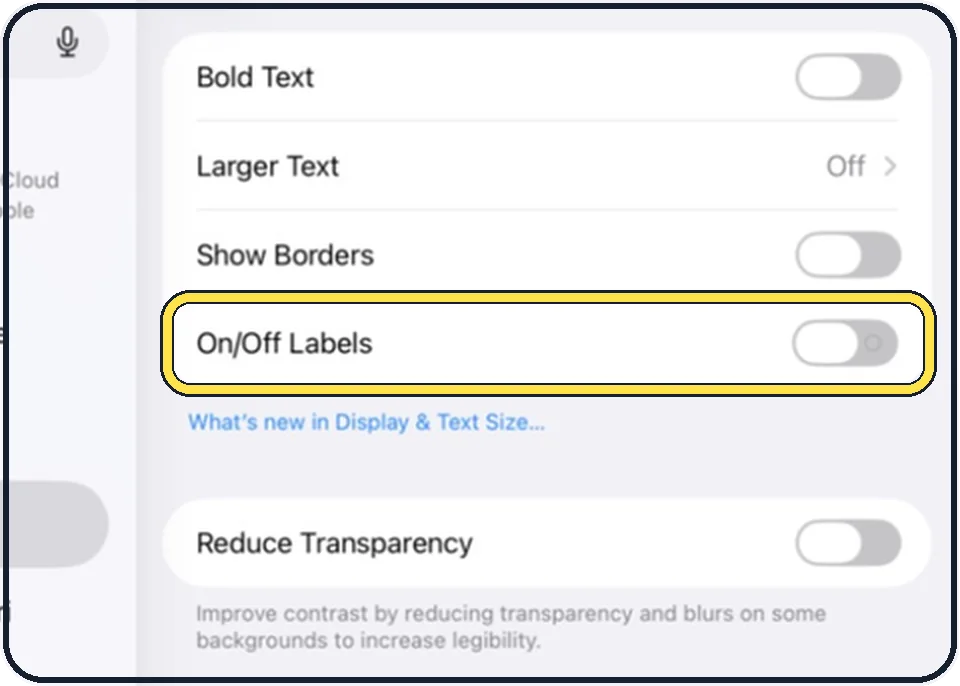
Consider On/Off Labels
It adds On/Off labels to the switches on settings pages, so you do not depend on green and grey.
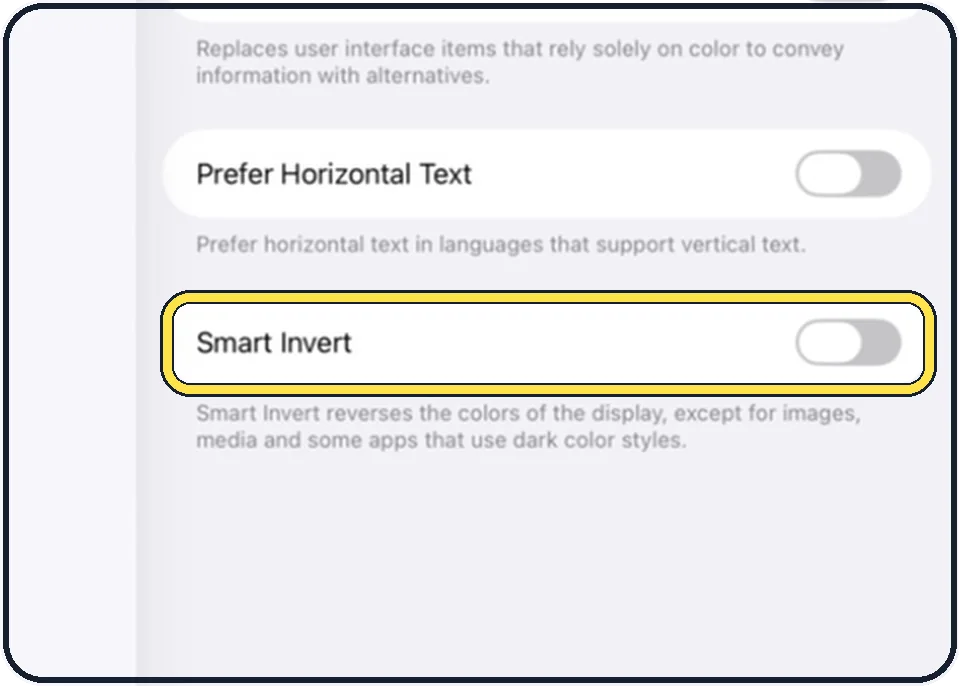
Know what Smart Invert does
It reverses the colours of the display, except for images, media and some apps that already use dark colours.
Good to know
The same switches on a phone: how to reduce transparency and increase contrast on an iPhone.
In short: Settings, Accessibility, Display & Text Size: Reduce Transparency and Increase Contrast.
Links checked on 3 October 2026. Rules and prices change. Check the official source before you act.