How to switch between Windowed Apps and Stage Manager on an iPad
2 min read · 6 steps · Updated 4 October 2026
Open Settings, tap Multitasking & Gestures and choose one of three modes: Full Screen Apps, Windowed Apps or Stage Manager. Windowed Apps lets you resize and arrange several windows, Stage Manager groups them, Full Screen Apps shows one app at a time.
- Device
- iPad
- Shown on
- iPadOS 26.5 (iPad A16)
- App
- Settings
- Path
- Settings › Multitasking & Gestures
- Real screenshots
- 5 of 6 steps
- Checked
- October 2026
- Sources
- 3 official, linked below
Since iPadOS 26 an iPad has three ways to show apps, and one settings page decides which is used. Apple lists the supported models: iPad (A16) and iPad (8th generation or later), iPad Air (3rd generation or later), iPad mini (5th generation or later), iPad Pro 11-inch and iPad Pro 12.9-inch (3rd generation or later).
The screenshots show iPadOS 26.5 on an iPad (A16), held upright. In landscape the same rows sit in the same order.
Step by step
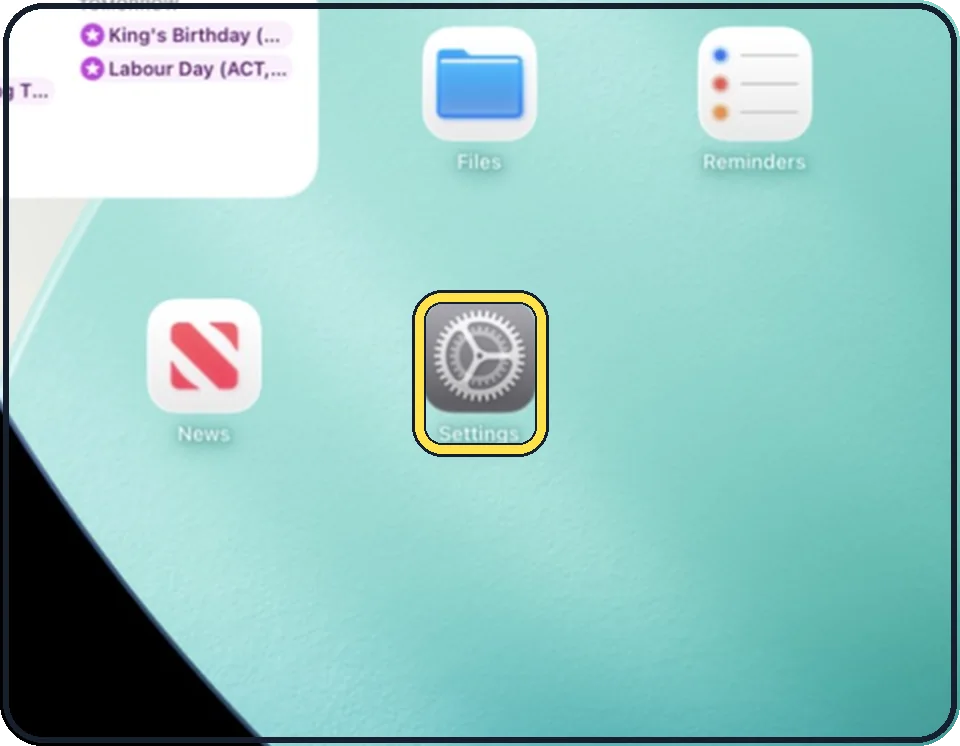
Open Settings
Tap the grey gear icon on the Home Screen. In the picture it is in the second row; it also sits in the Dock at the bottom.
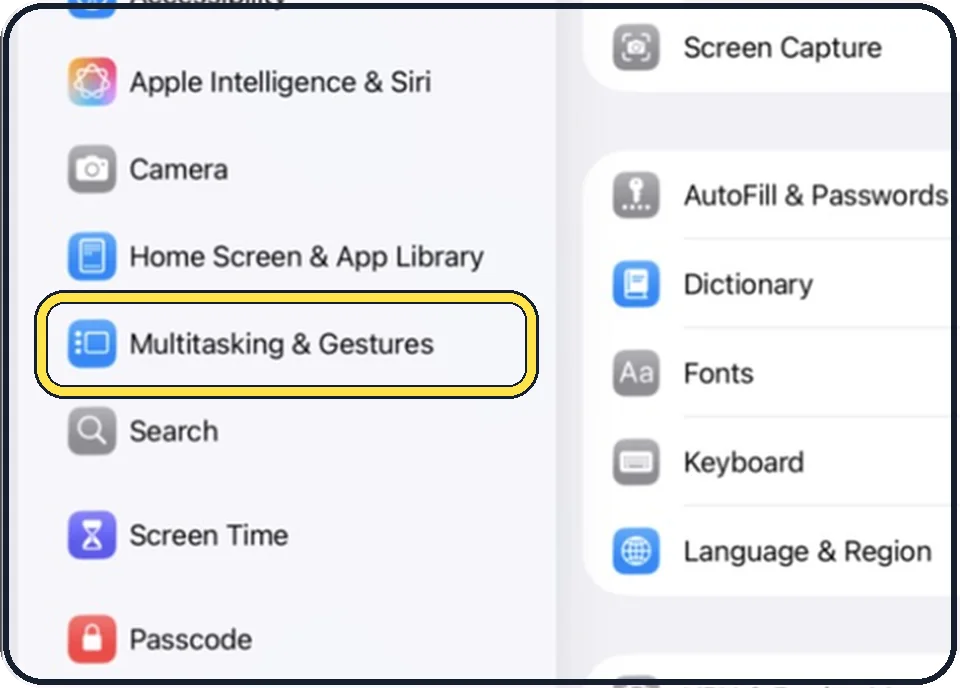
Tap Multitasking & Gestures
It is in the list on the left, below Home Screen & App Library.
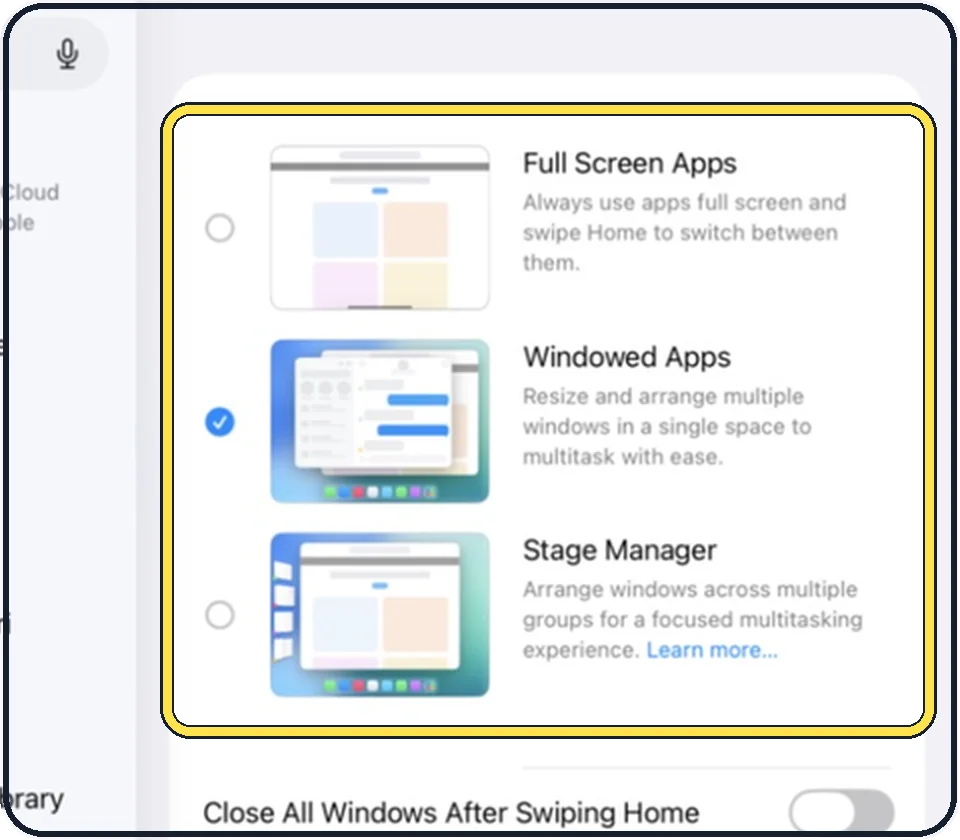
Choose a mode
Full Screen Apps: every app fills the screen, and you swipe to switch between them.
Windowed Apps: you resize and arrange several windows in one space. In the picture this one is ticked.
Stage Manager: windows are arranged in groups that you switch between.
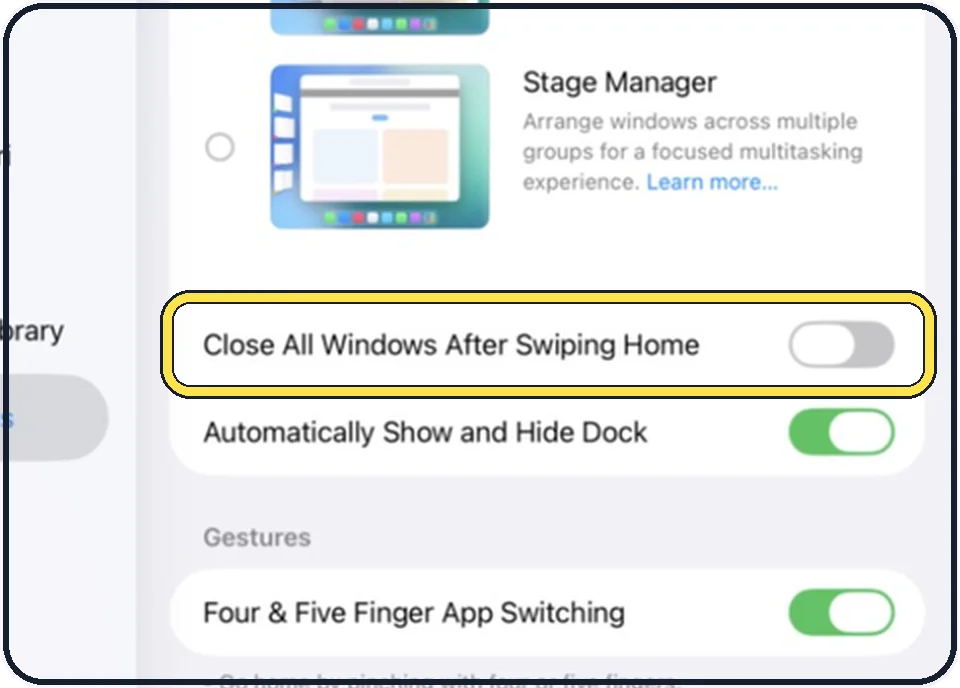
Decide what happens when you go Home
Close All Windows After Swiping Home is off in the picture. It is a switch for the windowed modes; its name says what it does when it is on.
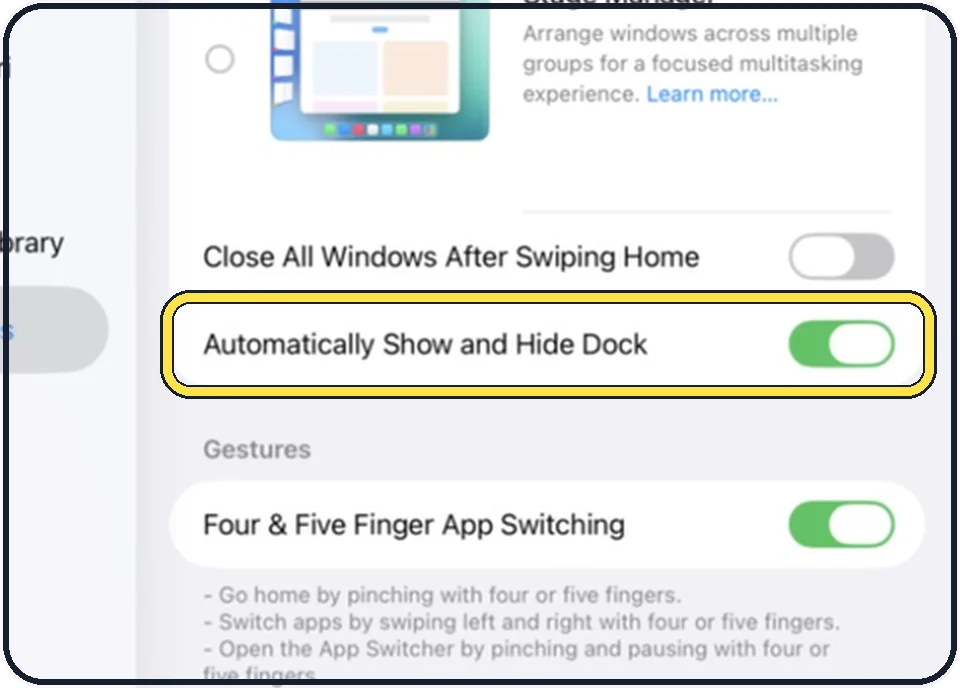
Decide about the Dock
Automatically Show and Hide Dock is on in the picture. Its name says what it does; switch it off if you want the Dock to stay where it is.
Use the short way next time
Swipe down from the top-right corner to open Control Center and tap the Windowed Apps or Stage Manager button. Touch and hold the button to switch between the two.
Good to know
In Windowed Apps, drag a corner of a window to resize it and drag its top edge to move it. The buttons at the top of a window close it, minimise it or make it full screen.
To put two apps side by side, drag an app from the Dock or the App Library to the left or right edge of the screen, then drag the divider in the middle to change the sizes.
To see all open windows, swipe up from the bottom edge, pause in the middle of the screen and lift your finger.
In short: Settings, Multitasking & Gestures, then Full Screen Apps, Windowed Apps or Stage Manager.
- Apple Support: Multitask on iPad
- Apple Support: Turn Windowed Apps on or off on your iPad
- Apple Support: Turn Stage Manager on or off on your iPad
Links checked on 3 October 2026. Rules and prices change. Check the official source before you act.