How to turn on the camera grid and mirrored selfies on an iPad
2 min read · 6 steps · Updated 4 October 2026
Open Settings and tap Camera. Switch on Grid to see lines on the camera screen that help you straighten a shot, and switch on Mirror Front Camera so a selfie is saved the way you see it in the frame.
- Device
- iPad
- Shown on
- iPadOS 26.5 (iPad A16)
- App
- Settings
- Path
- Settings › Camera › Grid and Mirror Front Camera
- Real screenshots
- 6 of 6 steps
- Checked
- October 2026
- Sources
- 2 official, linked below
The Camera app on an iPad has almost no settings of its own; they are in the Settings app. Two of them change every photo you take: the grid and the mirrored front camera. Both are off in the picture.
The screenshots show iPadOS 26.5 on an iPad (A16), held upright. In landscape the same rows sit in the same order.
Step by step
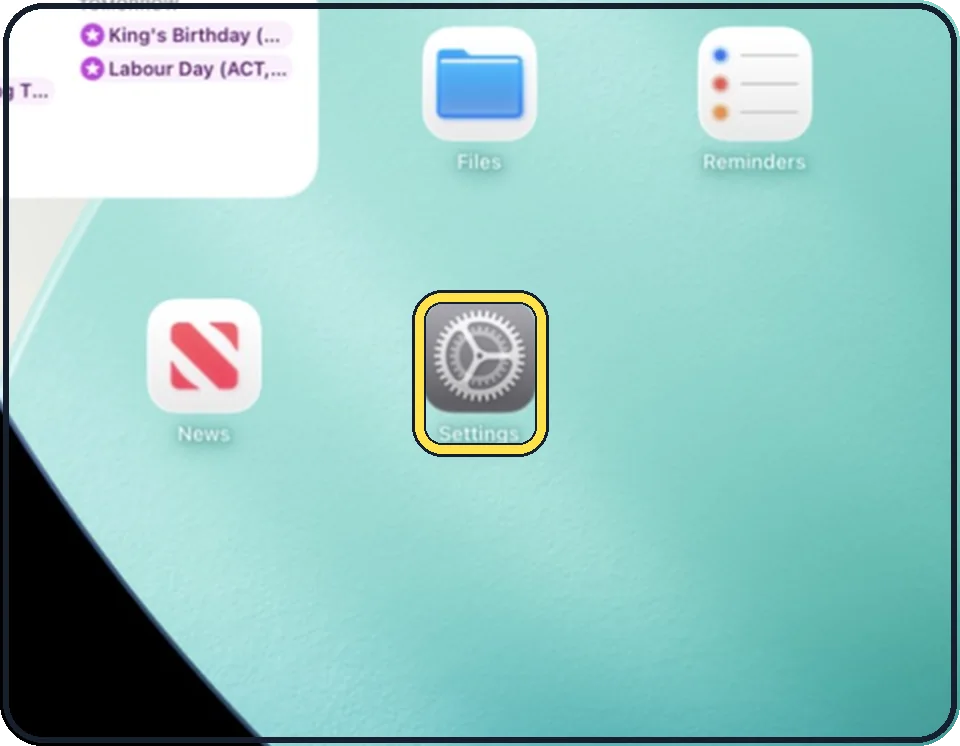
Open Settings
Tap the grey gear icon on the Home Screen. In the picture it is in the second row; it also sits in the Dock at the bottom.
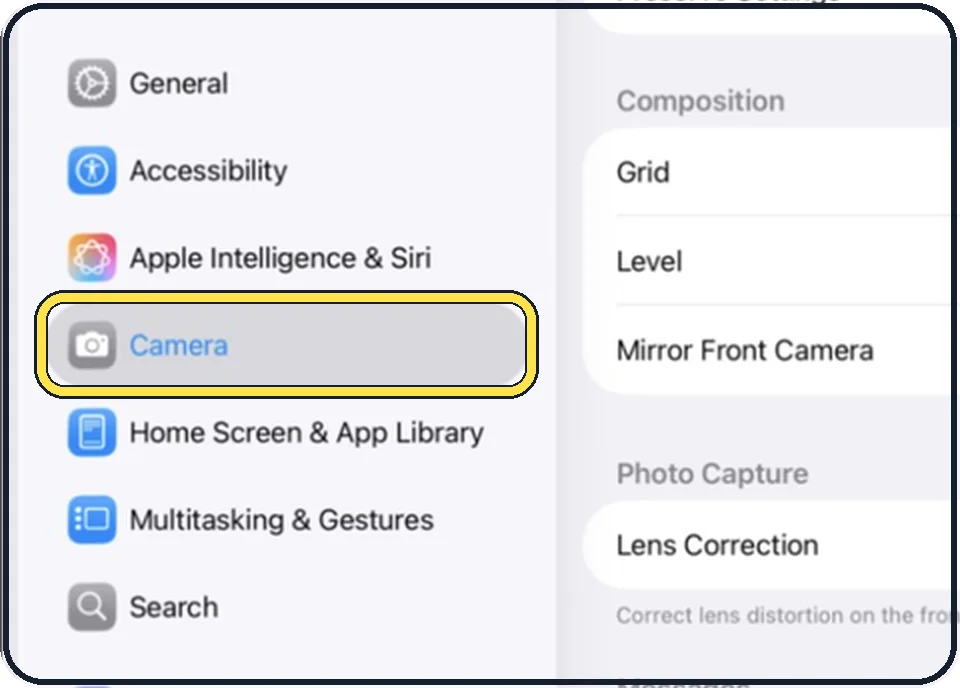
Tap Camera
It is in the list on the left, below Apple Intelligence & Siri.
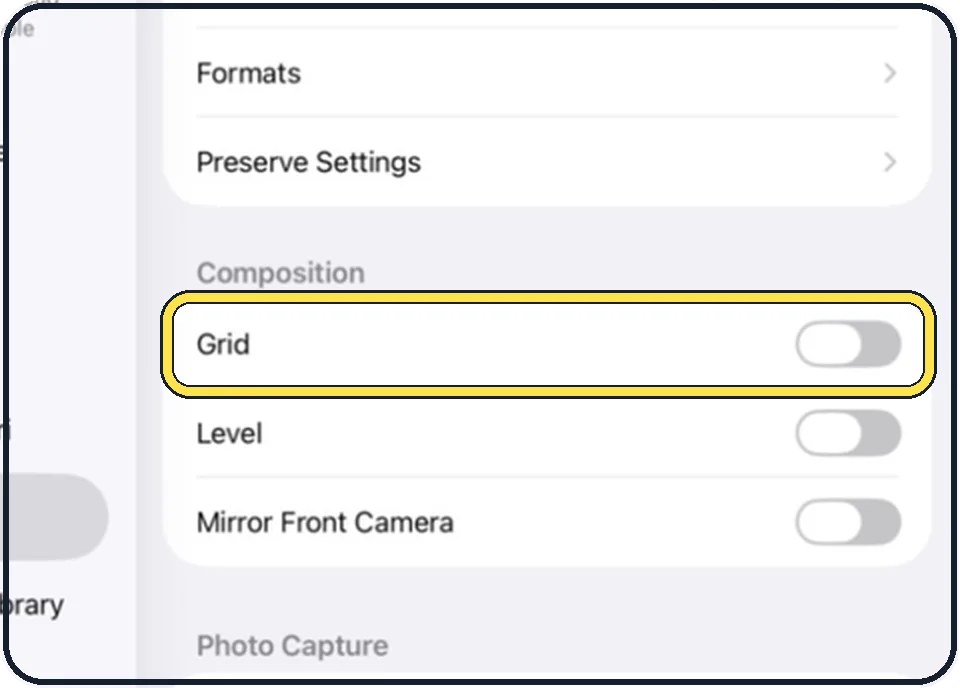
Switch on Grid
It displays a grid on the camera screen that helps you straighten and compose the shot.
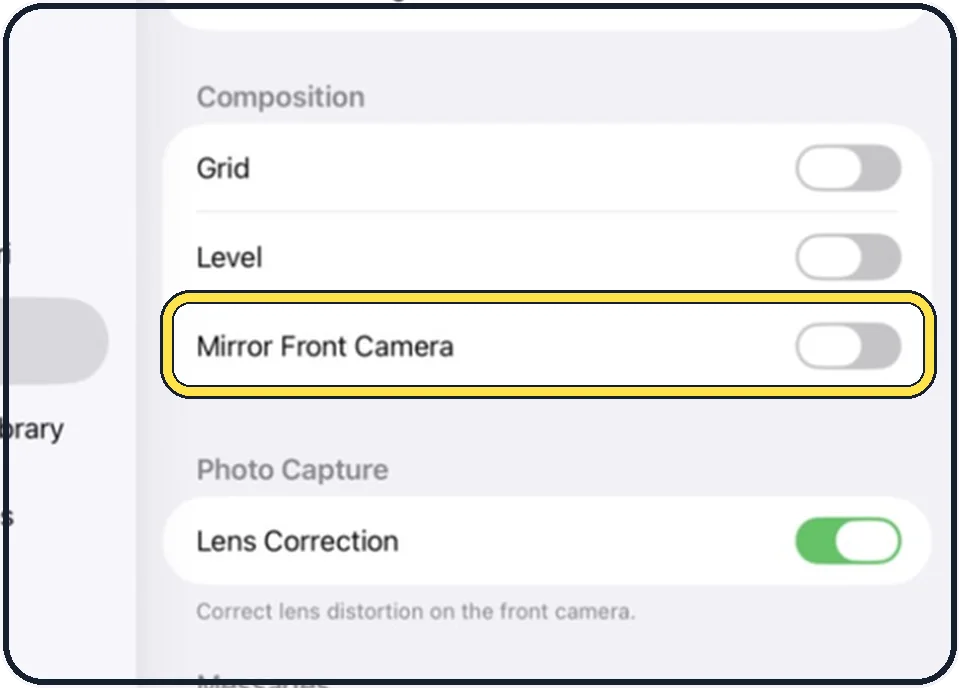
Switch on Mirror Front Camera
A selfie is then saved as you see it in the camera frame, instead of being flipped afterwards.
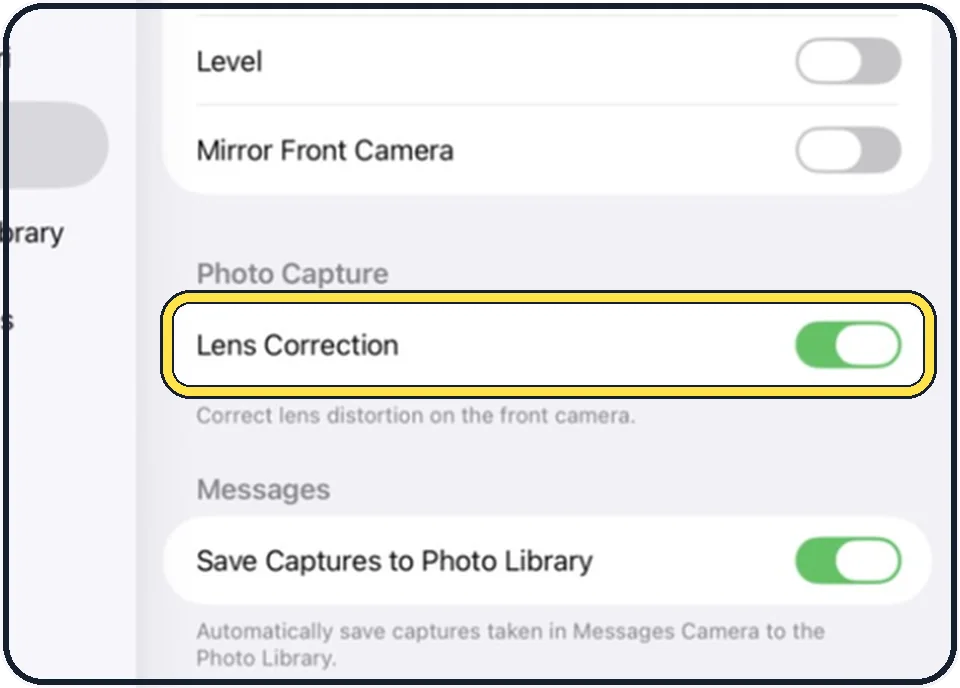
Look at Lens Correction
It is on by default on supported models and adjusts photos from the front camera so they look more natural. Leave it on unless you want the uncorrected picture.
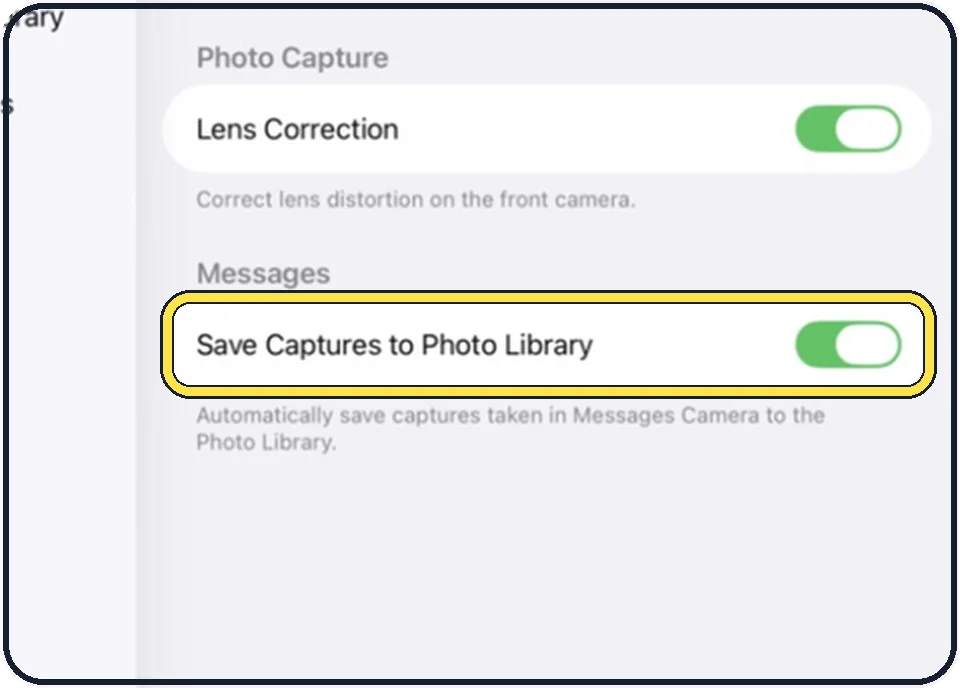
Decide about photos taken in Messages
Save Captures to Photo Library is on in the picture: photos you take inside the Messages app also go to the Photos app. Switch it off to keep them out of your library.
Good to know
Preserve Settings near the top of the same page keeps the last camera mode, for example Video, instead of starting in Photo every time.
A crooked photo can still be fixed later with the straighten tool in the Photos app.
In short: Settings, Camera, Grid and Mirror Front Camera.
- Apple Support: Change advanced camera settings on your iPad
- Apple Support: Take a selfie with your iPad camera
Links checked on 3 October 2026. Rules and prices change. Check the official source before you act.