How to reduce motion and stop auto-play on an iPad
2 min read · 5 steps · Updated 4 October 2026
Open Settings, tap Accessibility and tap Motion. Switch on Reduce Motion to calm screen transitions and effects. On the same page you can switch off Auto-Play Animated Images, Auto-Play Video Previews and Auto-Play Message Effects.
- Device
- iPad
- Shown on
- iPadOS 26.5 (iPad A16)
- App
- Settings
- Path
- Settings › Accessibility › Motion › Reduce Motion
- Real screenshots
- 5 of 5 steps
- Checked
- October 2026
- Sources
- 1 official, linked below
Moving wallpaper, zooming apps and the morphing effects of the new design can be tiring or cause dizziness. One page in Accessibility controls all of it. Apple adds a warning: these settings should not be relied upon in high-risk situations or to treat a medical condition.
The screenshots show iPadOS 26.5 on an iPad (A16), held upright. In landscape the same rows sit in the same order.
Step by step
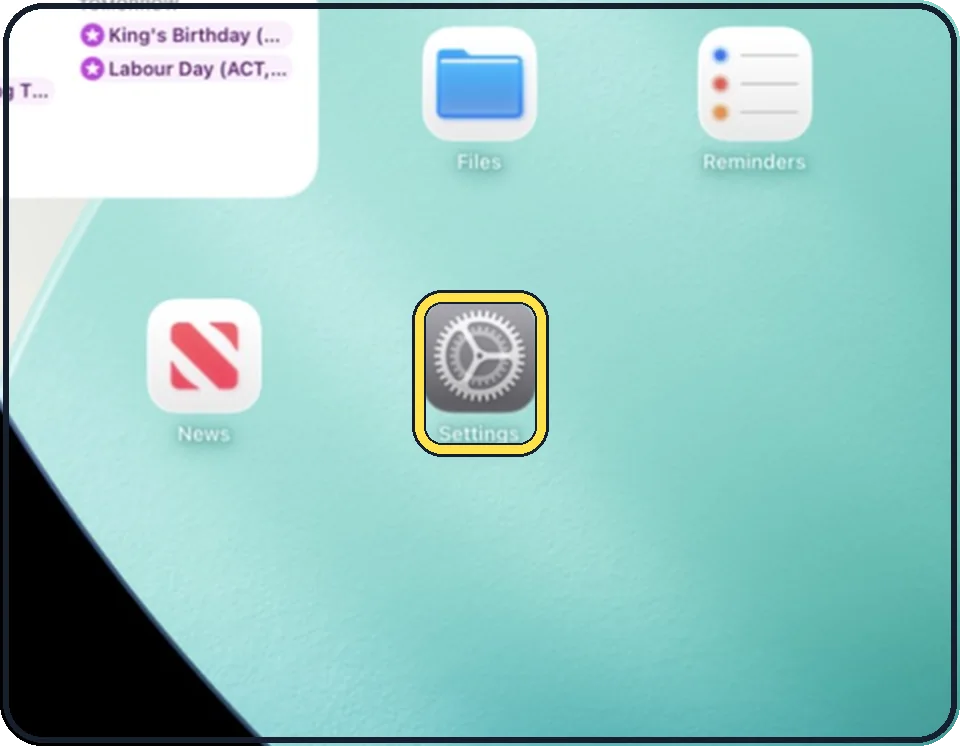
Open Settings
Tap the grey gear icon on the Home Screen. In the picture it is in the second row; it also sits in the Dock at the bottom.
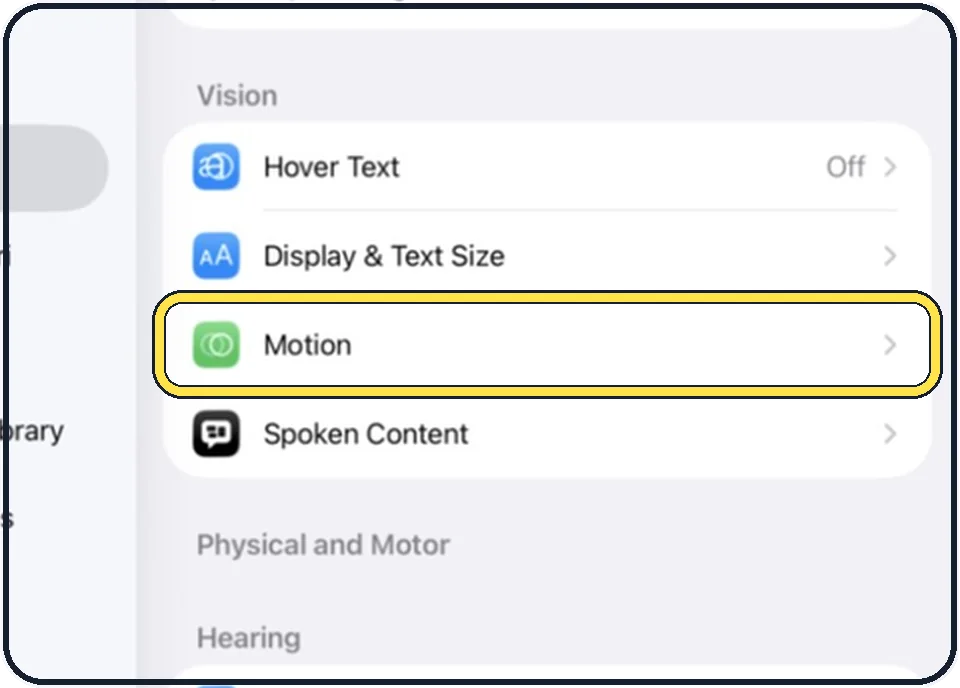
Tap Accessibility, then Motion
Accessibility is the second entry in the list on the left. Motion is in the Vision group on the right, below Display & Text Size.
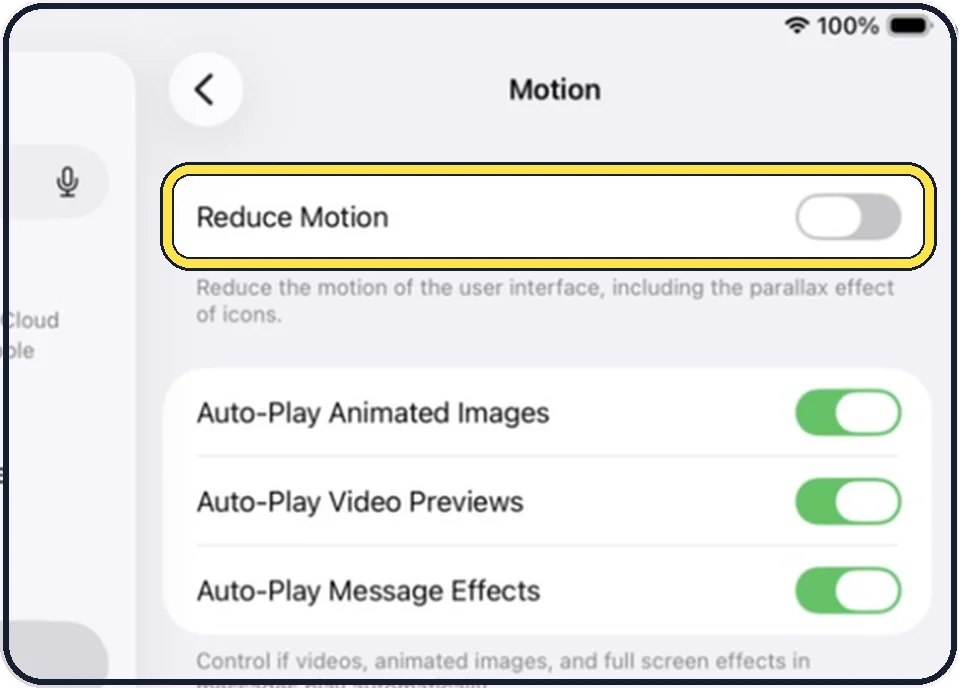
Switch on Reduce Motion
The text below says what it does: it reduces the motion of the user interface, including the parallax effect of icons.
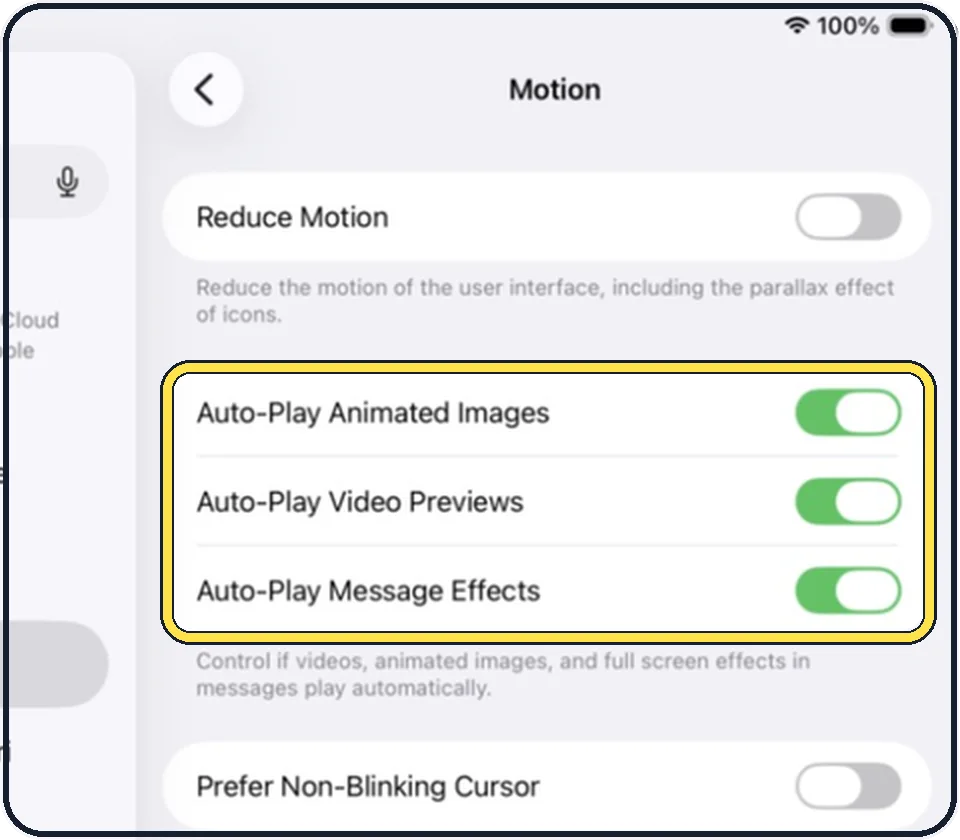
Decide about the three Auto-Play switches
Auto-Play Animated Images: animated pictures such as GIFs in Messages and Safari play by themselves.
Auto-Play Video Previews: apps such as the App Store play video previews by themselves.
Auto-Play Message Effects: full-screen effects in Messages play by themselves. With it off you can still play an effect by tapping Replay below the message.
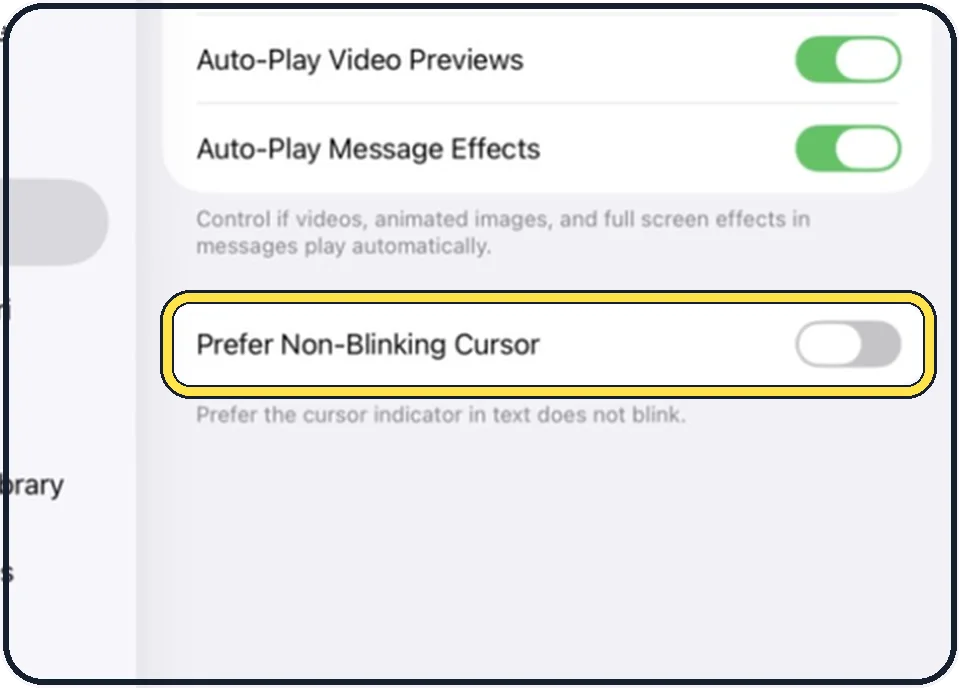
Stop the blinking cursor
Prefer Non-Blinking Cursor stops the blinking of the bar that marks where you type.
Good to know
On iPad models with a ProMotion display the page has one more switch, Limit Frame Rate, which limits the display to 60 frames per second. The iPad (A16) in the pictures does not show it.
The same on a phone: how to turn on Reduce Motion on an iPhone.
In short: Settings, Accessibility, Motion, Reduce Motion.
Links checked on 3 October 2026. Rules and prices change. Check the official source before you act.