How to delete your Siri and Dictation history on an iPhone
2 min read · 4 steps · Updated 4 October 2026
Open Settings, tap Apple Intelligence & Siri, then Siri & Dictation History, and tap Delete Siri & Dictation History. This removes the transcripts of your requests stored on the iPhone and the Siri and Dictation interactions linked to this iPhone on Apple's servers.
- Device
- iPhone
- Shown on
- iOS 26.5 (iPhone 17)
- App
- Settings
- Path
- Settings › Apple Intelligence & Siri › Siri & Dictation History › Delete Siri & Dictation History
- Real screenshots
- 4 of 4 steps
- Checked
- October 2026
- Sources
- 1 official, linked below
When you use Siri or Dictation, a transcript of the request is sent to Apple. Apple links the request history to a random identifier created by the device and may keep request data for up to two years to improve Siri, Dictation and Search. One button deletes what is linked to your iPhone.
The screenshots show iOS 26.5 on an iPhone 17. On older versions the rows have the same names, with a slightly different look.
Step by step
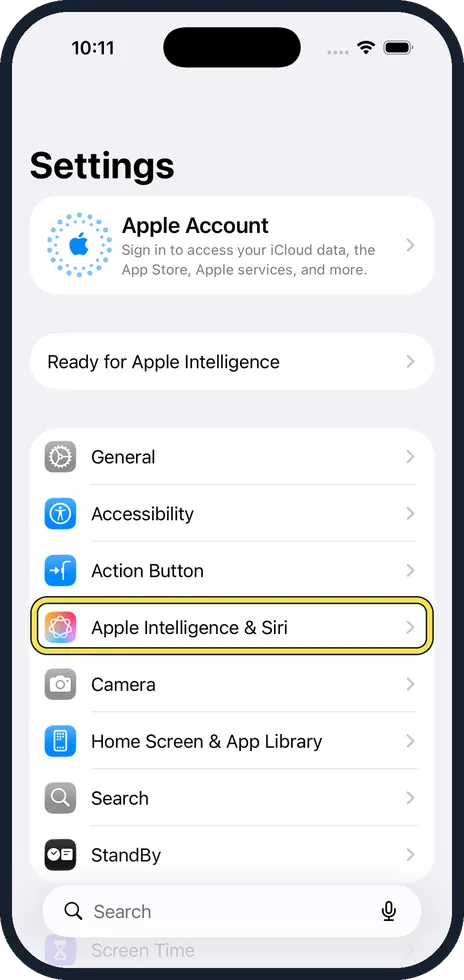
Open Settings and tap Apple Intelligence & Siri
It is in the first group of the main Settings list. On iPhones without Apple Intelligence the row is called Siri.
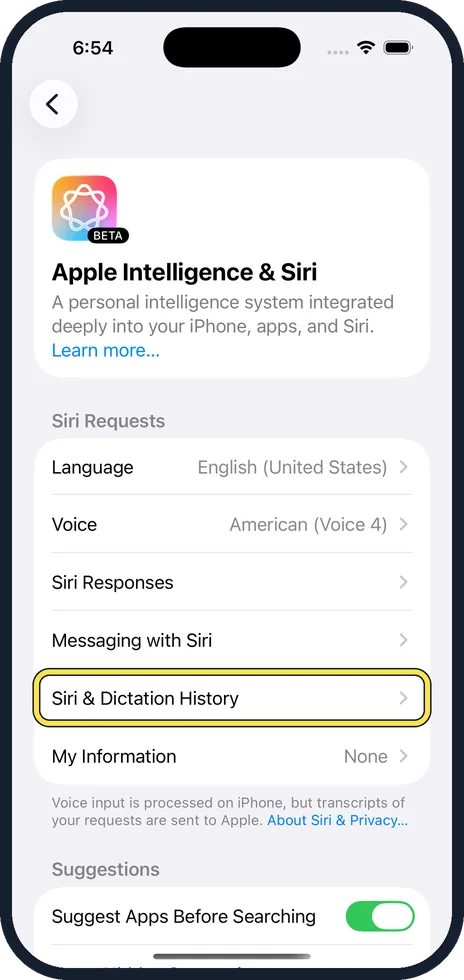
Tap Siri & Dictation History
It is in the Siri Requests group.
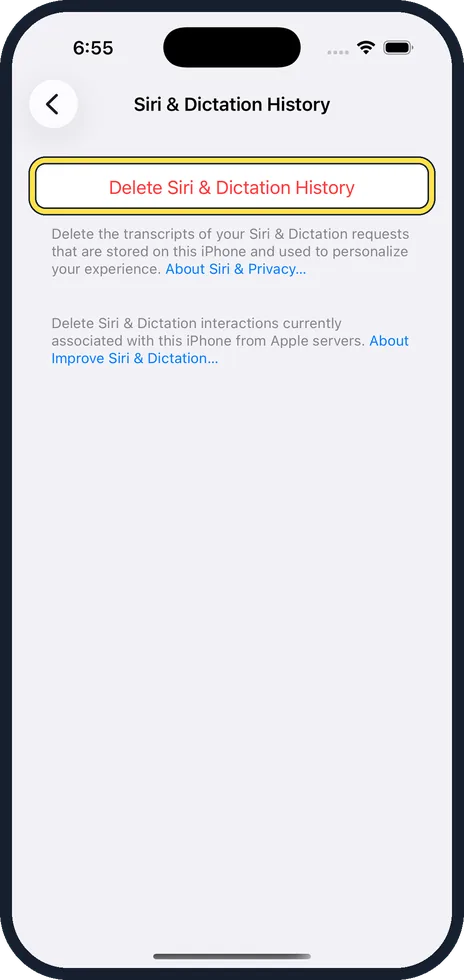
Tap Delete Siri & Dictation History
The red button is at the top of the page. Confirm if the iPhone asks.
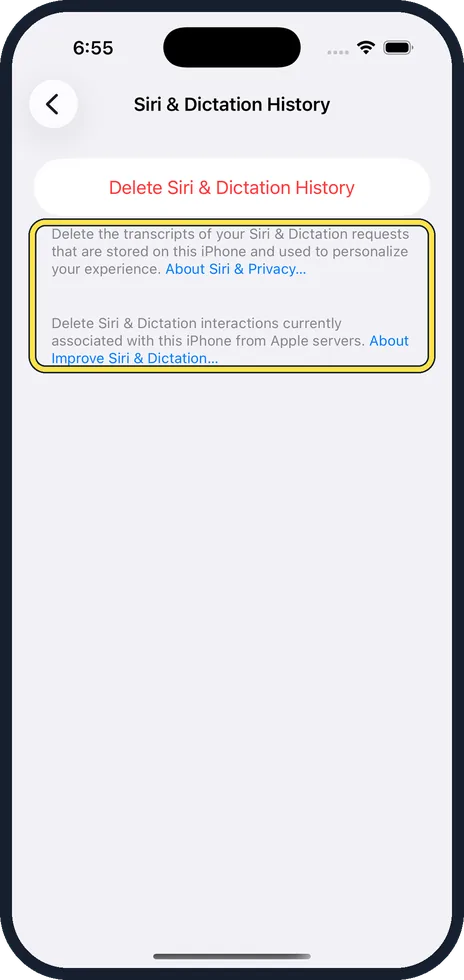
Know what is deleted
The two paragraphs under the button say it: the transcripts stored on this iPhone that are used to personalise your experience, and the Siri and Dictation interactions currently associated with this iPhone on Apple servers.
Good to know
New requests are stored again from that moment on. Deleting is something to repeat, not a switch.
Whether Apple may keep audio of your requests for review is a separate choice called Improve Siri & Dictation: how to stop sharing analytics with Apple on an iPhone shows the page it is on.
What you type into Search is handled elsewhere: how to stop Apple storing your searches on an iPhone.
In short: Settings, Apple Intelligence & Siri, Siri & Dictation History, Delete Siri & Dictation History.
Links checked on 3 October 2026. Rules and prices change. Check the official source before you act.