How to use Stage Manager on a Mac
2 min read · 6 steps · Updated 2 October 2026
Open System Settings, click Desktop & Dock and turn on Stage Manager, or click its button in Control Centre. The app you are using sits in the middle and your other recent apps wait on the left. Click one to switch to it.
Stage Manager keeps the app you are working in at the centre of the screen and lines up your other recent apps as small pictures on the left. It suits people who lose windows behind other windows.
These steps are for recent versions of macOS, where the settings app is called System Settings. The pictures are our own screenshots from macOS Tahoe 26 on a MacBook Pro.
Step by step
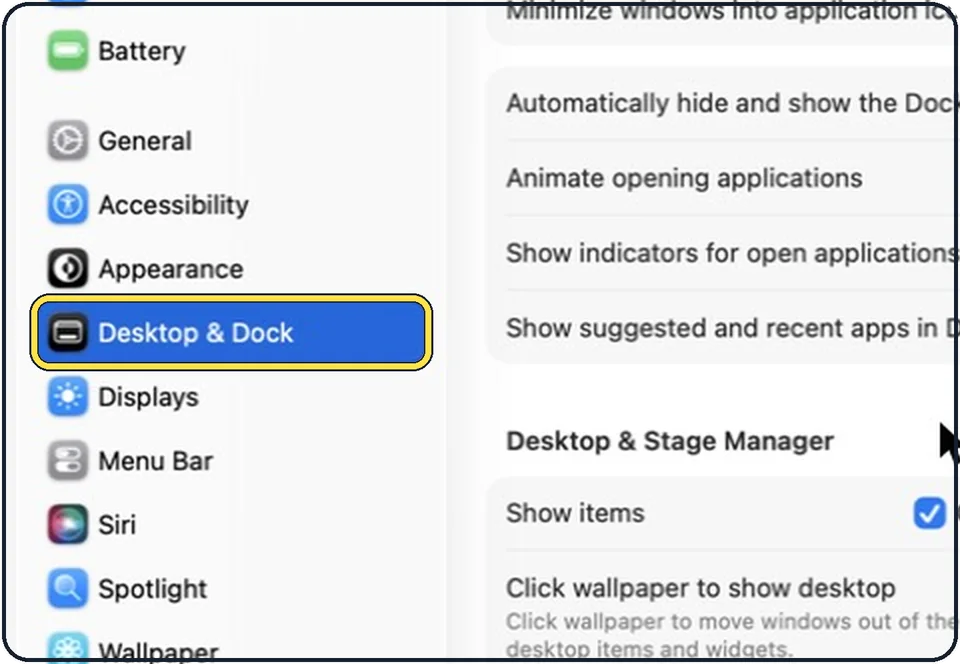
Open System Settings and click Desktop & Dock
Click the Apple menu in the top left corner, then System Settings. Desktop & Dock is in the sidebar. You may need to scroll down to see it.
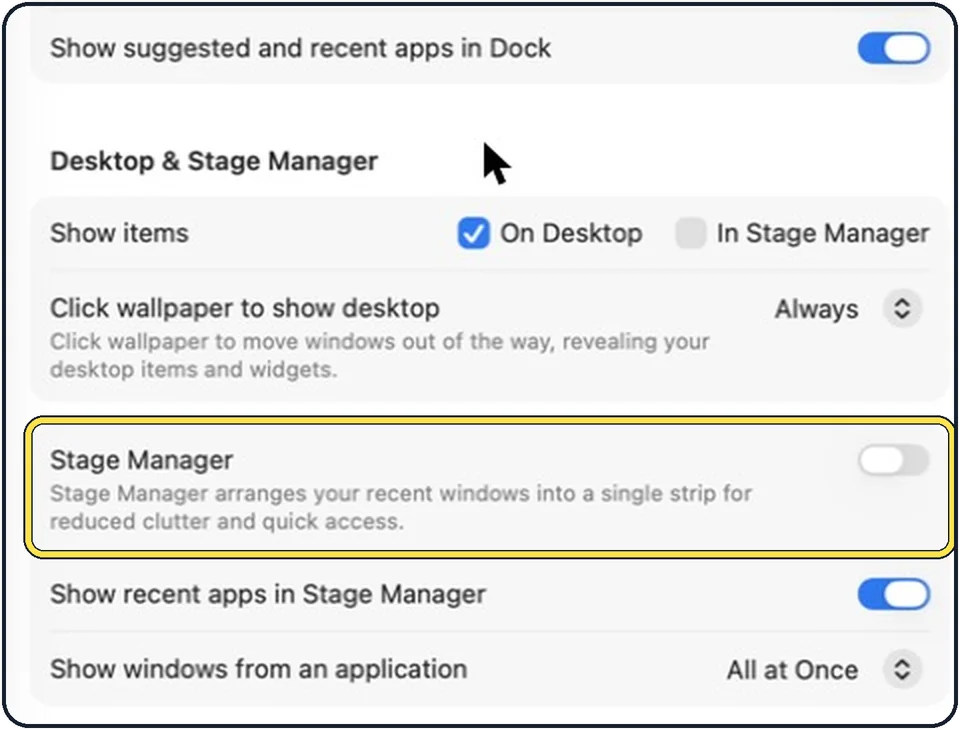
Turn on Stage Manager
Go to the section called Desktop & Stage Manager and switch Stage Manager on. In the picture it is still off. Your open windows move aside straight away.
Switch between apps
Click an app on the left side of the screen. It moves to the centre and the app you were using takes its place on the left.
Put two apps together
Drag an app from the left into the centre. The two now form a group and come and go together. To split them, drag one back to the left.
Arrange the windows in the centre
You can move, resize and overlap the windows in the centre as usual.
Turn it off the fast way
Click Control Centre in the menu bar and click the Stage Manager button. The same button turns it on again.
Good to know
If the list on the left gets in the way, switch off Show recent apps in Stage Manager. The list then appears only when you move the pointer to the left edge of the screen.
The setting for showing windows from an app lets you choose All at Once or One at a Time.
If Stage Manager cannot be switched on, turn on Displays have separate Spaces. It is in the Mission Control section of the same Desktop & Dock page.
To keep the button in the menu bar, open Control Centre, click Edit Controls and add Stage Manager from the Desktop & Finder group.
For two windows side by side, see how to tile windows side by side on a Mac.
In short: System Settings, Desktop & Dock, Stage Manager on. Click an app on the left to switch.
- Apple Support: Use Stage Manager on Mac
Rules and prices change. Check the official source before you act.