How to check the battery health of a MacBook
2 min read · 4 steps · Updated 2 October 2026
Open System Settings and click Battery in the sidebar. The Battery Health line says Normal or Service Recommended. Click the info button next to it for more detail.
Every laptop battery holds a little less charge as it ages. macOS tells you in plain words whether the battery is still fine, so you can decide if a replacement is worth it.
These steps are for recent versions of macOS, where the settings app is called System Settings. The pictures are our own screenshots from macOS Tahoe 26 on a MacBook Pro.
Step by step
Open System Settings
Click the Apple menu in the top left corner and choose System Settings.
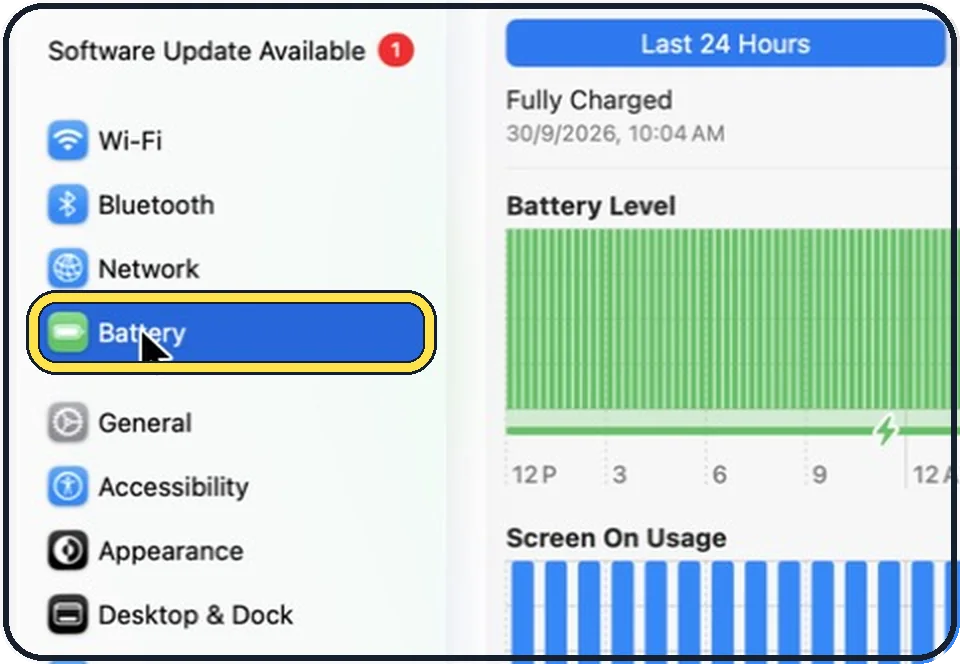
Click Battery in the sidebar
You may need to scroll down in the sidebar to see it.
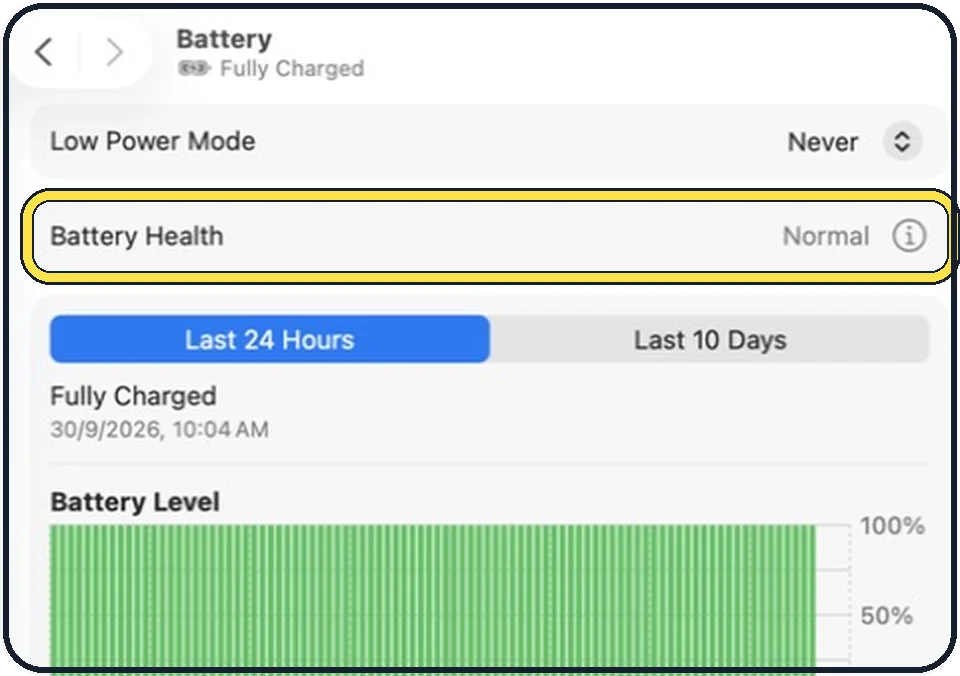
Read the Battery Health line
It shows one of two conditions. Normal means the battery is working normally. Service Recommended means it still works, but it holds less charge than when it was new.
Click the info button for details
The small i next to the condition opens more battery health settings.
Good to know
With Service Recommended you can keep using the Mac. Apple says this does no harm. The Mac simply runs for a shorter time on one charge.
A battery replacement is done by Apple or an authorised service provider. Check the price on Apple's support site before you book.
Battery draining quickly although the health is Normal? See MacBook battery draining fast: 8 ways to make it last.
In short: System Settings, Battery, Battery Health: Normal or Service Recommended.
- Apple Support: Check the condition of your Mac laptop's battery
- Apple Support: If you see Service Recommended on your Mac laptop
Rules and prices change. Check the official source before you act.