How to turn off View Outside the Frame on an iPhone camera
2 min read · 3 steps · Updated 4 October 2026
Open Settings, tap Camera, and under Composition switch off View Outside the Frame. The camera preview then no longer displays what lies outside the frame. The setting is on by default.
- Device
- iPhone
- Shown on
- iOS 26.5 (iPhone 17)
- App
- Settings
- Path
- Settings › Camera
- Real screenshots
- 3 of 3 steps
- Checked
- October 2026
- Sources
- 1 official, linked below
On supported models, the camera preview displays content outside the frame. Apple explains why: it shows what could be captured by using another lens in the camera system with a wider field of view. If the extra area distracts you, switch it off.
The screenshots show iOS 26.5 on an iPhone 17. On older versions the rows have the same names, with a slightly different look.
Step by step
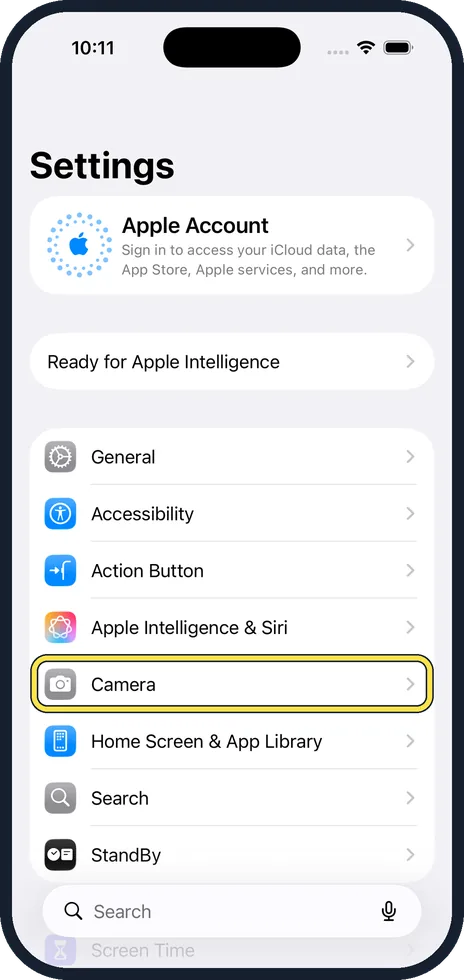
Open Settings and tap Camera
Camera is in the first group of the main Settings list.
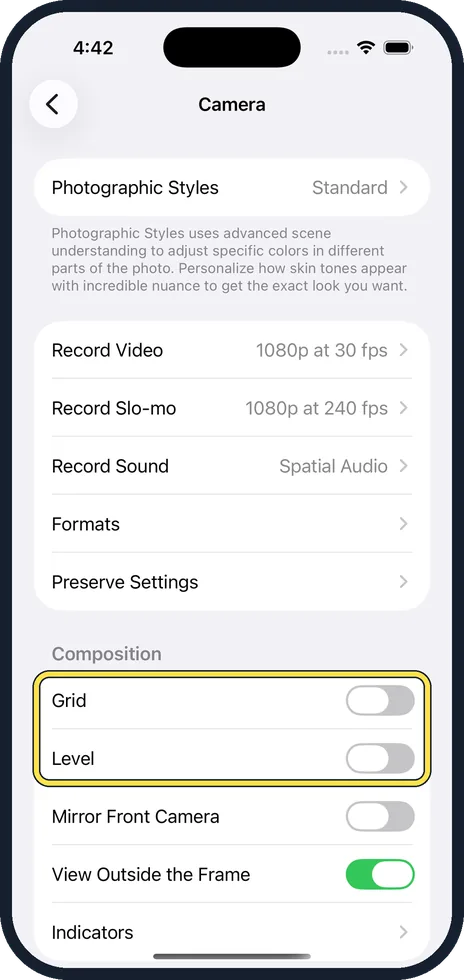
Scroll down a little to Composition
The group starts with Grid and Level.
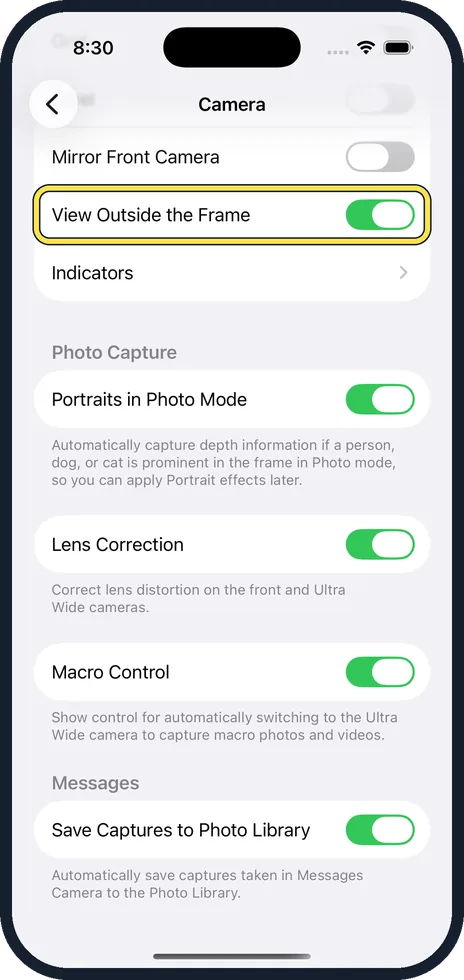
Switch off View Outside the Frame
It is below Mirror Front Camera. In the picture it is on.
Good to know
Grid and Level in the same group help with a straight picture: how to turn on the camera grid and level on an iPhone.
In short: Settings, Camera, View Outside the Frame off.
Links checked on 3 October 2026. Rules and prices change. Check the official source before you act.