How to stop iPhone Dictation adding punctuation
2 min read · 3 steps · Updated 4 October 2026
Open Settings, tap General, then Keyboard, scroll down to Dictation and switch off Auto-Punctuation. Dictation then no longer inserts commas, full stops and question marks by itself. You add them by saying their names, for example "exclamation point".
- Device
- iPhone
- Shown on
- iOS 26.5 (iPhone 17)
- App
- Settings
- Path
- Settings › General › Keyboard
- Real screenshots
- 3 of 3 steps
- Checked
- October 2026
- Sources
- 1 official, linked below
In supported languages, Dictation automatically inserts commas, periods and question marks as you dictate. That suits ordinary sentences. For lists, names or text where you want full control, switch it off and speak the punctuation.
The screenshots show iOS 26.5 on an iPhone 17. On older versions the rows have the same names, with a slightly different look.
Step by step
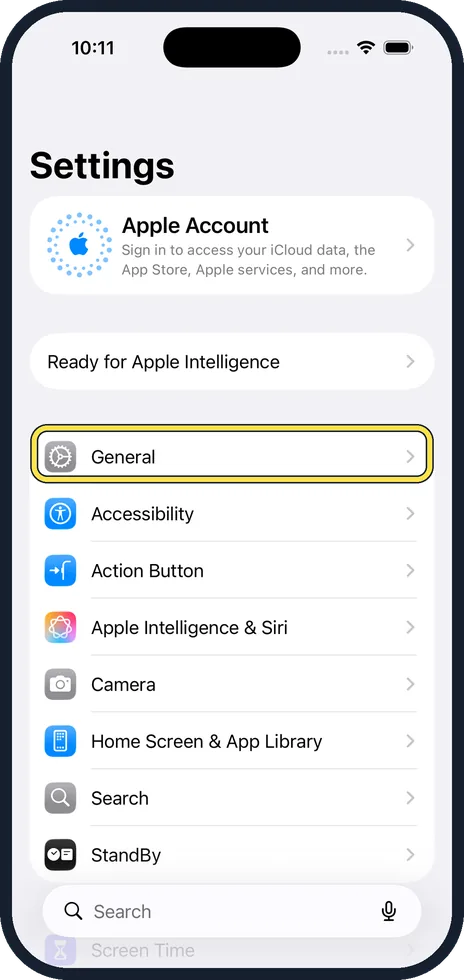
Open Settings and tap General
General is the first row of the first group in the main Settings list.
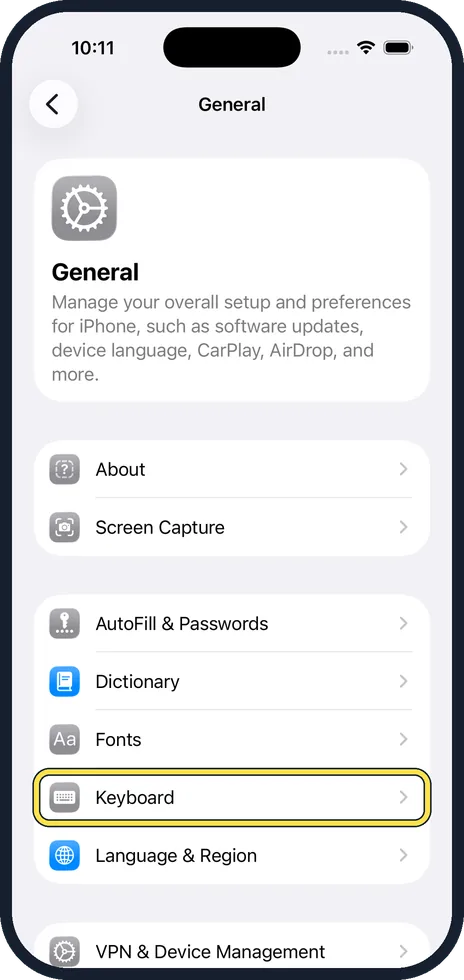
Tap Keyboard
It is in the second group of the General page, below Fonts.
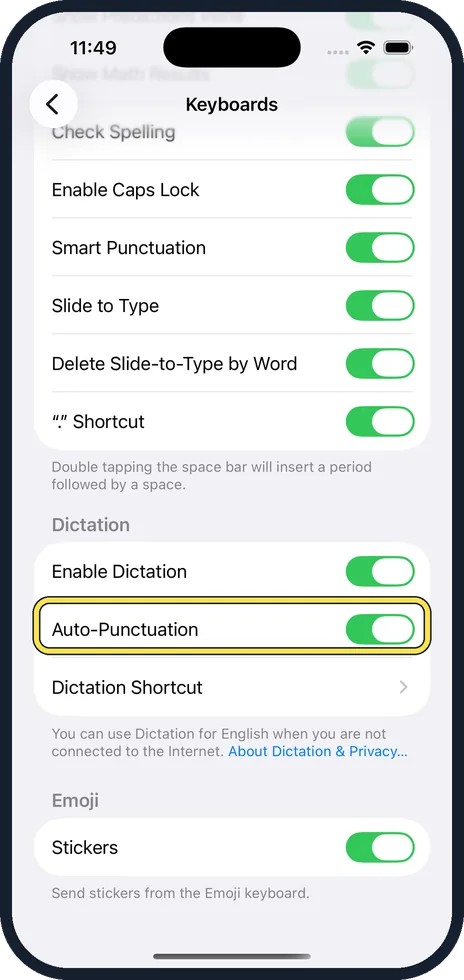
Scroll down and switch off Auto-Punctuation
It is under the heading Dictation, below Enable Dictation. In the picture it is on.
Good to know
While dictating, say "new line" or "new paragraph" for a line break.
To stop dictating, say "Stop dictation", or stay silent for 30 seconds.
In short: Settings, General, Keyboard, Auto-Punctuation off.
Links checked on 3 October 2026. Rules and prices change. Check the official source before you act.