How to hide recent searches and web results in Search on an iPad
2 min read · 6 steps · Updated 4 October 2026
Open Settings and tap Search. Switch off Show Recent Searches to hide your search history, and switch off Show Related Content to remove web-based results. To keep one app out of Search, tap it in the list below and switch off Show App in Search.
- Device
- iPad
- Shown on
- iPadOS 26.5 (iPad A16)
- App
- Safari
- Real screenshots
- 6 of 6 steps
- Checked
- October 2026
- Sources
- 1 official, linked below
Search on the iPad, opened by swiping down on the Home Screen, shows your last searches and mixes results from the web into results from your own apps. Both can be switched off, for all apps or for single ones.
The screenshots show iPadOS 26.5 on an iPad (A16), held upright. In landscape the same rows sit in the same order.
Step by step
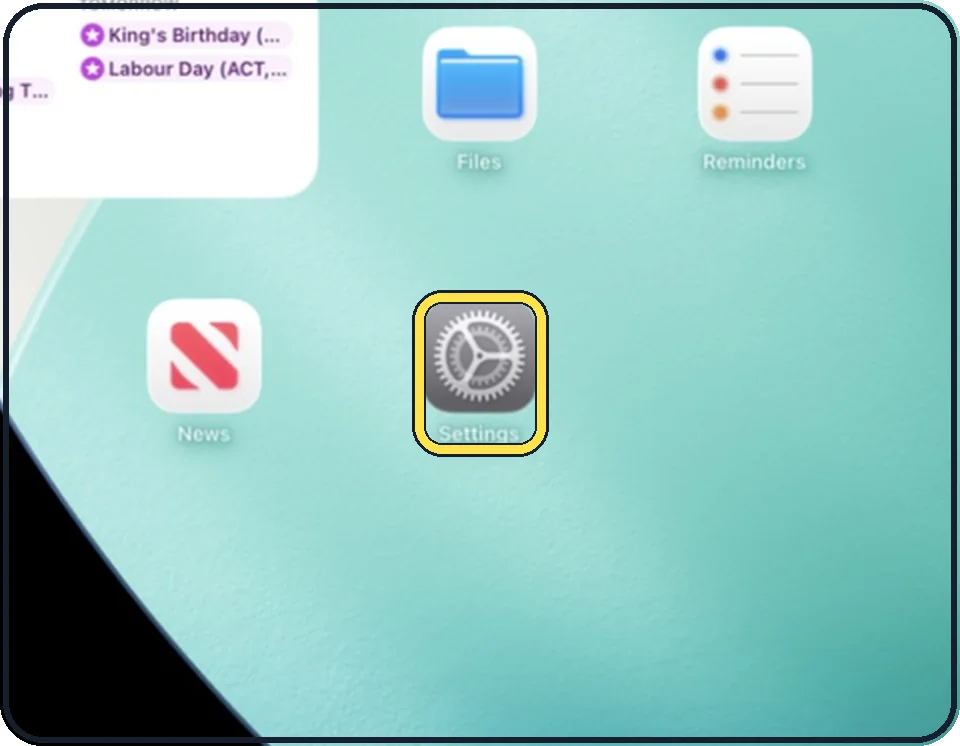
Open Settings
Tap the grey gear icon on the Home Screen. In the picture it is in the second row; it also sits in the Dock at the bottom.
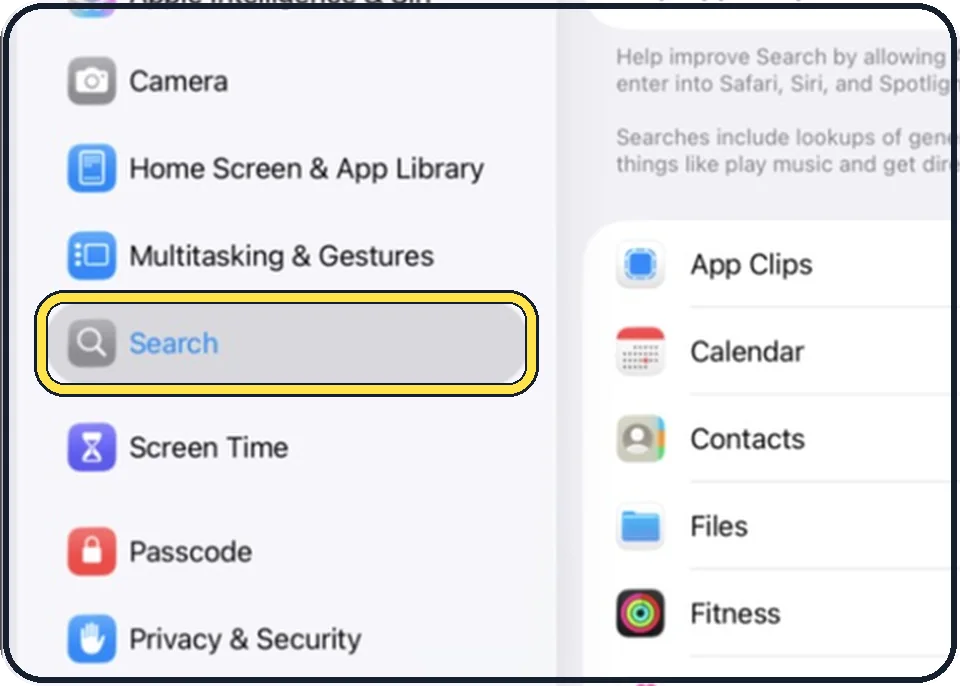
Tap Search
It is in the list on the left, below Multitasking & Gestures.
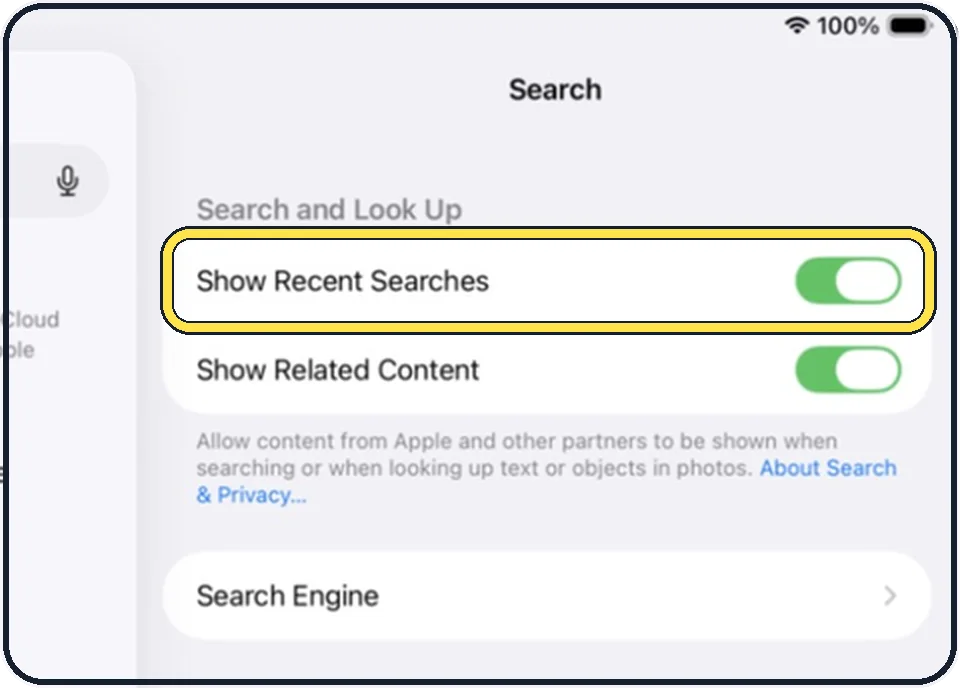
Switch off Show Recent Searches
Your earlier searches are then no longer listed when you open Search.
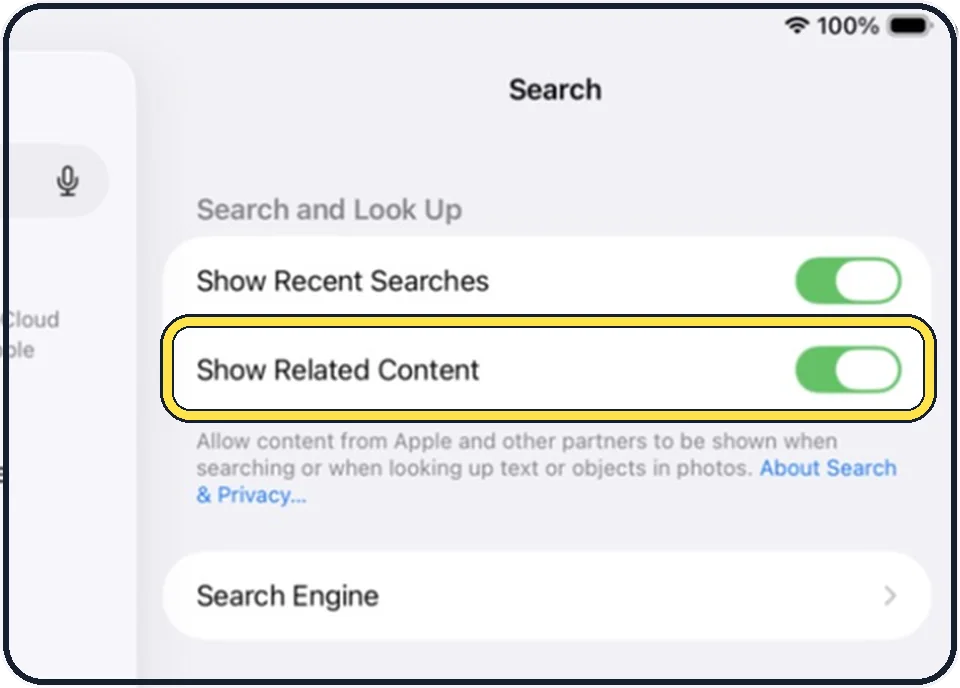
Switch off Show Related Content
The text below the switch explains it: content from Apple and other partners is shown when you search or look up text or objects in photos. With it off, these web-based results go away.
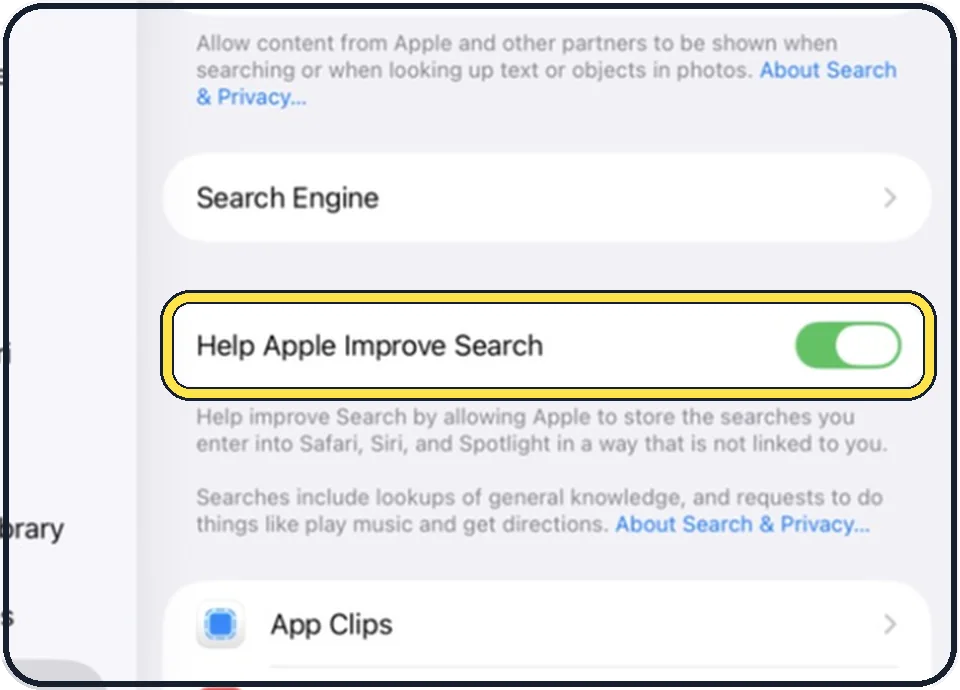
Decide about Help Apple Improve Search
With it on, Apple stores the searches you enter into Safari, Siri and Spotlight in a way that, according to the text on the page, is not linked to you. Switch it off if you do not want that.
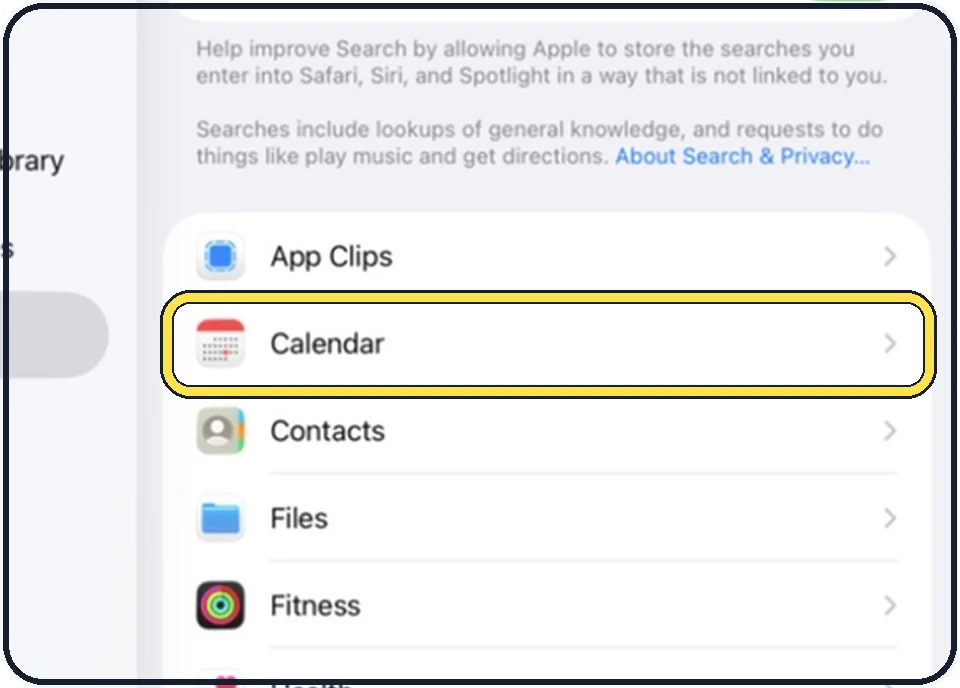
Hide a single app
Tap an app in the list, for example Calendar. Show App in Search controls whether the app itself appears, Show Content in Search whether its content does.
Good to know
To search, swipe down from the middle of the Home Screen and type. Results update while you type.
In short: Settings, Search: Show Recent Searches and Show Related Content off.
Links checked on 3 October 2026. Rules and prices change. Check the official source before you act.