How to turn off auto-correction on an iPad
2 min read · 6 steps · Updated 4 October 2026
Open Settings, tap General, tap Keyboard and switch off Auto-Correction in the list below All Keyboards. Predictive Text, Check Spelling, Smart Punctuation and the full stop shortcut have their own switches in the same list.
- Device
- iPad
- Shown on
- iPadOS 26.5 (iPad A16)
- App
- Settings
- Path
- Settings › General › Keyboard › All Keyboards
- Real screenshots
- 6 of 6 steps
- Checked
- October 2026
- Sources
- 2 official, linked below
Auto-Correction changes words while you type. That helps with typing mistakes and gets in the way with names, dialect, two languages or technical terms. It is on by default and can be switched off without losing the spell check.
The screenshots show iPadOS 26.5 on an iPad (A16), held upright. In landscape the same rows sit in the same order.
Step by step
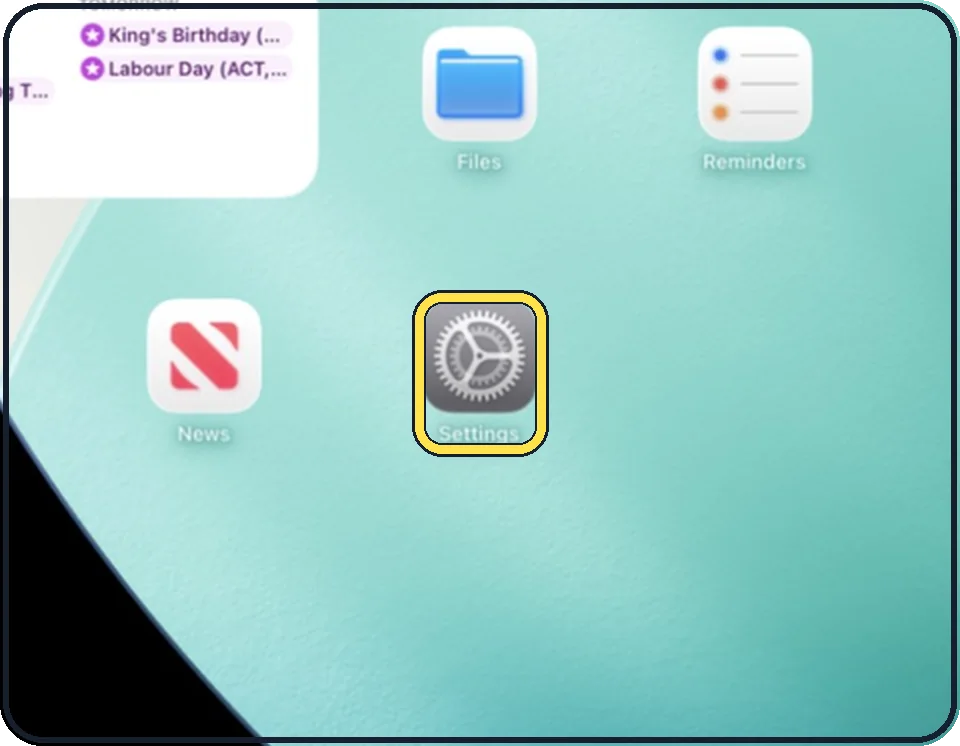
Open Settings
Tap the grey gear icon on the Home Screen. In the picture it is in the second row; it also sits in the Dock at the bottom.
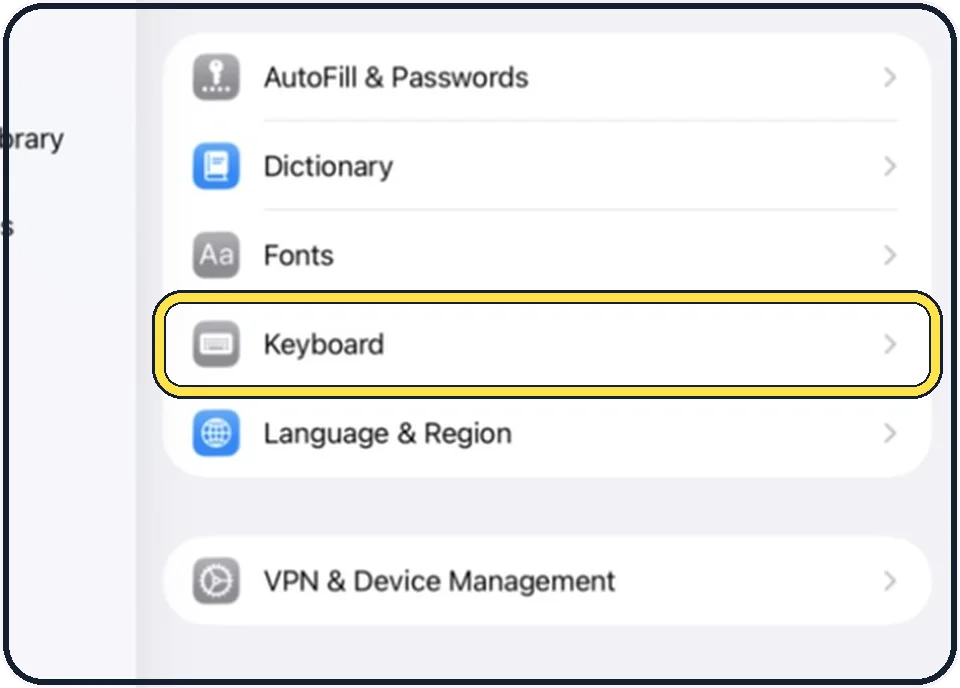
Tap General, then Keyboard
General is at the top of the list on the left. Keyboard is in the second group on the right.
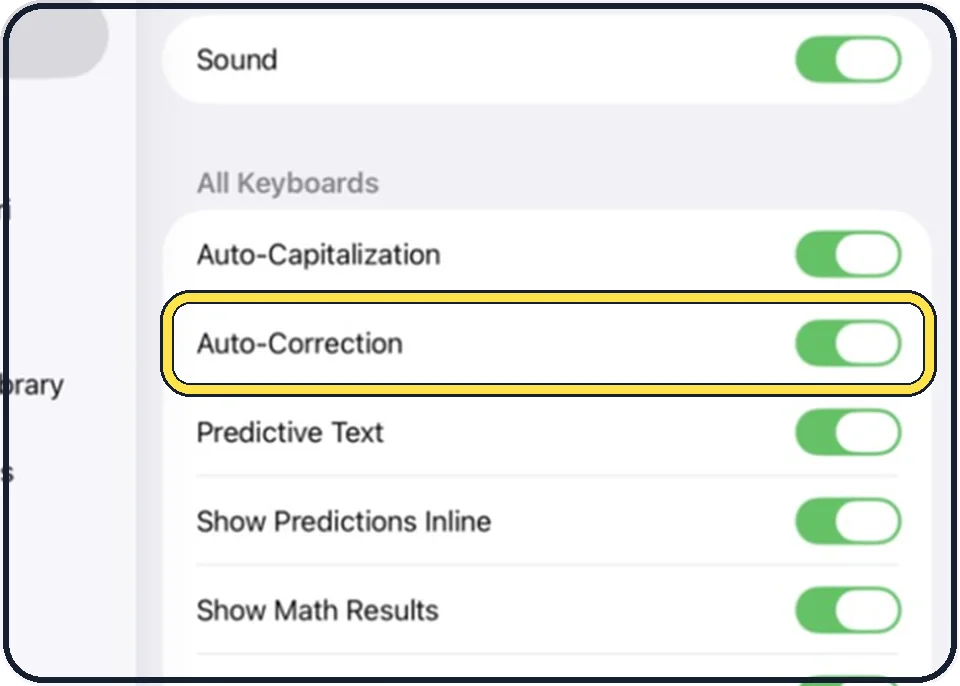
Switch off Auto-Correction
It is the second switch below All Keyboards. In the picture it is still on.
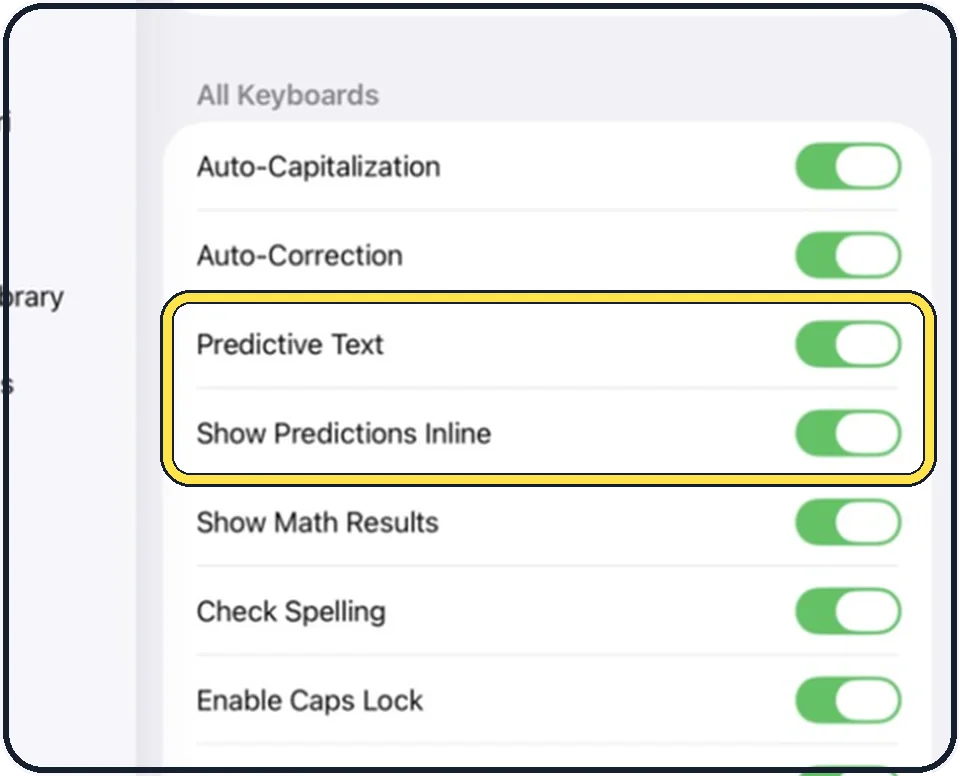
Decide about Predictive Text
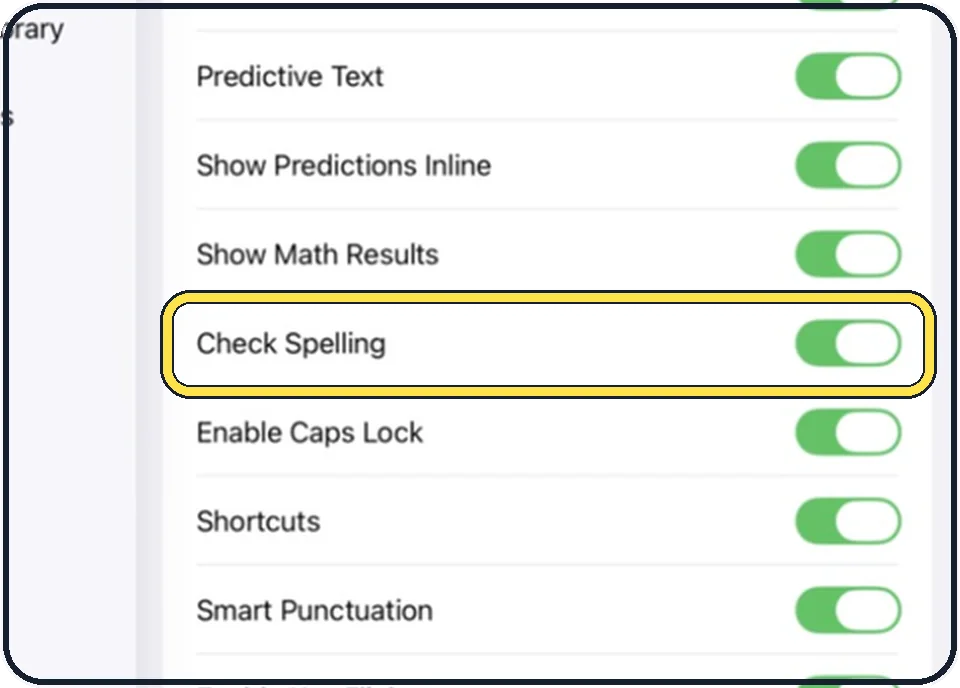
Predictive Text shows word suggestions above the keyboard. Show Predictions Inline, one row lower, shows the suggestion in grey inside your text.
Keep or drop Check Spelling
Check Spelling is a separate switch, so the spell check can stay on while Auto-Correction is off.
Look at the full stop shortcut
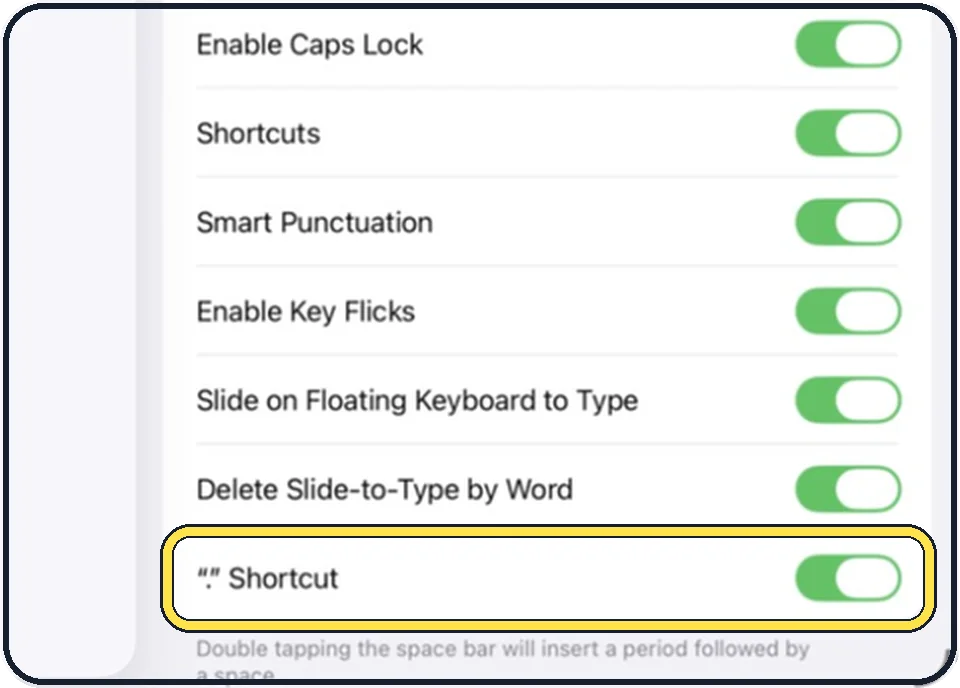
The last switch in the list is the "." Shortcut: tapping the space bar twice inserts a full stop followed by a space.
Good to know
While Auto-Correction is on, a corrected word is underlined for a moment. Tap the underlined word to get your original spelling back.
To reach the same page from the keyboard, touch and hold the emoji or globe key and tap Keyboard Settings.
For words you type often, Text Replacement at the top of the Keyboard page turns a short code into a full phrase.
In short: Settings, General, Keyboard, All Keyboards, Auto-Correction off.
- Apple Support: Type with the onscreen keyboard on iPad
- Apple Support: How to use Auto-Correction and predictive text on your iPhone, iPad, or iPod touch
Links checked on 3 October 2026. Rules and prices change. Check the official source before you act.