How to mute an Apple Watch by covering it with your hand
2 min read · 3 steps · Updated 4 October 2026
When the watch rings or an alert sounds, rest the palm of your hand on the display for at least 3 seconds. A tap on your wrist confirms that it is muted. The gesture is called Cover to Mute and is on by default. If it does not work, open Settings, tap Gestures and switch on Cover to Mute.
- Device
- Apple Watch
- Shown on
- watchOS 26 (Apple Watch)
- App
- Settings
- Real screenshots
- 3 of 3 steps
- Checked
- October 2026
- Sources
- 2 official, linked below
A watch that rings in a meeting or a timer that goes off at night needs to be quiet at once. Covering the display with your palm does that. Apple adds that you can still take follow-up action afterwards, such as answering the call or resetting the timer.
The screenshots show watchOS 26.5 on an Apple Watch Series 11.
Step by step

Open Settings on the watch
Press the Digital Crown to see your apps and tap the Settings gear.
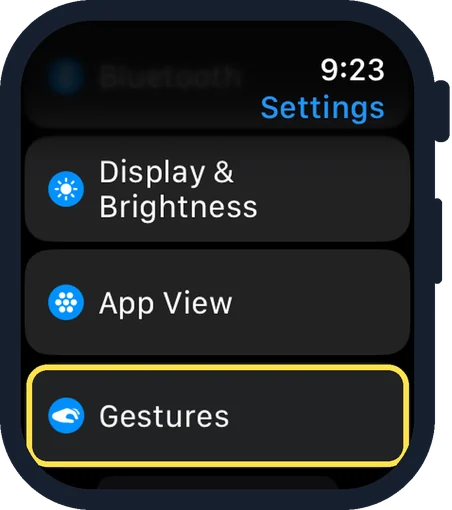
Scroll down and tap Gestures
Gestures is below App View.
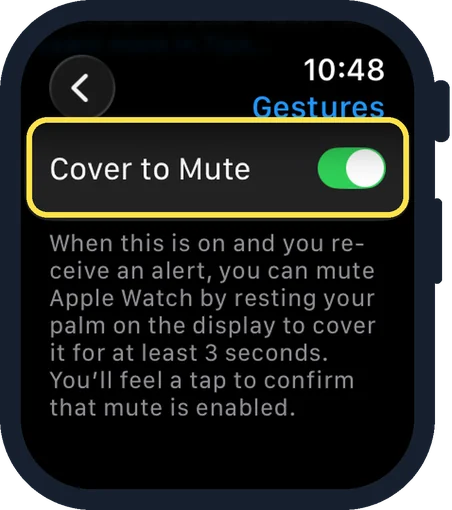
Scroll to the bottom and check Cover to Mute
In the picture it is on. The note below explains the gesture: when you receive an alert, rest your palm on the display to cover it for at least 3 seconds, and you will feel a tap to confirm that mute is enabled.
Good to know
According to an Apple Support article, wake-up alarms are not silenced with this gesture, to avoid accidental cancellations during sleep.
For quiet over a longer time: how to turn on Silent Mode on an Apple Watch.
In short: Palm on the display for 3 seconds. Setting: Settings, Gestures, Cover to Mute.
- Apple Watch User Guide: Use gestures for notifications and alerts on Apple Watch
- Apple Support: Change the volume, audio, and haptic settings on your Apple Watch
Links checked on 3 October 2026. Rules and prices change. Check the official source before you act.