How to change when an Apple Watch returns to the watch face
2 min read · 4 steps · Updated 4 October 2026
On the watch, open Settings, tap General, then Return to Clock, and choose Always, After 2 minutes or After 1 hour. After 2 minutes is the setting at first.
- Device
- Apple Watch
- Shown on
- watchOS 26 (Apple Watch)
- App
- Settings
- Path
- Settings › General › Return to Clock
- Real screenshots
- 4 of 4 steps
- Checked
- October 2026
- Sources
- 1 official, linked below
Return to Clock is the setting for when the Apple Watch goes back to the watch face. The Settings page offers three choices and nothing else, so this guide rests on that screen. A longer time helps when you follow a recipe or a shopping list in an app.
The screenshots show watchOS 26.5 on an Apple Watch Series 11.
Step by step
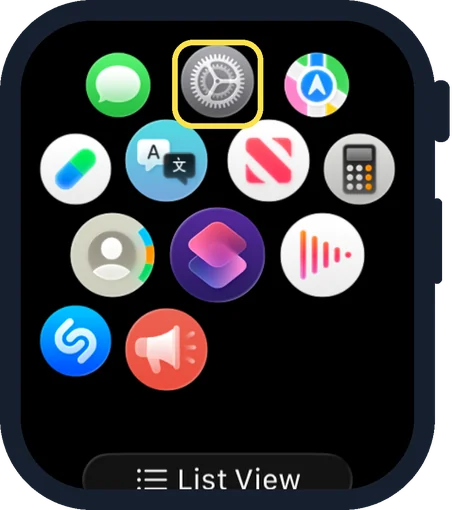
Open Settings on the watch
Press the Digital Crown to see your apps and tap the Settings gear.
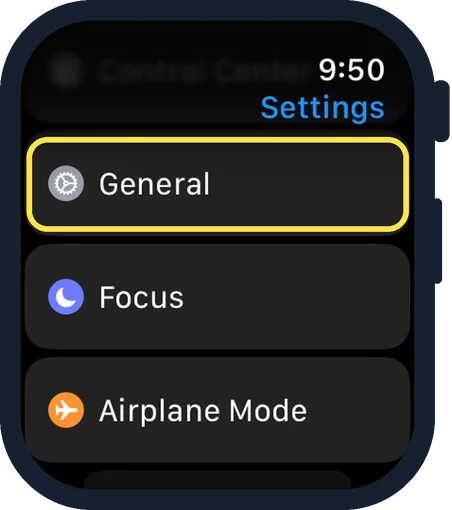
Tap General
General is the fourth row of Settings, below Control Center.
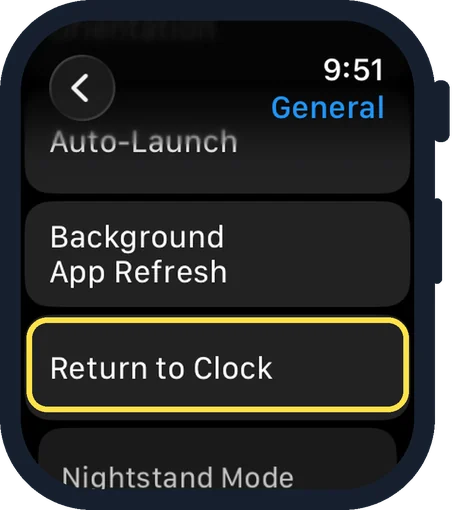
Scroll down and tap Return to Clock
It is below Background App Refresh.
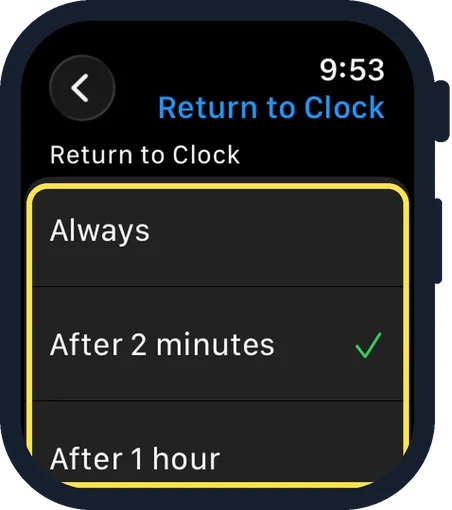
Choose a time
There are three choices under Return to Clock: Always, After 2 minutes and After 1 hour. The tick shows the active one.
Good to know
You browse the Settings app on the watch by swiping up or down or by turning the Digital Crown.
In short: Settings, General, Return to Clock, choose a time.
Links checked on 3 October 2026. Rules and prices change. Check the official source before you act.