How to remove the red dot from the Apple Watch face
2 min read · 3 steps · Updated 4 October 2026
On the watch, open Settings, tap Notifications and switch off Notifications Indicator. The red dot at the top of the watch face means you have unread notifications. With the switch off, it no longer appears.
- Device
- Apple Watch
- Shown on
- watchOS 26 (Apple Watch)
- App
- Settings
- Path
- Settings › Notifications
- Real screenshots
- 3 of 3 steps
- Checked
- October 2026
- Sources
- 1 official, linked below
A red dot at the top of the watch face shows that there are notifications you have not read. They are kept in Notification Center, which you open by swiping down on the watch face. If the dot bothers you, one switch keeps it from appearing. The notifications themselves stay.
The screenshots show watchOS 26.5 on an Apple Watch Series 11.
Step by step
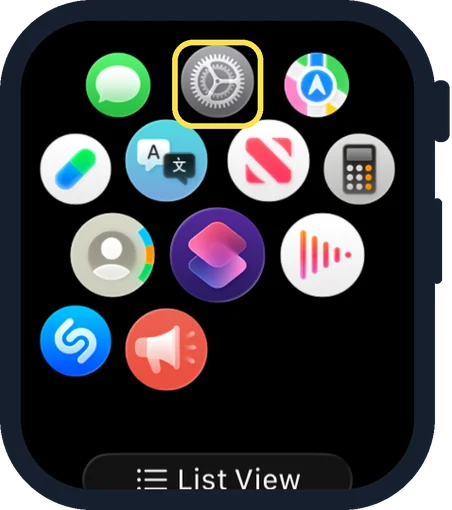
Open Settings on the watch
Press the Digital Crown to see your apps and tap the Settings gear.
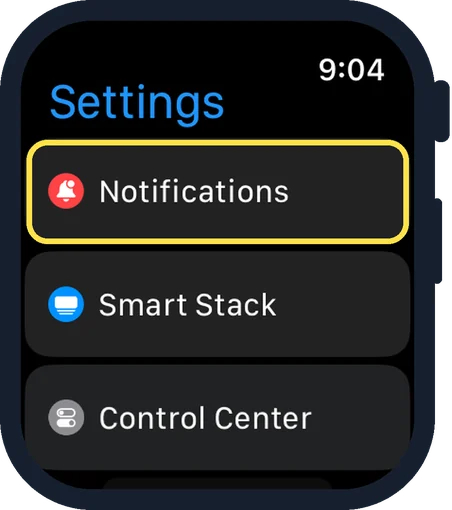
Tap Notifications
It is the first row of Settings.
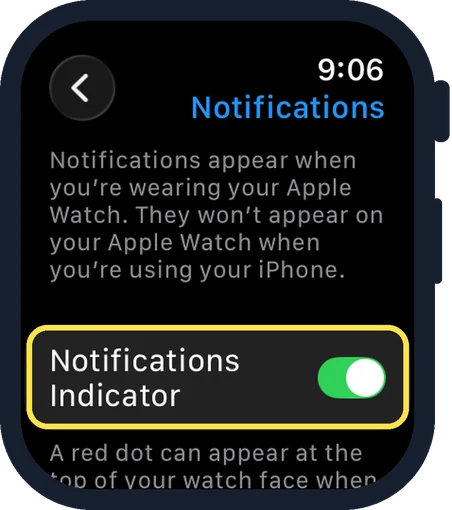
Switch off Notifications Indicator
In the picture it is on. The note below says a red dot can appear at the top of your watch face.
Good to know
To read what you missed: from the watch face, swipe down to open Notification Center. From other screens, touch and hold the top of the screen, then swipe down.
To clear all notifications, scroll to the top of Notification Center and tap Clear All.
In short: Settings, Notifications, Notifications Indicator off.
Links checked on 3 October 2026. Rules and prices change. Check the official source before you act.