How to wear an Apple Watch on the right wrist
2 min read · 5 steps · Updated 4 October 2026
On the watch, open Settings, tap General, then Orientation. Under Wrist, tap Right. Under Digital Crown, choose the side the crown should be on. The watch then wakes when you raise that wrist, and turning the crown moves things in the direction you expect.
- Device
- Apple Watch
- Shown on
- watchOS 26 (Apple Watch)
- App
- Settings
- Path
- Settings › General › Orientation
- Real screenshots
- 5 of 5 steps
- Checked
- October 2026
- Sources
- 1 official, linked below
An Apple Watch is set up for the left wrist with the Digital Crown on the right. If you move it to your other wrist, or want the crown on the other side, tell the watch. Apple names the two things that depend on it: raising your wrist wakes the watch, and the Digital Crown scrolls the expected way.
The screenshots show watchOS 26.5 on an Apple Watch Series 11.
Step by step
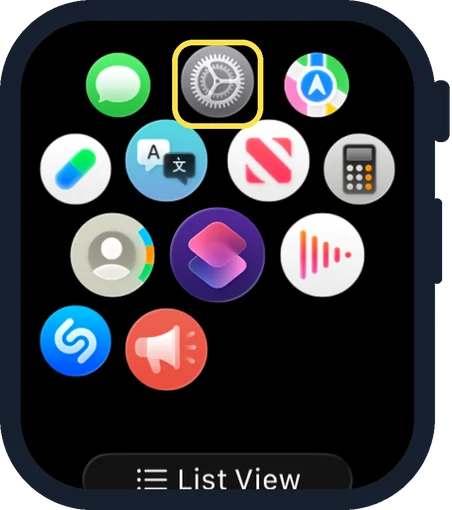
Open Settings on the watch
Press the Digital Crown to see your apps and tap the Settings gear.
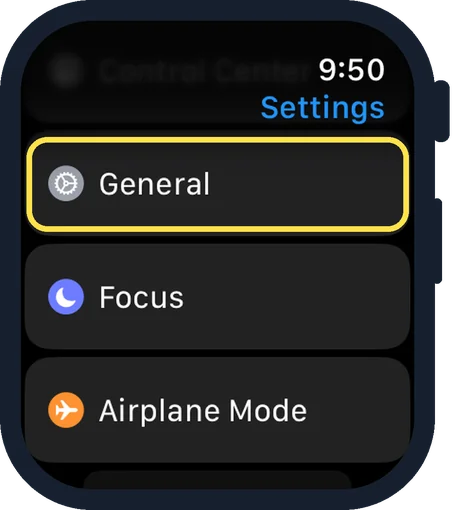
Tap General
General is the fourth row of Settings, below Control Center.
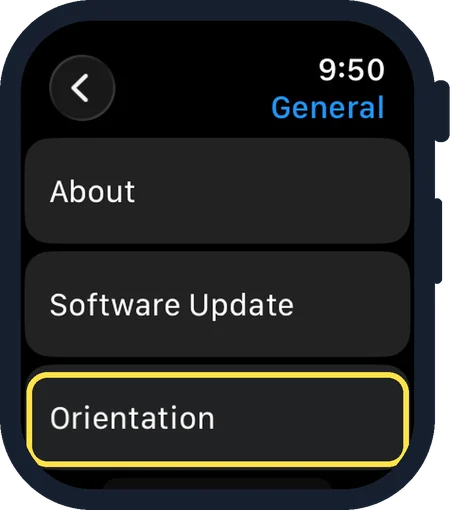
Tap Orientation
It is the third row, below Software Update.
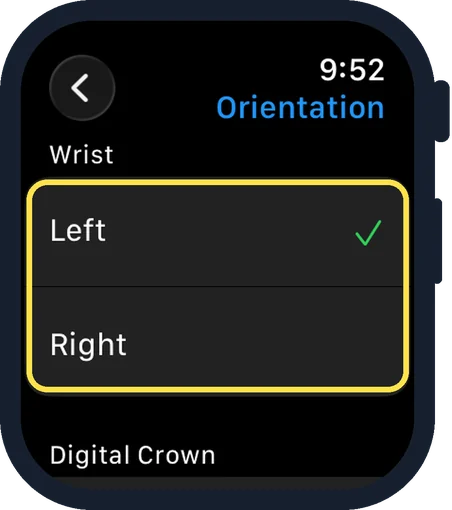
Choose the wrist
Under Wrist, tap Left or Right. In the picture the tick is on Left.
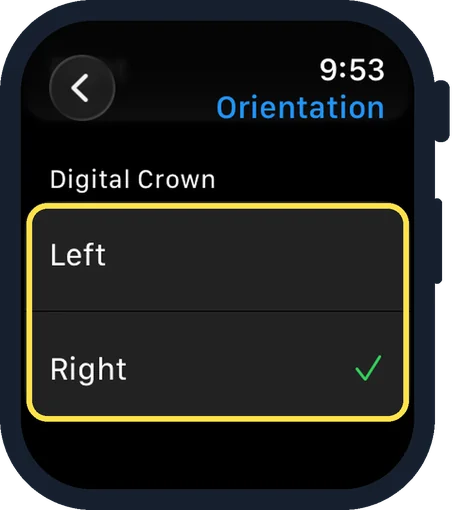
Choose the side of the Digital Crown
Scroll down to Digital Crown and tap Left or Right. In the picture the tick is on Right.
Good to know
The same settings are on the iPhone: open the Apple Watch app, tap My Watch, tap General, then Watch Orientation.
In short: Settings, General, Orientation, choose wrist and crown side.
Links checked on 3 October 2026. Rules and prices change. Check the official source before you act.