How to make the Apple Watch screen easier to read
2 min read · 6 steps · Updated 4 October 2026
On the watch, open Settings and tap Accessibility. Switch on On/Off Labels to mark every switch with a line or a circle, Increase Contrast for stronger colour contrast between text and background, and Show Borders to outline what is on the screen. Larger and bolder text are on the same page.
- Device
- Apple Watch
- Shown on
- watchOS 26 (Apple Watch)
- App
- Settings
- Path
- Settings › Accessibility: On/Off Labels › Show Borders › Increase Contrast › Grayscale
- Real screenshots
- 6 of 6 steps
- Checked
- October 2026
- Sources
- 1 official, linked below
The Accessibility page of the watch collects the settings that change how things look. None of them needs the iPhone, and each is a single switch. Apple notes that the watch has to restart before grayscale and bold text take effect.
The screenshots show watchOS 26.5 on an Apple Watch Series 11.
Step by step
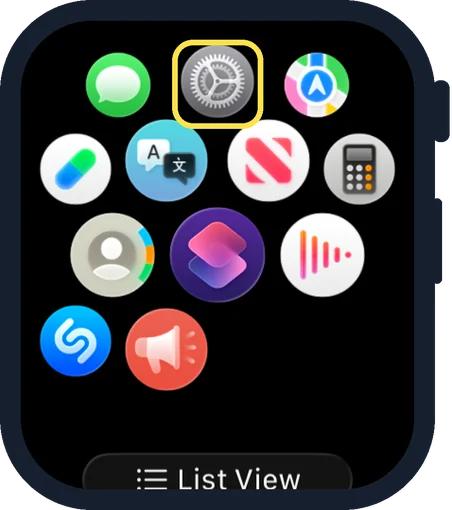
Open Settings on the watch
Press the Digital Crown to see your apps and tap the Settings gear.
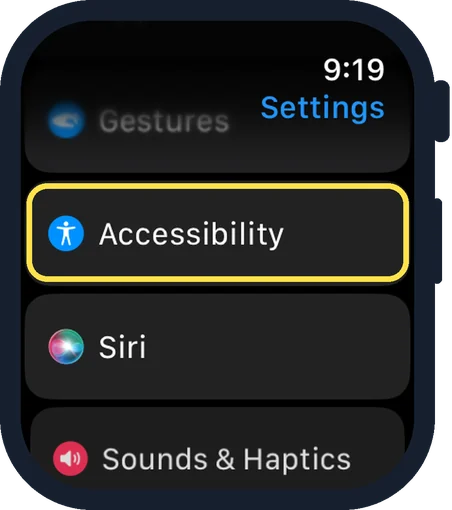
Scroll down and tap Accessibility
It is below Gestures and above Siri.
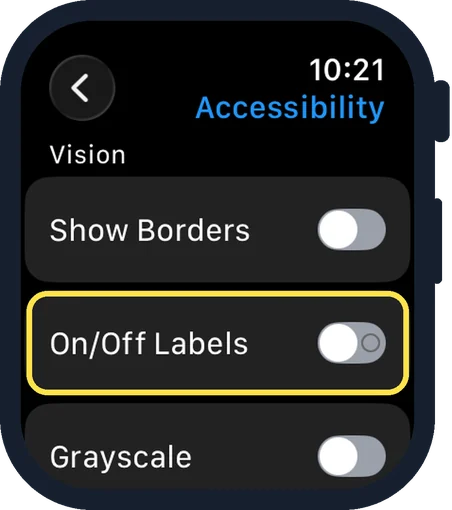
Switch on On/Off Labels
It adds visual indicators to switches: a vertical line shows when a switch is on, and a circle shows when it is off. In the picture the circle is already visible in this switch.
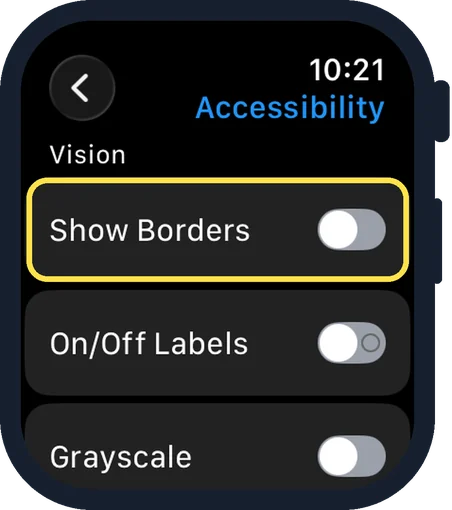
Switch on Show Borders
It shows the outline of onscreen elements.
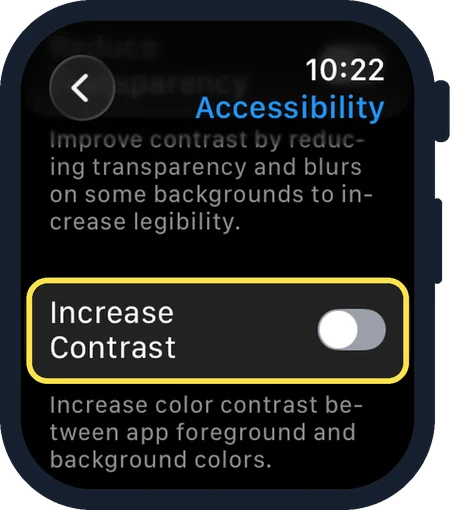
Switch on Increase Contrast
Scroll down a little. The note below reads: increase color contrast between app foreground and background colors.
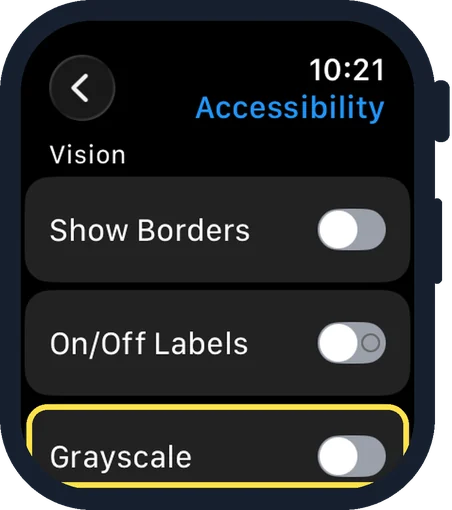
Try Grayscale
Grayscale shows the entire screen without colour. Restart the watch for it to take effect.
Good to know
Reduce Transparency, on the same page, improves the readability of text against backgrounds.
Text size: how to make text bigger on an Apple Watch. Bold text: how to turn on bold text on an Apple Watch.
All of these are also in the Apple Watch app on the iPhone: tap My Watch, then Accessibility.
In short: Settings, Accessibility: On/Off Labels, Show Borders, Increase Contrast, Grayscale.
Links checked on 3 October 2026. Rules and prices change. Check the official source before you act.