How to hide notification details on an Apple Watch
2 min read · 4 steps · Updated 4 October 2026
On the watch, open Settings, tap Notifications, scroll down and switch on Tap to Show Full Notification. The watch then shows only a summary when a notification arrives, and the full details appear when you tap the screen or double tap your fingers.
- Device
- Apple Watch
- Shown on
- watchOS 26 (Apple Watch)
- App
- Settings
- Path
- Settings › Notifications
- Real screenshots
- 4 of 4 steps
- Checked
- October 2026
- Sources
- 1 official, linked below
A message that arrives on your wrist can be read by whoever sits next to you. The watch has a switch for that: it hides the full details of a notification behind a summary until you ask for them.
The screenshots show watchOS 26.5 on an Apple Watch Series 11.
Step by step
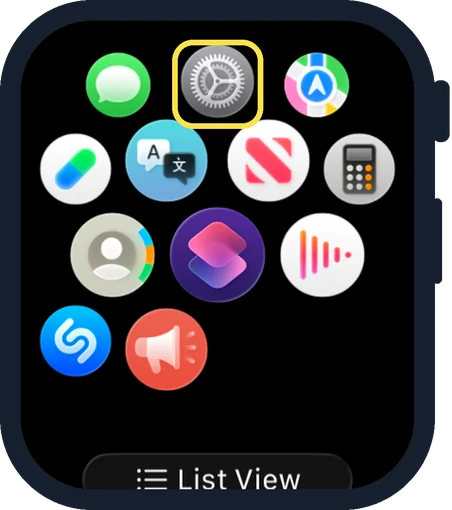
Open Settings on the watch
Press the Digital Crown to see your apps and tap the Settings gear.
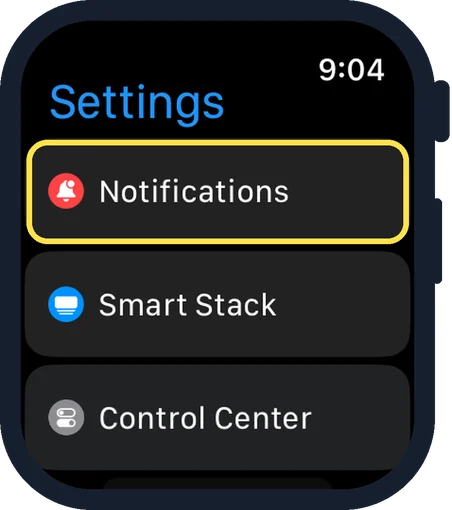
Tap Notifications
It is the first row of Settings.
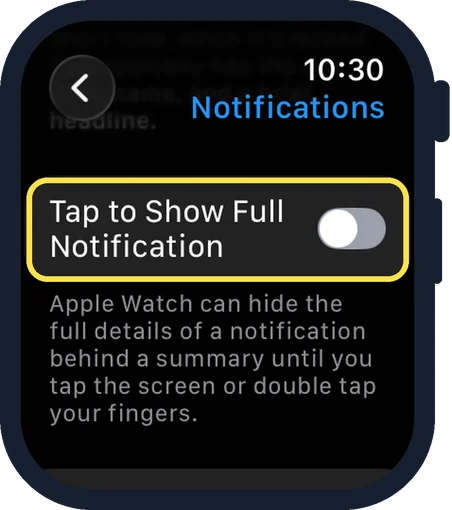
Scroll down and switch on Tap to Show Full Notification
In the picture it is off. The note below reads: Apple Watch can hide the full details of a notification behind a summary until you tap the screen or double tap your fingers.
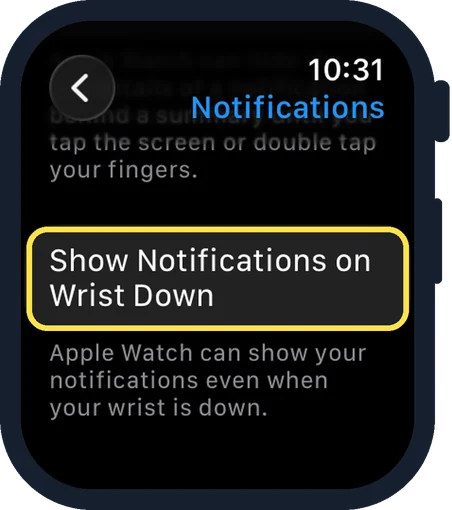
Look at Show Notifications on Wrist Down
This is the next row. According to the note, the Apple Watch can show your notifications even when your wrist is down.
Good to know
The page starts with a reminder: notifications appear on the watch when you are wearing it, and not while you are using your iPhone.
The red dot for unread notifications has its own switch: how to remove the red dot from the Apple Watch face.
In short: Settings, Notifications, Tap to Show Full Notification on.
Links checked on 3 October 2026. Rules and prices change. Check the official source before you act.